Getting Started
Provides initial procedures for getting started with the device.
Components
|
|
|
|
|
| BioStation 3 | Wall Bracket | Drilling Template | Quick Guide | Connection Cables |
|
|
|
|
|
| Diode | 120 Ω Resistor | PVC Anchors x2 | Fixing Screws x2 | Bracket Fixing Screw (Star Shaped) |
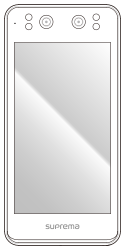
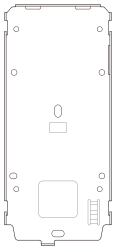
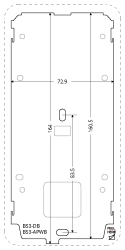
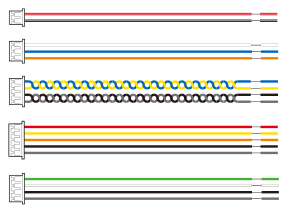

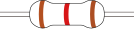


- Components may vary according to the installation environment.
- When assembling the product with the bracket, you can use the included bracket fixing screw (Star Shaped) instead of the product fixing screw for enhanced security.
Name and function of each part
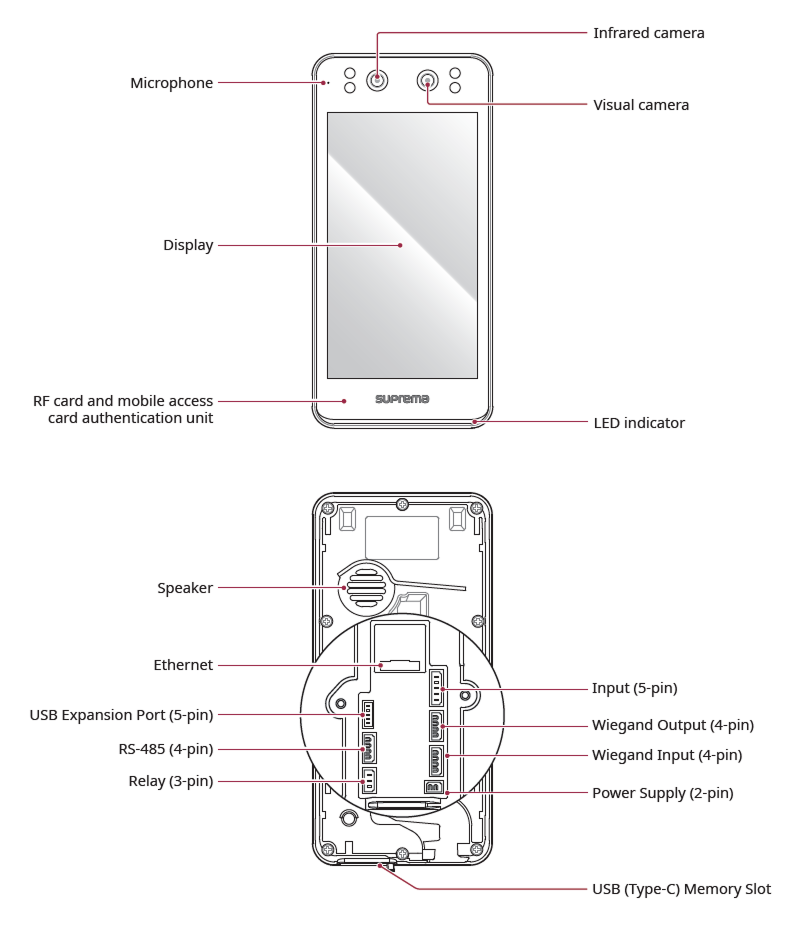
-
Microphone: Transmits the voice of the user when the interphone is connected.
- Covering or blocking the microphone may interfere with voice transmission.
-
Infrared Camera: Capture the infrared face image.
-
Visual Camera: Capture an actual face image.
-
Display: Provides a UI for operation.
-
RF card and mobile access card authentication unit: Part to scan a RFID card or mobile access card for entrance.
-
LED Indicator: Indicates the operational status of the device with the color of the LED.
-
Green: Authentication success.
-
Red: Authentication failure.
-
Blue: Normal operation.
-
Blue/Green blinking:
-
When setting DHCP to use, unable to retrieve IP address.
-
When in Slave mode, the connection to the master device is disconnected.
-
-
Red/Purple blinking: Device is locked.
-
Yellow blinking: Waiting for input.
-
-
Speaker: Delivers sound.
-
Ethernet: Connect the Ethernet cable.
-
Input (5-pin): Connect the input cable.
-
USB Expansion Port (5-pin): Connect other accessory products.
-
Wiegand Output (4-pin): Connect the Wiegand Output cable.
-
Wiegand Input (4-pin): Connect the Wiegand Input cable.
-
RS-485 (4-pin): Connect the RS-485 cable.
-
Relay (3-pin): Connect the Relay cable.
-
Power Supply (2-pin): Connects the power supply cable.
-
USB (Type-C) Memory Slot: Connects the USB memory.
Cables and connectors
Power

| Pin | Name | Color |
|---|---|---|
| 1 | PWR +VDC | Red (White stripe) |
| 2 | PWR GND | Black (White stripe) |
Relay

| Pin | Name | Color |
|---|---|---|
| 1 | RLY NO | White |
| 2 | RLY COM | Blue |
| 3 | RLY NC | Orange |
RS-485

| Pin | Name | Color |
|---|---|---|
| 1 | 485 TRXP | Blue |
| 2 | 485 TRXN | Yellow |
| 3 | 485 GND | Black |
| 4 | SH GND | Gray |
Input

| Pin | Name | Color |
|---|---|---|
| 1 | INPUT0 | Red |
| 2 | INPUT1 | Yellow |
| 3 | INPUT2 | Orange |
| 4 | INPUT GND | Black |
| 5 | SH GND | Gray |
Wiegand input

| Pin | Name | Color |
|---|---|---|
| 1 | WG D0 | Green |
| 2 | WG D1 | White |
| 3 | WG GND | Black |
| 4 | SH GND | Gray |
Wiegand output
| Pin | Name | Color |
|---|---|---|
| 1 | WG D0 | Green |
| 2 | WG D1 | White |
| 3 | WG GND | Black |
| 4 | SH GND | Gray |
Correct face enrollment and authentication method
Cautions for enrolling a faces
- Keep the distance between the device and your face at 60-100 cm when enrolling your face.
-
Do not change your face expression.
-
Do not wear masks, hats, or eye patches.
-
Do not enroll a face wearing a mask. It may increase the False Acceptance Rate (FAR) if both faces with and without a mask are enrolled.
-
Do not raise head up or lower head.
-
Do not wear thick makeup.
-
Do not close your eyes.
- Make sure that both of your shoulders correctly appear on the screen.
- Stand still and enroll your face by staring at the screen.
-
Be careful not to display two faces on the screen. Enroll one person at a time.
-
If you do not follow the instructions on the screen, the face enrollment may take longer or may fail.
Cautions for authenticating a face
- Ensure that the face appears in the center of the device’s screen. When the guideline is displayed, follow the instructions shown on the screen to authenticate the face.
-
If a part of the face is covered with a hat, a mask, an eye patch, or sunglasses authentication may fail. Do not cover the face; allow the device to recognize both the eyebrows and the face.
-
Authenticate at a location 60~100 cm away from the device.
- Make sure that both of your shoulders correctly appear on the screen. Authentication may fail if your shoulders are not at the same height. Stand still, and then authenticate your face.
Note for QR code usage and device license
How to scan a QR code
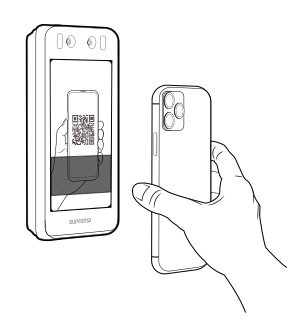
You can issue a QR code to a user and use it as an authentication method. Scan the QR code properly by following the instructions on the screen to increase the recognition rate.
-
Keep the distance between the device's camera and the QR code at 30~40 cm.
-
Position the QR code in the center of the scan screen of the device.
-
When authenticating with the QR code downloaded to your smartphone, adjust the brightness of your smartphone so that the device can read the QR code clearly.
Notes for device license
-
Using the QR Code authentication requires a separate device license. Contact the place of purchase to issue a device license.
-
The device license file is an encrypted file and cannot be modified arbitrarily.
-
Device licenses are issued based on device ID. If the device ID is changed in an unusual way, the warranty service for the license is not provided.