User
Describes how to register, edit, delete, and manage users.
When using Suprema CLUe mode, user enrollment, editing, and deletion are available only on the Suprema CLUe server, not on the device.
Registering user information
You can register user information that includes biometric authentication data.
-
Press
 , enter the password, and enter the menu.
 -
Select USER →
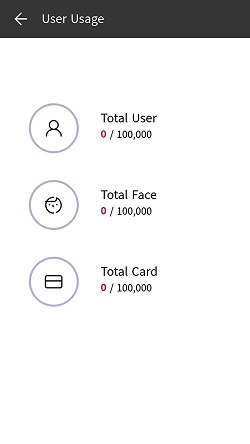
 and set the desired items. User usage information appears.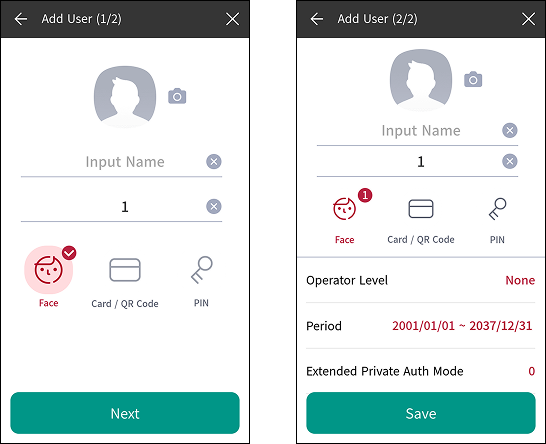
-
 : Register a user photo.
 -
Name: Enter the user name.
-
ID: Enter a number between 1 and 4294967295 to register a user ID. If User ID Type is set to Alphanumeric, you can use a combination of alphanumeric characters and symbols
_-as the ID, with a maximum of 32 characters. -
Face: You can enroll a face for user authentication. Press Face → Next and follow the instructions on the screen to enroll your face. To add more faces, press
. Please refer to Enrolling user faces to learn more about face enrollment. -
Card / QR Code: You can enroll a card for user authentication. Press Card / QR Code → Next, then scan the card to assign it to the user at the RF card authentication unit. To enroll more cards, press Card / QR Code →
. -
PIN: You can enter the PIN you want to use. Press PIN → Next and enter the PIN you want to use. For confirmation, enter the PIN once more and then press OK. Enter a 4- to 16-digit PIN to prevent it from being exposed.
InfoWhen using Master Admin feature, enter at least an 8-digit number.
-
Operator Level: You can select permissions to assign to the user.
InfoAvailable menus vary according to the set user level.
-
None: This is a general user level, and the menu is not available.
-
Administrator: You can use all menus.
-
Configuration: You can use the menus AUTHENTICATION, DISPLAY & SOUND, DEVICE, NETWORK, EVENT LOG.
-
User Management: You can use the menus USER, EVENT LOG.
-
-
Period: You can set the duration for using the user account.
-
Extended Private Auth Mode: You can set the extended personal authentication mode. This mode allows you to combine user authentication methods, including both faces. Otherwise, you can use the device’s basic authentication mode.
-
-
Press Save to complete the registration of user information.
Enrolling user faces
-
Press
, enter the password, and enter the menu. -
Select USER →
. -
Press Face → Next.
-
Adjust a distance between the face and screen and look straight at the camera of the device.
-
After the shooting is complete, press OK → Save. To retake your face picture, press Re-Shot.
Info-
The visual face data of this product are not compatible with face templates of FaceStation 2 or FaceLite.
-
This product's face data can be enrolled not only on the device, but also by uploading a photo to the Suprema CLUe server. Send a face enrollment link to a user to let them enroll their face on their personal mobile device.
-
To use a Visual Face feature correctly, take a picture by following instructions below.
- Keep the distance between the device and your face at 60-100 cm when enrolling your face.
-
Do not change your face expression.
-
Do not wear masks, hats, or eye patches.
-
Do not enroll a face wearing a mask. It may increase the False Acceptance Rate (FAR) if both faces with and without a mask are enrolled.
-
Do not raise head up or lower head.
-
Do not wear thick makeup.
-
Do not close your eyes.
- Make sure that both of your shoulders correctly appear on the screen.
- Stand still and enroll your face by staring at the screen.
-
Be careful not to display two faces on the screen. Enroll one person at a time.
-
If you do not follow the instructions on the screen, the face enrollment may take longer or may fail.
-
Modifying User Information
User Management or Administrator can modify the registered user information. A card or face can be added, and PIN and level can be modified.
-
Press
, enter the password, and enter the menu. -
Click USER →
 .
. -
Select your search terms. You can search for users using All, User ID, Name, Face, Card.
-
Select the user to modify.
-
Modify the information by referring to Registering user information and press OK.
- To delete a user, select
 and then press OK.
- To delete a user, select
Access Group can be enrolled on the Suprema CLUe server.
Delete All Users
You can delete all registered users at once.
-
Press
, enter the password, and enter the menu. -
Select USER →
. -
Select Delete All to check, then press OK.
-
To delete all users, press OK.
View User Usage
You can see the number of registered users, faces, and cards at a glance.
-
Press
, enter the password, and enter the menu. -
Press USER →
 . User usage information appears.