Installation
Provides the complete installation procedures and connection examples required for the device.
Product Fixation
-
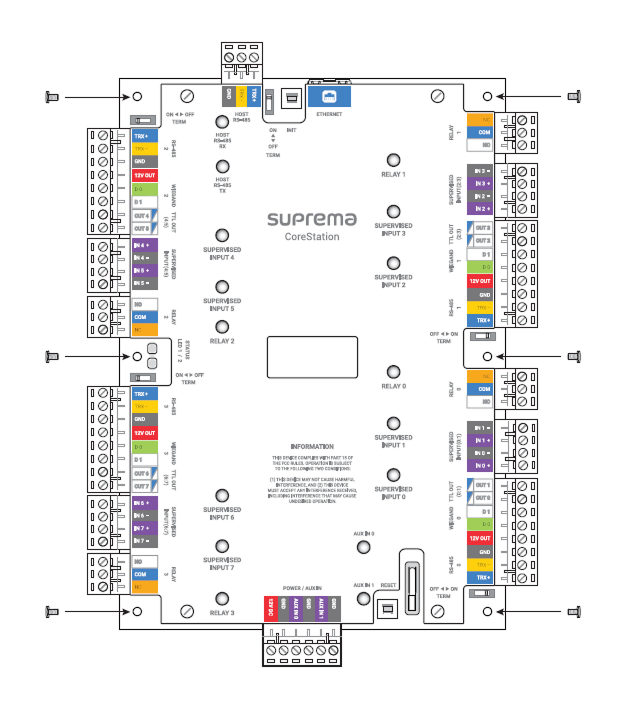
Secure the spacer with fixing screws at the location where the product will be mounted.
-
Tighten the product onto the secured spacer using fixing screws.
-
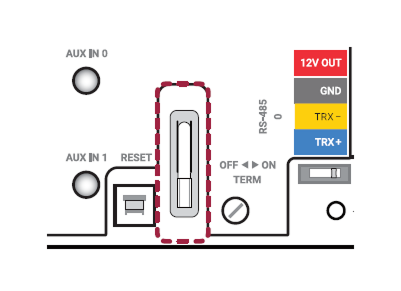
Remove the discharge prevention film attached to the RTC battery.
-
The RTC (Real Time Clock) battery is used to keep accurate time even when the product's power is off.
-
The RTC battery capacity is 226mAh, and the expected lifespan may vary depending on the installation environment and usage method. When replacing the RTC battery, please adhere to CR2032.
Power supply connection

- Make sure to use separate power for the access control device and products.
-
Use the IEC/EN 62368-1 approved power adapter that supports higher power consumption than the product. If you wish to connect and use another device to the power supply adapter, you should use an adapter with a current capacity which is the same or larger than the total power consumption required for the terminal and another device.
- Refer to the Power in the product specifications for maximum current consumption specifications.
- DO NOT extend the length of power cable when using the power adapter.
It is recommended to connect and use an Uninterruptible Power Supply (UPS) to prevent power failure.
Network Connection
TCP/IP
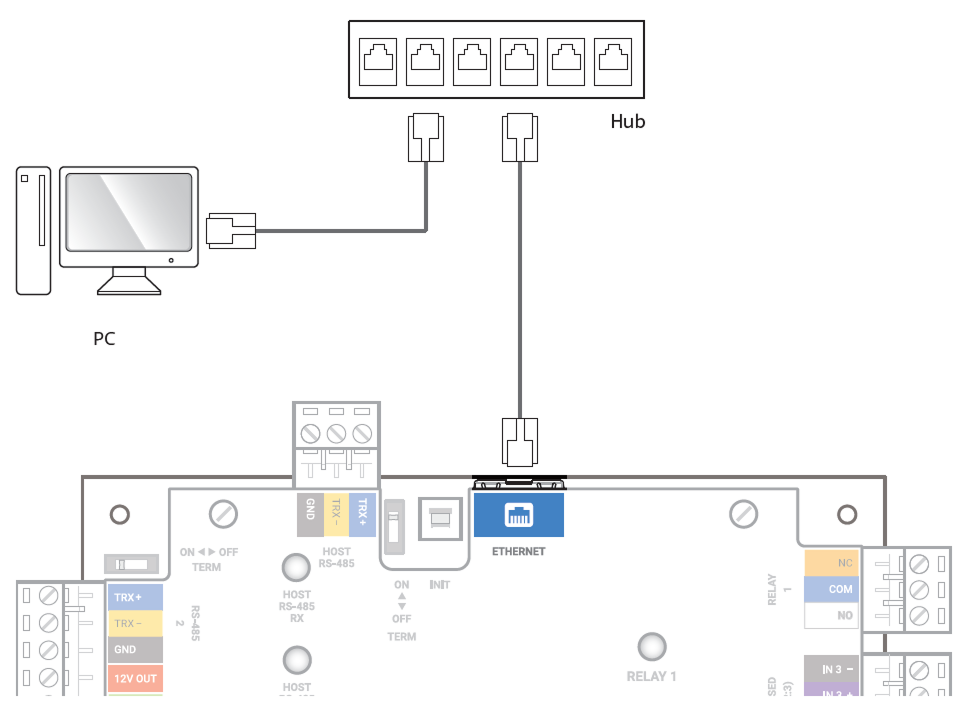
LAN connection (connecting to a hub)
You can connect to a hub using a standard CAT-5 or higher cable.
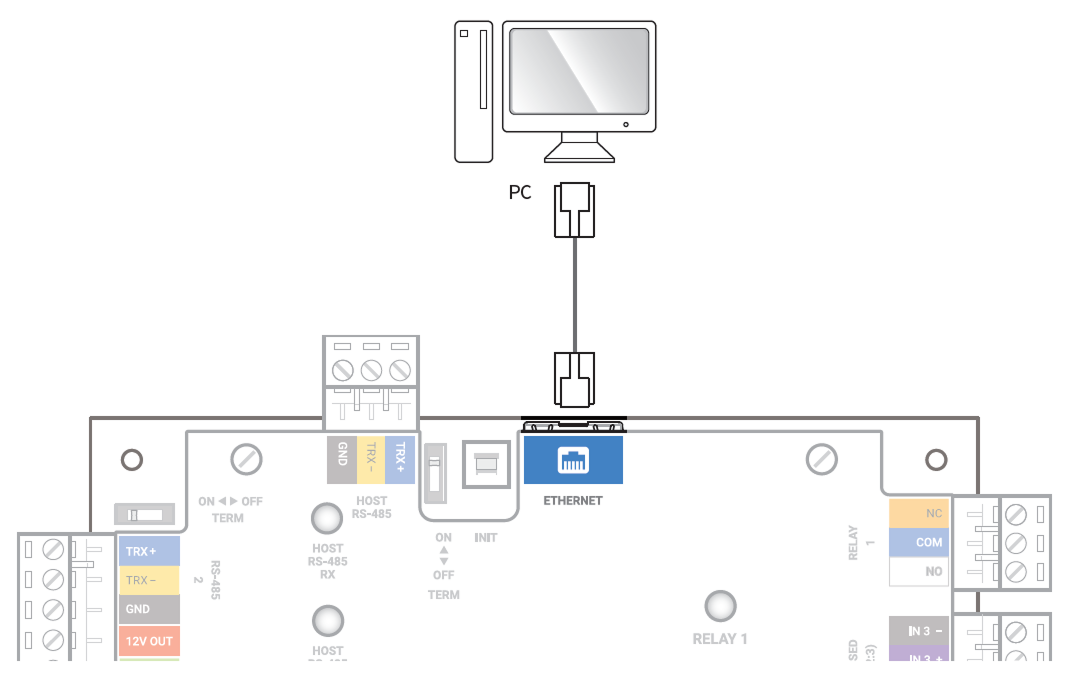
LAN connection (connecting to a PC directly)
This product supports automatic MDI/MDIX, so it can connect directly to a PC using a standard CAT-5e cable.
Network ports and services
This device uses the following ports for network communication and stable service operation.
| Protocol | Service |
|---|---|
| TCP | Used for communication services between the server and the device, and for the device operation status switching service. |
| UDP | Used for the device discovery service to search for devices on the network. |
These ports provide the product’s normal network features. When configuring firewall rules or network security settings, allow these ports.
RS-485 Connection
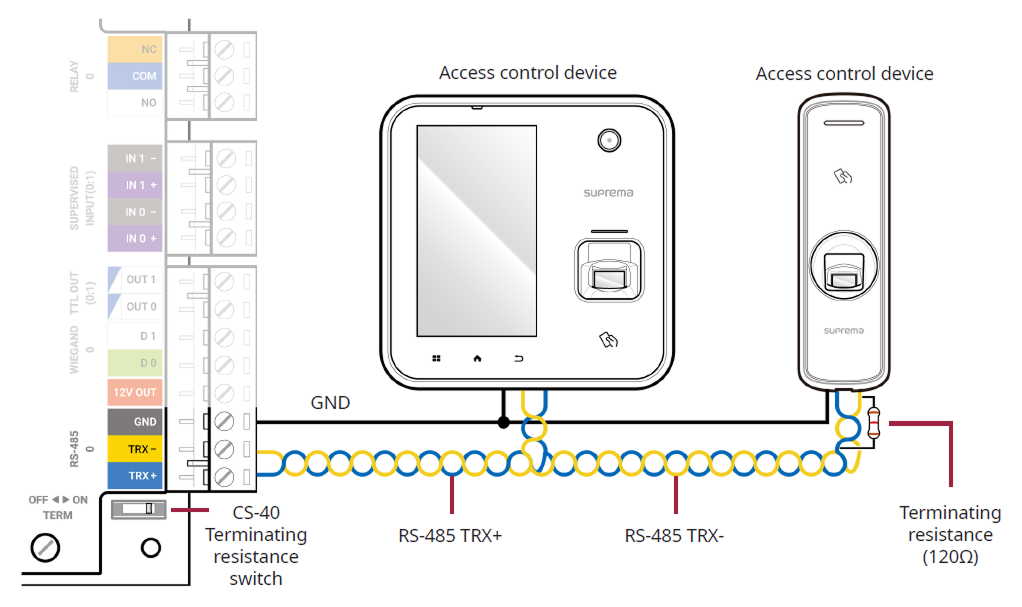
This product supports five RS-485 ports, and a single RS-485 port can connect up to 31 devices.
-
The total number of RS-485 devices connected to the product must not exceed 64.
-
Use AWG26 or larger for RS-485 cables, and all wiring must comply with ANSI/NFPA 70 standards.
-
Use an AWG24 twisted pair with a maximum length of 1.2 km for the RS-485 cable.
-
It is recommended to use RS-485 cables with a characteristic impedance of 120 Ω.
-
Connect termination resistors (120 Ω) at both ends of the RS-485 daisy chain connection. If connected to the middle line, the signal level becomes smaller and the communication performance will deteriorate. Make sure to connect it to both ends of the daisy chain connection. Set this product's termination resistor switch to ON.
Relay Connection
Fail Safe Lock
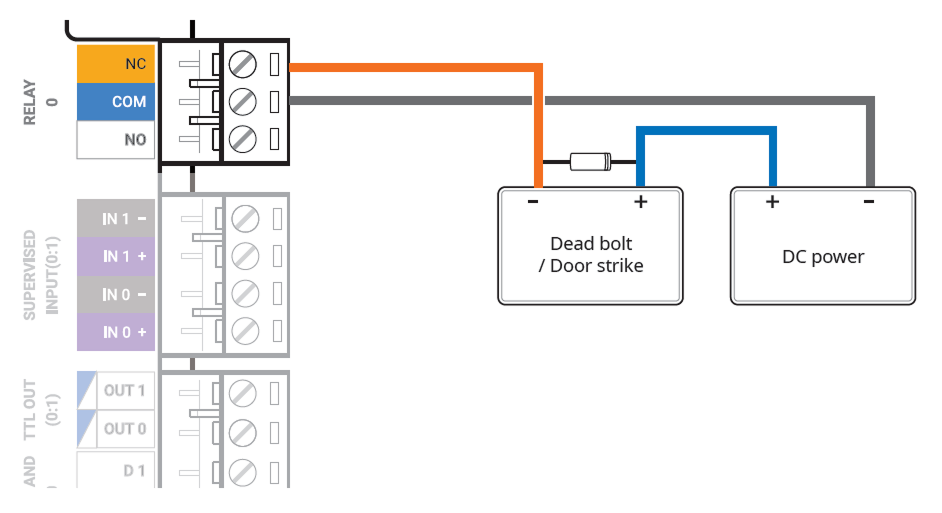
In order to use the Fail Safe Lock, connect the NC relay as shown in the figure below. There is normally a current flowing through the relay for the Fail Safe Lock. When the relay is activated, blocking the current flow, the door will open. If the power supply to the product is cut off due to a power failure or an external factor, the door will open.
Connect a diode to both ends of the power input as shown in the figure below when installing a deadbolt or a door strike. Make sure to connect the Cathode (direction to the stripe) to the + part of the power while paying attention to the direction of the diode.
Fail Secure Lock
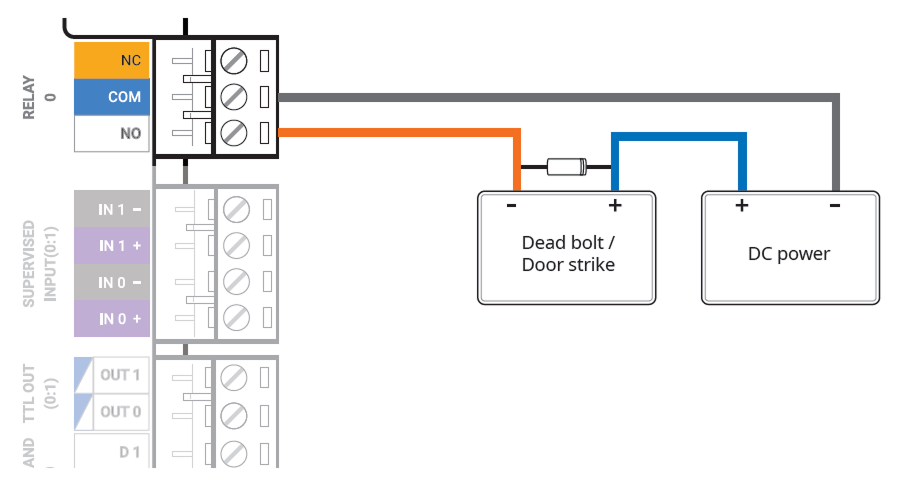
In order to use the Fail Secure Lock, connect NO relay as shown in the figure below. There is normally no current flowing through the relay for the Fail Secure Lock. When the current flow is activated by the relay, the door will open. If the power supply to the product is cut off due to a power failure or an external factor, the door will lock.
Connect a diode to both ends of the power input as shown in the figure below when installing a deadbolt or a door strike. Make sure to connect the Cathode (direction to the stripe) to the + part of the power while paying attention to the direction of the diode.
Wiegand Connection

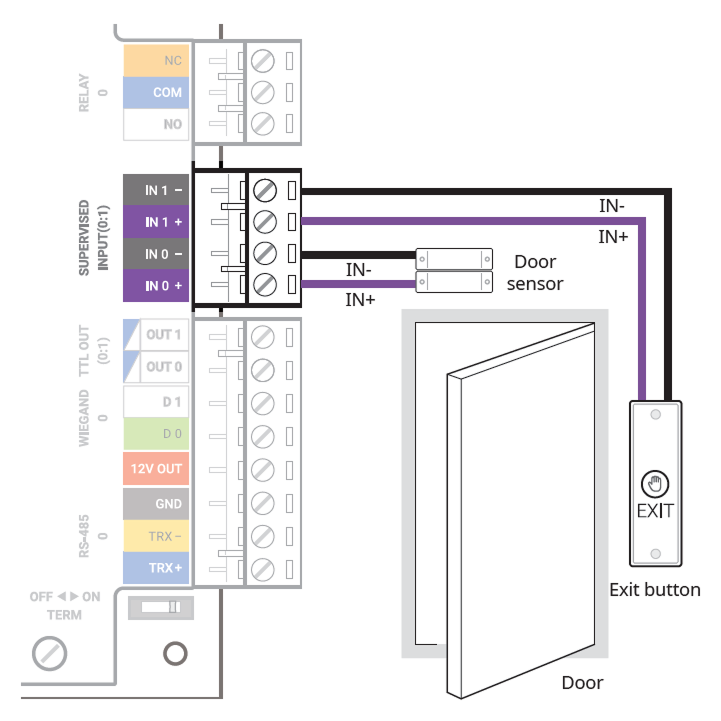
Door sensor and exit button
The SUPERVISED INPUT 0 ~ 7 terminals can be set to be used as general inputs or as Supervised Inputs.
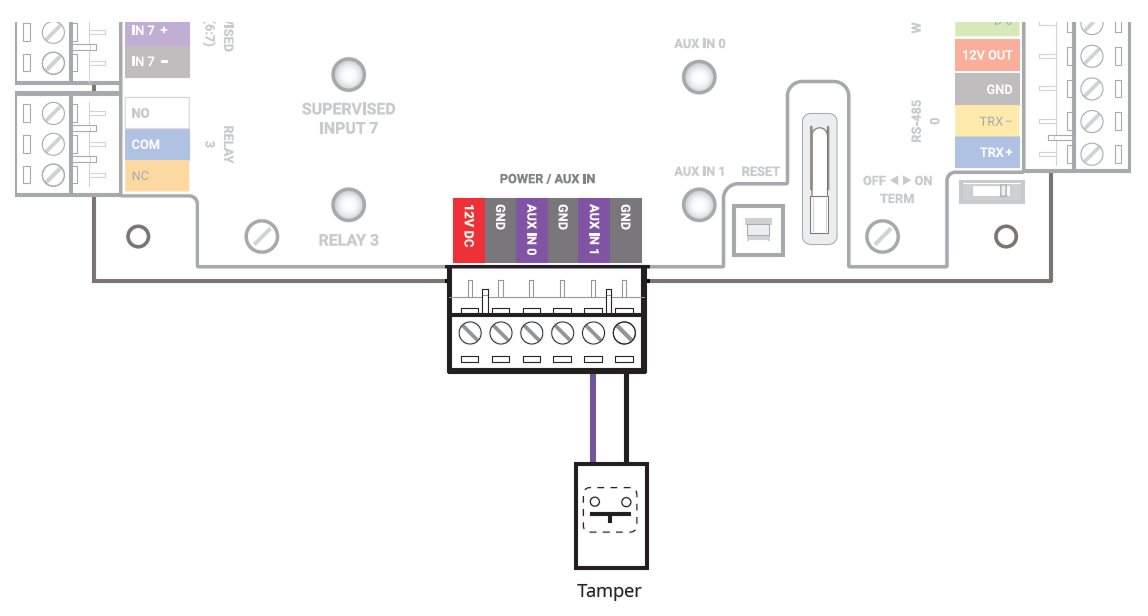
AUX IN
You can connect a power failure detector or tamper to the AUX IN port.
Enclosure installation
For physical and electrical protection, the product can be installed inside the enclosure (ENCR-10). The enclosure includes a power status LED board, power distribution board, power supply, and tamper. The enclosure is sold separately.
Backup battery fixing
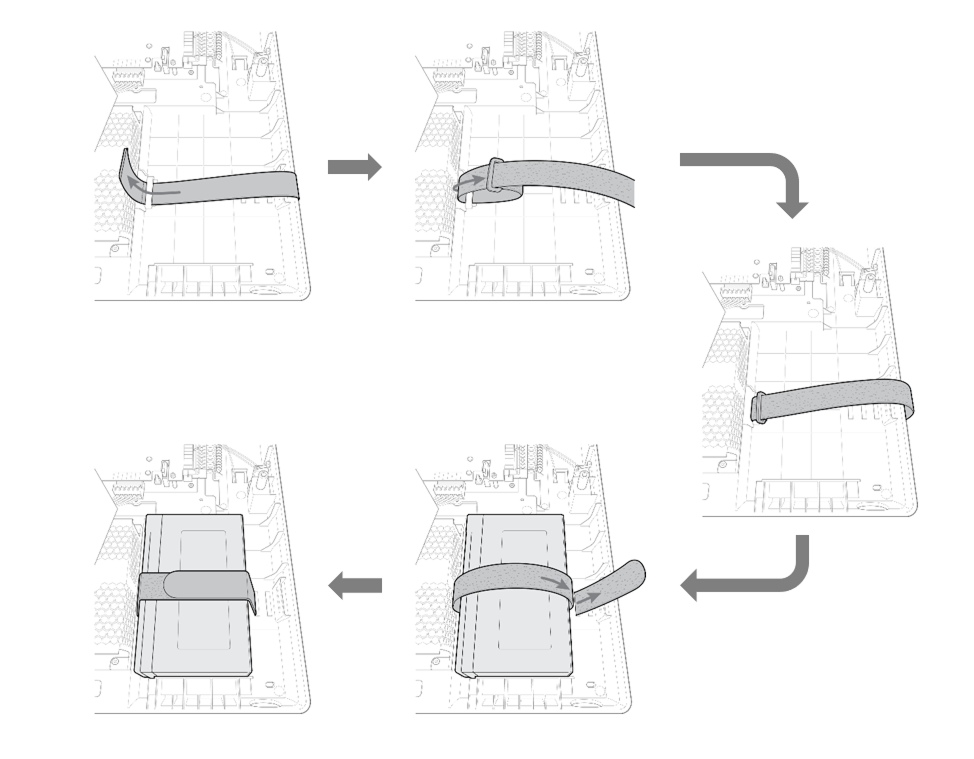
Insert the battery Velcro strap into the case, then secure the battery.
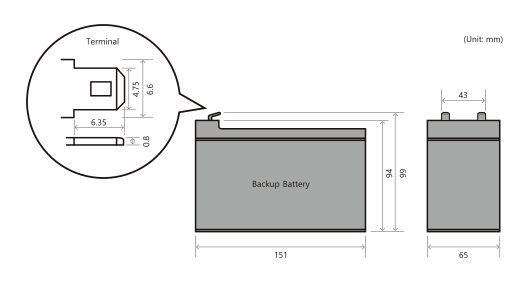
Use a backup battery that is 12 VDC specification and 7 Ah or higher. This product has been tested with the 'ES7-12' product from 'ROCKET', and it is recommended to use products equivalent to 'ES7-12'.
-
The backup battery is sold separately.
-
Be sure to check the size and shape of the backup battery terminals. If the size of the backup battery exceeds the recommended specifications, it may not fit in the case or the case may not close after installation. Additionally, if the shape and size of the terminals are different, you will not be able to connect the battery using the provided cable.
Product Fixation
-
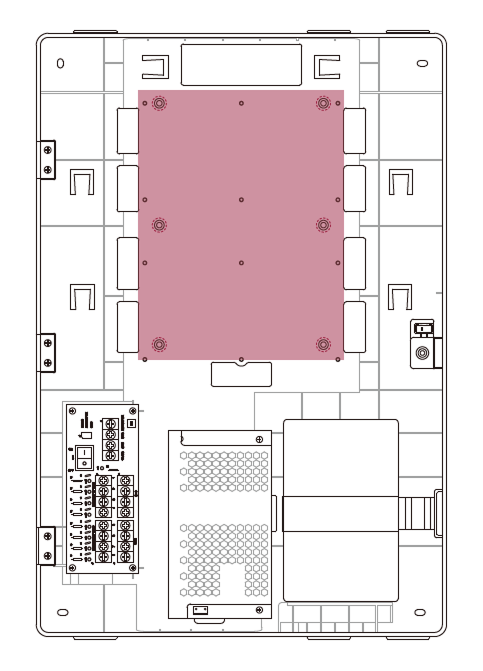
Check the location to mount the product in the enclosure.
-
Place the product in the enclosure according to the mounting location and secure it with screws.
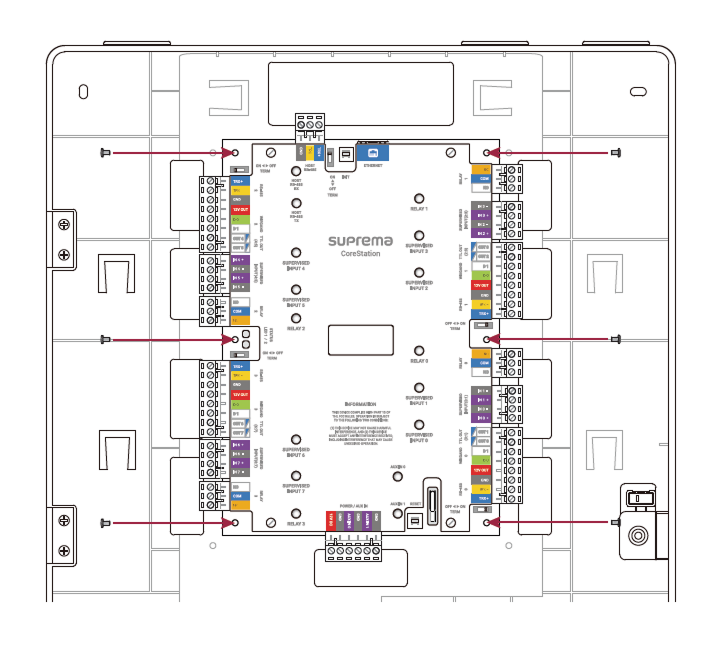
- The ENCR-10 is designed to be mounted on a wall for use. Install it at a safe and convenient height without restrictions on installation height.
-
The ENCR-10 components include screws for housing fixation, screws for product fixation, and screws for power device connection. Use each screw correctly according to its purpose.
-
Fixing screws for the enclosure (diameter: 4 mm, length: 25 mm) x4
-
Fixing screws for the device (diameter: 3 mm, length: 5 mm) x6
-
Fixing screws for the power supply cable (diameter: 3 mm, length: 8 mm) x1
-
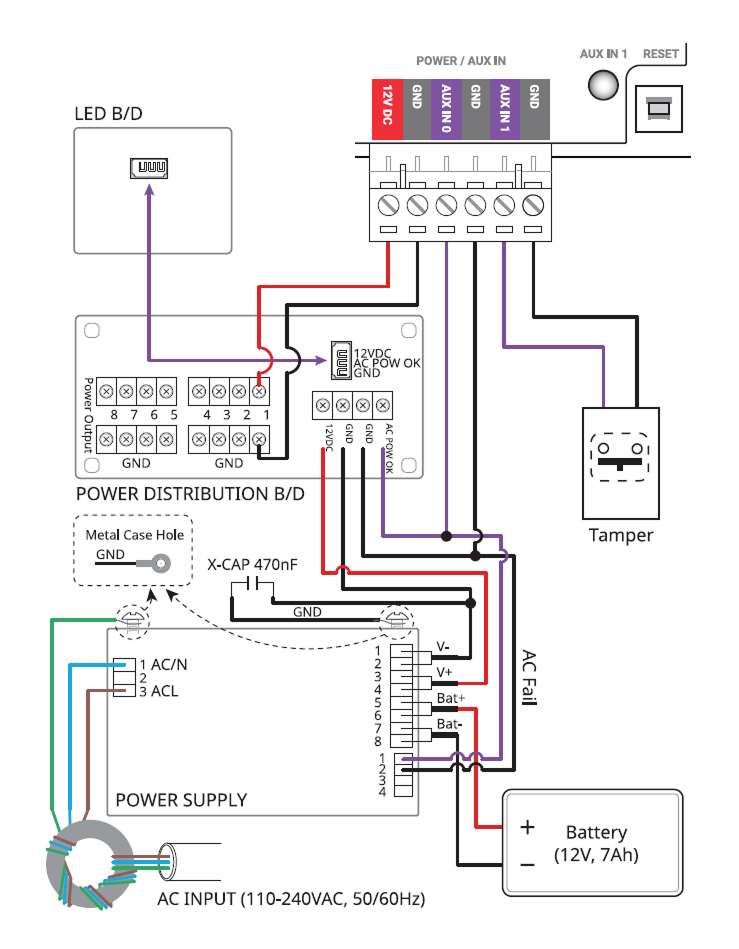
Power and AUX input, tamper connection
To prevent power interruptions, you can connect an uninterruptible power supply (UPS), and contact outputs from power outage detectors or other devices can be connected to the AUX IN terminal.
You can also connect to the tamper to trigger an alarm or leave an event log if the housing opens due to external factors.
-
Make sure to use separate power for the access control device and products.
-
Use the IEC/EN 62368-1 approved power adapter that supports higher power consumption than the product. If you wish to connect and use another device to the power supply adapter, you should use an adapter with a current capacity which is the same or larger than the total power consumption required for the terminal and another device.
- Refer to the Power in the product specifications for maximum current consumption specifications.
-
DO NOT extend the length of power cable when using the power adapter.
-
Use a backup battery that is 12 VDC specification and 7 Ah or higher. This product has been tested with the 'ES7-12' product from 'ROCKET', and it is recommended to use products equivalent to 'ES7-12'.
Factory reset
You can factory reset the CoreStation in the Corestation Setup Manager.
-
Access the Corestation Setup Manager and click CONFIGURE.
-
Click Factory Default.
-
You can only use Factory Default when the root certificate is stored on the device.
-
You can view or manage the network settings of CoreStation and monitor the status of slave devices, input and output ports, and Wiegand ports by accessing the Corestation Setup Manager.
- CoreStation Setup Manager is supported on firmware version 1.3.1 or later. Connect to BioStar X to upgrade to the latest firmware version when using a version lower than 1.3.1.
-
For more information about the CoreStation Setup Manager, see the CoreStation Setup Manager.
-
The latest BioStar X version can be checked when the device is connected to the network and can be reset.
-
For more information, contact the Suprema Technical Support Team.