Set Up IP Device
You can change the settings of the IP device. You can change settings quickly and conveniently compared to changing settings via the management program on a PC or using command cards.
Some settings may not apply if the device's firmware version is low. To apply all settings, refer to Upgrade device firmware to upgrade the firmware.
Change device settings
You can change the device's network, server, RS-485, LED and buzzer, and other settings.
Biometric devices only support network and server settings.
-
Enable Bluetooth on your mobile device and run Suprema Device Manager.
-
Select the IP device from the main screen.
-
Check the device ID to select the device from the list of connectable devices, or bring the mobile device closer to the device to connect.
-
After setting the device password, press OK. Tap
 to display the entered password.Info
-
The device password can be set to a number of 6-32 characters.
-
Be careful not to lose the device password. If you lose the device password, you must initialize the device to connect to it.
-
-
After setting each item, press Apply Device to save.
Network settings
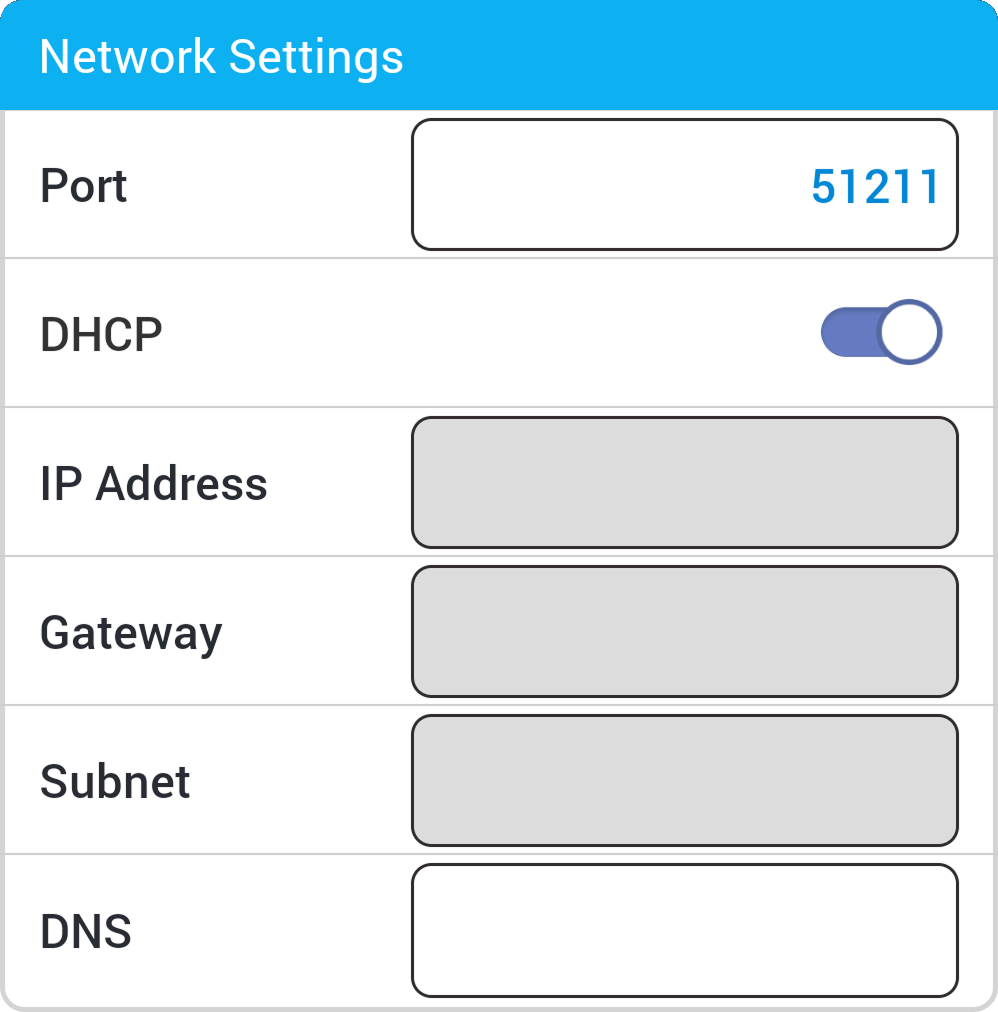
-
Port: Enter the port that the device will use.
-
DHCP: Enable this to allow the device to use dynamic IP. If you enable this option, you cannot enter network information manually.
-
IP Address, Gateway, Subnet: Enter the network information for the device.
-
DNS: Enter the DNS server address.
Server
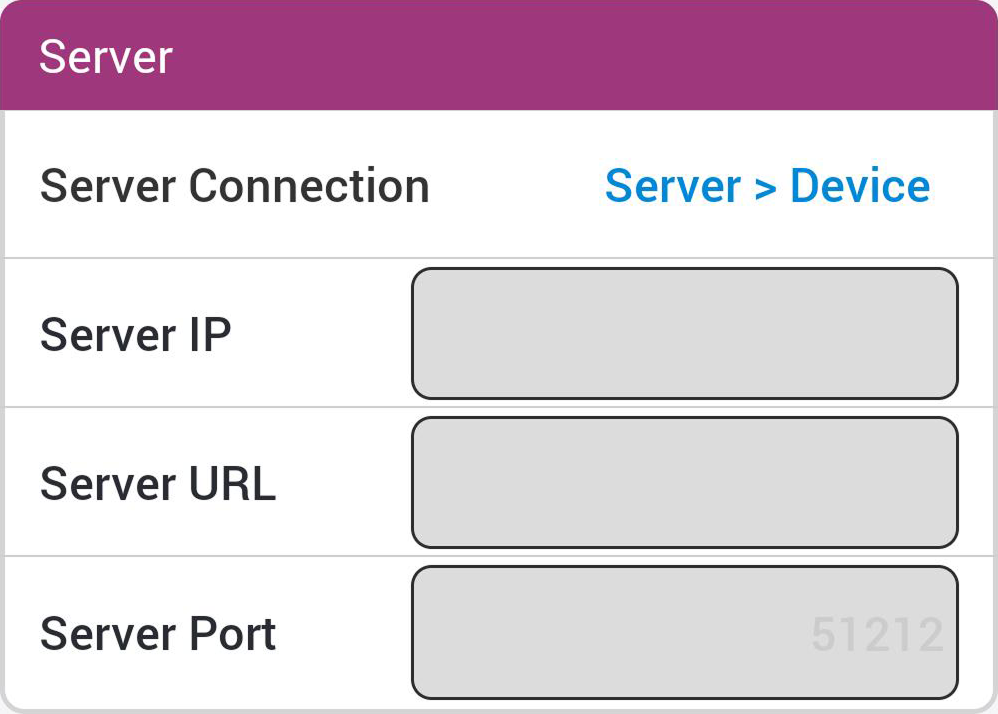
-
Server Connection: You can set the server communication method. To search and connect the device from the server, select Server > Device. To set the server information to connect the device, select Device > Server.
-
Server IP: Enter the server's IP address.
-
Server URL: Enter the server's domain address.
-
Server Port: Enter the server's port.
RS-485
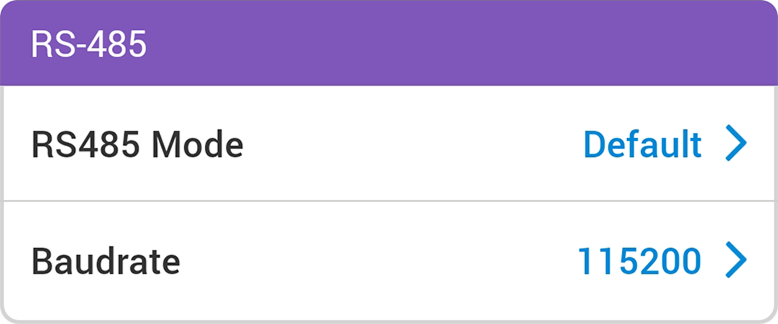
-
RS485 Mode: Set the RS-485 mode.
-
Baudrate: Set the RS-485 transmission speed.
Others
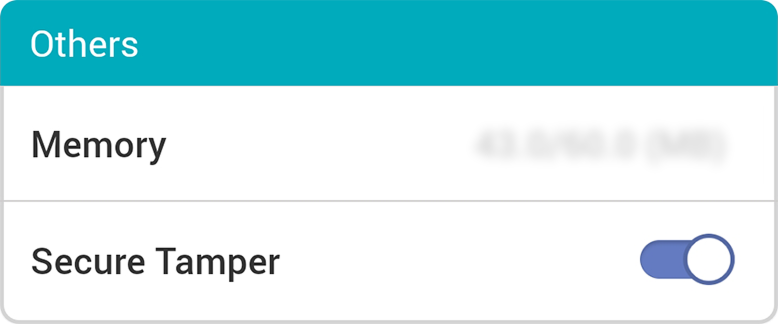
-
Memory: You can check the memory usage status.
-
Secure Tamper: If a tamper event occurs on the device, it can be set to delete all stored user information, logs, and security keys. To use the security tamper feature, activate it.
LED / Buzzer
-
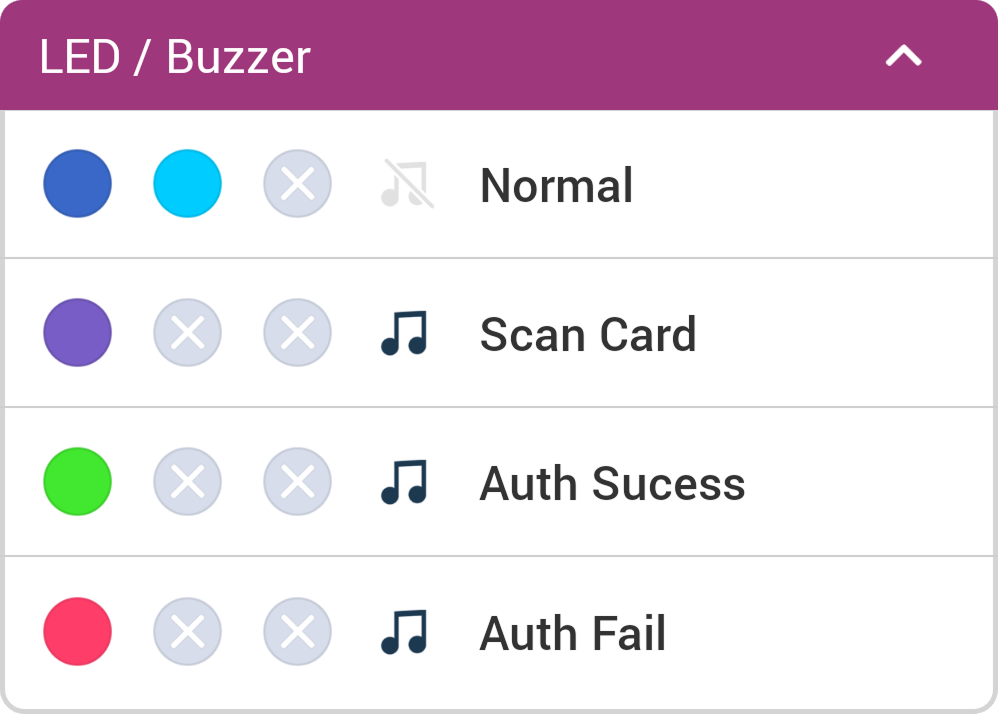
Normal: You can set the colors displayed on the device LED during normal operation.
-
Scan Card: You can set the color displayed on the device LED and the number of times the buzzer sound plays when scanning a card.
-
Auth Sucess: You can set the color displayed on the device LED and the number of times the buzzer sound plays upon successful authentication.
-
Auth Fail: You can set the color displayed on the device LED and the number of times the buzzer sound plays upon failed authentication.
-
LED can be set to display a maximum of three colors in alternating patterns. Press the slot to choose a color.
-
Selecting
 skips the color sequence for that slot and displays the color set for the next slot.
Connect device
You can search for and connect to installed IP devices nearby. When connected to Suprema Device Manager, you can upgrade the device's firmware, restart the device, initialize settings, initialize device settings excluding network settings, change the administrator password, and use various features.
-
Enable Bluetooth on your mobile device and run Suprema Device Manager.
-
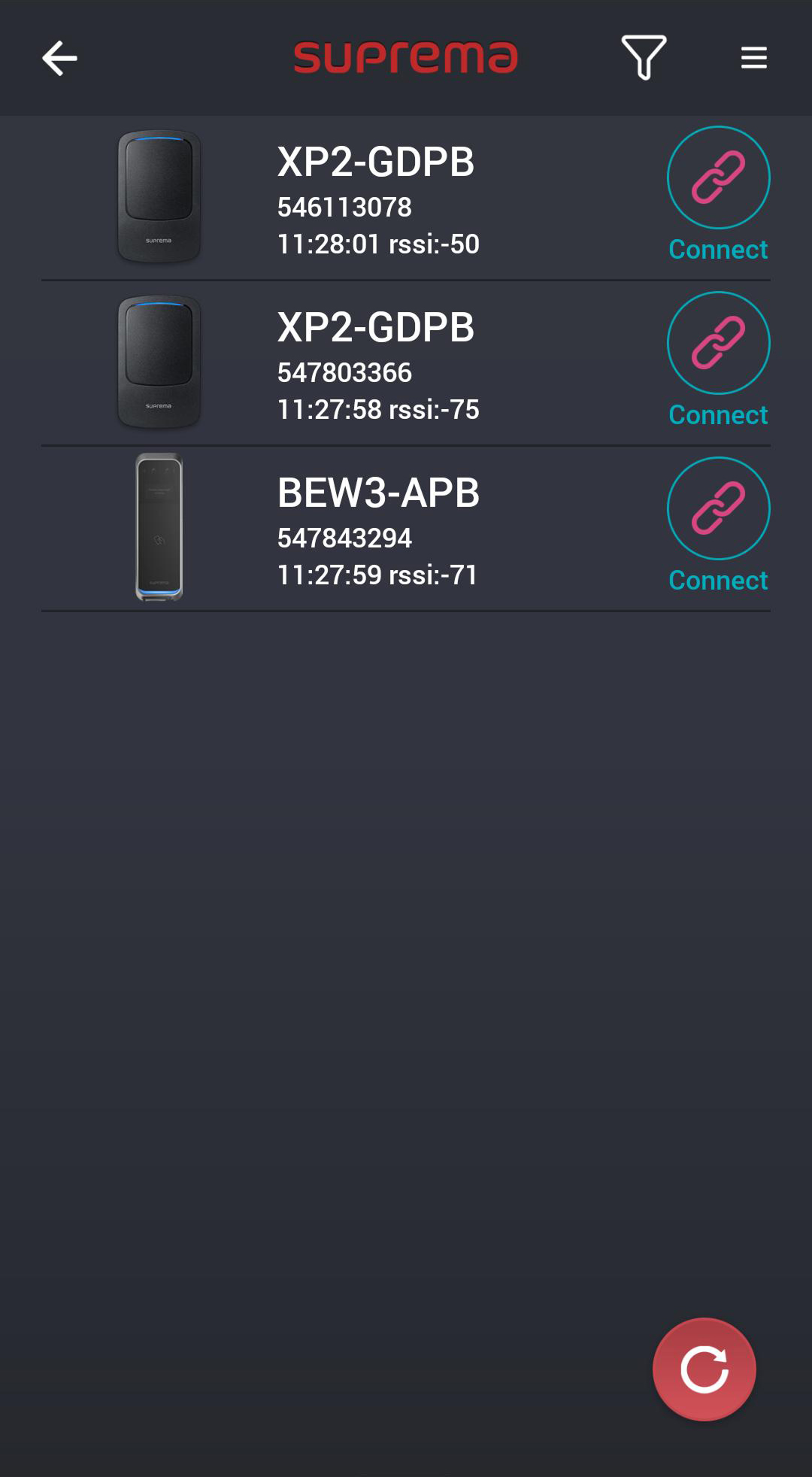
Select the IP device from the main screen. A list of connectable devices will appear.
-
Select a device by checking the device ID in the device list or bring your mobile device close to the device to connect.
-
Enter the connection password. Tap
to display the entered password. -
Press OK to complete the device connection.
Device Filter: At the top of the device list screen, press to set it to display only the desired devices in the list.
Upgrade device firmware
You can easily upgrade the device's firmware.
-
To upgrade the firmware, you need to download the firmware file to your mobile device. The latest firmware can be downloaded from the Suprema Download Center.
-
During the firmware upgrade, keep the distance between the device and mobile device within 1m.
-
Only XPass 2 and XPass 2 V2 include support for the firmware upgrade feature.
-
Refer to Connect device to connect to the device for firmware upgrade.
-
Tap
 → FW upgrade.
-
Select the firmware from the path where the firmware file is saved. The firmware upgrade is in progress.
-
Press OK to complete the firmware upgrade.
Restart device
You can restart the device.
-
Refer to Connect device to connect to the device to restart.
-
Tap
→ Device Restart.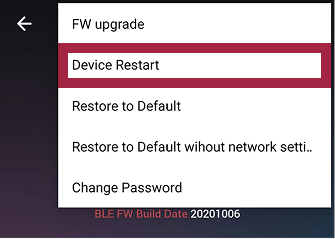
-
When you restart the device, the BLE communication connection with the mobile device will be disconnected. To reconnect automatically, enable the Auto Connection feature. For detailed configuration instructions, refer to Configuring app settings.
Initialize settings
You can initialize device settings.
-
Refer to Connect device to connect to the device to initialize the settings.
-
Tap
→ Restore to Default.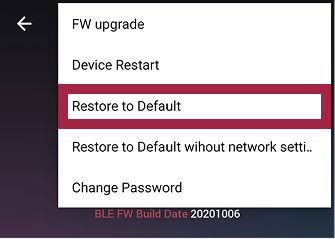
-
If the device is initialized, all settings are restored to their default values. Press OK to continue.
Initialize device settings excluding network
You can initialize device settings excluding network settings.
-
Refer to Connect device to connect to the device to initialize device settings excluding network settings.
-
Tap
→ Restore to Default without network settings.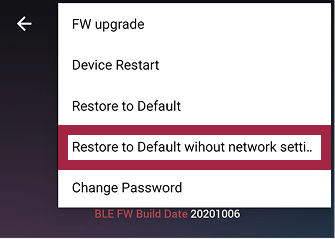
-
If you initialize device settings excluding network, the remaining settings excluding the network will be initialized. Press OK to continue.
Change device password
You can change the device's password.
-
Refer to Connect device to connect to the device to change password.
-
Tap
→ Change Password.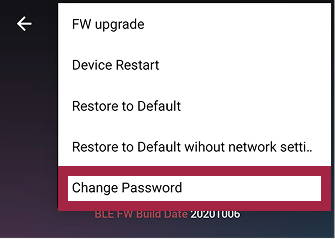
-
Enter the current password and the new password you will use.
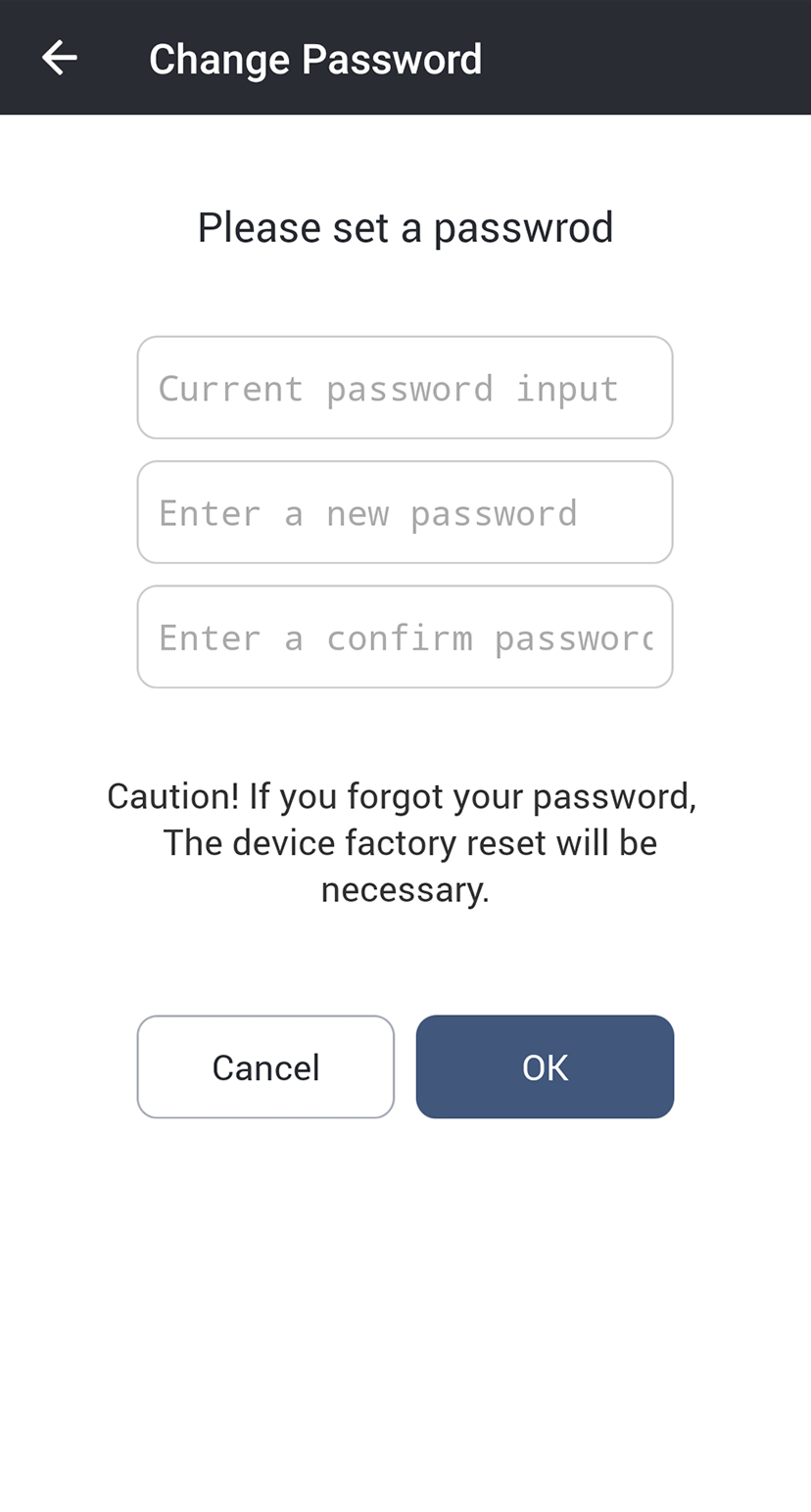
-
Press OK to complete the password change.
-
The device password can be set to a number of 6-32 characters.
-
Be careful not to lose the device password. If you lose the device password, you must initialize the device to connect to it.