Set Up Access Control Events
Access control events identify entrants with Facial Authentication, verify nearby people, and determine whether to allow access. Detect tailgating, where an unauthorized person follows an authenticated user, and exclude people exiting through the door from the assessment.
Firmware version 1.1.0 or later supports access control events.
When to use this?
-
When facial authentication verifies whether the person approaching the door is registered
-
When you need to prevent tailgating, where an unauthorized person follows an authenticated user inside
-
When evaluating only entrants and excluding people exiting from inside the door
-
When linking follow-up actions, such as opening the door or outputting a warning prompt, based on the decision
Access control events only determine whether to allow access and do not directly control the door relay. To open the door based on results, create an event, add the door, and link the event. For additional actions, such as voice prompts or webhook notifications, set up door rules.
-
For more information on door registration and management, refer to Manage Doors.
-
For more information on door rules, refer to Set Door Rules.
How access control events work
Access control events decide whether to allow access by combining the following elements. Before starting setup, review the role of each element.
| Component | roles | Required |
|---|---|---|
| Validation Area | This is a wider area surrounding the access control zone. Check the number of people and identification status in this area to detect tailgating. | Yes |
| Door Access Area | This is the area directly in front of the door. When a person enters this area, the system treats it as an access attempt and starts evaluation. | Yes |
| Event Entry Line | This line determines who actually passes through the access door. Based on the selected direction, the system determines entry, exit, or both. | Yes |
| Face Area | This is the area that tracks faces first to identify users. | Option |
The camera classifies people in the zone into one of the following states.
-
Identified: Facial Authentication succeeded, and the person matches a registered user.
-
Unidentified: Facial Authentication failed, or the person does not match a registered user. The Live menu shows unregistered people, people with covered faces, or people not facing the camera as Unknown Face.
For security, the system does not treat an unrecognized person as an authenticated user. If a person is unidentified in the access control area, the system denies access.
Create access control event
An access control event identifies users approaching the door in the Live menu and verifies tailgaters.
Start event creation
-
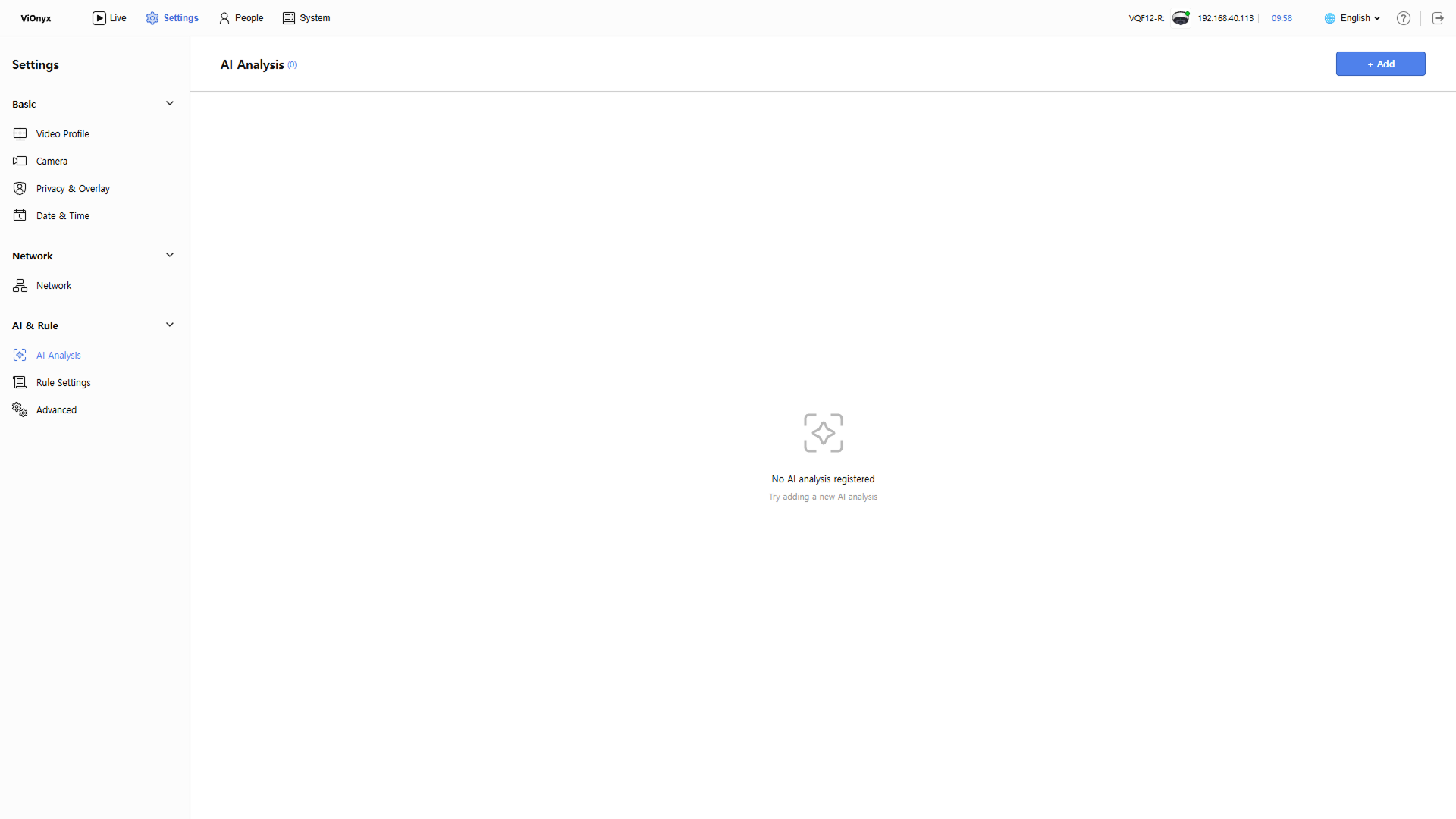
Click the AI&Rule menu in the upper-left corner of the screen.
-
Click AI Analysis on the left sidebar.
-
Click + Add at the top right of the screen.
-
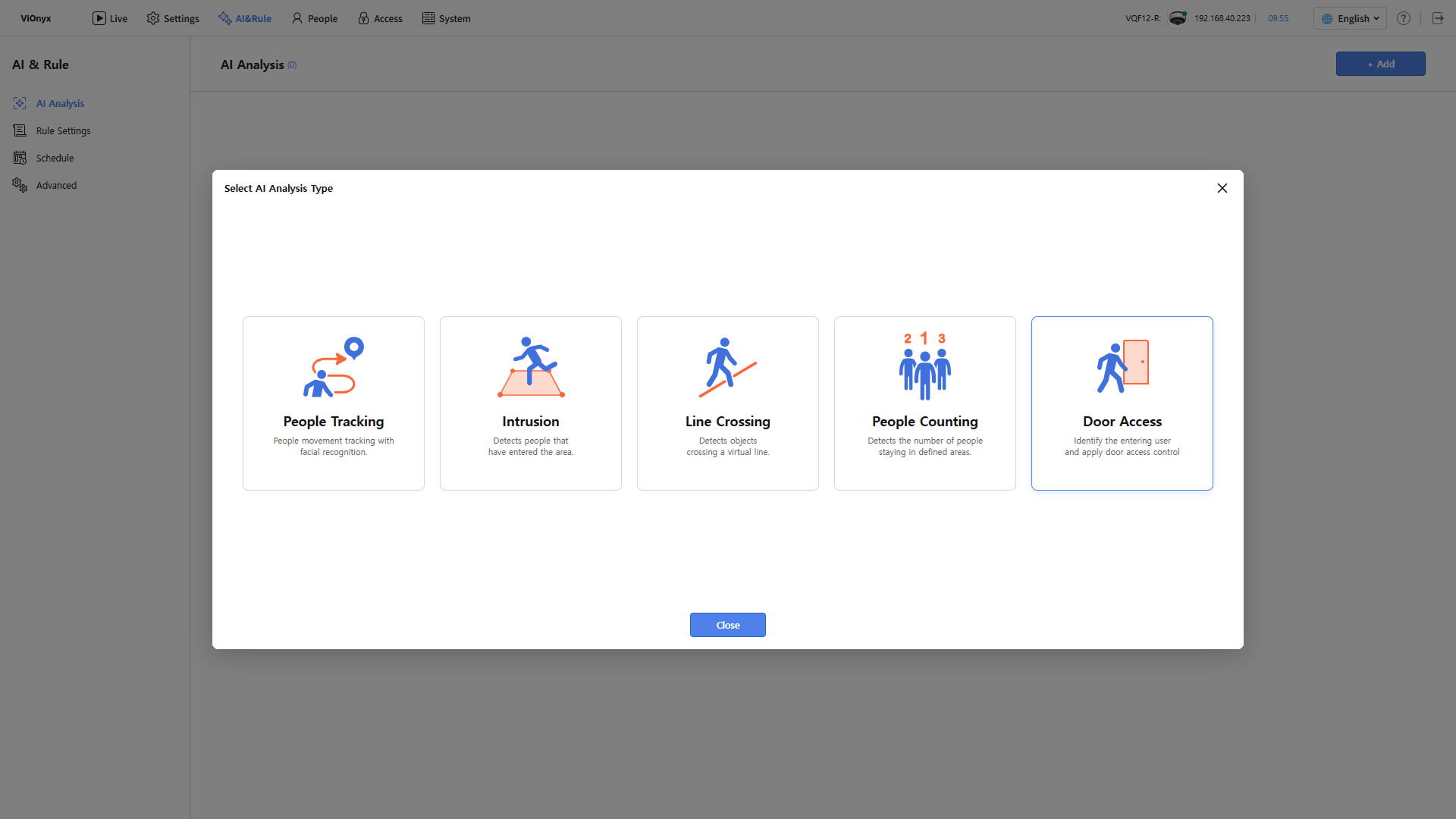
In the Select AI Analysis Type window, click Door Access.
-
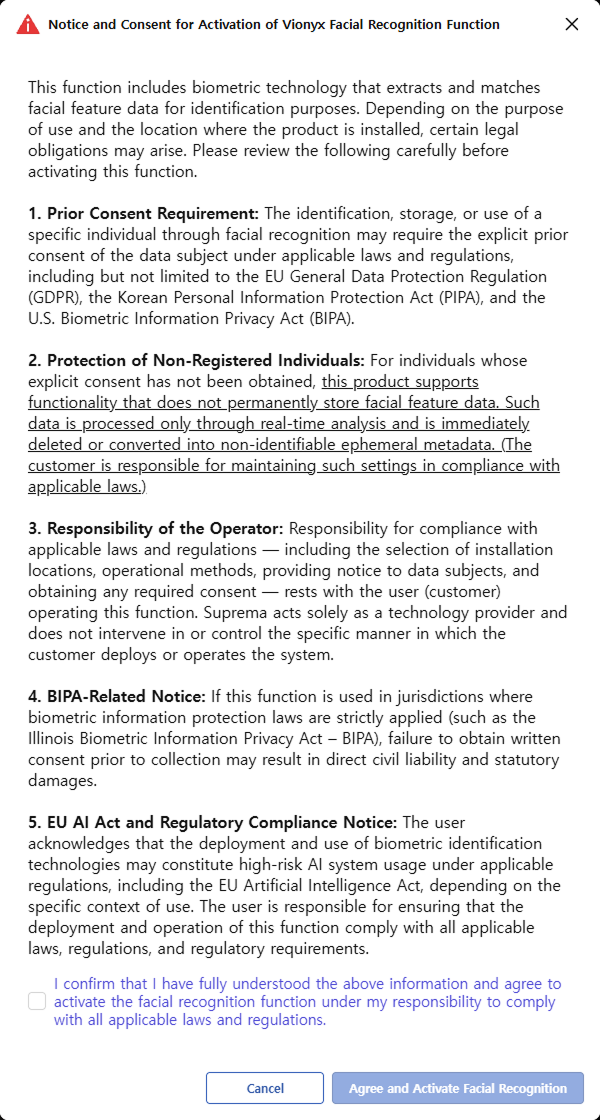
When the Notice and Consent for Activation of Vionyx Facial Recognition Function pop-up appears, review the details, select the consent checkbox, and click Agree and Activate Facial Recognition.
-
The access control event uses Facial Authentication to identify users, so agree to use it before creating it.
-
To use the Facial Authentication feature, comply with local regulations.
-
The Notice and Consent for Activation of Vionyx Facial Recognition Function popup appears only once. Subsequent AI event creation assumes consent.
-
-
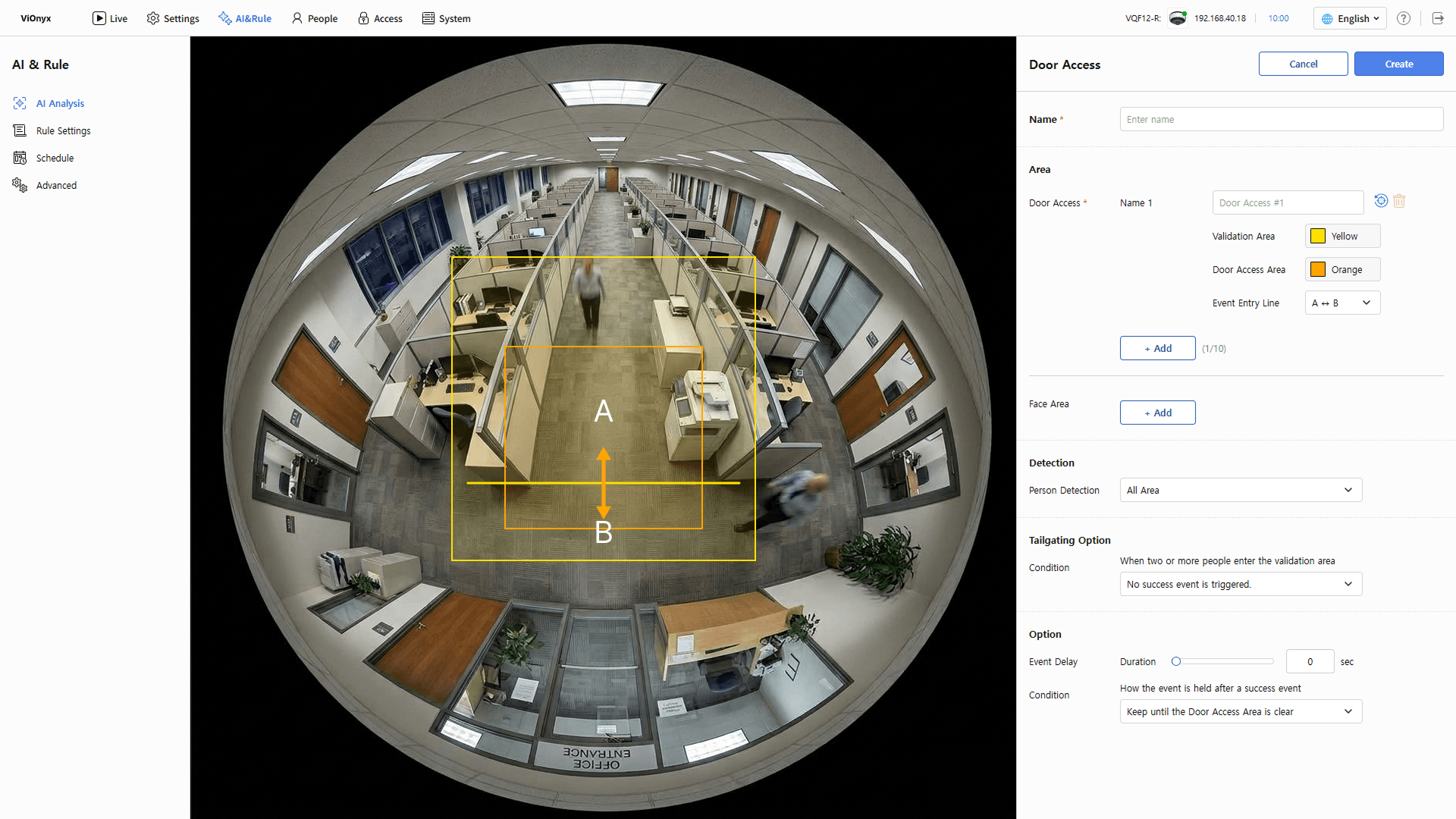
Complete the required settings in the Door Access panel on the right.
Set event name
Enter the AI event name in the Name input field. The name can be up to 64 characters long.
Access control area settings
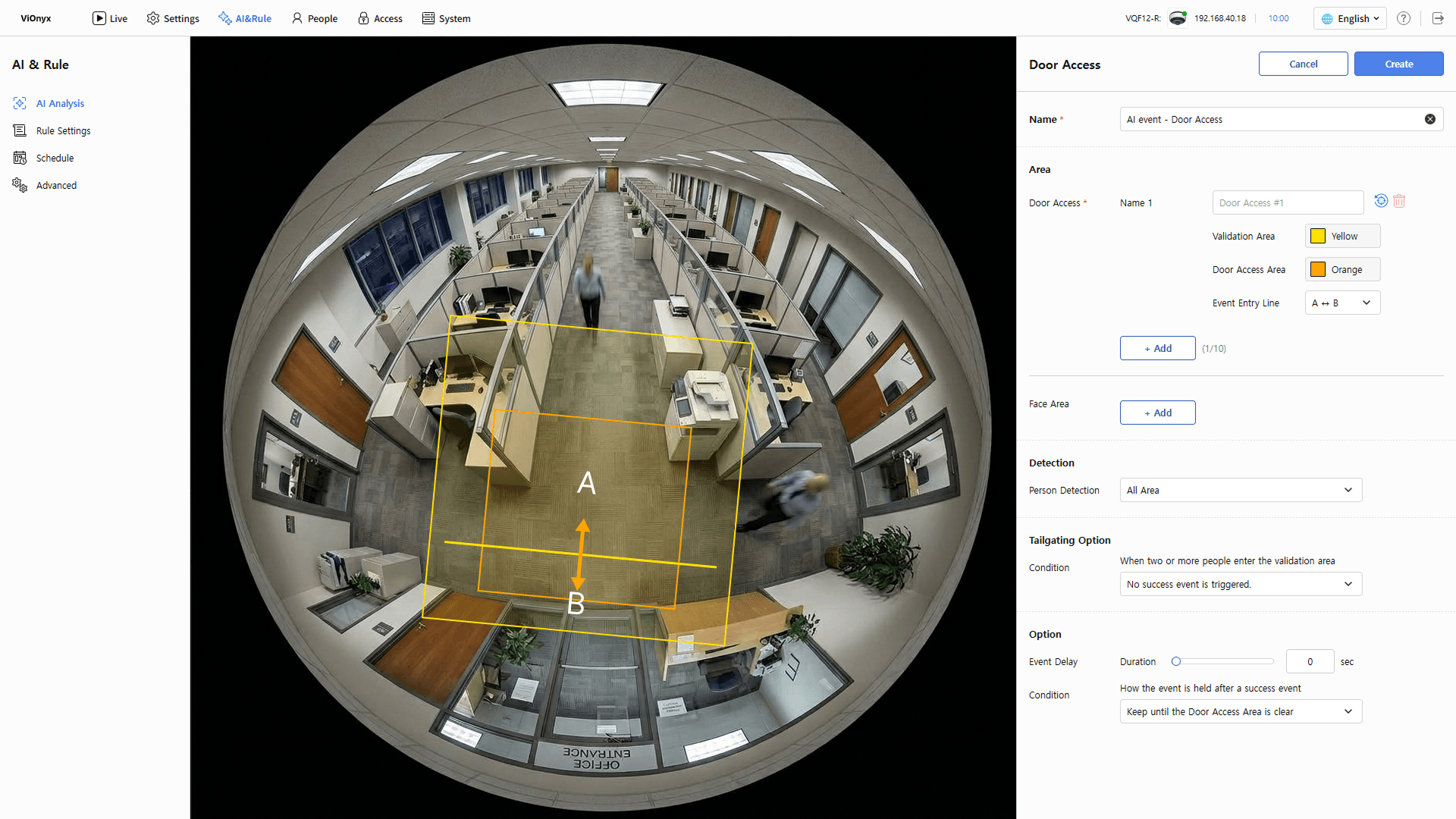
In the Area section, set the validation area, access control area, and event entry line for the door location. Set at least one virtual line. Click + Add to add up to 10. Each addition shows the three elements as a set in Live view. Drag corners or points to adjust the shape, and drag the center area to move it.
-
Name: Edit the name of the access control area. Use a clear name, such as the door location.
-
Validation Area(Yellow): Validation area surrounding the access control area. Set it wider than the access control area to detect fast approaches and tailgaters.
-
Door Access Area(Orange): Set it directly in front of the door, where the person must pass to enter. When a person enters this area, the system determines access.
-
Event Entry Line: This line determines who actually passes through the access door. Drag the points at both ends to place the line across the access control area. Then, select the crossing direction.
-
A → B: Detect only people crossing from A to B.
-
B → A: Detect only people crossing from B to A.
-
A ↔ B: Detect both directions. The system distinguishes between people entering and exiting.
To detect only one direction, check the positions of A and B in Live View, then select A → B or B → A.
-
-
The verification area must fully include the access control area. Saving fails if the access control area extends outside the verification area.
-
Extend the event entry line beyond the access control area, but keep it within the verification area.
-
To initialize the shape and size of the configured area, click .
-
To delete the added access control area, click .
Face area settings (optional)
Define the area for face detection. When set, the system prioritizes face tracking in that area to identify users. Set the face area where a person approaching the door is clearly visible from the front. Face areas and access control areas can overlap. Click + Add to add up to 10 face areas. A blue box appears in Live View; drag corners or points to adjust the shape. Drag the center to move the line.
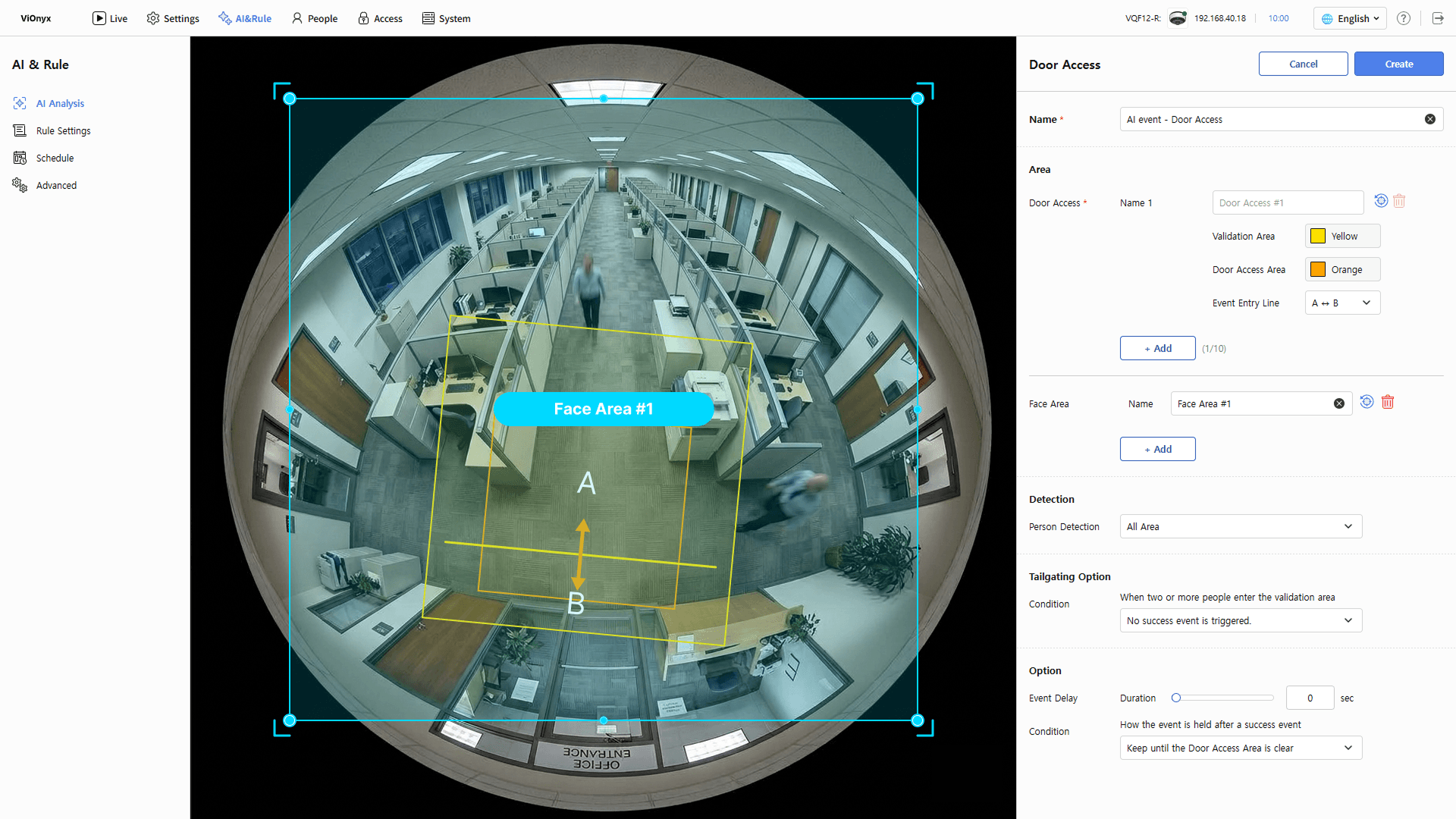
- Name: Edit the face area's name. Assign a clear, descriptive name. The face area name appears on hover in Live View.
-
Enrolled users are automatically identified in the Live menu and shown by name. Unenrolled users appear as Unknown Face.
-
Click to reset the configured face area's shape and size.
-
Click to delete an added face area.
-
In camera settings, if you use the Adaptive AE mode option, configure it so that the face area includes the position where a person would actually stand or pass by and their face is clearly visible.
Person detection settings (optional)
In the Detection section, select the area where the camera detects people. Narrow the detection area as needed to reduce false detections in irrelevant areas (hallway ends, windows, reflective surfaces, etc.).
-
All Area: Default. Detects people across the entire screen. Available regardless of whether face areas are set.
-
Designated Area: Detects people only within the area you specify. Available only when no face area is set. Set at least one virtual line. Click + Add to add up to 10. A purple box appears in the live view; drag its corners or points with the mouse to adjust it to the desired shape. Drag the center to move the line.
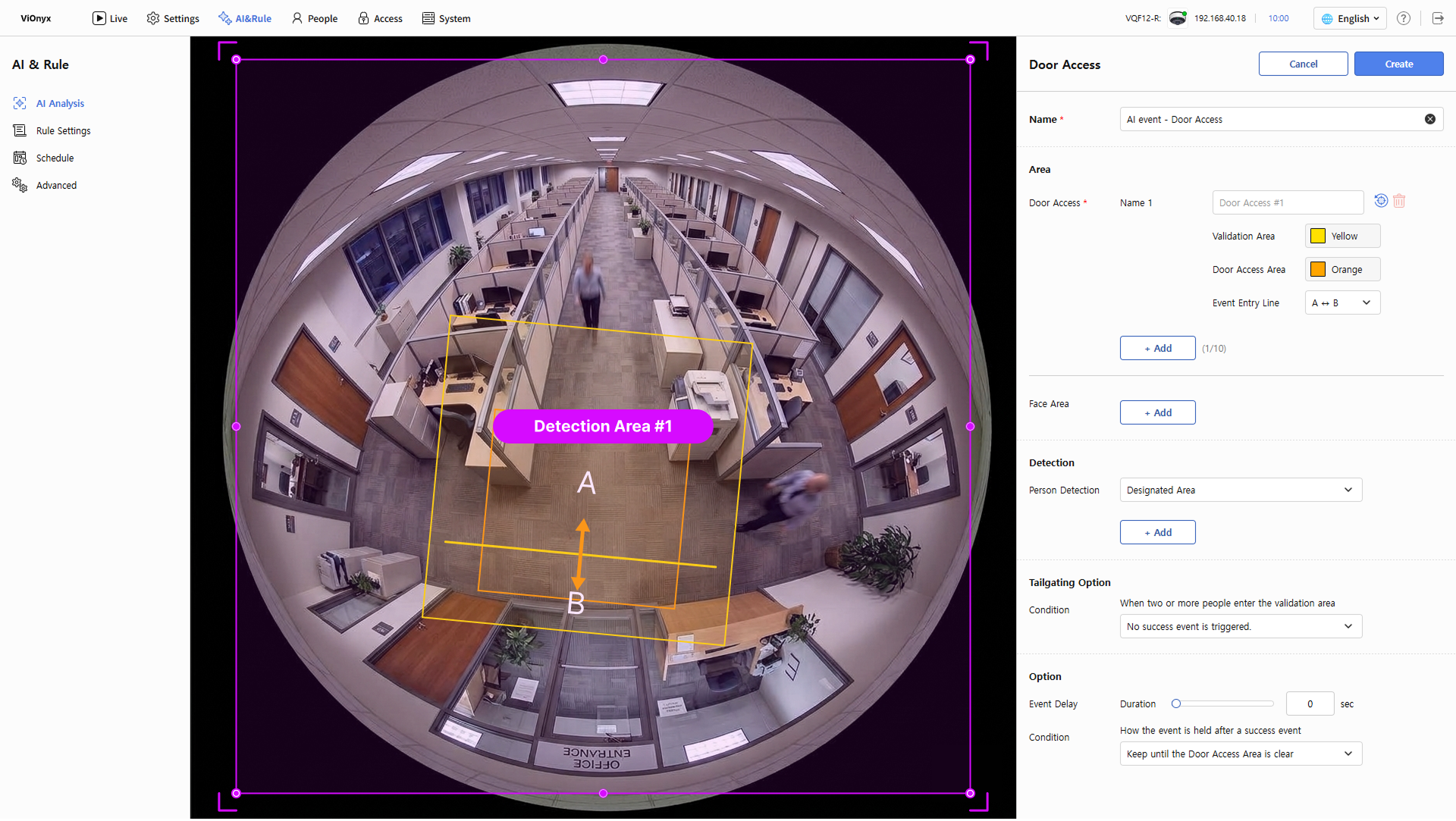
- Name: Edit the name of the person detection area.
-
Face Area Only: Detects people only within the face area. Available only when a face area is set.
-
Adding a face area while Designated Area is selected opens the Notice pop-up. Click OK to clear the designated detection area and switch to Face Area Only.
-
Deleting all face areas while Face Area Only is selected automatically switches to All Area.
-
In camera settings, when you use the Adaptive AE mode option, narrow the range to Designated Area or Face Area Only. Keep screens, photos, or posters with faces out of the detection area.
-
Click to initialize the shape and size of the person detection area.
-
Click to delete the added person detection area.
-
Firmware version 1.1.0 or later supports this feature.
Tailgating option settings
In the Tailgating Option section, select how the system determines access when 2 or more people are in the verification area. Options are listed from highest security to lowest.
-
No success event is triggered.: If 2 or more people are in the verification area, the system denies access regardless of the identification results. This option fits areas where only one person must pass at a time.
-
Success event only when all individuals are valid.: The system allows access only when it identifies everyone in the verification area as a registered user. The system denies access if anyone remains unidentified.
-
Success event if any identified individual is valid.: The system allows access if at least one registered user is in the verification area. This option allows access with unidentified people, so it fits areas with frequent escorted visitors.
-
No effect on event triggering.: The system ignores headcount in the verification area. It bases access only on the entrant’s identification result.
The following shows the decision for each option when a registered user enters with others in the verification area.
| Option | When only users with valid access permissions are present | When the list includes users with invalid access permissions |
|---|---|---|
| No success event is triggered. | Access denied | Access denied |
| Success event only when all individuals are valid. | Access granted | Access denied |
| Success event if any identified individual is valid. | Access granted | Access granted |
| No effect on event triggering. | Access granted | Access granted |
For security-critical doors, use Success event only when all individuals are valid. or higher.
Set event trigger conditions
In the Option section, set the event trigger conditions.
-
Event Delay: Set the minimum duration to treat as an event. An event occurs only when the detection state lasts longer than the set time. It can be set up to a maximum of 60 seconds.
If events occur too often because people briefly pass in front of the door, increase the Event Delay value. Motion detected for less than the set time is not treated as an event, reducing unnecessary events.
-
Condition: Select how long to keep the event after access is granted. While the event remains active, linked actions (for example, door opening) also remain active.
-
Keep until the Door Access Area is clear: Keep the event until no one remains in the access-controlled area. The door remains open while the authenticated user stays in front of it, without re-authenticating.
-
Keep until the area is clear or a tailgating violation occurs: Clear the event when the area is empty. Clear it immediately when an unauthorized person enters the verification area and violates the tailgating setting. This prevents unauthorized people from following someone in while the door is open.
-
Trigger once on entry (no hold): Do not keep the event. Trigger it once each time someone enters the access-controlled area.
-
If a registered user hesitates in front of the door and cannot enter, the door opens only after leaving and re-entering the access-controlled area. To reduce this inconvenience while maintaining security, select Keep until the area is clear or a tailgating violation occurs.
Save Settings
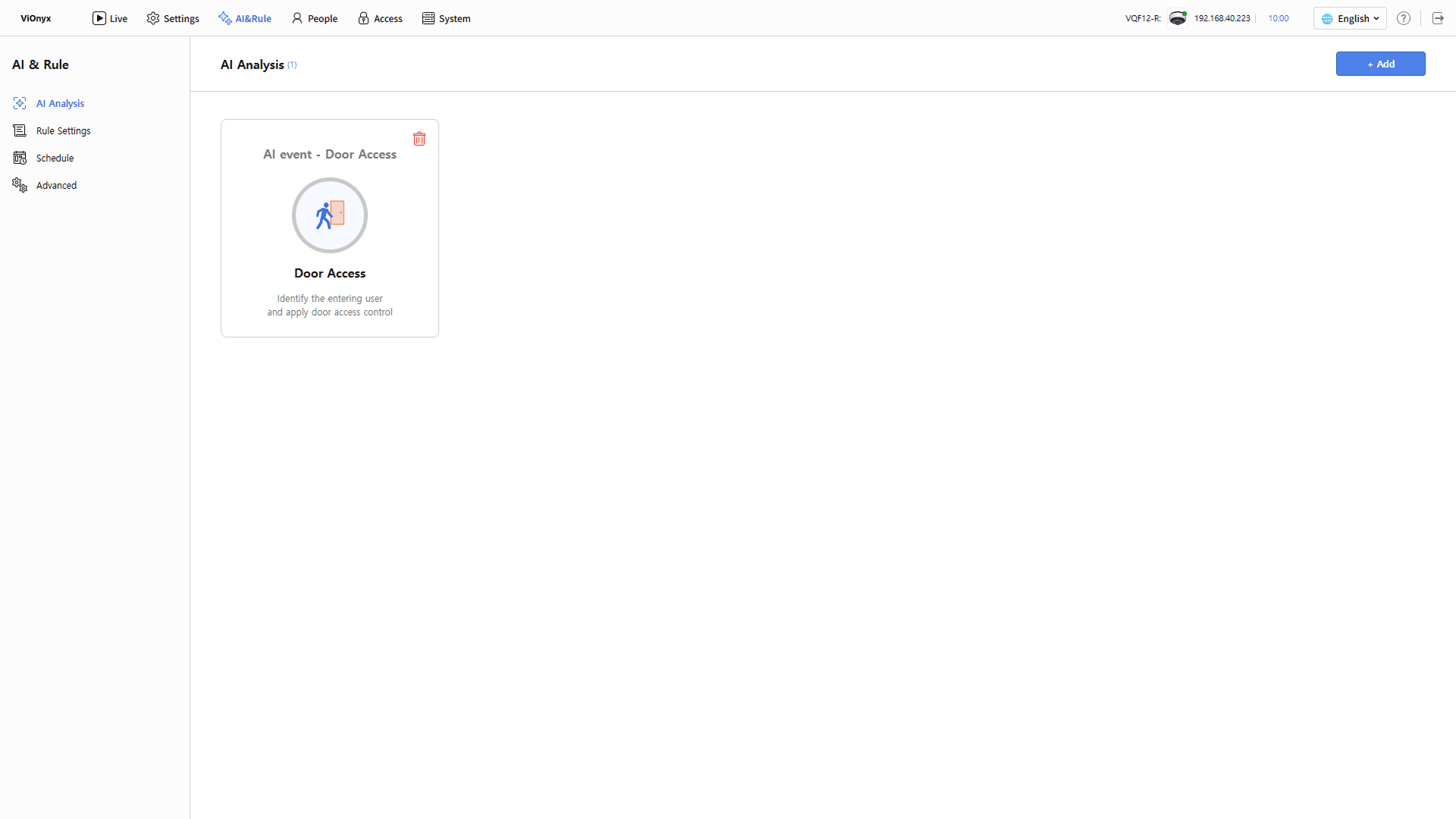
After completing all settings, click Create in the top right. The interface returns to the previous screen, and the new AI event is added to the list.
Check in Live
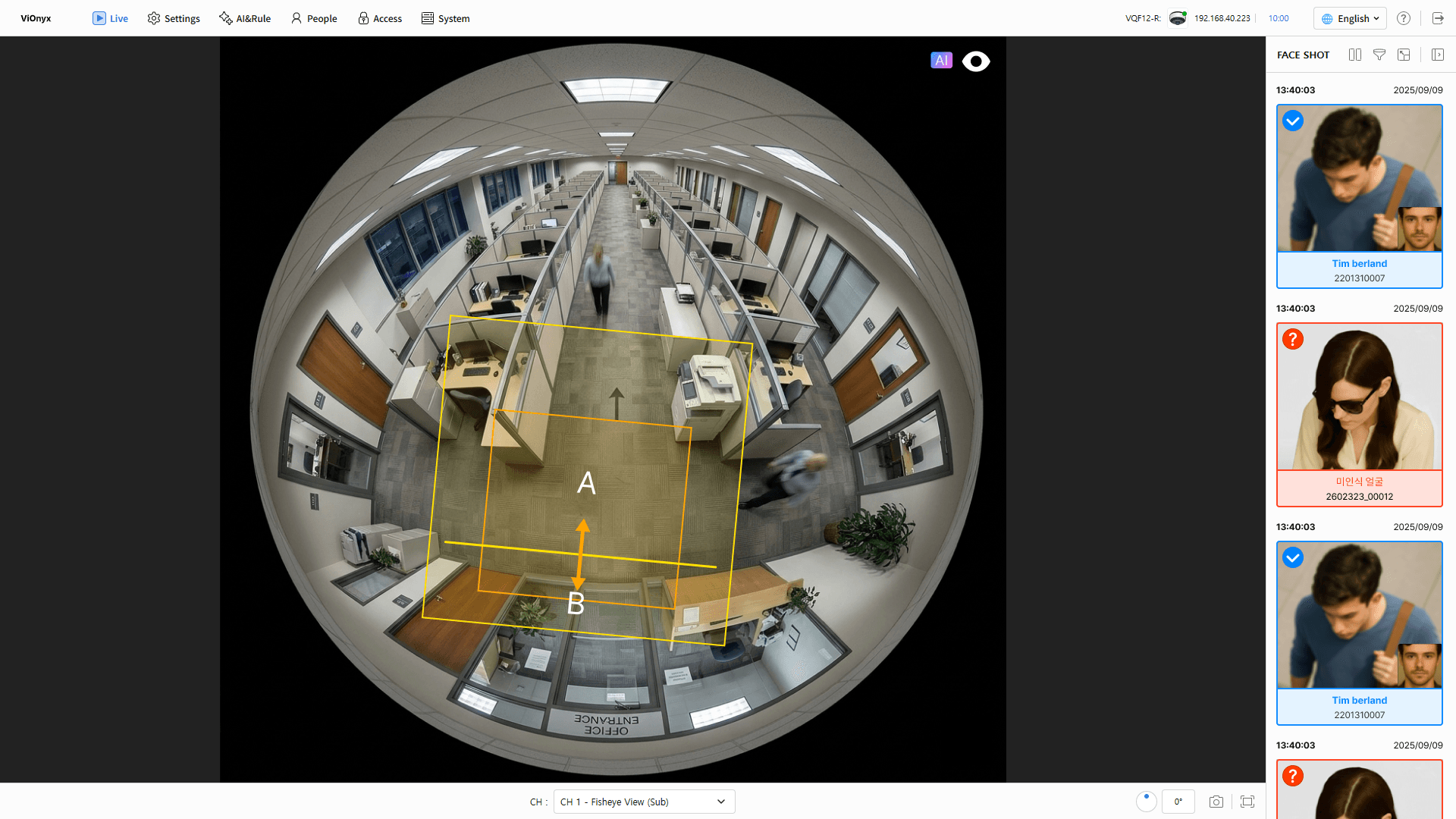
Click the Live menu at the top left of the screen. Confirm the  icon at the top right of the camera feed is on. The configured verification area, access-controlled area, event entry line, and face area appear as overlays on the video. When someone enters the access-controlled area, the system triggers Access granted or Access denied based on identification and tailgating options.
-
Unenrolled users appear as Unknown Face. Enrolled users appear with their name.
-
Poor lighting or backlight may prevent the camera from detecting faces. Improve area lighting or adjust the camera position and angle so faces are clearly visible.
-
Faces must face the camera to be detected. Profile or rear views may not be detected. If the system cannot identify a face, it treats the person as unidentified and denies access.
Next step
The access control event determines only whether to grant access. Set door rules to execute additional actions such as voice prompts, webhook notifications, or warning lights.
After creating an access control event, add the door and link the event. When access is granted, the relay connected to the door activates and opens the door.