Configure Camera Settings
Adjust camera settings to capture optimal footage for the installation environment. Check changes in real time on Live View and adjust image quality, white balance, and sensitivity filters. AI feature availability is also automatically limited depending on ceiling or wall mounting.
Adjust camera settings in the following situations.
-
To improve image quality to match scene brightness and color.
-
To reduce flicker from fluorescent or LED lighting.
-
To minimize noise in low-light environments while maintaining motion detection.
-
To optimize the camera and AI features for the installation location.
Camera settings
-
Click Settings in the upper-left of the screen.
-
Click Basic → Camera in the left sidebar.
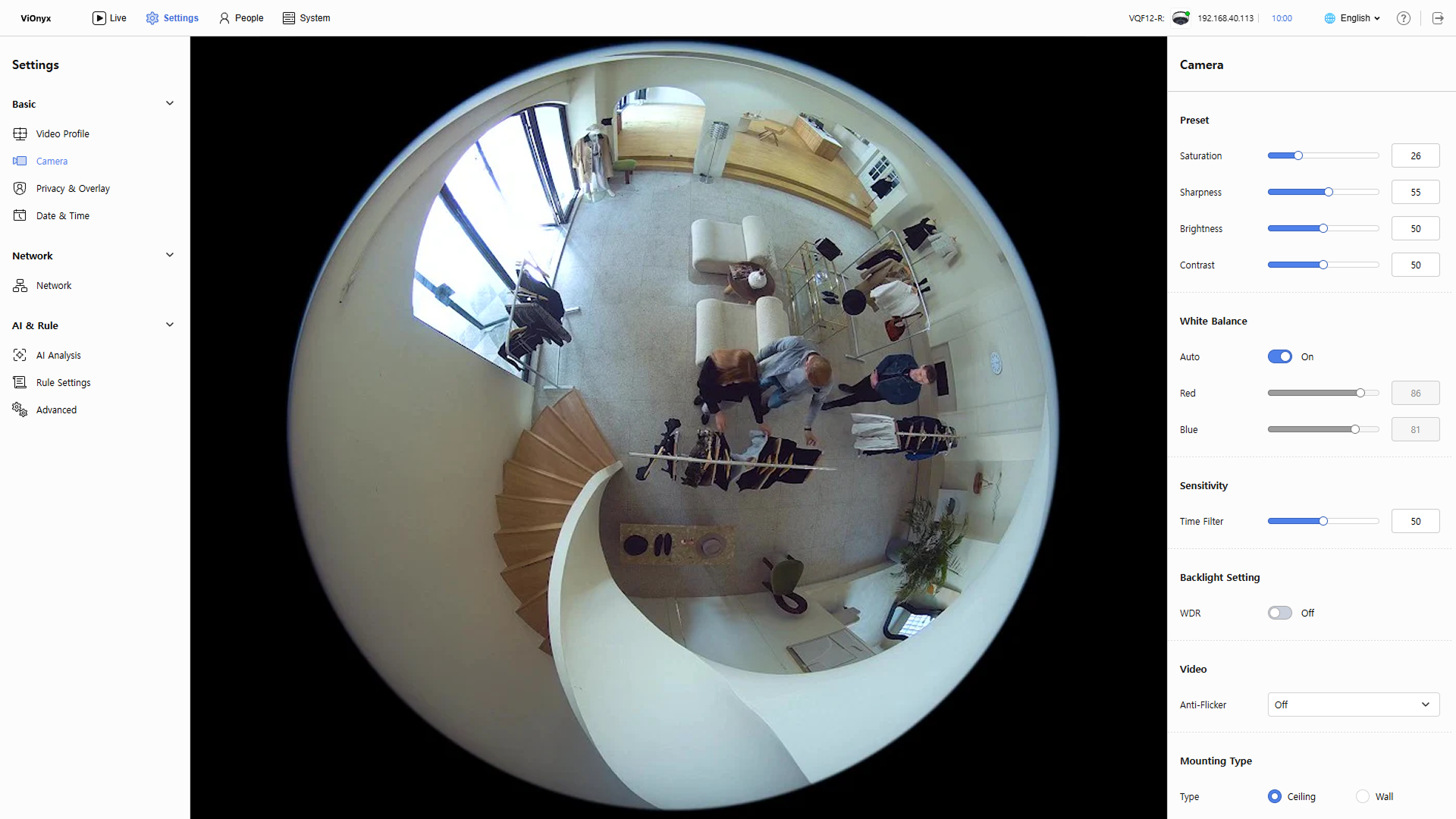
Each option change appears in Live View in real time and saves automatically.
Adjust image quality
Adjust image quality to match the shooting environment. Adjust each slider in the Preset section to reflect changes in the preview in real time. Set values between 1 and 100.
-
Saturation: Adjust color saturation. (Default: 26)
-
Sharpness: Adjust image sharpness. (Default: 55)
-
Brightness: Adjust overall image brightness. (Default: 50)
-
Contrast: Adjust contrast between bright and dark areas. (Default: 50)
When moving a slider, each setting updates the preview immediately and saves automatically.
White balance settings
Set white balance so the camera accurately reproduces the scene's lighting color. In the White Balance section, enable or disable the Auto option.
-
On(default): The camera automatically detects and adjusts the color temperature.
-
Off: Set the white balance by manually adjusting the Red and Blue values.
Sensitivity settings (Time Filter)
Adjust the time filter to balance sensor noise reduction and fast motion detection. Adjust the Time Filter slider in the Sensitivity section to set noise filtering strength.
-
Low (1~30): Weak noise filtering helps detect fast-moving objects, but noise may increase in low-light environments.
-
Medium (31~70): Balanced filtering suitable for typical shooting environments.
-
High (71~100): Strong noise filtering reduces noise in low-light conditions but may hinder detection of fast-moving objects.
The default value of Time Filter is 50.
Backlight settings
Enable WDR (Wide Dynamic Range) to allow the camera to capture bright and dark areas simultaneously in backlit scenes. In the Backlight Setting section, enable the WDR option to activate backlight compensation. (Default: Off)
WDR (Wide Dynamic Range) mode allows the camera to adjust exposure automatically so both bright and dark areas are represented in backlit scenes. Enabling WDR prevents overexposure of bright areas and improves detail in dark areas. Useful when shooting in heavily backlit environments.
Anti-flicker settings
To reduce screen flicker caused by a mismatch between lighting and frequency, set the Anti-Flicker option in the Video section.
-
Off: Disable anti-flicker.
-
50HZ: 50 Hz fluorescent/LED environment
-
60HZ: 60 Hz fluorescent/LED environment
Select the option that matches the lighting frequency in the scene. Incorrect settings may cause flicker or banding on the image.
Mounting type settings
Set Mounting Type according to the camera's installation location. Supported AI features depend on the mounting type.
-
Select Ceiling for ceiling installation. All AI features are available.
-
Select Wall for wall installation. Only Facial Authentication AI is available; object tracking is not supported.
-
When changing from ceiling to wall, a confirmation popup appears stating that only Facial Authentication is available and object-tracking AI is unavailable. Review the message before proceeding.
-
When changing from wall to ceiling, the change applies immediately and all AI features activate automatically.
Reset camera settings
To restore all camera settings to factory defaults, click Restore to default in the Reset section.