Set Door Rules
Door rules automatically play audio, send webhooks, or execute relay actions based on access decisions at the door. When access is granted, the door opens automatically based on door settings, so set additional actions in door rules.
Set door rules in the following situations.
-
When a welcome message plays on access granted and an instruction message plays on access denied
-
When an unauthorized person follows someone in and a beacon light or alarm should activate
-
When access logs should be sent to an external access control system or monitoring server
Before you start
Before setting door rules, check the following.
-
Add doors before applying rules. For more information, see Manage Doors.
-
Upload audio clips before using audio playback. For more information, refer to Upload Audio Clips.
-
Prepare the webhook receiver URL before using webhooks.
-
Connect beacon lights and alarms to the relay port to use relays. For more information on connecting external devices, see the ViOnyx Installation Guide.
Access decision results
In door rules, set the actions to execute for each access decision result.
| Access decision results | Trigger condition |
|---|---|
| Access Granted | The system identified a user with an access level during access hours and granted access. |
| Access Denied by Unidentified | Facial Authentication did not authenticate the person, or the person is not registered. |
| Access Denied by Access Level | The system identified a registered user, but the user lacks the door access level or is outside access hours. |
| Access Denied by Door Mode (Manual/Schedule Lock) | The system denied access because the door is manually locked or locked by schedule. |
| Access Denied by Anti-Tailgating | The system denied access because the verification zone did not meet the tailgating condition. |
| Authenticated Passage (Door Line) | A user granted access crossed the event entry line and entered. |
| Passage After Denial (Security Event) | A person denied access crossed the event entry line and entered. This security event indicates suspected forced entry. |
Add a door rule
Start creating a rule
-
Click the Access menu in the upper-left corner of the screen.
-
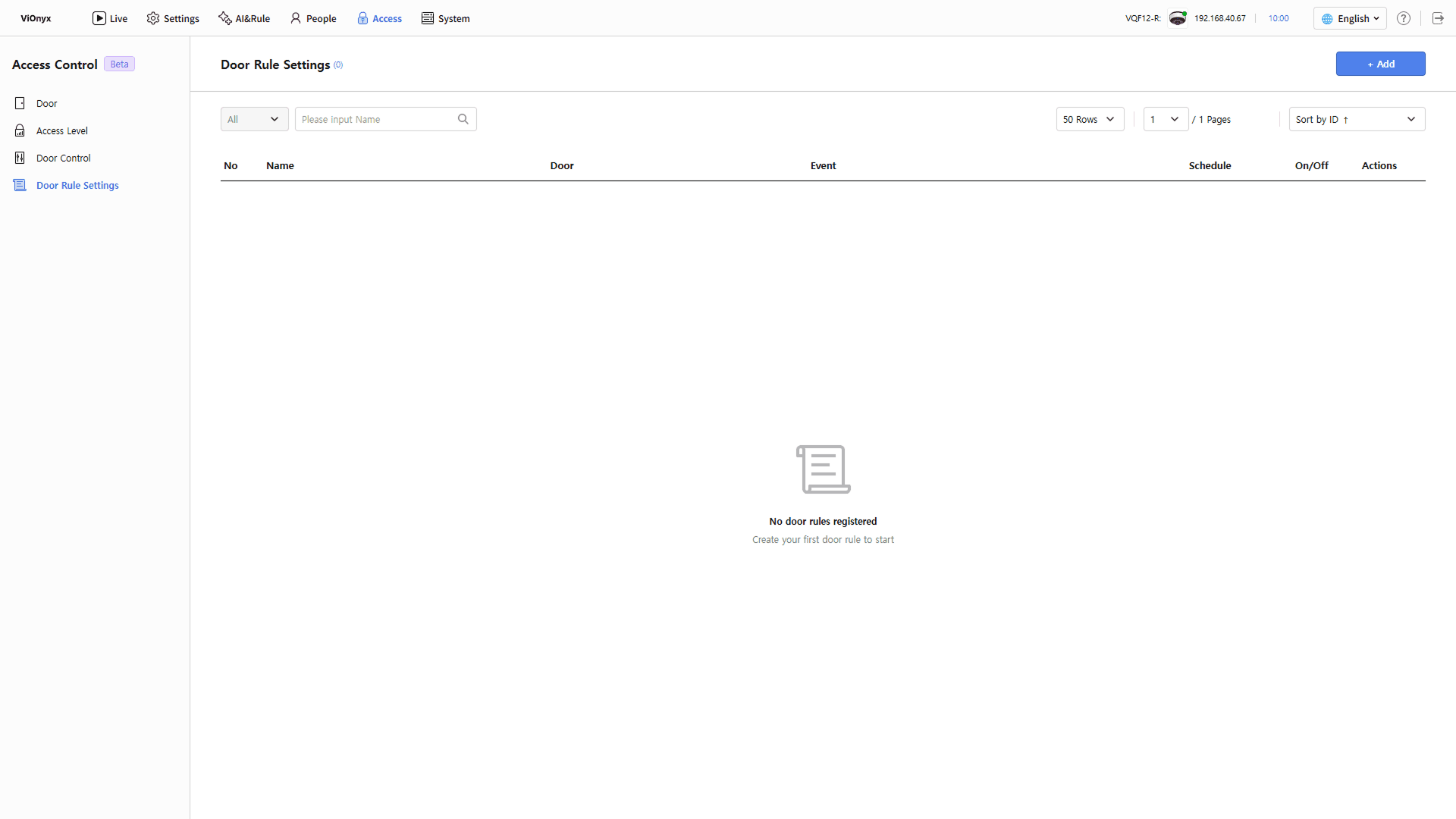
Click the Door Rule Settings on the left sidebar.
-
Click + Add at the top right of the screen.
-
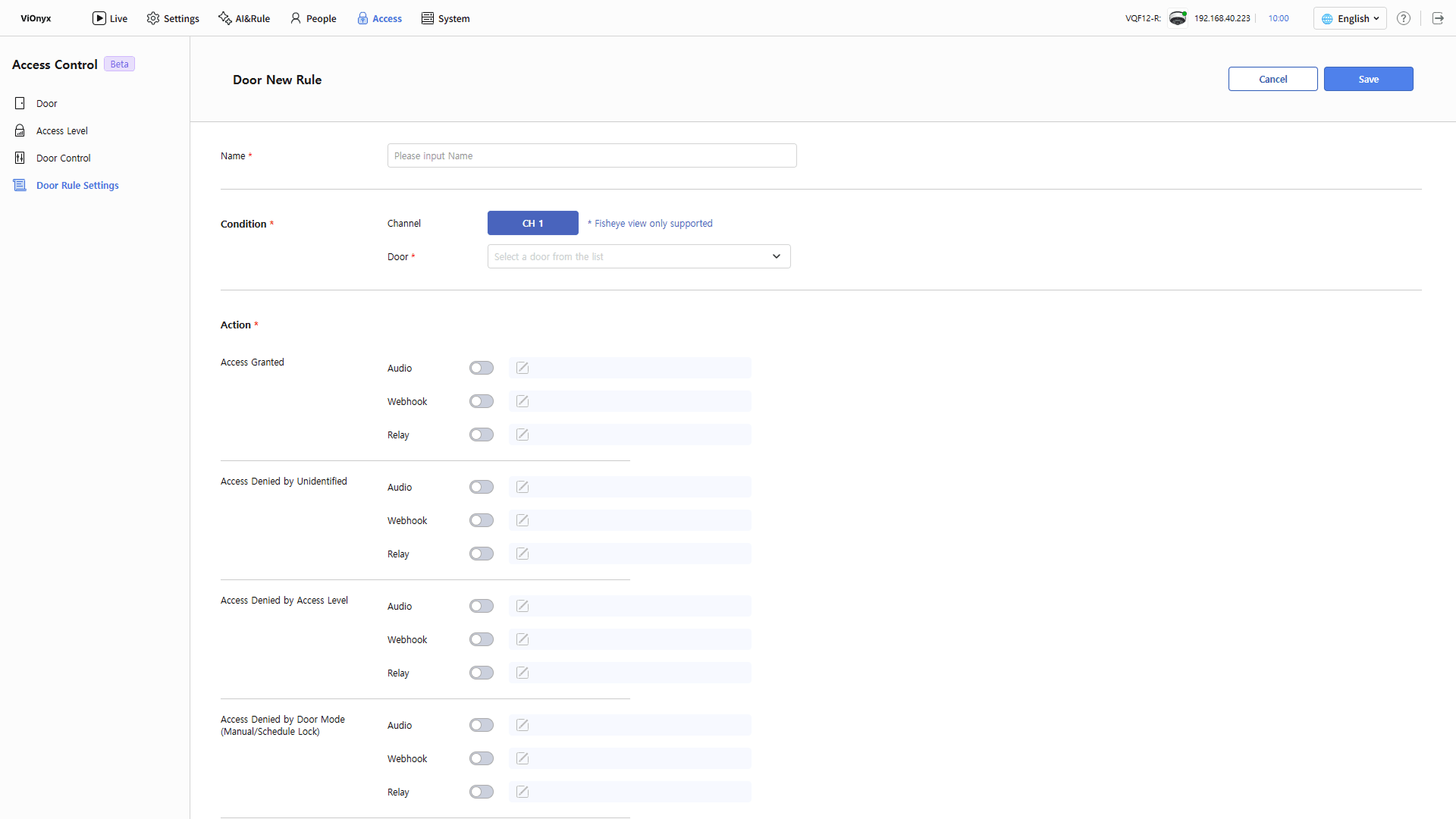
When the Add Door Rule screen appears, enter the rule name and set conditions and actions.
Enter rule name
Enter the rule name in the Name input field. Required.
Set conditions
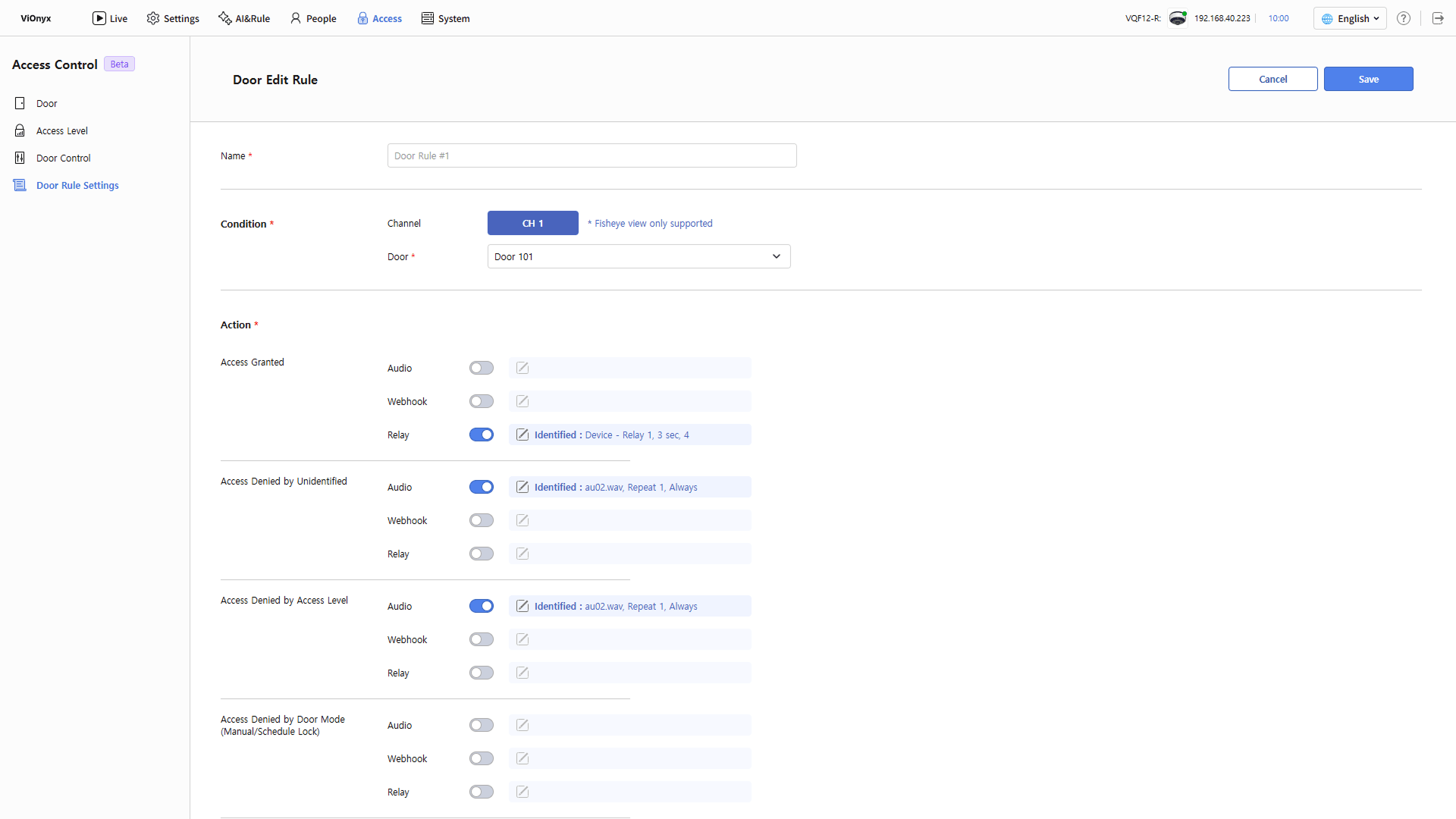
In the Condition section, select the doors to apply the rule to.
-
Channel: The channel is fixed to CH 1. Support for fisheye view only.
-
Door: Select the door to apply the rule to. Required.
Set actions
The Action section shows Audio, Webhook, and Relay actions for each access decision result. For the access decision result that triggers the action, enable the action toggle, then click . The action settings pop-up appears.
You must enable at least 1 action to save the rule. See below for action-specific settings.
Outside the action schedule, the action does not execute if an access decision result occurs. Manage schedules in AI&Rule → Schedule. For more information, see Manage Schedules.
Audio action settings
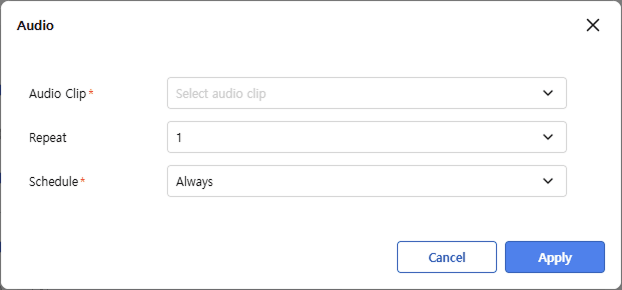
When an access decision result occurs, the camera plays an audio clip.
-
Audio Clip: Select the audio clip to play. Required.
-
Repeat: Select the number of times to repeat audio playback.
-
Schedule: Select the schedule for audio playback. Required. The default is Always.
Click Apply to save the audio action settings.
Prepare audio clips before configuring audio actions. Upload audio clips in System → Audio. For more information, refer to Upload Audio Clips.
Webhook action settings
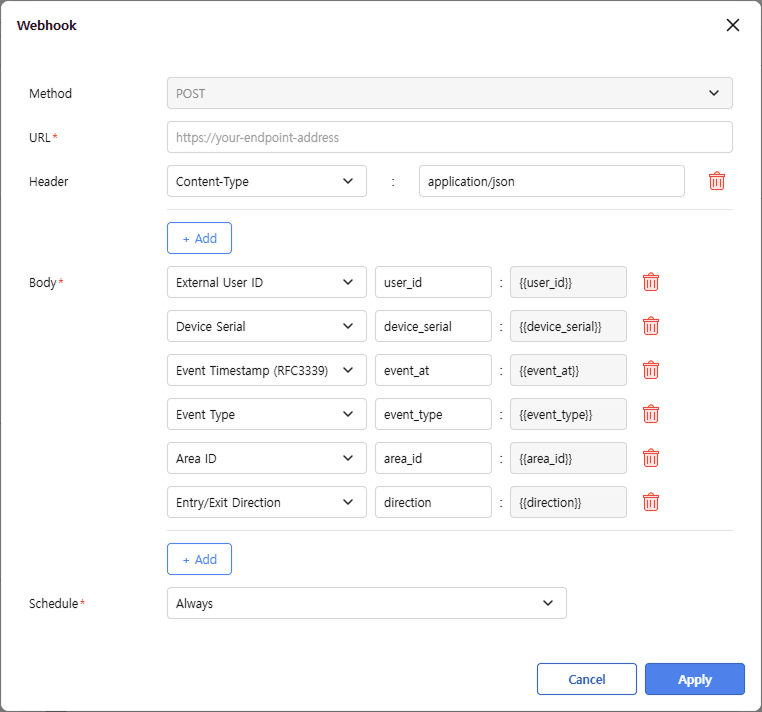
When an access decision result occurs, the system sends a webhook to an external server.
-
Method: The webhook transmission method. Only the
POSTmethod is supported. -
URL: Enter the URL to receive the webhook. Required.
-
Header: Set the HTTP headers to include in the webhook. The system adds the
Content-Type: application/jsonheader by default. Click + Add to add headers. Do not use duplicate header names. Do not use system-reserved header names. -
Body: Select the fields to include in the webhook body. Required. In each row, select the data to send on the left, and enter the JSON key in the center field. The right field shows variables that change to actual values when an event occurs. Click + Add to add a custom field, or click to delete it. The maximum body size is 64KB.
-
Schedule: Select a schedule for sending webhooks. Required. The default is Always.
To save the settings, click Apply.
-
For security, values entered in the header and body do not appear again after saving. When editing a rule, saved values remain. New entries replace existing values.
-
Check webhook delivery results in the system log. For details, see View System Logs.
Relay action settings
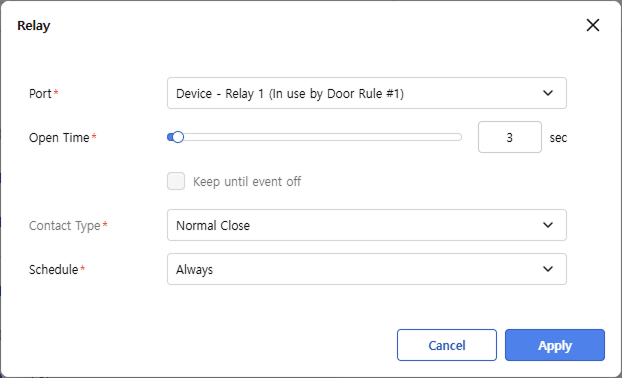
When an access decision occurs, the system activates the selected relay. Use this to integrate a beacon, a siren, or an auxiliary lock.
-
Port: Select the relay port to activate. Required. Relay ports used for door locks cannot be selected.
-
Open Time: Set how long to keep the relay active. Move the slider or enter a value in the input field. Set from 1 to 120 seconds. Default: 3 seconds.
- Keep until event off: Select this option to keep the relay active until the access control event ends, regardless of open time.
-
Contact Type: Select the relay contact type. Required. Set this after selecting a port.
-
Normal Open: Normally open, and closes when the relay activates.
-
Normal Close: Normally closed, and opens when the relay activates.
-
-
Schedule: Select a schedule to trigger the relay. Required. The default is Always.
To save the settings, click Apply.
Contact Type is a setting applied to the relay port, not a rule. Changing Contact Type shows a confirmation message. Click OK to apply it immediately to all rules and doors that use the port. Changing this while the port is manually locked or unlocked inverts the output. A locked door may open.
Save rule
After completing all settings, click Save in the upper-right. The system adds saved rules to the door rule list and applies them immediately.

Create up to 20 door rules.
View the door rule list
The door rule list shows saved rules and each rule’s target.

-
Enter the door rule name in the search field () to find a specific rule.
-
Select a value in Rows () to change the number of rules per page.
-
To change the sort criterion, select one in Sort by ID().
The following items are displayed in the door rule list.
| Item | Description |
|---|---|
| No | The rule number. |
| Name | The rule name. |
| Door | The door the rule applies to. |
| Event | The access decision result with one or more enabled actions. If multiple results exist, the list shows only part of them. |
| Schedule | The schedule applied to the rule. |
| On/Off | Turns the rule on or off. |
| Actions | Provides controls to edit () or delete () the rule. |
Enable/disable door rules
In the door rule list, click the toggle in the On/Off column to enable or disable the rule. Disabled rules do not execute actions when an access decision result occurs. Use this to pause a rule without deleting it.

Edit door rule
-
In the door rule list, click the button at the far right of the rule to edit.
-
When the Edit Door Rule screen appears, edit the conditions and actions.
-
To save your changes, click Save in the upper right of the screen.
Delete door rule
In the door rule list, click the button at the far right of the rule to delete. When the confirmation message appears, click OK. Deleted rules cannot be recovered.