Set Up User Tracking Events
Create user tracking events to detect entry into restricted areas. Optionally add face areas to prioritize face tracking in specific zones; registered users are automatically identified.
When to use this?
-
Monitor entry and exit of employees or customers registered to the entry area.
-
Monitor access to secure areas (meeting rooms, storage).
-
Track customer flow into specific store corners (new products, event zones).
Create people tracking events
When you create user tracking events, you can track people's movement in real time on the live page. Additionally, setting face areas recognizes registered users and identifies who moved.
Start event creation
-
Click Settings in the upper-left of the screen.
-
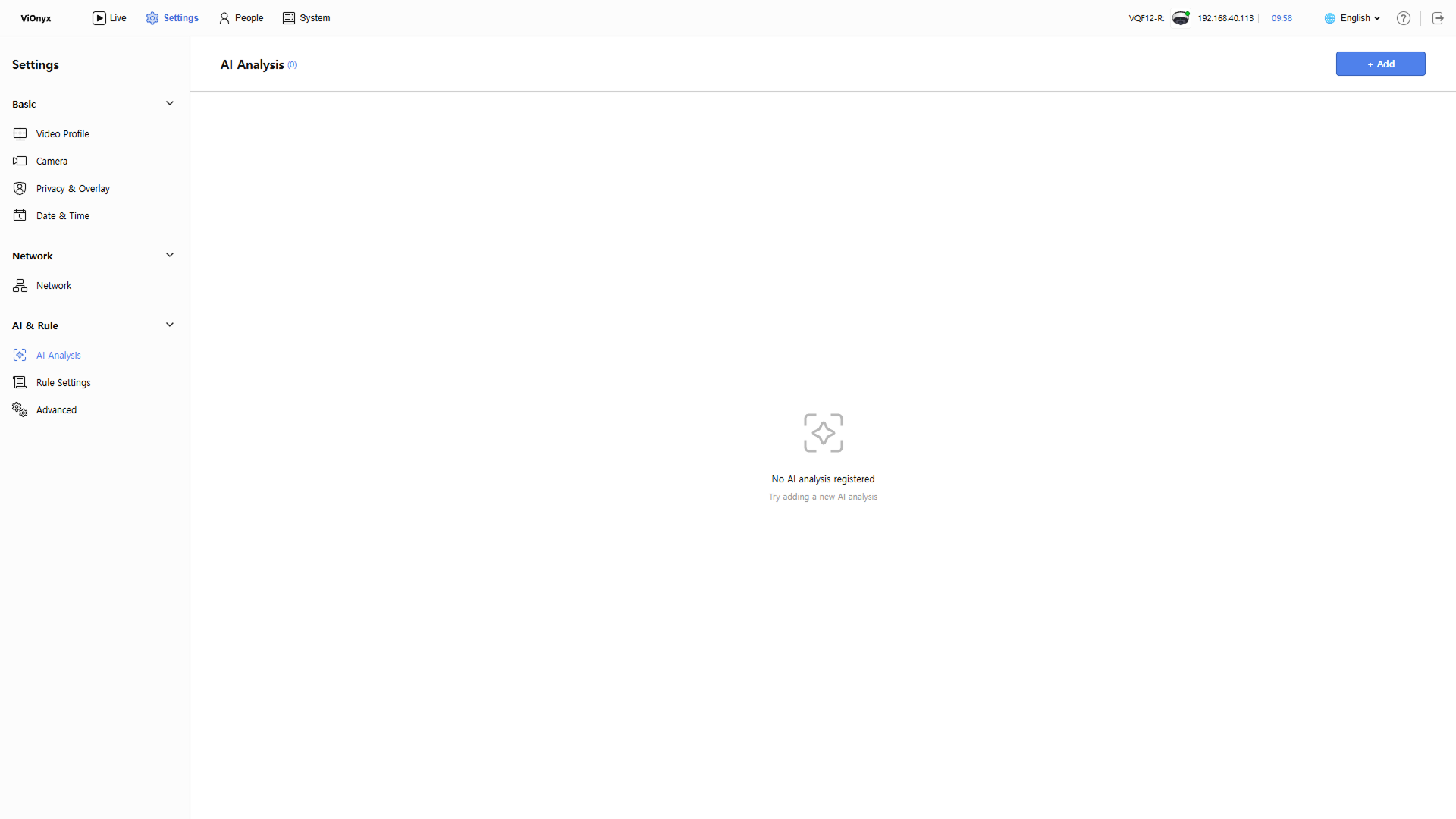
Click AI & Rule → AI Analysis in the left sidebar.
-
Click + Add at the top right of the screen.
-
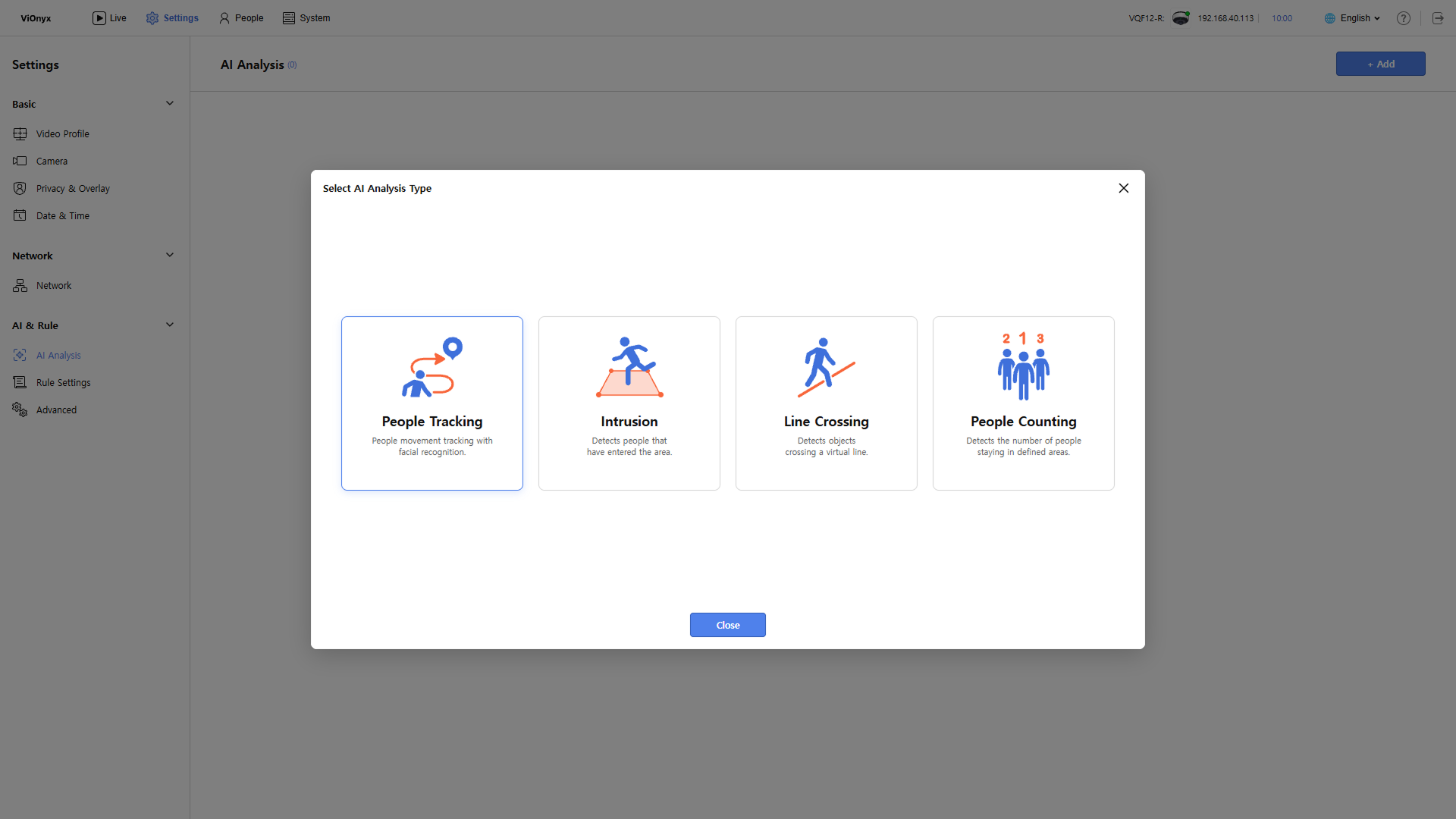
Click People Tracking in the Select AI Analysis Type window.
-
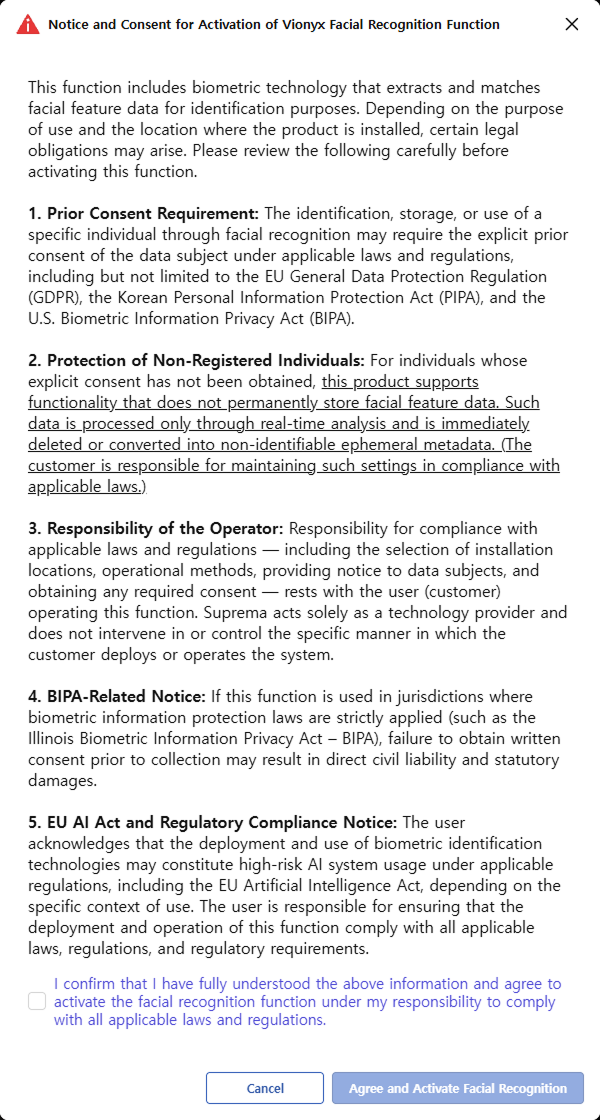
When the Notice and Consent for Activation of Vionyx Facial Recognition Function pop-up appears, review the details, select the consent checkbox, and click Agree and Activate Facial Recognition.
-
To use the Facial Authentication feature, comply with local regulations. Cannot proceed without consent.
-
The Notice and Consent for Activation of Vionyx Facial Recognition Function popup appears only once. Subsequent AI event creation assumes consent.
-
-
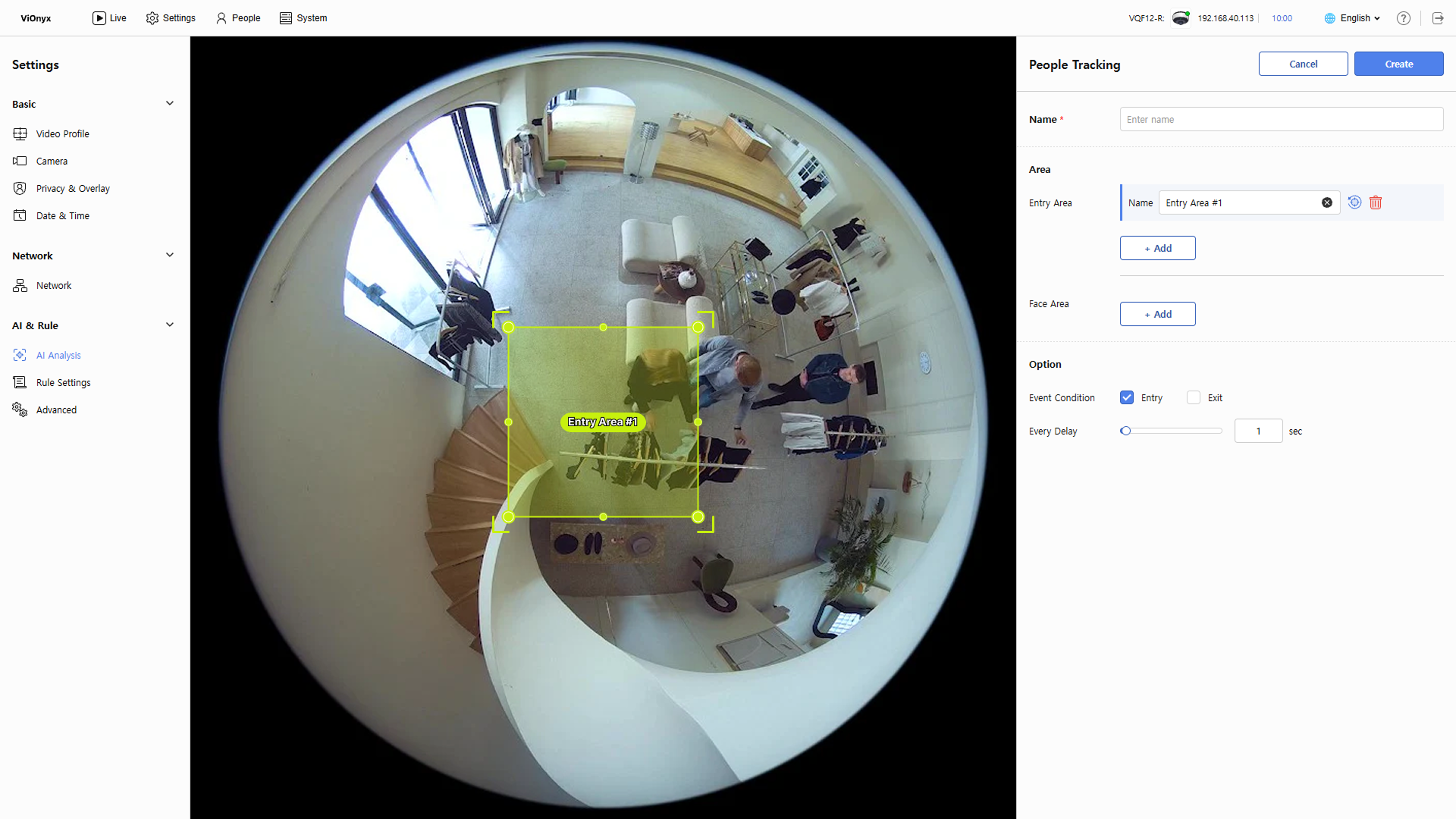
Complete the necessary settings in the right People Tracking panel.
Set event name
Enter the AI event name in the Name input field. The name can be up to 64 characters long.
Entry area settings
Define the entry area to track. The camera detects entries and exits in the configured area. Set at least one virtual line. Click + Add to add up to 10. A yellow box appears in Live view. Drag the corners or points with the mouse to adjust the shape. Drag the center to move the line.
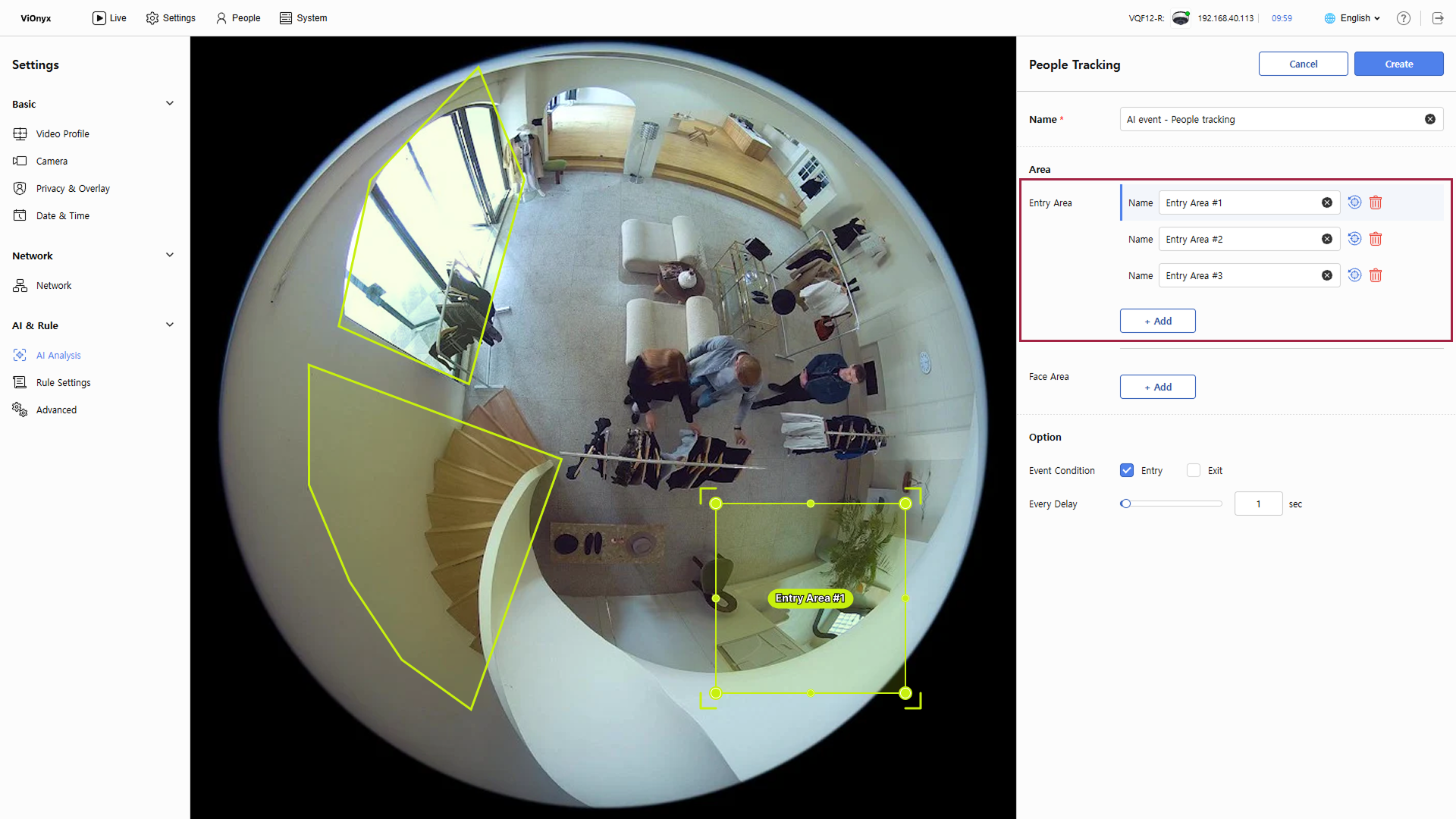
- Name: Edit the entry area name. Assign a clear, descriptive name. The entry area name appears on mouse hover in Live view.
-
Click to reset the shape and size of the configured entry area.
-
Click to delete an added entry area.
Face area settings (optional)
Define the area for face detection. When set, the system prioritizes face tracking in that area. Set the face area to include the entry area. If the face area does not include the entry area, the camera cannot recognize faces. Click + Add to add up to 10 face areas. A blue box appears in Live View; drag corners or points to adjust the shape. Drag the center to move the line.
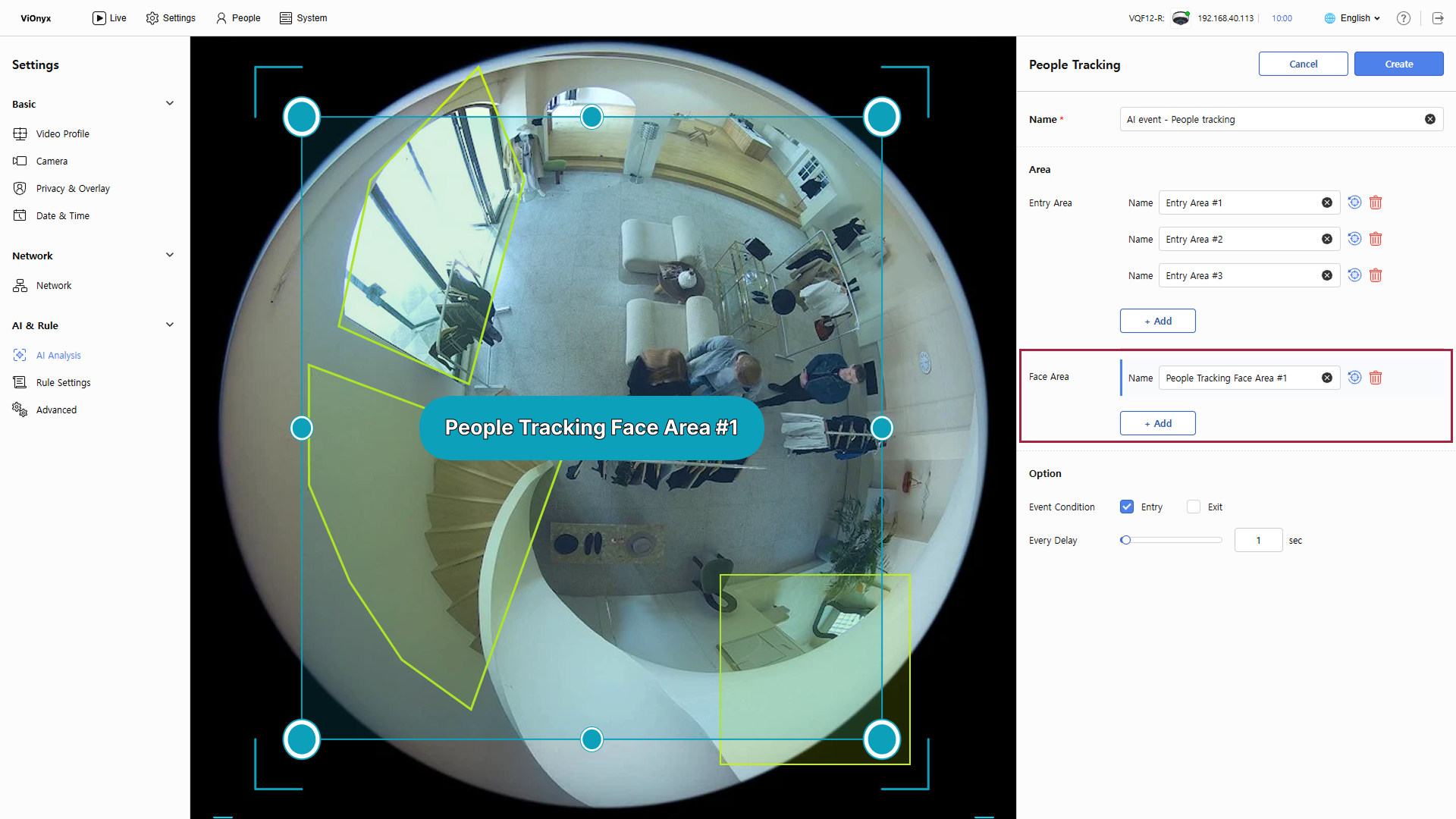
- Name: Edit the face area's name. Assign a clear, descriptive name. The face area name appears on hover in Live View.
-
Enrolled users are automatically identified in the Live menu and shown by name. Unenrolled users appear as Unknown Face.
-
Click to reset the configured face area's shape and size.
-
Click to delete an added face area.
Set event trigger conditions
Set the event trigger conditions. Select Entry or Exit detection and set the event delay time.
-
Event Condition: Select Entry or Exit detection. You can select both.
-
Every Delay: Set the event trigger delay. Events trigger only after the configured time elapses; set up to 60 seconds.
Save settings
After completing all settings, click Create in the top right. The interface returns to the previous screen, and the new AI event is added to the list.
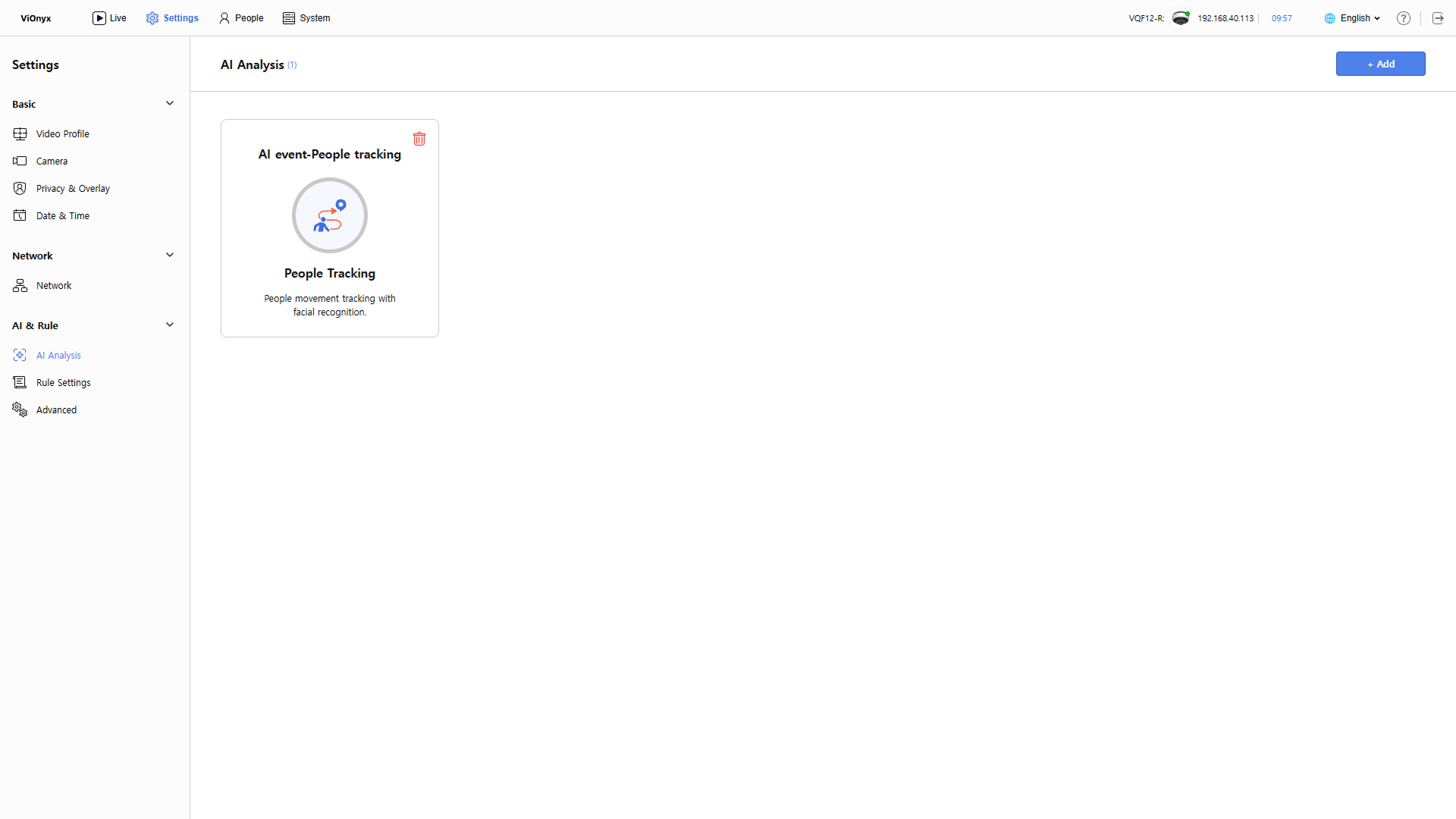
Check in Live
Click the Live menu at the top left of the screen. Confirm the  icon at the top right of the camera feed is on. The configured entry and face areas appear as overlays on the video. An event triggers whenever a person enters or exits an entry area. If face areas are set, the camera detects faces there; enrolled users are automatically identified and their names are displayed.
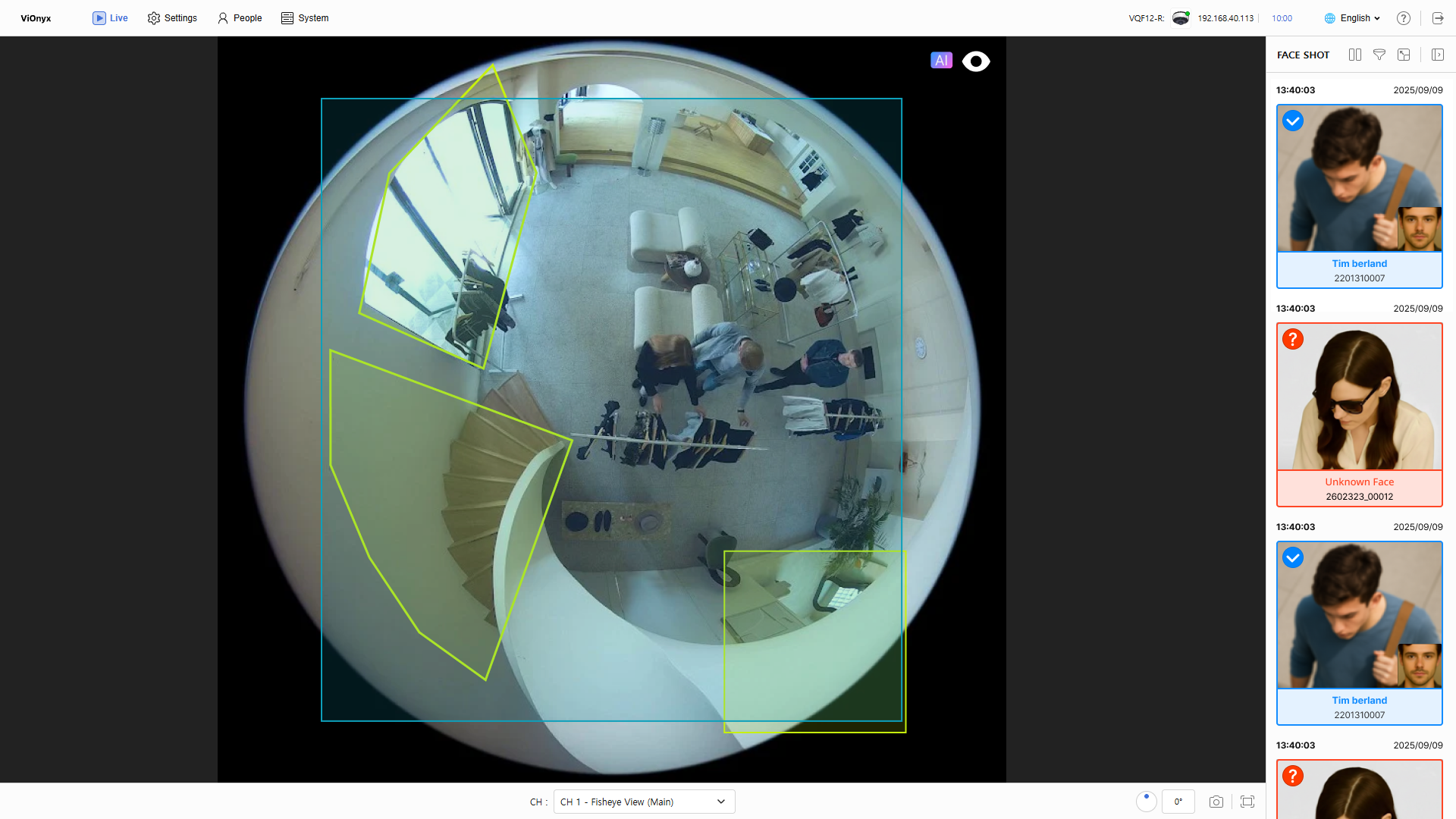
-
Unenrolled users appear as Unknown Face. Enrolled users appear with their name.
-
If the camera fails to recognize faces, enable the Min Face Size Visualize option. Alternatively, enlarge the face area or adjust the camera position.
-
Poor lighting or backlight may prevent the camera from detecting faces. Improve area lighting or adjust the camera position and angle so faces are clearly visible.
-
Faces must face the camera to be detected. Profile or rear views may not be detected.
-
If no events occur in the entry area, verify that the face area includes it.
-
If too many events occur, adjust the Every Delay option. Increasing the event delay reduces event frequency.