Set Up RS-485
In RS-485 settings, add and manage Suprema I/O devices connected to the camera RS-485 port as slave devices. The camera acts as the master for the RS-485 port. Link registered slave device relays to AI rules to control external devices, such as opening doors or turning on emergency lights.
Check RS-485 settings in the following situations.
-
When adding an I/O device to the camera to increase relay outputs or input ports
-
When an AI event occurs and you need to control external devices through a slave device relay
-
When checking the slave device connection status or updating firmware
-
When removing a slave device that is no longer used
-
Firmware version 1.1.0 supports master mode only. The camera does not support slave mode for connecting to another device as a slave.
-
Add up to 8 slave devices.
-
Suprema I/O devices are the only supported slave devices. Fingerprint authentication devices and facial authentication devices cannot connect as slave devices.
-
Secure I/O 2 (SIO2)
-
Door Module (DM-20)
-
Door Interface (DI-24)
-
Output Module (OM-120)
-
Input Module (IM-120)
-
Before you start
Check the following before adding slave devices.
-
Confirm that the slave device is wired correctly to the camera RS-485 port.
-
Confirm that an OSDP ID is assigned to the slave device. Devices with an OSDP ID of 0 (unassigned) cannot be added.
-
Confirm that devices on the same RS-485 bus have unique OSDP IDs.
-
If the slave device was added to another master device, initialize the device.
Add slave devices
Search for slave devices connected to the RS-485 port, and add them to the camera.
-
Click Settings in the upper-left of the screen.
-
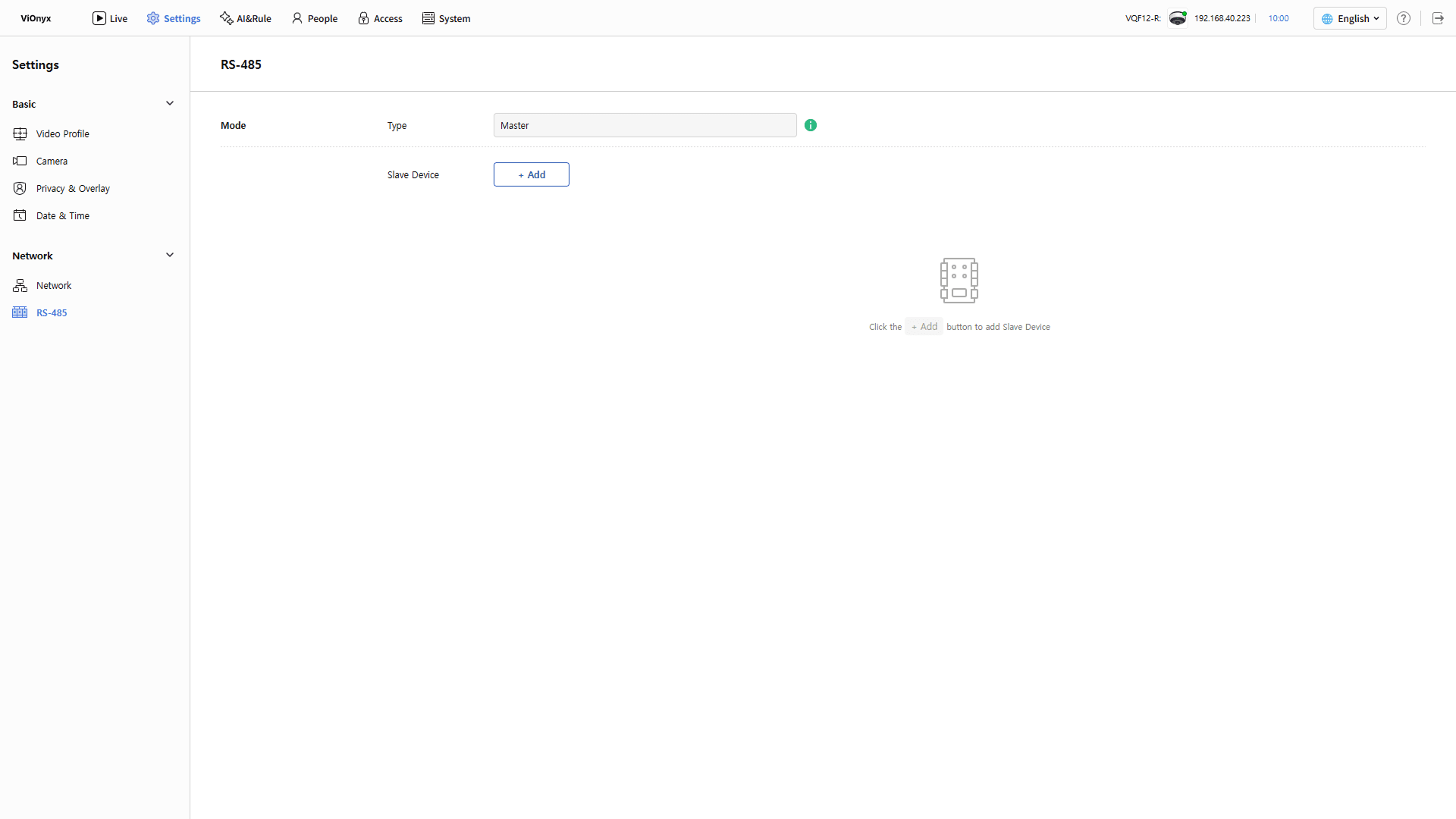
Click Network → RS-485 on the left sidebar.
-
In Slave Device, click + Add.
-
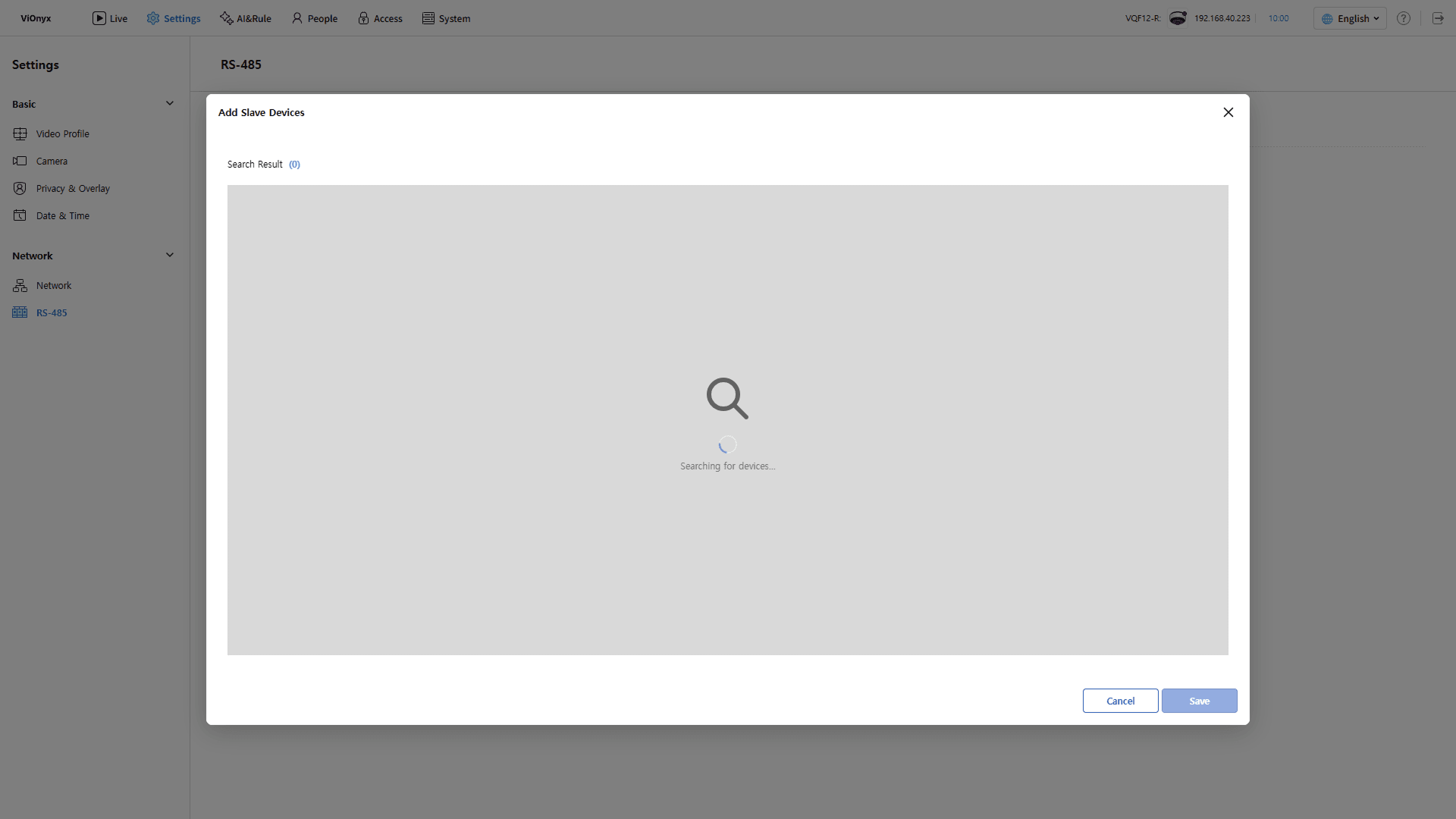
The Add Slave Devices pop-up appears, and the device search starts automatically. Wait for the search to complete.
-
Select the checkbox for the device to add in the search results. Select multiple devices.
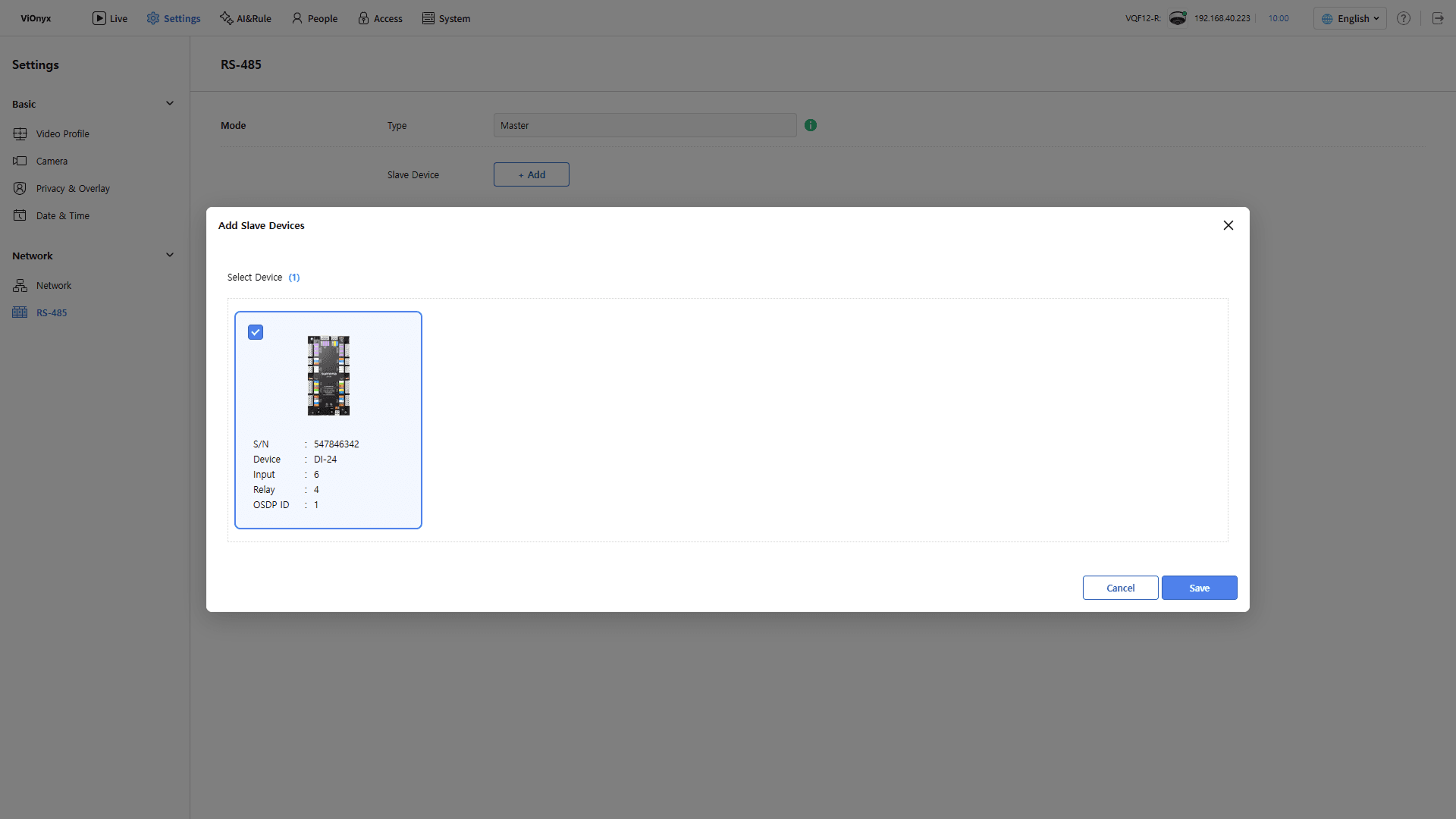
The discovered devices include the following information.
-
S/N: Device serial number
-
Device: Device model
-
Input: Number of input ports
-
Relay: Number of relay ports
-
OSDP ID: OSDP ID assigned to the device
-
-
Click Save to add the selected device. Select at least one device to enable the button.
When the device is added successfully, a success message appears in the upper right corner. The Slave Device list shows devices in OSDP ID order. The device name defaults to the serial number. Change it in Edit slave device.
When no devices are found
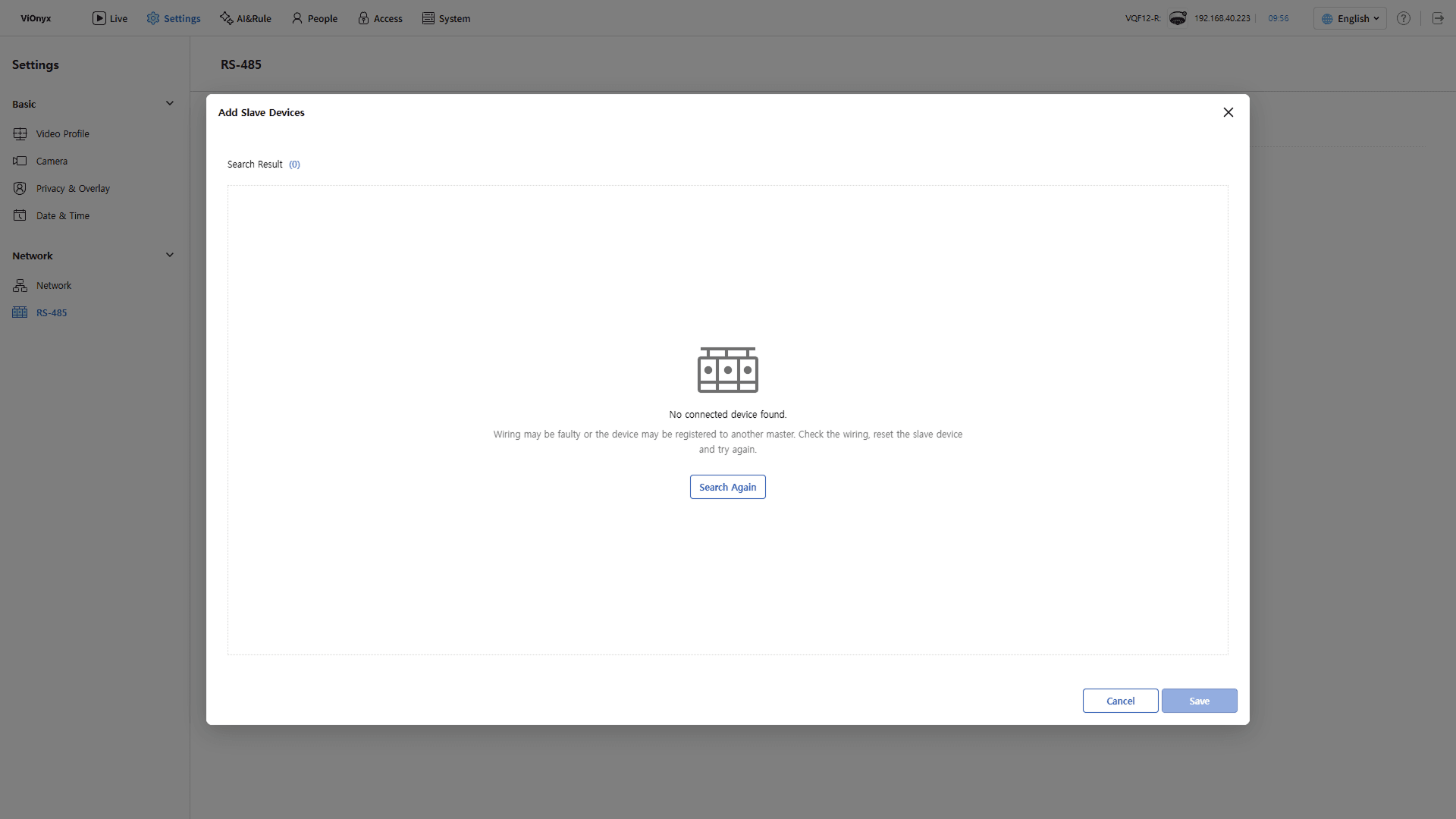
If the No connected device found. message appears in the search results, check the following, then click Search Again.
-
Check that the RS-485 wiring for the slave device is connected correctly.
-
If the slave device is added to another master device, initialize it.
-
Confirm that an OSDP ID is assigned to the slave device.
Check slave device status
Check the device information and connection status in the Slave Device list.
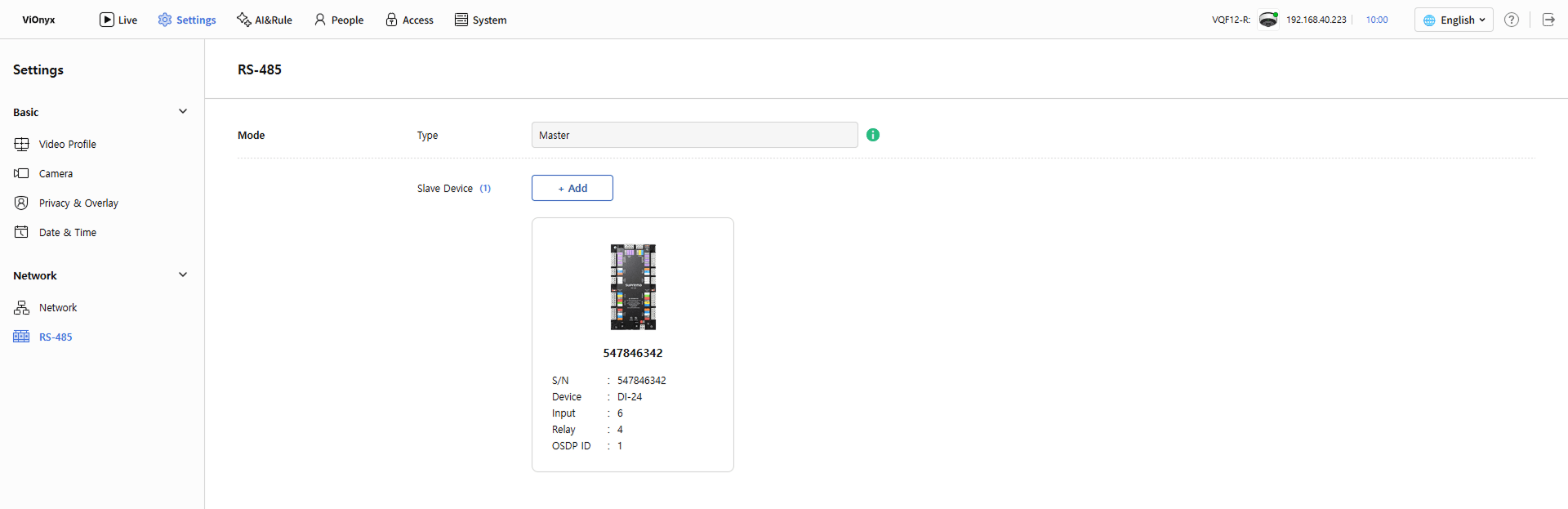
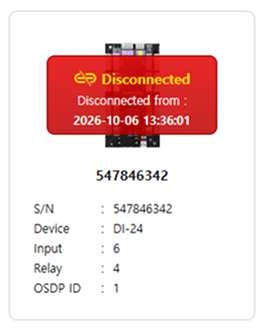
When communication between the device and the camera disconnects, the device card shows Disconnected and the disconnection time. Check the device power and RS-485 wiring. The indicator disappears when the device reconnects.
Check slave device connection and disconnection records in the system log. Refer to View system logs for more information.
Edit slave device
Change the name of an added slave device.
-
Click Settings in the upper-left of the screen.
-
Click Network → RS-485 on the left sidebar.
-
Hover over the device card to edit, and then click the button at the top right.
-
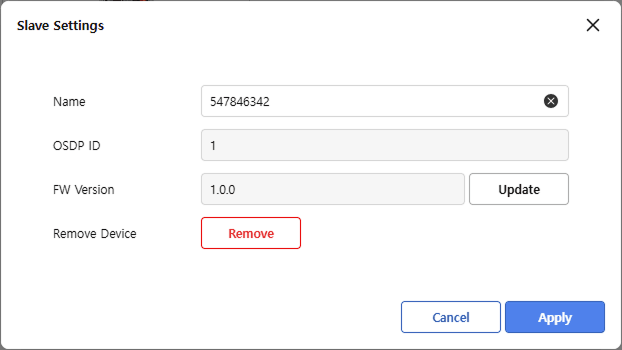
In the Slave Settings pop-up window, enter a new name in the Name input field.
-
Click Apply to save the changes.
When the changes save successfully, a success message appears in the upper right corner of the screen.
In the Slave Settings pop-up window, view the OSDP ID only. Do not change it.
Update slave device firmware
In the Slave Settings pop-up window, check the current firmware version and update the slave device.
-
Click Settings in the upper-left of the screen.
-
Click Network → RS-485 on the left sidebar.
-
Hover over the device card to update, and then click the button at the top right.
-
In the Slave Settings pop-up window, check the current version in FW Version, and then click the Update button.
-
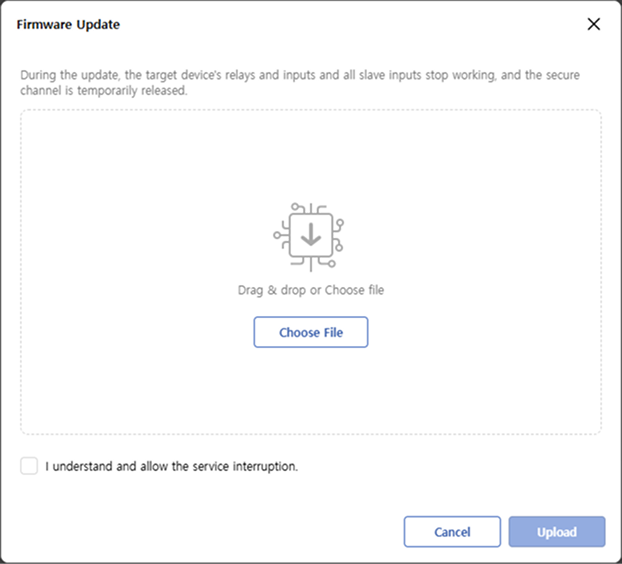
Drag and drop the firmware file, or click Choose File to select a file.
-
Review the service interruption notice, and then select the I understand and allow the service interruption. checkbox.
-
Click Upload to start the update.
The status and progress appear during the update. Check the system log for records of successful and failed slave device firmware updates.
-
The update interrupts the target device relay and inputs, interrupts all slave device inputs, and temporarily disables the secure channel. Run the update when the device is not in use.
-
Do not power off the device or disconnect the RS-485 wiring during the update.
-
The system blocks the update while another firmware update is in progress. Try again after the current update finishes.
Remove slave device
Remove slave devices that are no longer in use. Remove devices one at a time, or select multiple devices to remove at once.
Devices used in AI rules cannot be removed. When you try to delete a device, the rule name that uses it appears. First, remove the device relay setting from the rule, then try again. For rule editing, see AI Rule Settings.
Remove devices one by one
-
Click Settings in the upper-left of the screen.
-
Click Network → RS-485 on the left sidebar.
-
Hover over the device card to delete, then click the button at the top right.
- Alternatively, click the button, then click Remove in the Slave Settings pop-up window.
-
When the Remove Device pop-up appears, click Apply.
Remove multiple devices at once
-
Click Settings in the upper-left of the screen.
-
Click Network → RS-485 on the left sidebar.
-
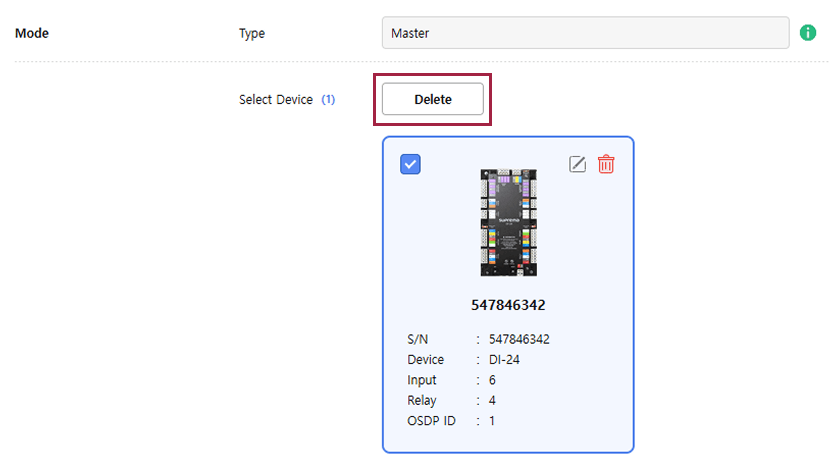
Select the checkbox on each device card to delete. The number of selected devices appears next to Select Device.
-
Click Delete.
-
When the Remove Device pop-up appears, click Apply.
When deletion succeeds, a success message appears in the upper right corner of the screen.
Troubleshooting
The following error messages may appear when adding, editing, or deleting a slave device.
| Message | Cause and solution |
|---|---|
| Failed to register the slave device. Check the wiring and try again. | Could not communicate with the device. Check the RS-485 wiring and try again. |
| Up to 8 slave devices can be registered. | 8 devices have already been registered. Remove unused devices, and then add the device again. |
| A device with the same serial number is already registered. | A device with the same serial number is already in the list. Check the list. |
| OSDP ID is already in use. | Another device is using the same OSDP ID. Change the OSDP ID on the slave device, and then search again. |
| The OSDP ID collides with another device on the bus. | The OSDP ID conflicts with another device on the RS-485 bus. Change the OSDP ID on the slave device, and then search again. |
| OSDP ID 0 (unassigned) cannot be registered. Assign an address on the device and search again. | This device has an OSDP ID of 0 (unassigned). Assign an OSDP ID to the device, then search again. |
| Device search timed out. | The device did not respond within the search timeout. Check the wiring, then search again. |
| Slave device is in use by a rule. | An AI rule uses the device. Remove the relay setting for the device from the rule, then try again. |
| RS-485 is initializing. Please wait. | The camera is initializing the RS-485 port. Try again in a moment. |