Configure Video Profile
Live-view image quality and recorded video quality depend on the video profile settings. In video profile settings, adjust per-channel view modes and stream encoding values. Also provide Mirror (left-right flip) and channel reset features depending on the installation environment.
Set the video profile in the following situations to balance image quality, storage, and network bandwidth.
-
When balancing storage and image quality
-
When separating Main and Sub streams to match network bandwidth
-
When using per-channel view modes to match their intended purpose
If AI events are active, changing the mirror setting or performing a reset may delete AI event settings.
Video profile settings
-
Click Settings in the upper-left of the screen.
-
On the left sidebar, click Basic → Video Profile.
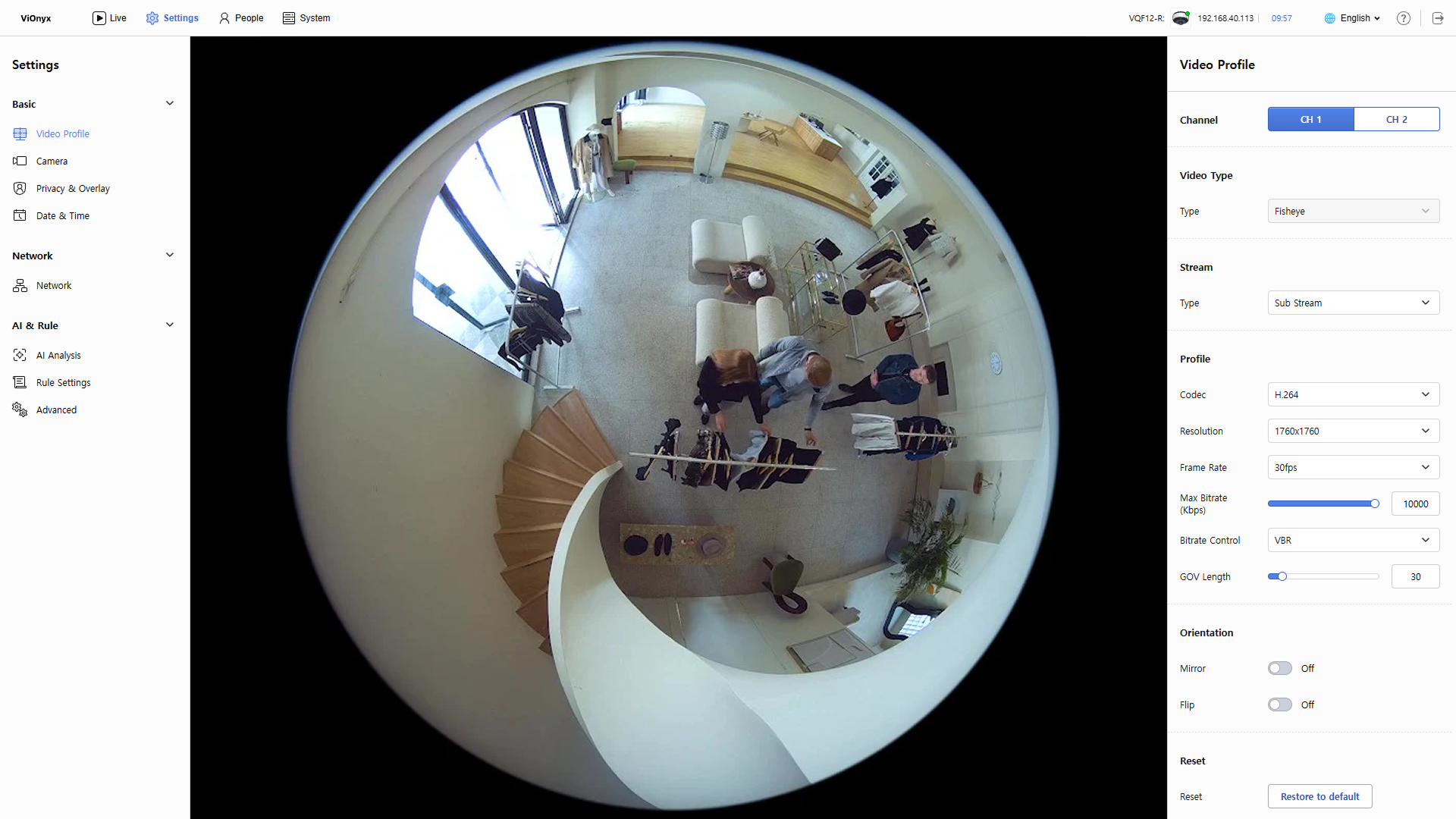
Video profile changes apply to the camera immediately without a separate save button.
Channel selection and view type
The main purpose of each channel is as follows.
-
CH 1: This channel operates based on the original fisheye view from the physical camera.
-
CH 2: This channel uses processed views, such as panorama or quad split screens, to improve monitoring efficiency.
Set detailed video profile settings per camera channel.
-
From the right Video Profile panel, select CH 1 or CH 2 in Channel.
-
From Video Type → Type, select the view type for the selected channel.
Channel view type policies are as follows.
-
CH 1: Fixed to fisheye and cannot be changed.
-
CH 2: Select a view mode other than fisheye.
-
Single Panorama: This mode corrects video captured by a fisheye camera so you can view a wall-style panorama.
-
Double Panorama: This mode corrects distortion in video captured from a 360° area so you can view a panorama split into upper and lower screens.
-
Quad View: This mode corrects distortion so you can view four specific screens that fit human vision at the same time.
-
Stream type selection
In Stream, select the stream to configure. Select the main or sub stream, then adjust the detailed values in the Profile section.
-
Main Stream: Recording and high-quality monitoring
-
Sub Stream: Low-bandwidth remote monitoring
The CH 2 channel supports only Main Stream.
Profile detail settings
Adjust codec, resolution, frame rate, and other detailed settings according to the selected stream type.
-
Codec: Select the codec to apply to the profile. Select one of H.264, H.265, or MJPEG.
Selecting H.265 requires Profile T.
-
Resolution: Resolution to apply to the profile. Supported resolutions vary by channel, video type, and stream type.
Channel Video Type Stream Type Supported Resolution CH 1 Fisheye Main Stream 3520 × 3520 Sub Stream 1760 × 1760 CH 2 Single Panorama Main Stream 2048 × 512, 1920 × 480, 1280 × 320, 704 × 176 Double Panorama Main Stream 2048 × 2048, 1920 × 1920, 1280 × 1280, 704 × 704 Quad View Main Stream 2048 × 2048, 1600 × 1600, 1280 × 1280, 1024 × 1024 The CH 2 channel supports only Main Stream.
-
Frame Rate: Set the number of frames per second. Select one of 30, 25, 20, 15, or 10 frames per second.
-
Max Bitrate: Set the maximum video bit rate.
-
Bitrate Control: Select the video bitrate control method.
-
VBR: Variable Bitrate adjusts according to scene complexity, providing high quality when the network is stable. Recommended when network bandwidth is sufficient.
-
CBR: Fixed bitrate ensures stable streaming but may reduce quality in complex scenes. Recommended when network bandwidth is limited or consistent.
-
-
GOV Length: Set the I-frame interval. Select a value between 1 and 300. Longer GOV reduces data size; shorter GOV increases it.
-
Variable Bitrate (VBR): This method transmits video within the maximum bit rate without fixing the data size of each frame. Bitrate varies according to scene complexity. Generally provides high quality, but may cause video interruptions when network bandwidth is unstable.
-
Constant Bitrate (CBR): This method transmits video by fixing the data size of each frame. Provides stable streaming in environments with consistent network bandwidth, but quality may degrade depending on scene complexity.
-
GOV (Group of Video): In H.264/H.265 compression, this refers to the group of frames from an I-frame to the frame immediately before the next I-frame. A GOV contains I-frames (key frames) that hold full image data and P-frames that contain only changes from the previous frame. Longer GOV reduces the number of I-frames and thus reduces video data; shorter GOV increases the number of I-frames and increases video data.
Mirror settings
Depending on the camera installation location, mirror or flip settings may be required.
-
Mirror: Turn the mirror setting on or off.
-
Flip: Turn the flip setting on or off.
Changing Mirror may be restricted when AI events are configured. Follow the popup instructions to delete AI settings and proceed.
Channel settings initialization
To restore the selected channel's view mode and stream settings to factory defaults, click Restore to default in Reset.
-
Only the selected channel is restored to factory defaults.
-
If an AI event is set in fisheye mode, delete the AI setting before continuing.