Control Doors
In the Door Control menu, check the lock status of registered doors in real time and open or lock doors remotely.
Directly control the door in the following situations.
-
Open the door once for visitors or delivery drivers without enrolled facial credentials
-
Keep the door open for events or moving day
-
Lock the door immediately in an emergency, regardless of the schedule
-
An operator account is required to control doors. Without operator permission, the system disables door status checks and door control. For more information on operator roles, see Manage Operators.
-
For more information on adding and managing doors, see Manage Doors.
Check door status
-
Click the Access menu in the upper-left corner of the screen.
-
Click Door Control on the left sidebar.
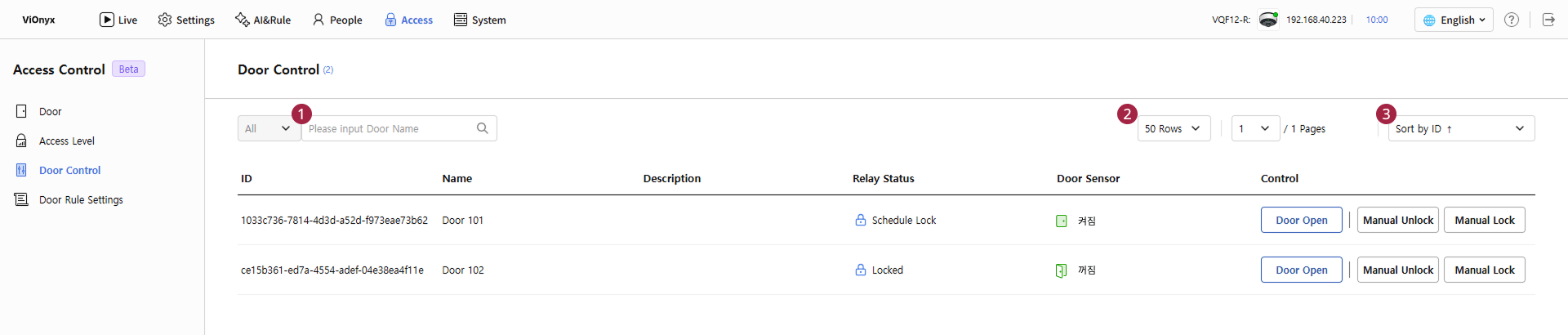
The list shows the doors registered in the Door menu. When a door is added or deleted, the list updates immediately.
-
To find a specific door, enter the door name in the search field ().
-
Select a value in the Rows per page list () in the upper-right corner. This changes the number of doors per page.
-
To change the sort criterion, select one in Sort by ID().
The following items are shown in the door list.
| Item | Description |
|---|---|
| ID | The door’s unique ID. |
| Name | The name of the door. |
| Description | The description entered when adding or editing the door. |
| Relay Status | The current status of the door lock. |
| Door Sensor | The current status of the door sensor. This column appears only when you set the Door Status input port for the door. |
| Control | This feature opens the door and manually locks or unlocks it. |
Relay status
The Relay Status column shows whether the entrance door is locked and what determines that status.
| Status | Description |
|---|---|
| Locked | The entrance door remains locked by default. |
| Unlocked | The entrance door remains unlocked by default. |
| Schedule Lock | The entrance door locks according to the lock schedule. |
| Schedule Unlock | The entrance door unlocks according to the unlock schedule. |
| Fixed Lock | Locked using Manual Lock. |
| Fixed Unlock | Unlocked using Manual Unlock. |
Control doors
Click the button in the Control column to control the entrance door.
| Button | Trigger and Action |
|---|---|
| Door Open | Open the entrance door once. The entrance door locks again after the configured open time elapses. |
| Manual Unlock | Unlock the entrance door and keep it open until you execute the Release feature. |
| Manual Lock | Lock the entrance door and keep it locked until you execute the Release feature. During this period, registered users cannot enter, and the Exit button cannot open the door. |
| Release | End Manual Lock or Manual Unlock and return the entrance door to its previous state. |
-
In the Manual Unlock state, anyone can access regardless of facial authentication. After completing required tasks, click the Release button.
-
In Manual Lock mode, people inside cannot exit using the Exit button. Before executing Manual Lock, confirm that no one remains inside.
-
Manual Lock or Manual Unlock disables the Door Open button and shows only the Release button.

-
Manual control takes precedence over the unlock schedule and lock schedule. For example, executing Manual Lock during an unlock schedule keeps the entrance door locked.
-
Click Release to return to the schedule for the current time or the default state.