View Live
Use the ViOnyx Web Server Live menu to view live camera video. Select the desired channel and view mode, then zoom or view in full screen.
Live view basic layout
When first entering the Live menu, the video appears in the following default state.
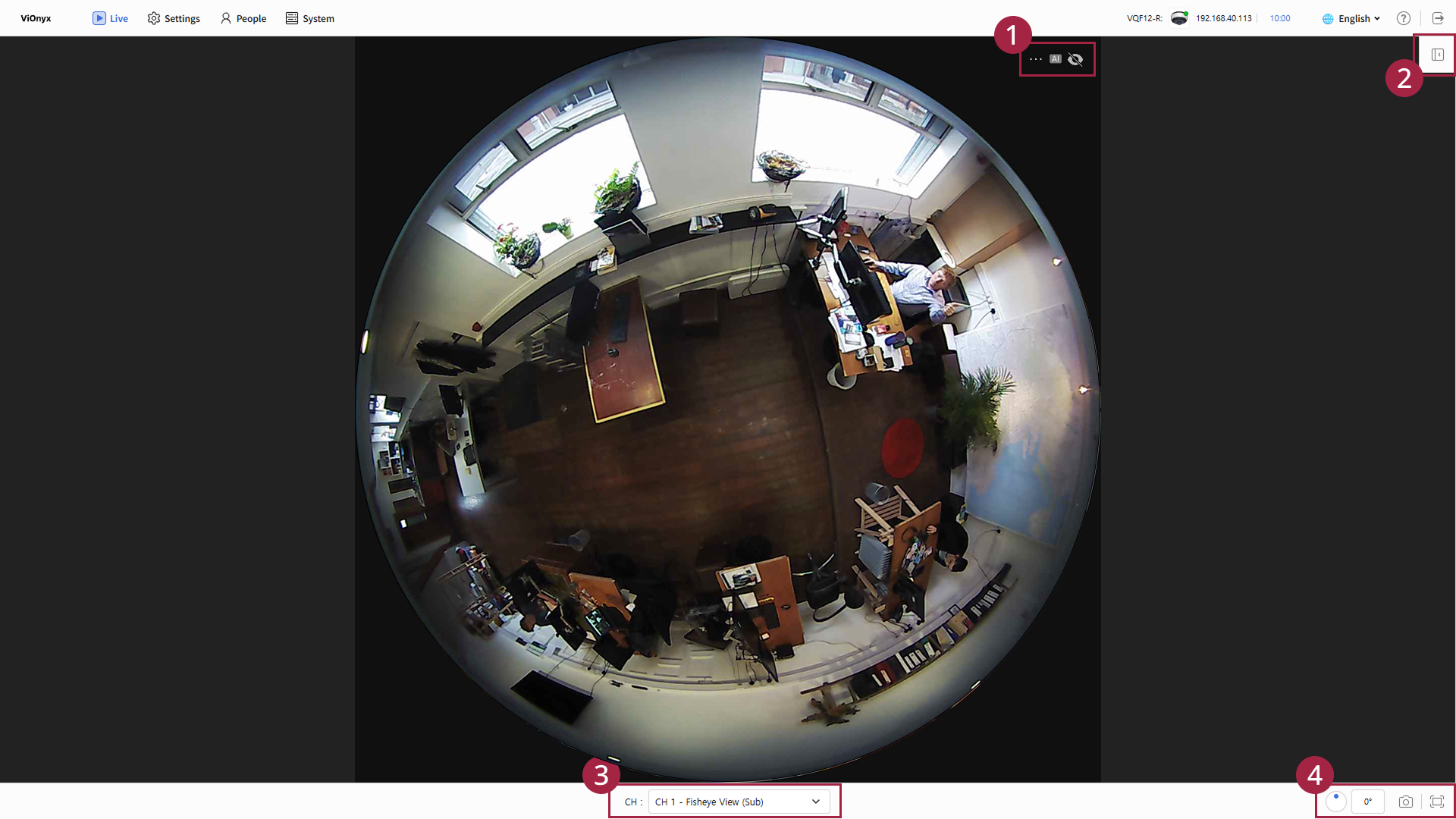
| Item | Component | Description |
|---|---|---|
| - AI features are disabled. Click the icon to enable AI features. - To show or hide AI events and user boxes, click and adjust the setting. | |
| Open the Face Shot(Face Shot) panel. | ||
| CH | Select the view mode available for each channel. | |
| Rotate the live video. | ||
| Capture the live video. | ||
| View the live video in full screen. |

Select channel and view mode
ViOnyx Web Server provides multiple channels and view modes. Select the desired channel and view mode from the CH dropdown at the bottom of the screen.
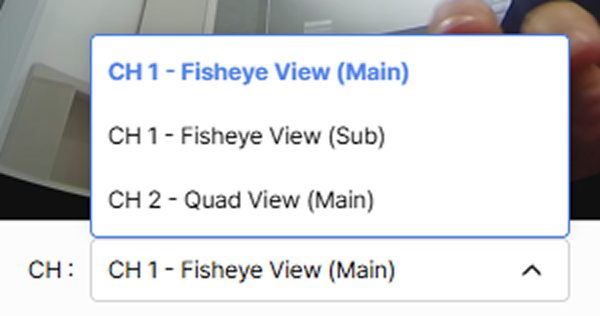
Supported channels and view modes
| Channel | View mode | Description | Example |
|---|---|---|---|
| 1ch | Fisheye View (Main/Sub) | Original fisheye-lens video for the primary channel |
|
| 2ch | Quad View (Main) | 4-split view for the panorama channel |
|
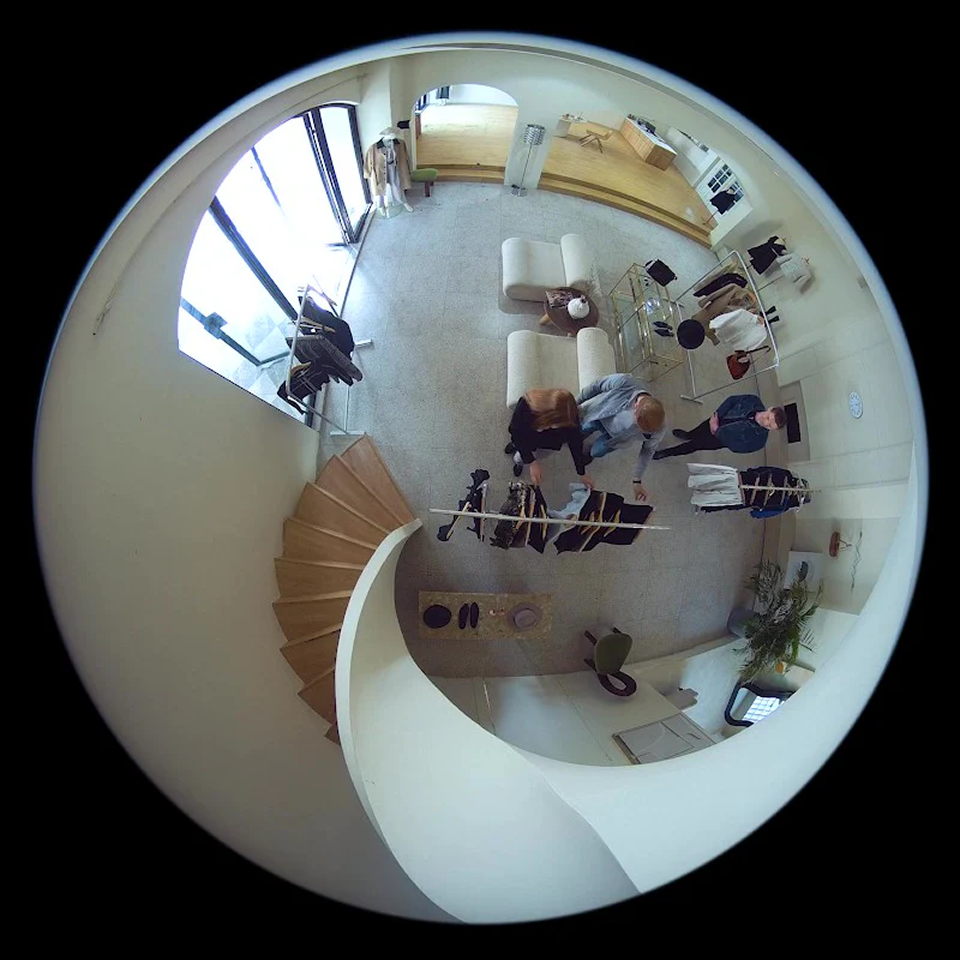
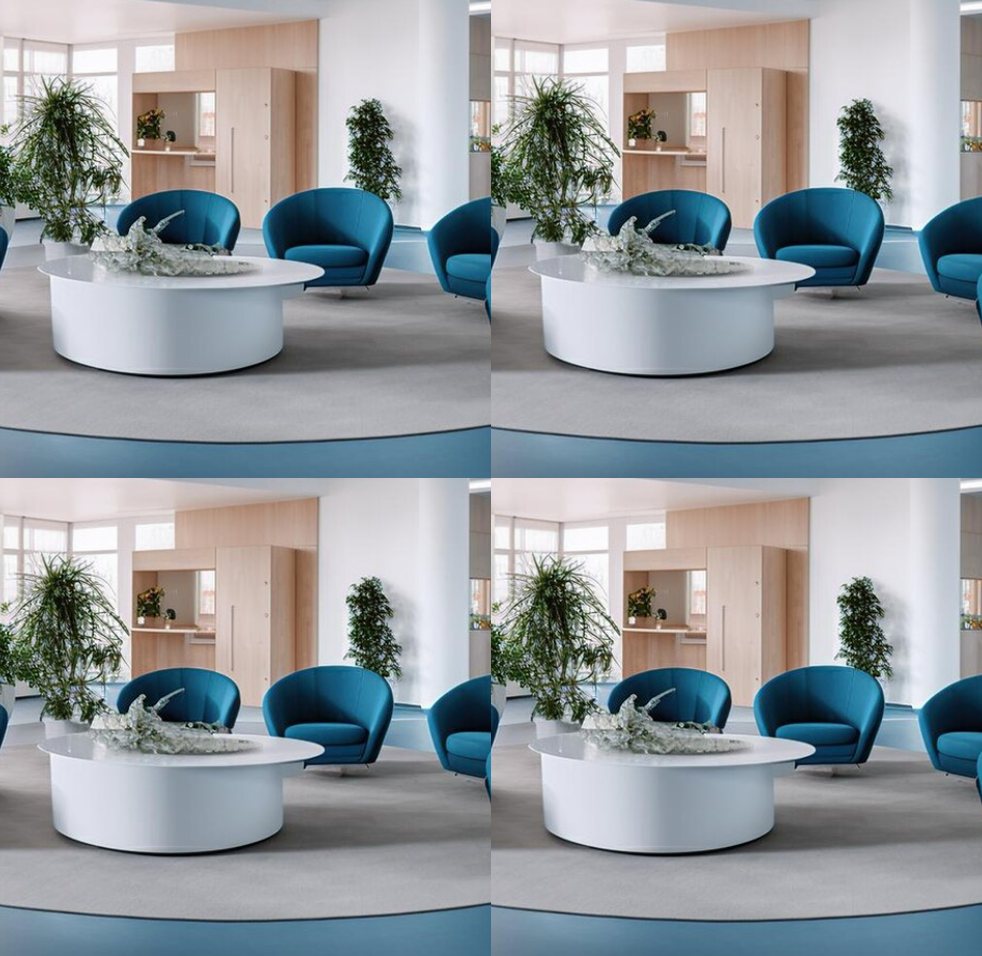
-
Each channel's Main and Sub streams provide different resolutions. Main is the high-quality stream; Sub is the low-quality stream.
-
The image is an example screen. The actual screen may differ.
Zooming
Use the mouse to zoom in and out.
-
Scroll up: Zoom in
-
Scroll down: Zoom out
-
Double-click: Return to original size (1x)
-
Zoom range: 1x to 8x
-
Zoom uses digital magnification, so the image may become blurry at high zoom levels.
Rotate the screen
To rotate the live video, click and drag . Or enter the rotation angle directly in the input field to the right of the button.
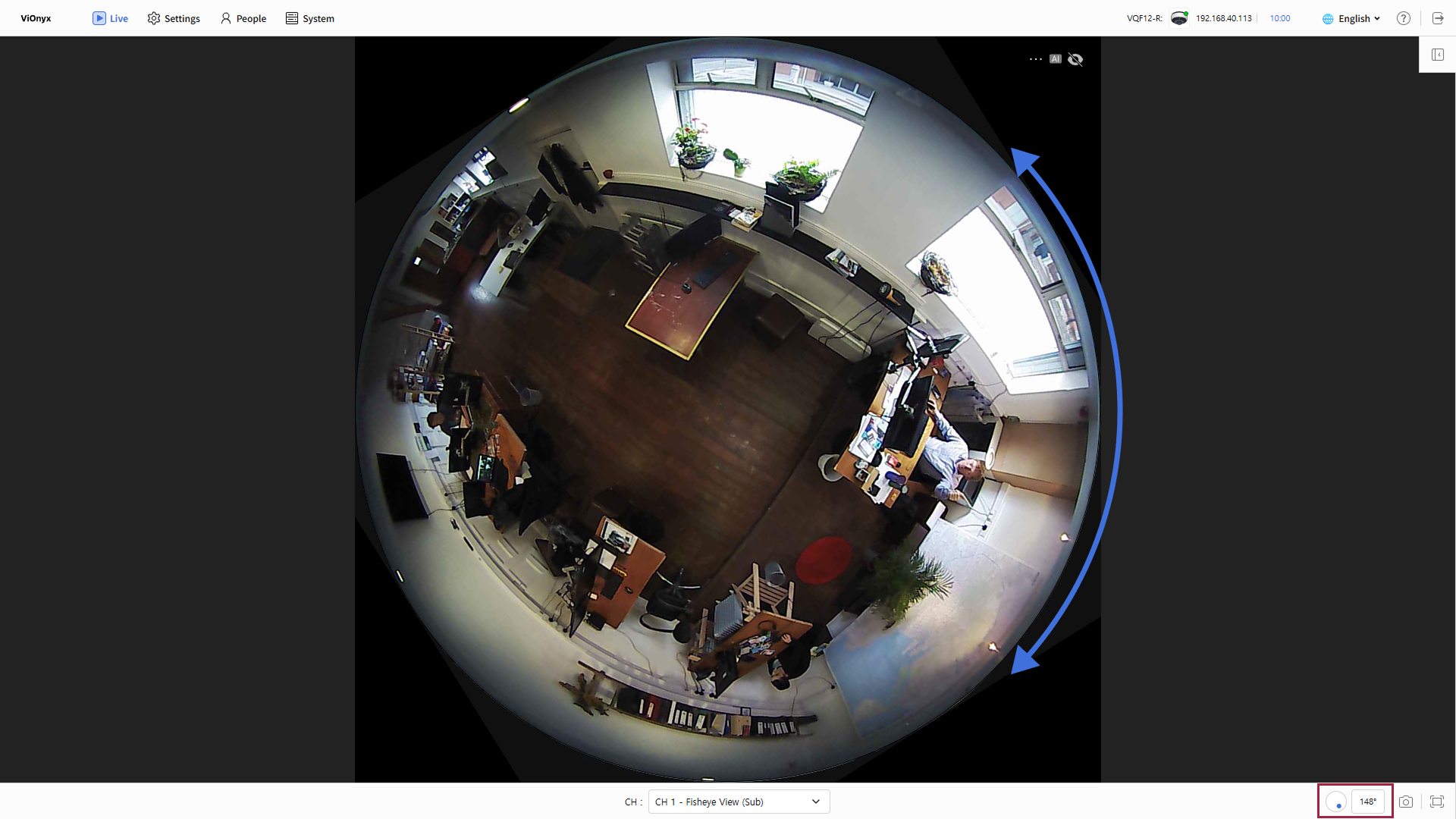
Capture screen
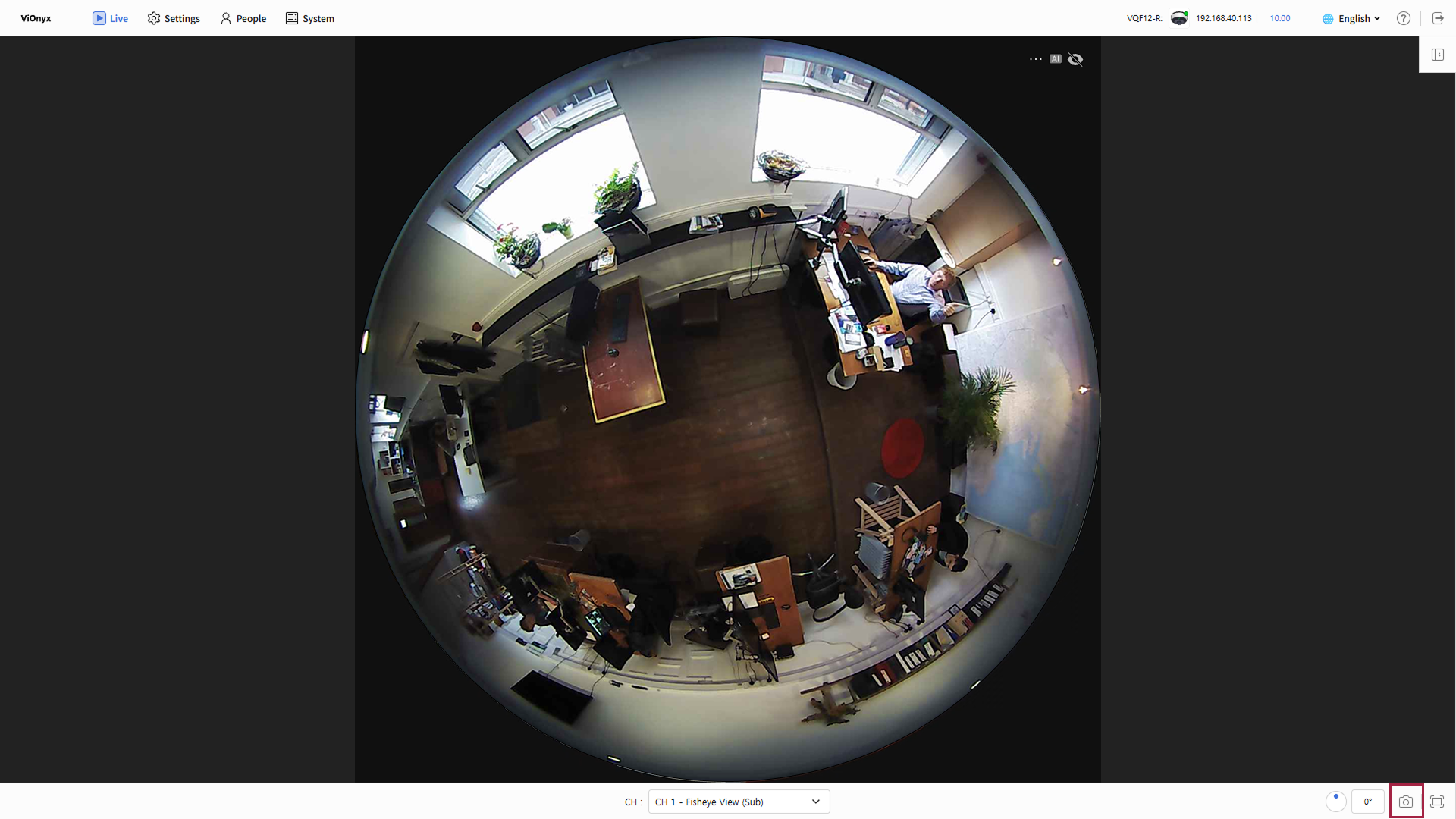
To capture the live video, click . The capture image is saved in the capture_{ch1|ch2}_{main|sub}_{YYYY-MM-DDTHH-MM-SS}.jpeg format.
Full-screen mode
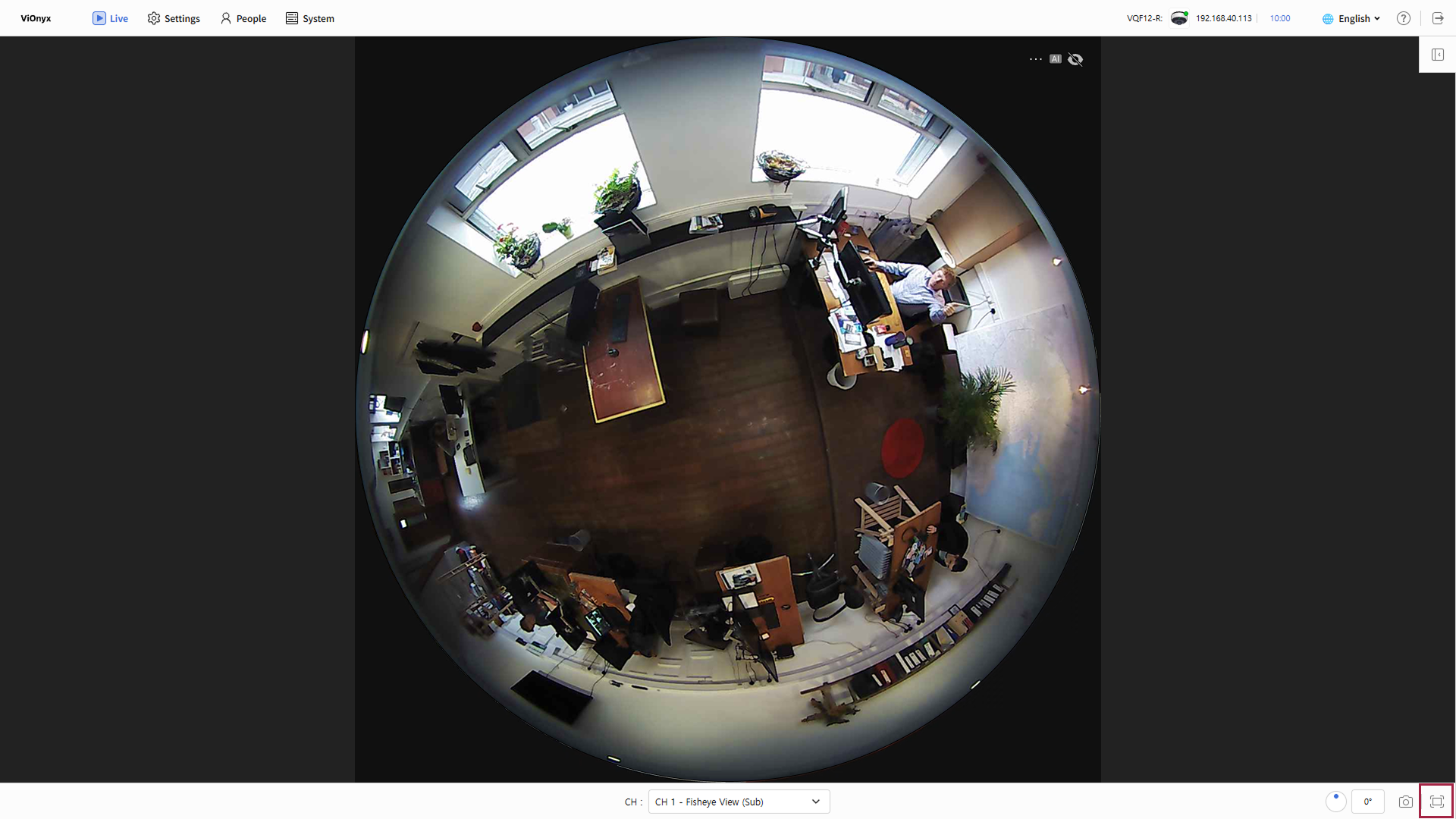
Use full-screen mode to view the video in a larger size. Click at the bottom right of the screen.
-
View-mode changes and zoom remain available in full-screen mode.
-
To exit full screen mode, press the ESC key or click again.
Show event and user boxes
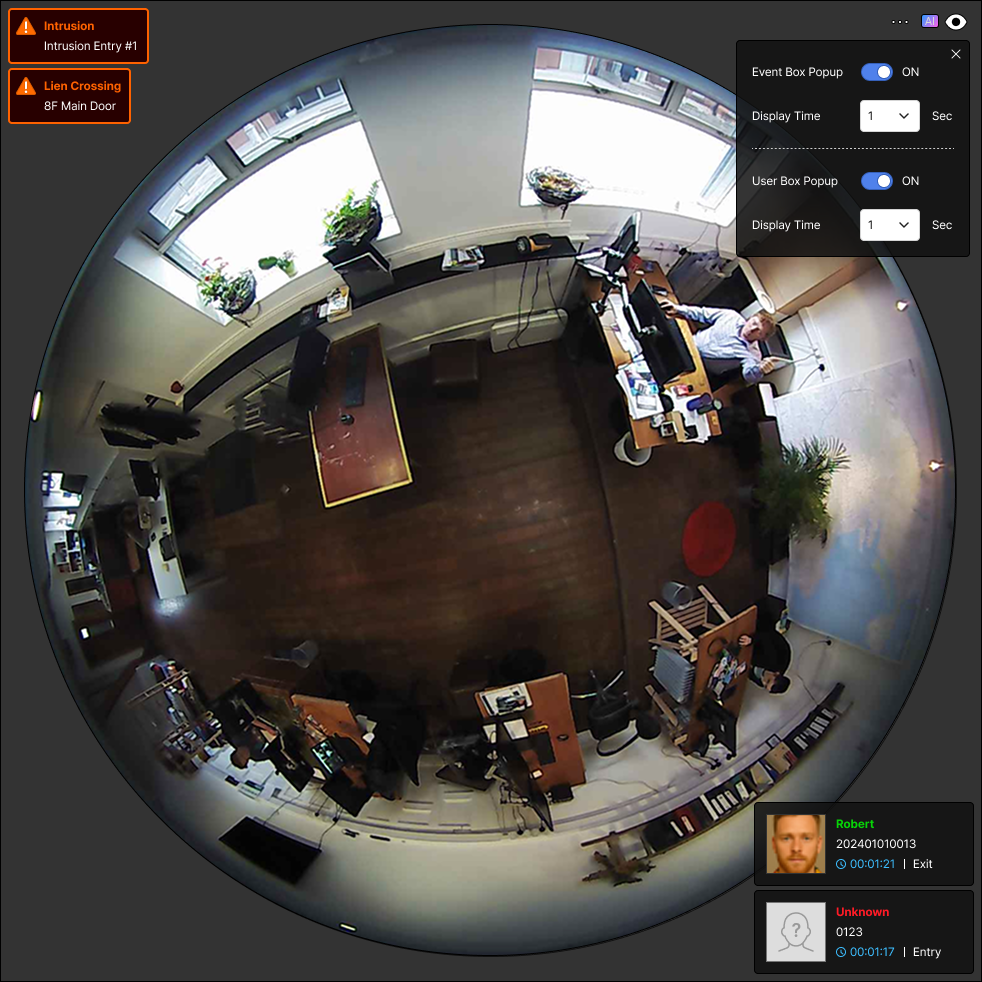
To show or hide AI events and user boxes in the live video, click at the top right of the screen. Select the elements to show.
-
Event Box Popup: When an AI event occurs, the event appears as a pop-up at the top left of the live video.
-
User Box Popup: When a face is detected through an AI event, the user box appears as a pop-up at the bottom right of the live video.
The pop-up stays visible for the time set in the Display Time option (in seconds).
Open the Face Shot panel
If you enabled the AI event feature, you can check faces detected through the camera. To open the Face Shot panel, click at the top right of the screen.
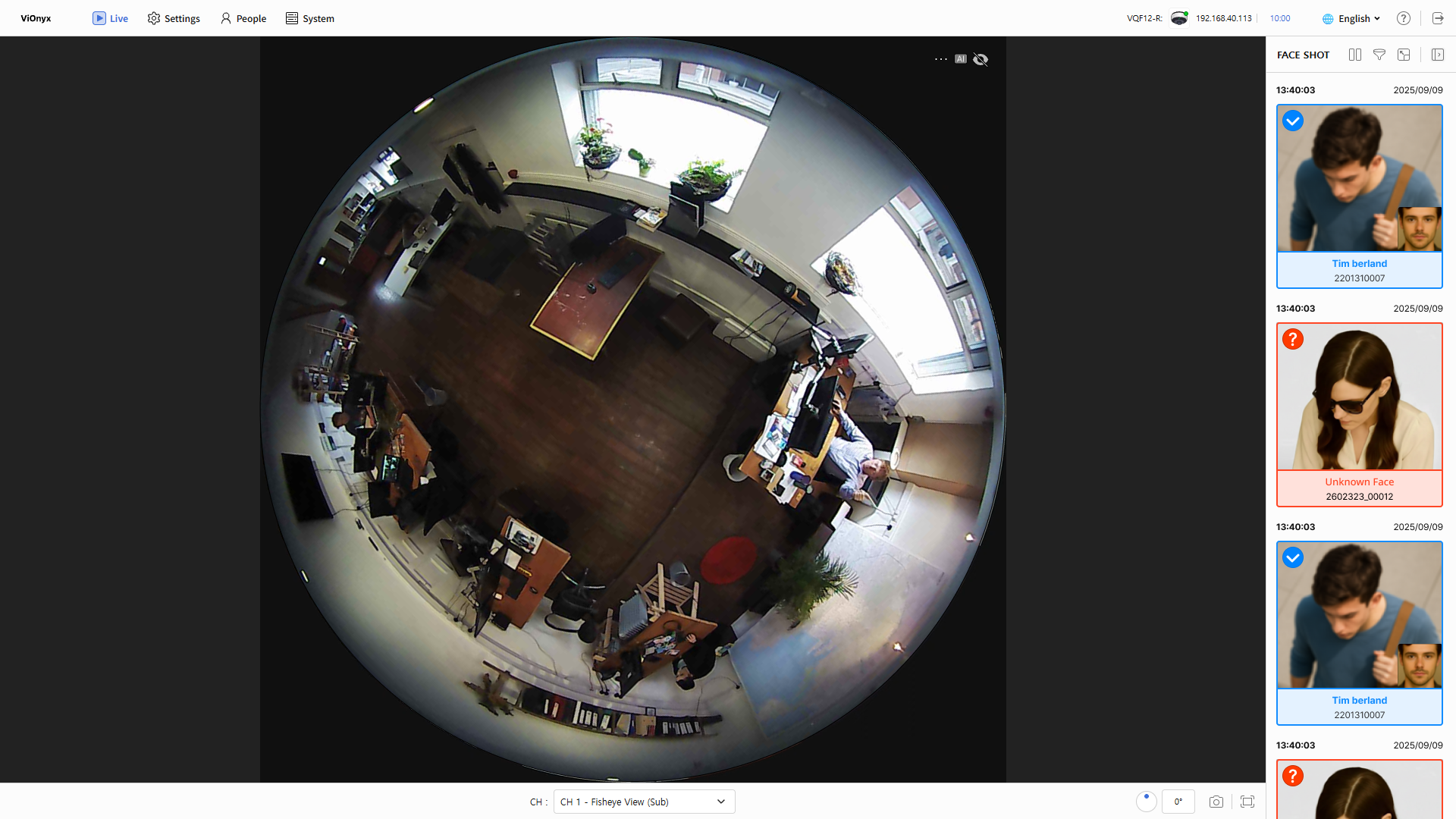
Click the tool icons at the top of the Face Shot panel to use these features:
-
 /
/  : Pause or resume Face Shot.
 -
 : Filter Face Shot results.
 -
 : Expand the Face Shot panel to full screen.
For more information about AI event and rule settings, see Set Up AI Events and Rules.
When video does not play
If the camera video does not load, follow these steps to check the network connection.
-
Check the camera and network connections.
-
Press Refresh (F5) in your web browser.
-
The system automatically tries to reconnect.