Manage Access Levels
An access level defines which users can access which doors, and when. In access control events, users identified by Facial Authentication cannot enter unless they are assigned to the door’s access level and within the access time.
Create an access level in the following situations.
-
When you want only certain departments or team members to have access to a door
-
When you want to set different access times for each user group, such as allowing access only during weekday business hours
-
When you want to grant separate permissions to users who access only during certain time periods, such as night shift workers
Before you start
Before creating an access level, check the following.
-
Add doors before assigning them to an access level. For more information, see Manage Doors.
-
Register users with facial credentials before assigning them to the access level. For more information, see Add Users.
-
Create schedules in advance to restrict access times. If no schedule exists, use the default Always schedule. For more information, see Manage Schedules.
Add an access level
Start adding an access level
-
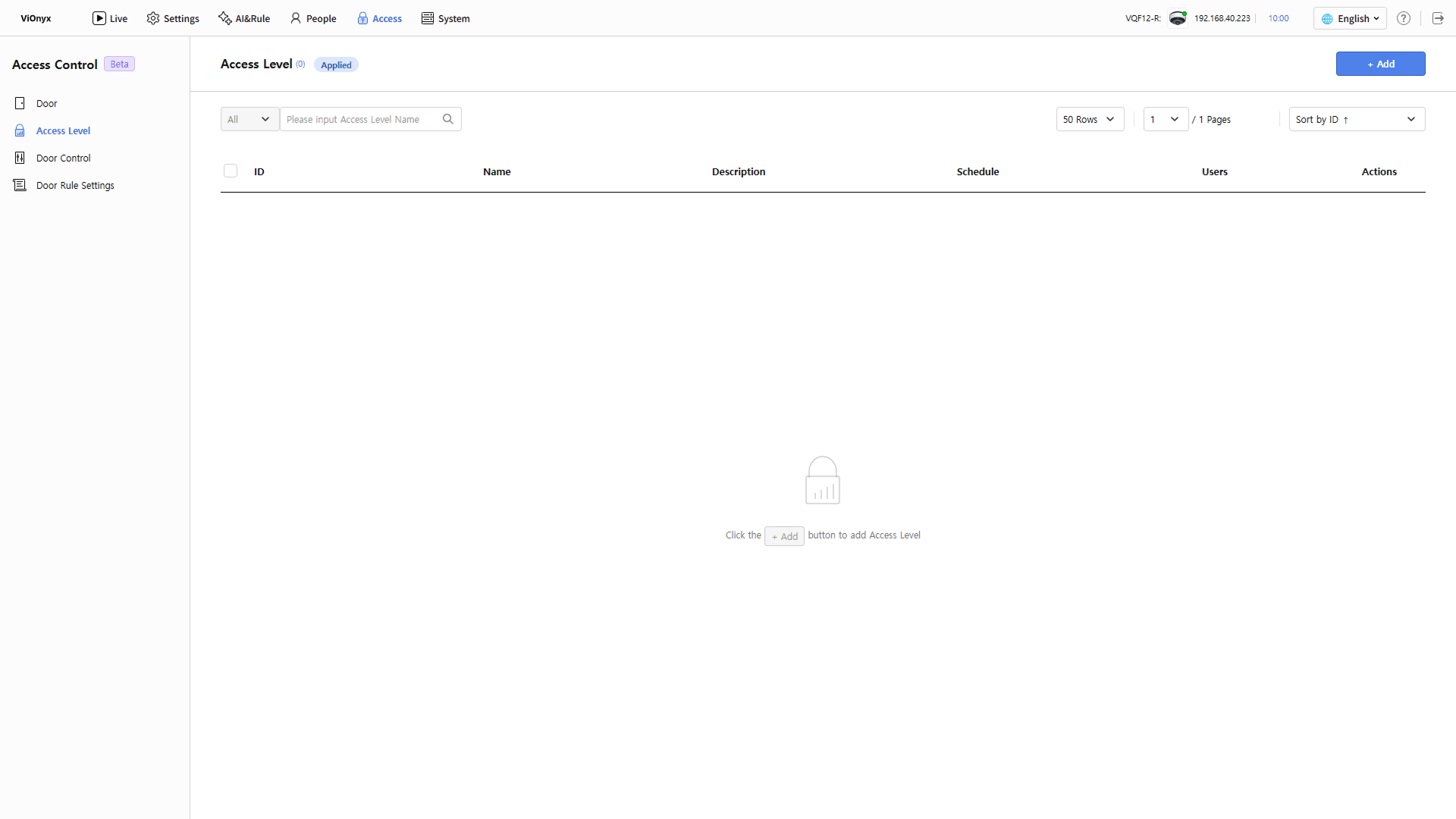
Click the Access menu in the upper-left corner of the screen.
-
Click Access Level on the left sidebar.
-
Click + Add at the top right of the screen.
-
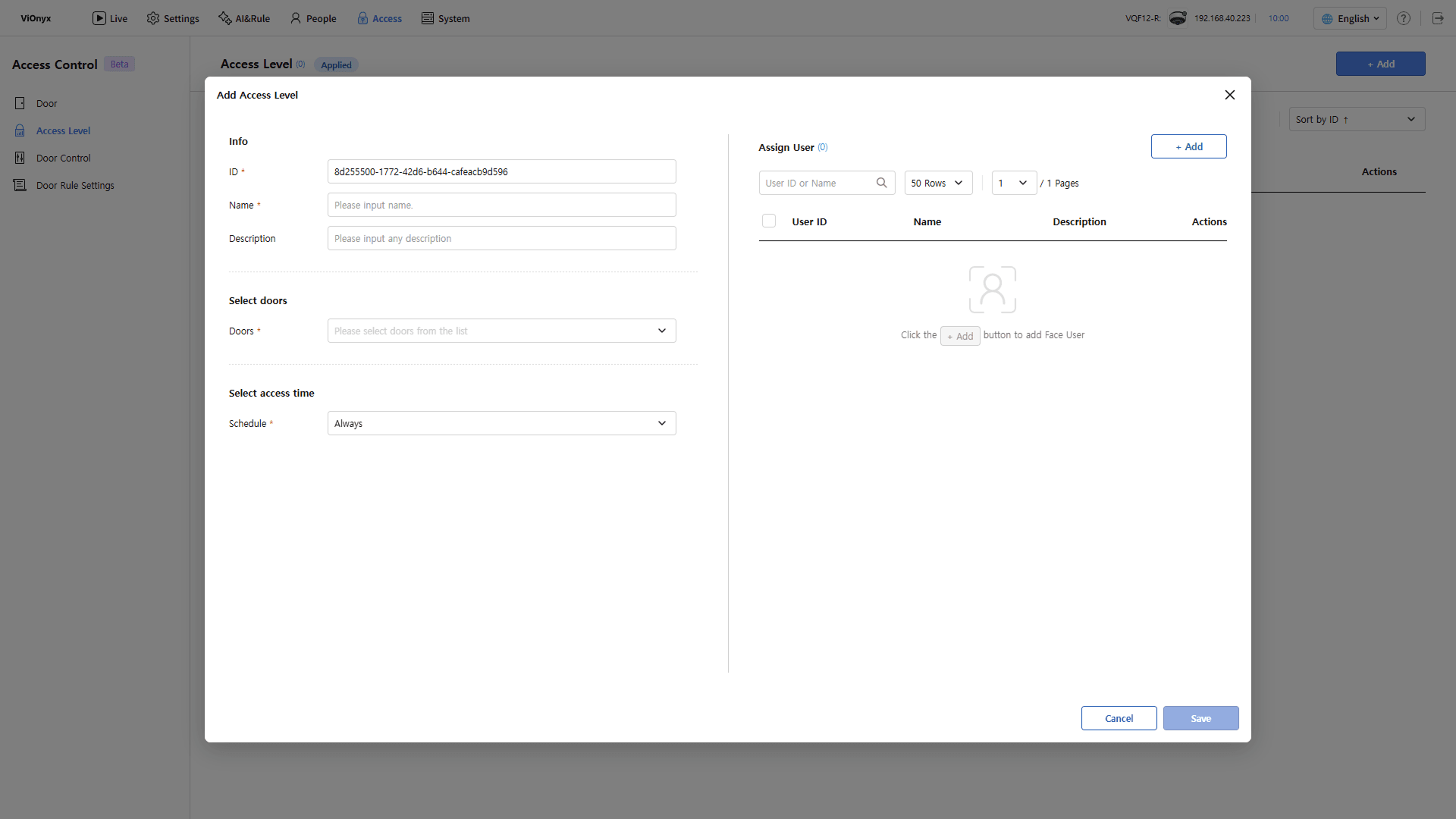
When the Add Access Level pop-up appears, enter the access level information, then assign users.
Enter basic information
In the Info section, enter information to identify the access level.
-
ID: The unique ID of the access level. The system enters it automatically. Change it if needed. Do not use an ID that matches another access level. Enter up to 64 characters. Use letters, numbers, hyphens(
-), and underscores(_). -
Name: Enter the access level name. This field is required. Do not use a name that matches another access level. Use a name that indicates who and when, such as Development team—always access or Night shift workers.
-
Description: Enter a description for the access level.
Select doors
In the Select doors section, select the doors to allow access from the Door list. Required. More than one door can be selected.
Add at least one door before selecting a door from the list. First, add a door in Access → Door. For more information on registering doors, see Manage Doors.
Select access time
In the Select access time section, select a schedule to allow access from the Schedule list. This field is required. The default is Always. The system allows access only during the selected schedule. It denies access at other times, including for registered users.
For more information on schedule management, see Manage Schedules.
Assign users
In the Assign User section, add users to apply the access level.
-
Click + Add in the upper right corner of the Assign User section.
-
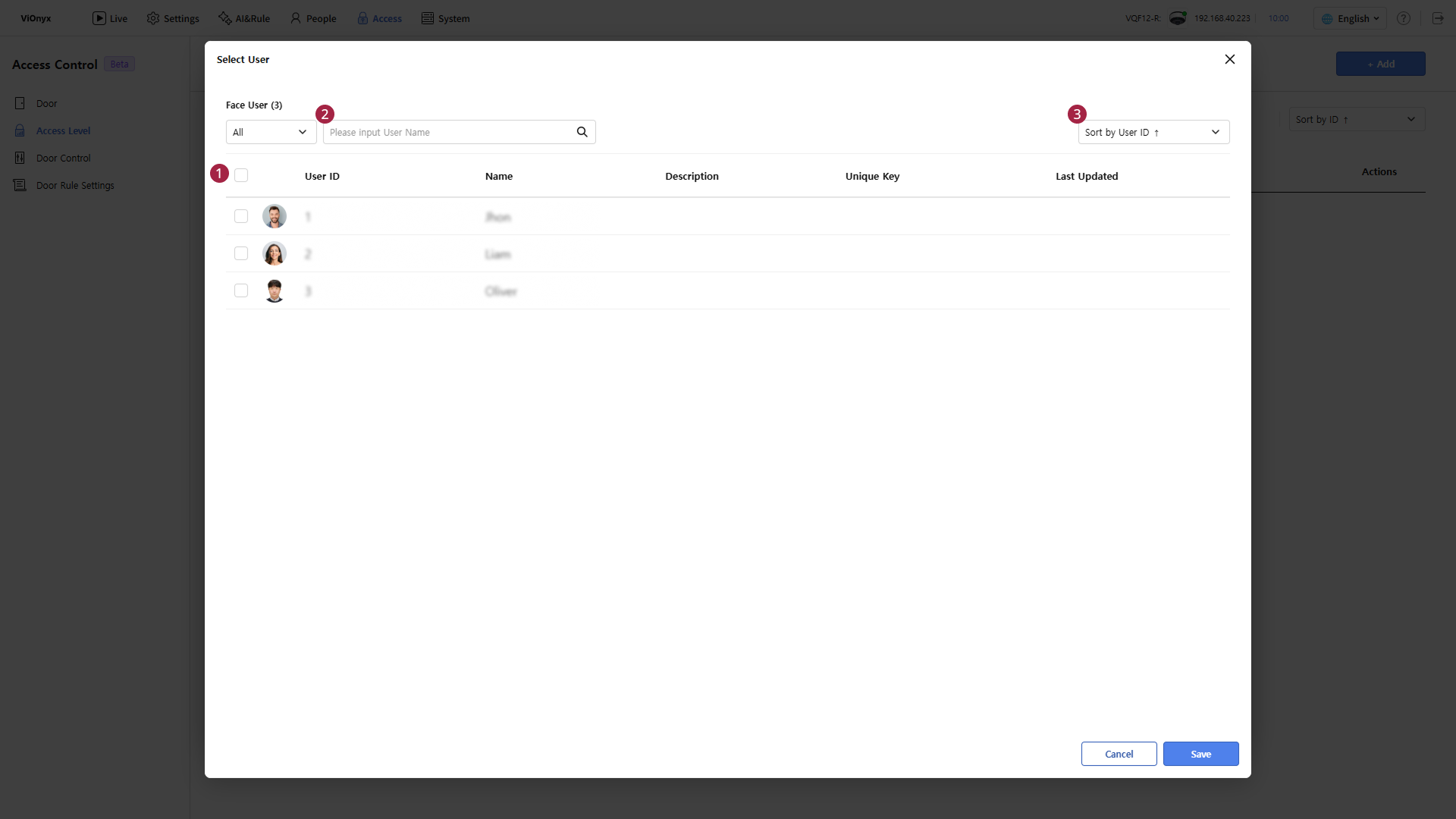
When the Select User pop-up appears, click the checkbox for each user to assign.
-
Select the checkbox () in the list header to select all users.
-
Enter a user name in the search field () to find a specific user.
-
Select a criterion in the sort list () to change the sort order.
-
-
Click Save. The system adds the selected users to the Assign User list.
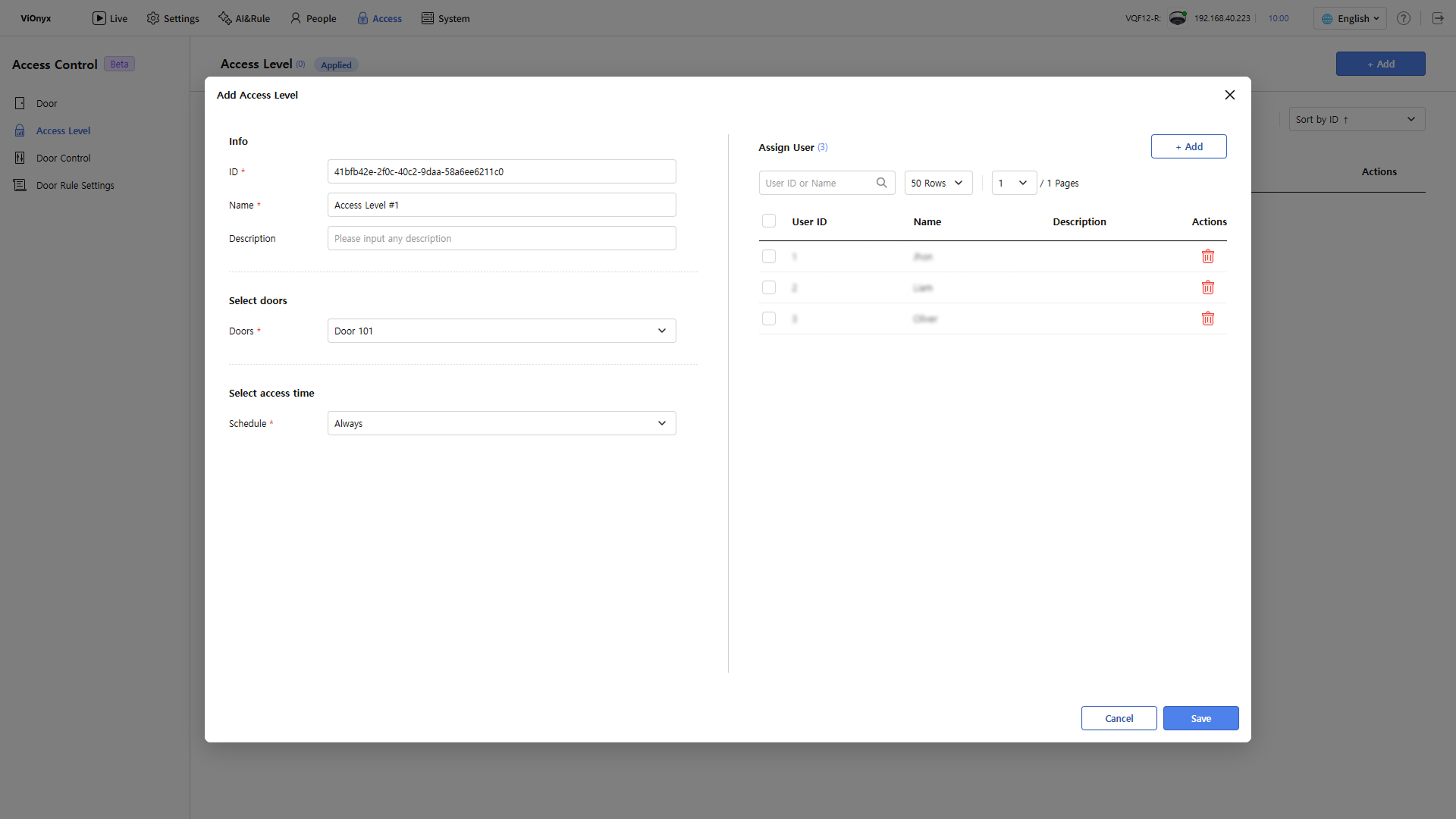
To remove an assigned user from the access level, in the Assign User list, click the button for that user.
-
The Select User list shows only users registered with facial credentials.
-
A user can be assigned to multiple access levels. Each user can be assigned to a limited number of access levels.
Save access level
After completing all settings, click Save. The system adds the saved access level to the access level list. It applies it immediately to assigned users.

Check the access level list
The access level list shows access levels, access times for each level, and assigned users.

-
Enter the access level name in the search field () to find a specific access level.
-
Select a value from the Rows list () at the top right of the screen to change the number of access levels shown per page.
-
To change the sort criterion, select one in Sort by ID().
The following information appears in the access level list.
| Item | Description |
|---|---|
| ID | The unique ID of the access level. |
| Name | The name of the access level. |
| Description | The description entered when adding or editing the access level. |
| Schedule | The schedule that allows access. |
| User | The number of users assigned to the access level. |
| Actions | Edit () or delete () access levels. |
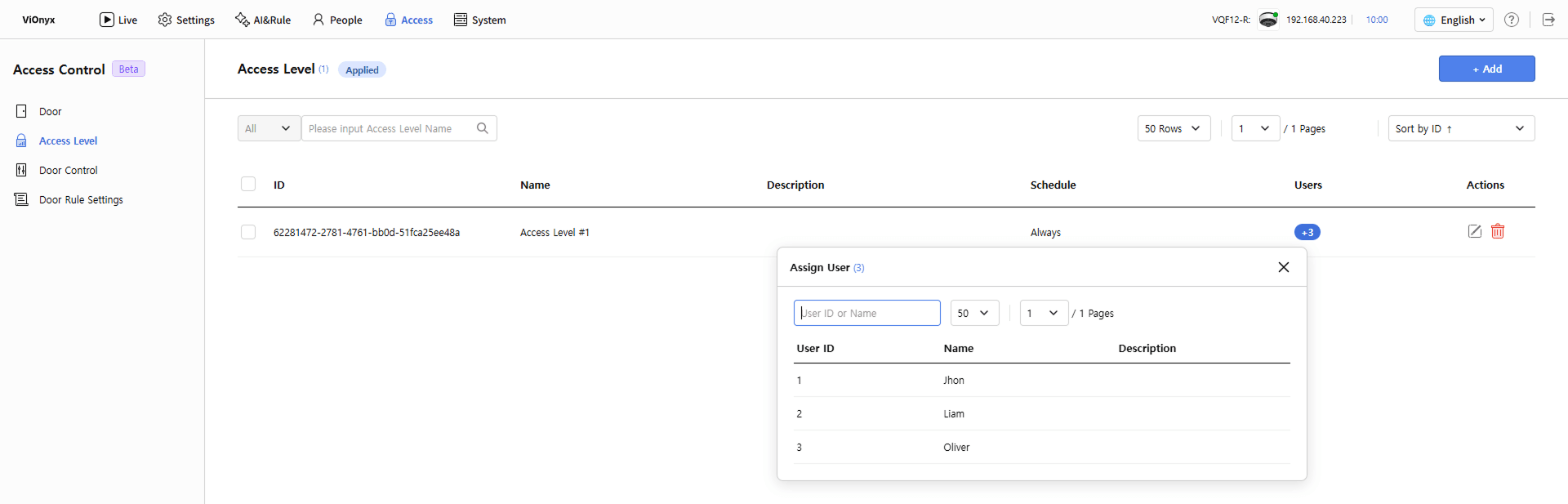
Click the number in User to view the assigned user list.
Edit access level
-
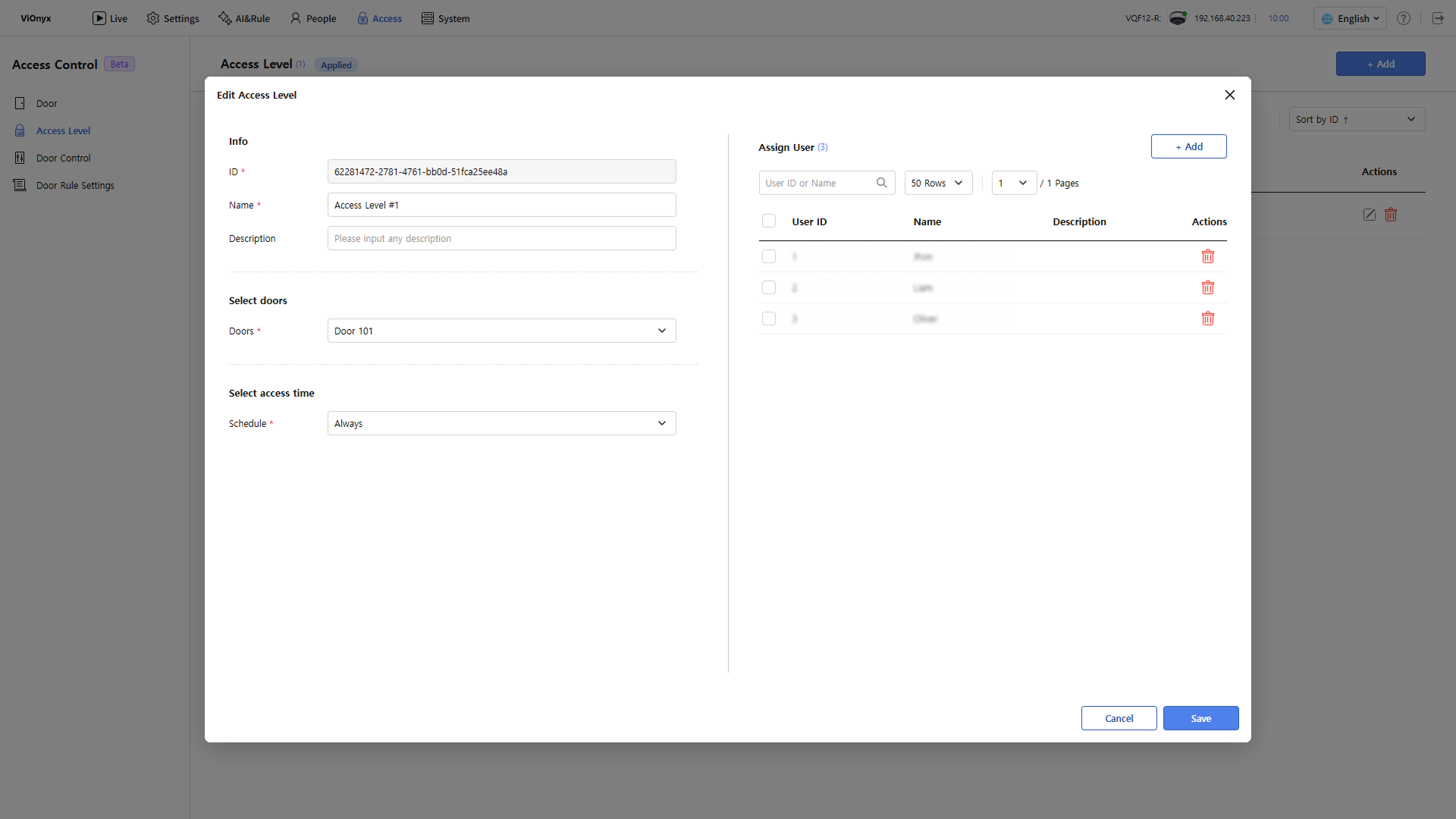
In the access level list, click the button to the right of the access level.
-
When the Edit Access Level popup appears, edit the doors, access time, and assigned users.
-
Click Save to save the changes.
Saving changes applies them immediately to all assigned users.
Delete access level
Delete access levels one at a time, or select multiple access levels to delete at once.
-
Delete one: In the access level list, click at the far right of the access level to delete.
-
Delete multiple: In the access level list, select the checkboxes for the access levels to delete, and click Delete at the top right of the screen.
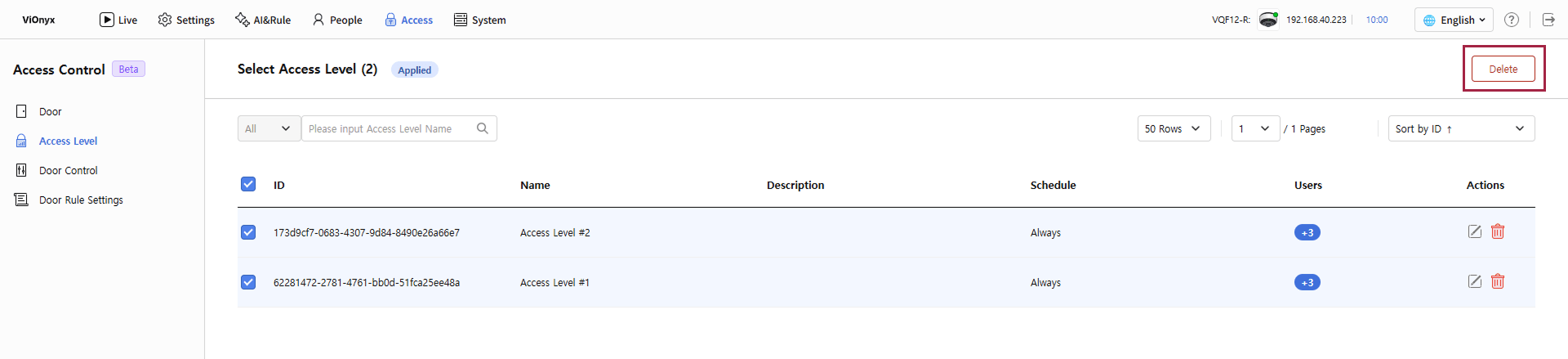
If a confirmation message appears, review it and click OK. Deleting an access level removes it from all assigned users. Doors and users are not deleted. Deleted access levels cannot be recovered.
Deleting an access level prevents users assigned only to that level from accessing doors. Check assigned users before deleting.