Manage Doors
Add doors that the camera unlocks and locks. When adding a door, set the access control event, relay output, and door open time. Add a door before selecting it in access levels and door rules.
Register the door in the following cases.
-
Automatically open the door for users authenticated with facial authentication
-
Enable users to open the door from inside by pressing the exit button
-
Check whether the door is open or closed using a sensor
-
Operate the door by time period, such as unlocked during business hours and locked at night
Before you start
Check the following before adding a door.
-
Each camera lets you register up to 10 doors. Check the number of doors the camera will control before setup.
-
Create the access control event for access decisions first. For more information, see Set Up Access Control Events.
-
Make sure the door lock connects to a relay port on the camera or sub I/O device. To use a sub I/O device, first add it via RS-485. For more information, see Set Up RS-485.
-
To use an exit button or door status sensor, make sure the device connects to an input port.
-
Create schedules in advance to use unlock and lock schedules. For more information, see Manage Schedules.
Add doors
Start adding doors
-
Click the Access menu in the upper-left corner of the screen.
-
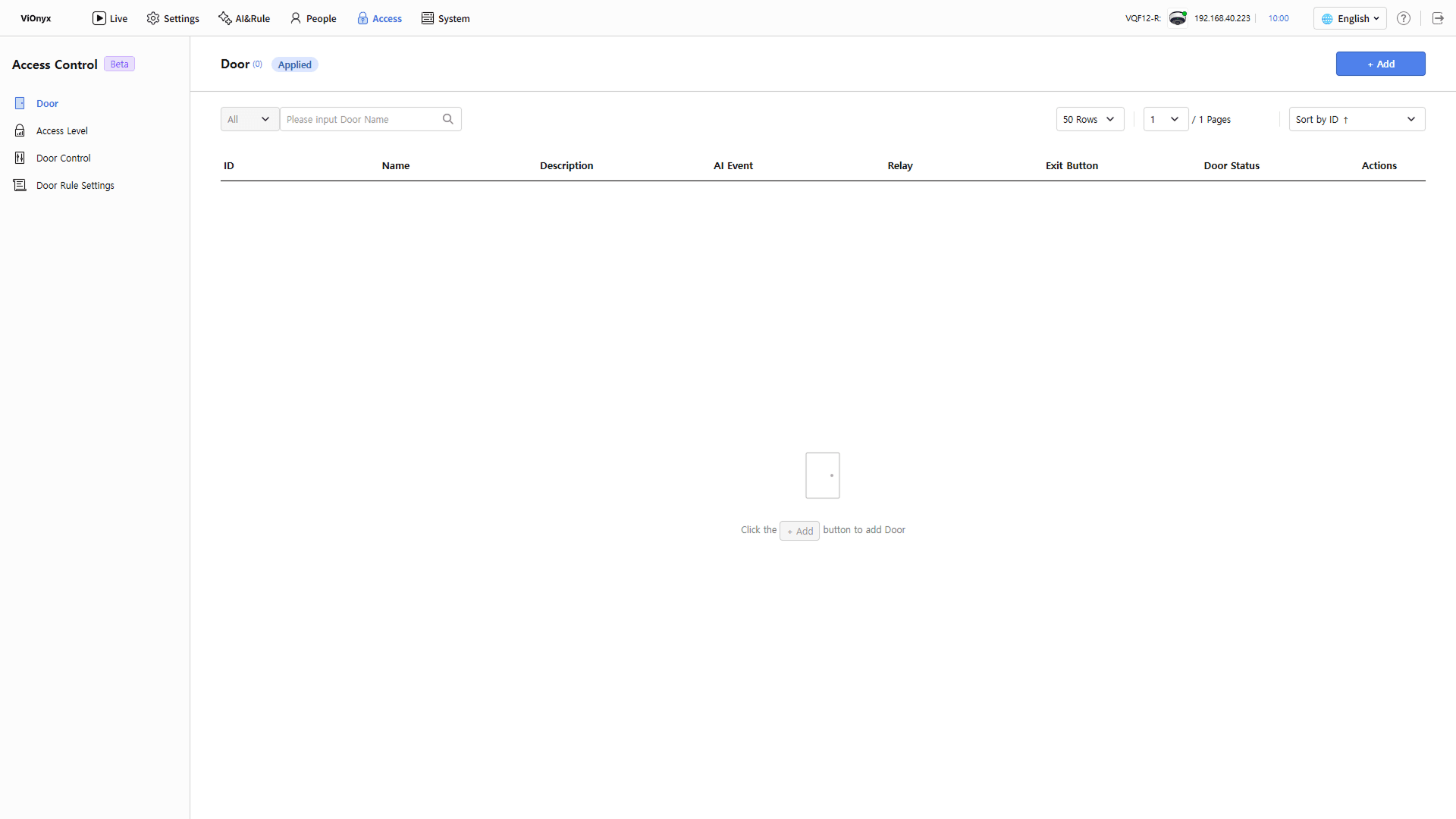
Click Door on the left sidebar.
-
Click + Add at the top right of the screen.
-
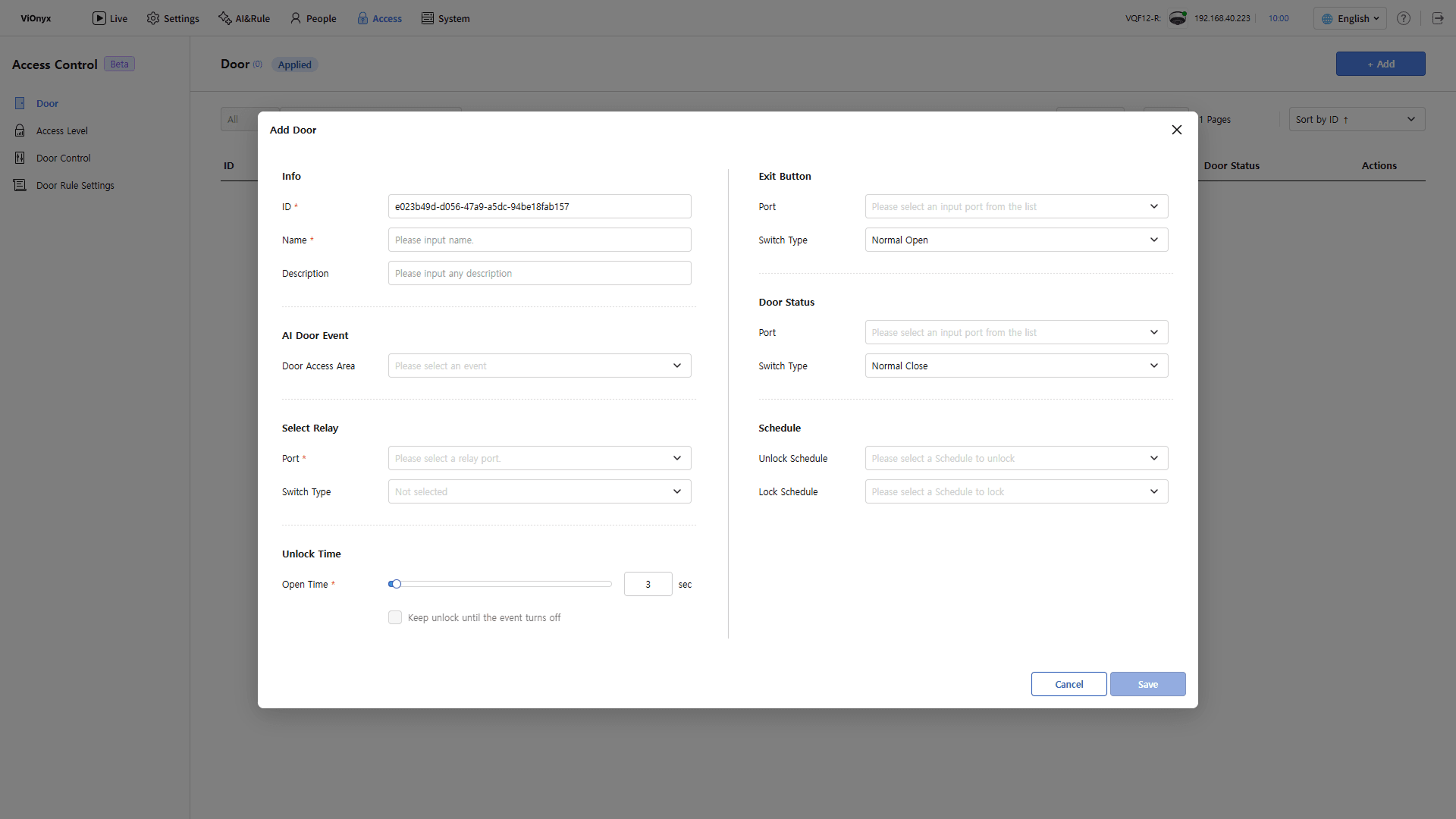
When the Add Door popup appears, enter the door information. Enter all required fields to enable the Save button.
Enter basic information
In the Info section, enter information to identify the door.
-
ID: The unique ID of the door. The system enters it automatically. Change it if needed. Do not use an ID already assigned to another door. Enter up to 64 characters. Use letters, numbers, hyphens(
-), and underscores(_). -
Name: Enter the door name. Required. Do not use the same name as another door. Assign a location-based name, such as Main Entrance or 2nd Floor Office, to distinguish doors in access levels and rules.
-
Description: Enter a description for the door.
-
The door ID and name must be unique in the system. Do not use values already in use.
-
Once saved, the door ID stays fixed.
Link access control events
In the AI Door Event section, select an access control area from the Door Access Area list to use for this door’s access decision. The list shows access control areas set when creating access control events.
-
Link each access control area to one door only. Do not select an area already linked to another door.
-
The AI Events page blocks deleting or changing the access control area linked to a door. To change the area, unlink it from the door first.
-
See Set Up Access Control Events for more information on creating access control events.
Set relays
In the Select Relay section, set the relay that controls the door lock.
-
Port: Select the relay port connected to the door lock. Required. Select a relay port on the camera or on a downstream I/O device. Do not select ports used by another door or AI rule.
-
Switch Type: Select the lock contact type.
-
Normal Open: Normally open, and closes when the relay activates.
-
Normal Close: Normally closed, and opens when the relay activates.
-
-
Switch Type applies to the relay port, not the door. Saving a door applies the setting to all doors and rules that use the port.
-
Check the lock specifications, and select the correct Switch Type. An incorrect selection may keep the door unlocked during normal operation.
Unlock time setting
In the Unlock Time section, set how long to keep the door unlocked after access is granted.
-
Unlock Time: Move the slider or enter a value in the input field. Set from 1 to 120 seconds. Default: 3 seconds.
-
Keep unlock until the event turns off: Select this option to keep the door unlocked until the access control event ends, regardless of unlock time. This option is available only when an access control area is selected.
The access control event Condition setting determines when the event ends. For example, to lock the door immediately when someone tailgates, select Keep until the area is clear or a tailgating violation occurs in the access control event. For details, see Set Up Access Control Events.
Exit button settings (optional)
If an exit button is installed inside the door, set the input port connected to the button in the Exit Button section. The exit button opens the door without Facial Authentication.
-
Port: Select the input port where the exit button is connected.
-
Switch Type: Select the contact type for the exit button. The default is Normal Open.
-
Normal Open: Normally open, and closes when the relay activates.
-
Normal Close: Normally closed, and opens when the relay activates.
-
Door status settings (optional)
If a door position sensor is installed, set the input port connected to the sensor in the Door Status section. After setup, the Door Control screen shows whether the door is open or closed.
-
Port: Select the input port where the door position sensor is connected.
-
Switch Type: Select the sensor contact type. The default is Normal Close.
-
Normal Open: Normally open, and closes when the relay activates.
-
Normal Close: Normally closed, and opens when the relay activates.
-
-
Connect the exit button and door status sensor to different input ports.
-
Do not select an input port used by another door.
Schedule settings (optional)
In the Schedule section, set the door to stay unlocked or locked by time period.
-
Unlock Schedule: Keep the door unlocked during the selected schedule. Use this to keep the lobby door unlocked during busy business hours.
-
Lock Schedule: Keep the door locked during the selected schedule. During this time slot, enrolled users cannot access the door. However, people inside can exit by pressing the Exit button.
Use different schedules for the open and lock schedules. The system cannot save them if the time zones overlap.
Save door
After completing all settings, click Save. Saved doors are added to the door list and are available in access levels and door rules.
Check door list
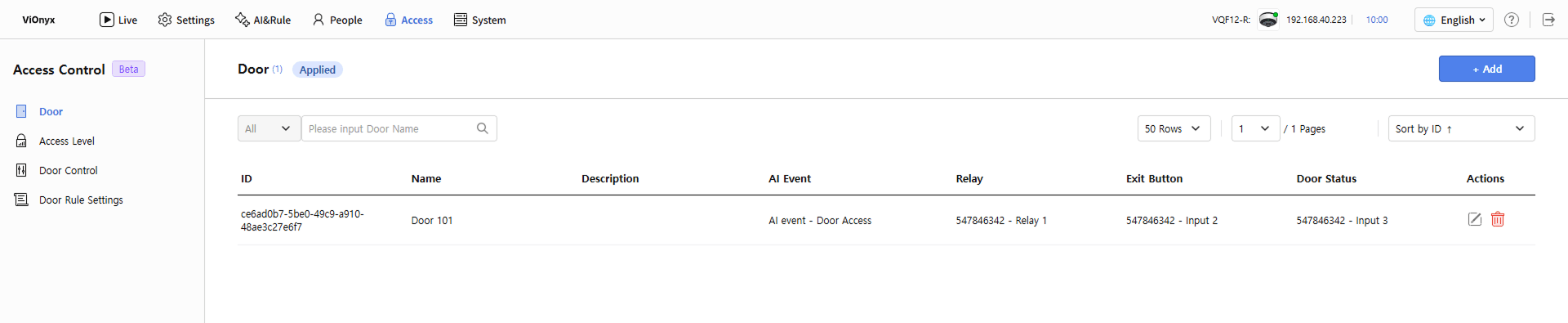
In the door list, check saved doors and the events and ports linked to each door.
-
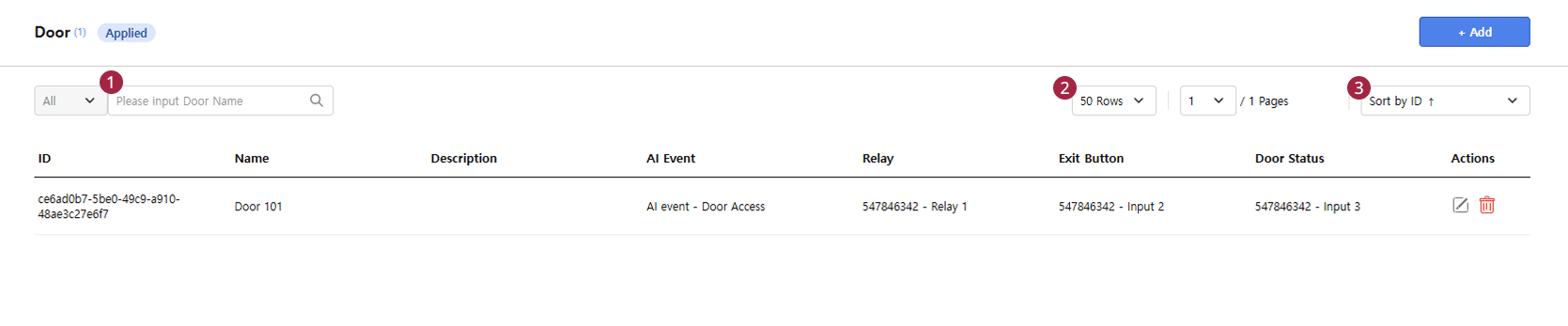
To find a specific door, enter the door name in the search field ().
-
Select a value in the Rows per page list () in the upper-right corner. This changes the number of doors per page.
-
To change the sort criterion, select one in Sort by ID().
The following items are shown in the door list.
| Item | Description |
|---|---|
| ID | The door’s unique ID. |
| Name | The name of the door. |
| Description | The description entered when adding or editing the door. |
| AI Event | The access control area linked to the door. |
| Relay | Relay port that controls the door lock. |
| Exit Button | Input port connected to the exit button. |
| Door Status | Input port connected to the door open/close sensor. |
| Actions | Edit () or delete () the door. |
Edit doors
-
In the door list, click the button at the far right of the door to edit.
-
When the Edit Door pop-up appears, edit the fields.
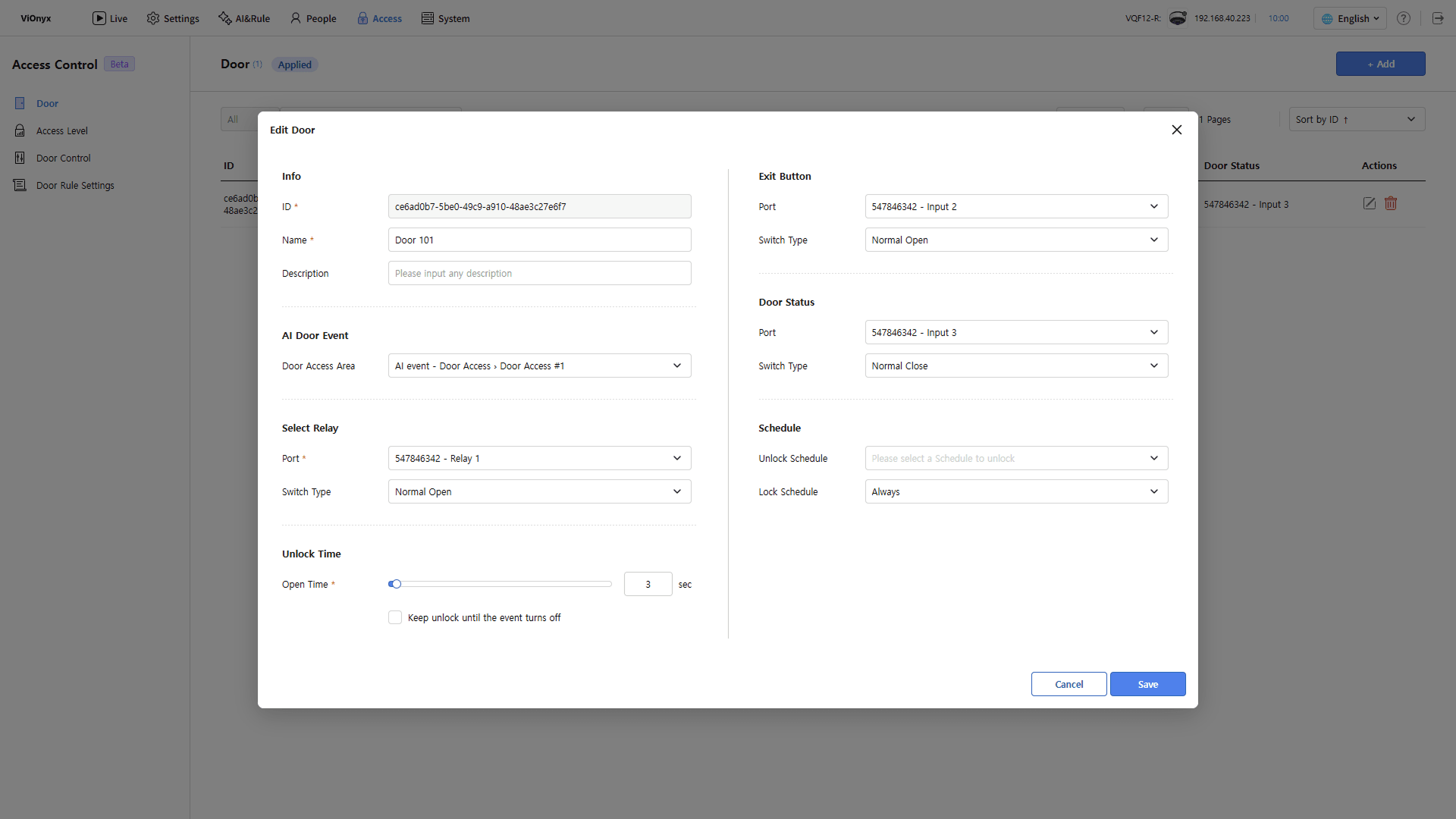
-
Click Save to save the changes.
Saving changes applies them immediately to access levels and door rules that use the door.
If the door is manually locked or unlocked, changing the relay Switch Type may invert the output and open a locked door. Manually control it in the Door Control menu before changing it.
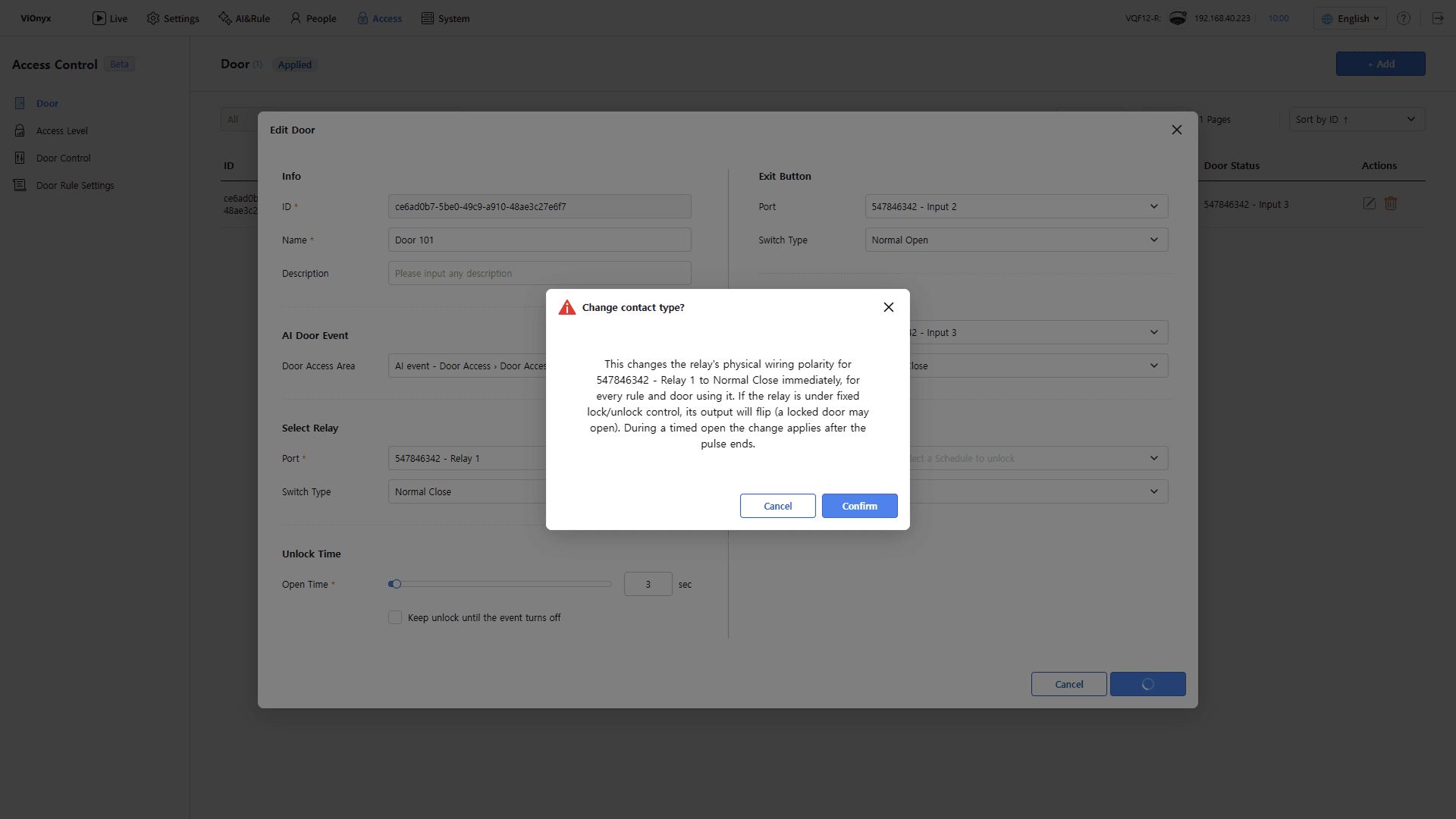
Change the relay Switch Type and click the Save button. A confirmation message appears.
-
Click OK to close the confirmation message and apply the new contact type to the relay port immediately. It also applies to all doors and rules that use the port.
-
Click Cancel to keep the contact type and save only the other changes.
-
Changing it while the door is held open applies after the open time ends.
Delete door
-
In the door list, click at the far right of the door to delete.
-
If a confirmation message appears, review it and click OK.
Deleting the door unlinks it from connected access control events and access levels. The deleted door also disappears from the Door Control list and cannot be restored.
-
Deleting a door used in an access level or door rule also deletes the related access level and door rule.
-
To add, edit, or delete doors, you need Read Write permission. If you do not have permission, contact your administrator. For more information on operator roles, see Manage Operators.