Manage Operators
In addition to administrators, add, edit, or delete operator accounts with limited permissions. Operators can manage certain camera features on behalf of administrators.
An operator account is required to use the ONVIF feature. When connecting to the camera from an ONVIF client or VMS, use a registered operator account.
Add operators in the following situations.
-
Assign additional staff for camera operation.
-
Grant only specific permissions.
-
When multiple people must collaborate to manage the camera.
-
Grant team members read-only or edit permissions.
-
Add up to 10 operators.
-
Operators cannot add other operators. Only administrators can add operators.
-
Operator passwords follow the same rules as administrator passwords. For more information, refer to Update Administrator Account Password.
-
Each operator can change only their own account information.
Operator permission types
Select one of the following two permissions when adding an operator.
-
Read Only: View all camera settings and logs; cannot change settings.
-
Read Write: Access all menus except the Administrator menu; can change camera settings. Operators can change their own password but not other operators' or administrators' passwords.
Add operator
-
Click the System menu in the upper-left corner of the screen.
-
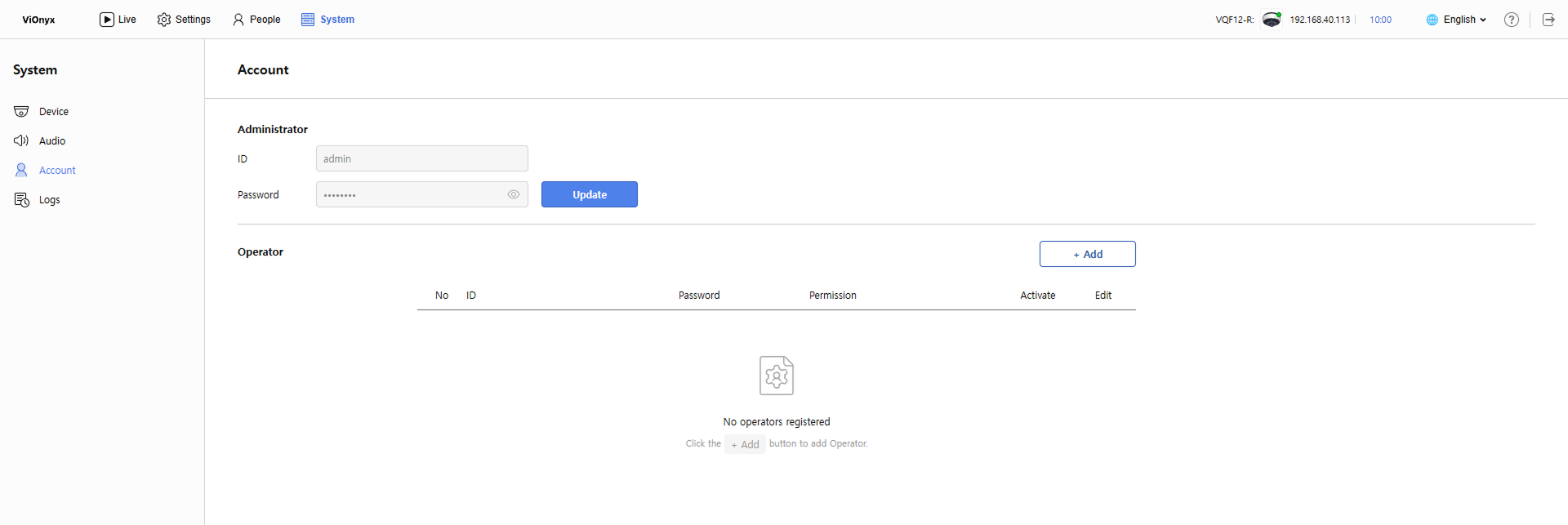
Click Account in the left sidebar.
-
In the Operator section, click + Add.
-
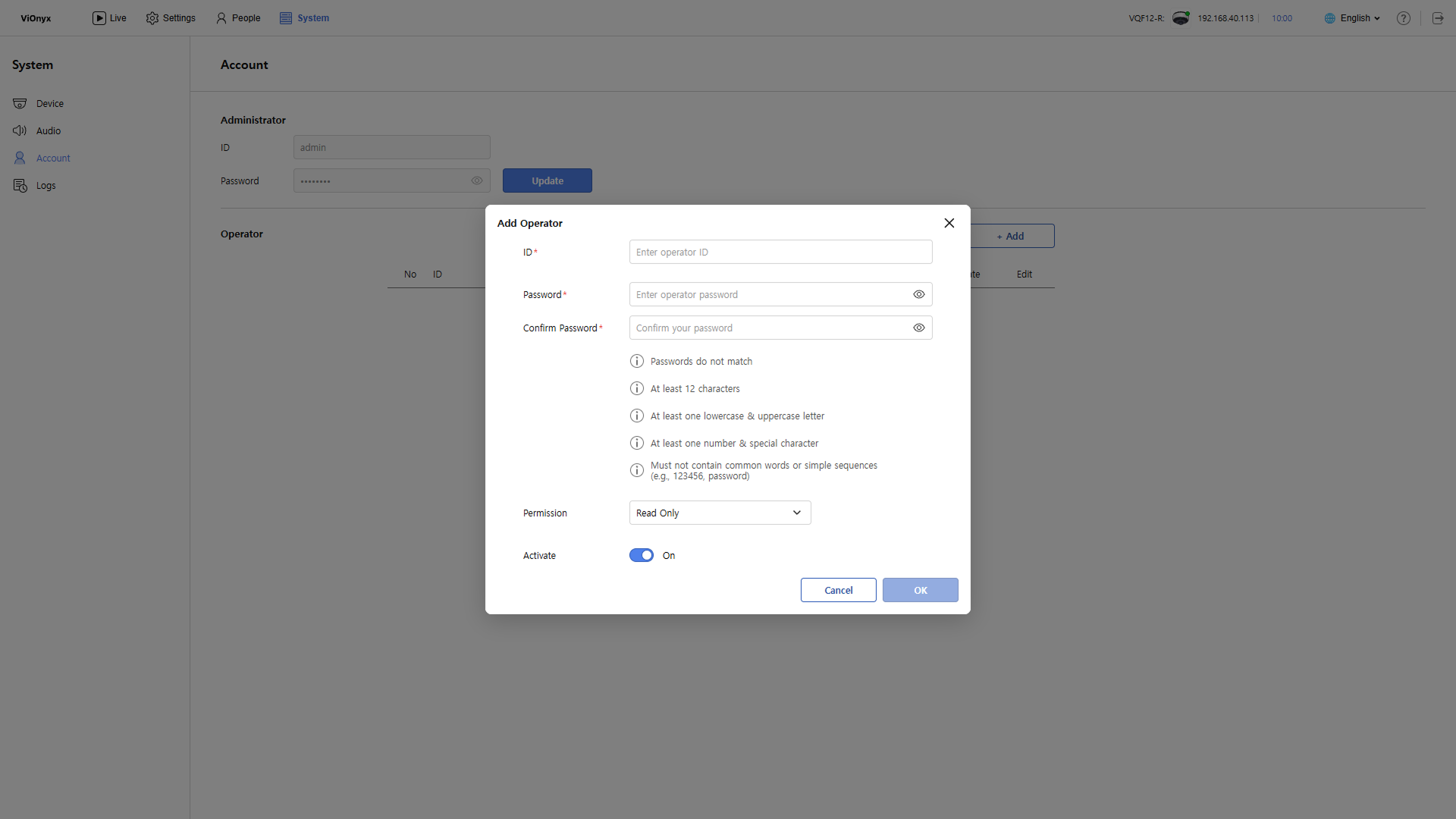
When the Add Operator popup appears, enter the required information.
-
ID: Enter the operator's unique ID.
-
Up to 64 characters.
-
Can include Korean, English letters, and numbers.
-
Allowed special characters:
_,.,-,(,). -
Must be unique and not duplicate another operator.
-
-
Password: Enter the operator's password. Follows the same rules as the administrator password. For more information, refer to Update Administrator Account Password.
-
Confirm Password: Re-enter the password.
-
Permission: Select the operator's permission.
-
Enabled: Enable or disable the operator's account.
-
-
After entering all information, click OK.
After adding a new operator, the new account appears in the list.
-
After adding an operator, log in with that account to verify permissions are applied correctly.
-
Deliver the operator's ID and password to the operator securely.
Change operator permissions
Change an operator's permissions.
-
Click the System menu in the upper-left corner of the screen.
-
Click Account in the left sidebar.
-
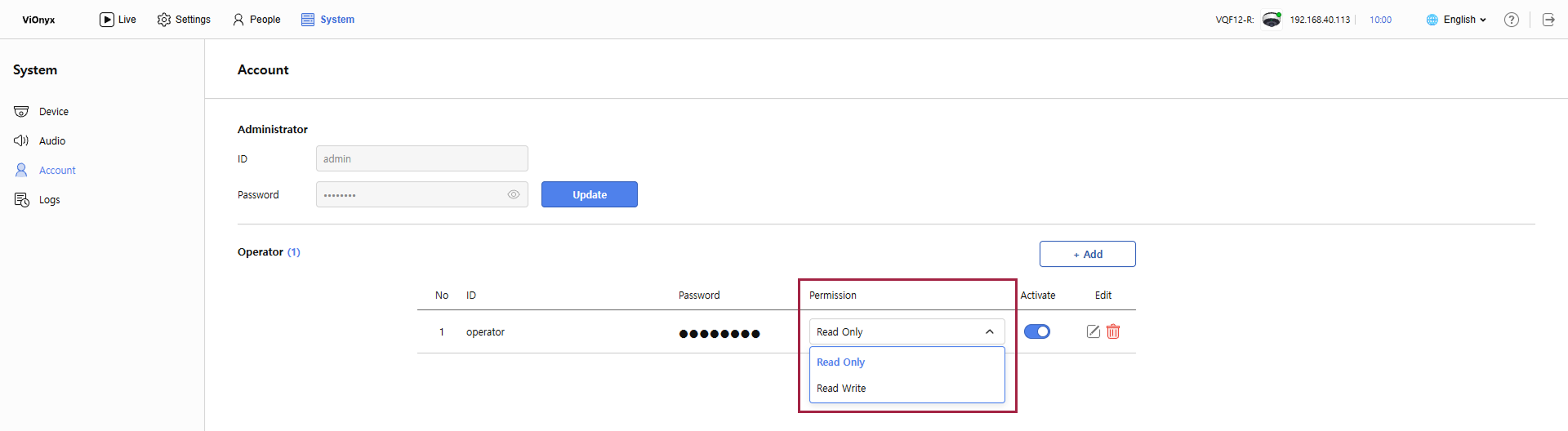
In the Operator section, click the Permission field for the operator whose permissions you want to change.
-
Select the desired permissions from the list.
When the permission change succeeds, a success message appears in the upper right corner of the screen.
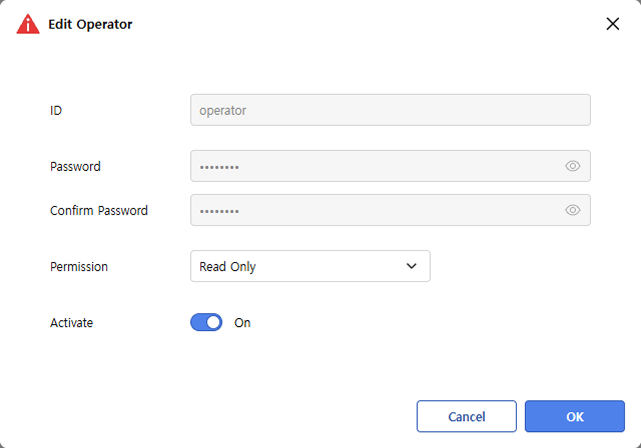
Click to open the Edit Operator window. In the Permission field, change to the desired permissions, and then click OK.
Disable operator
Temporarily disable an operator's account. Blocks access without deleting the account.
-
Click the System menu in the upper-left corner of the screen.
-
Click Account in the left sidebar.
-
In the Operator section, click the toggle in the Enabled field for the operator you want to deactivate.
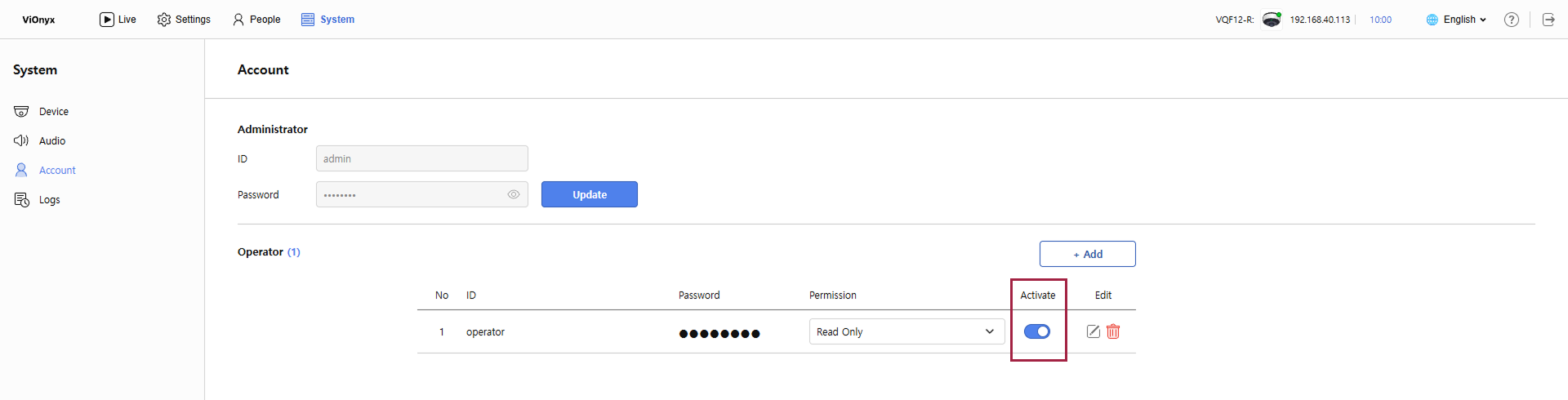
When deactivation succeeds, a success message appears in the upper right corner of the screen. Disabled operator accounts cannot log in.
Click to open the Edit Operator window. Click the toggle in the Enabled field to deactivate the account. Click OK to save the changes.
Disabled accounts can be reactivated later.
If an operator is already logged in, they will be denied access on their next login attempt.
Delete operator
You can permanently delete operator accounts. Deleted accounts cannot be recovered.
-
Click the System menu in the upper-left corner of the screen.
-
Click Account in the left sidebar.
-
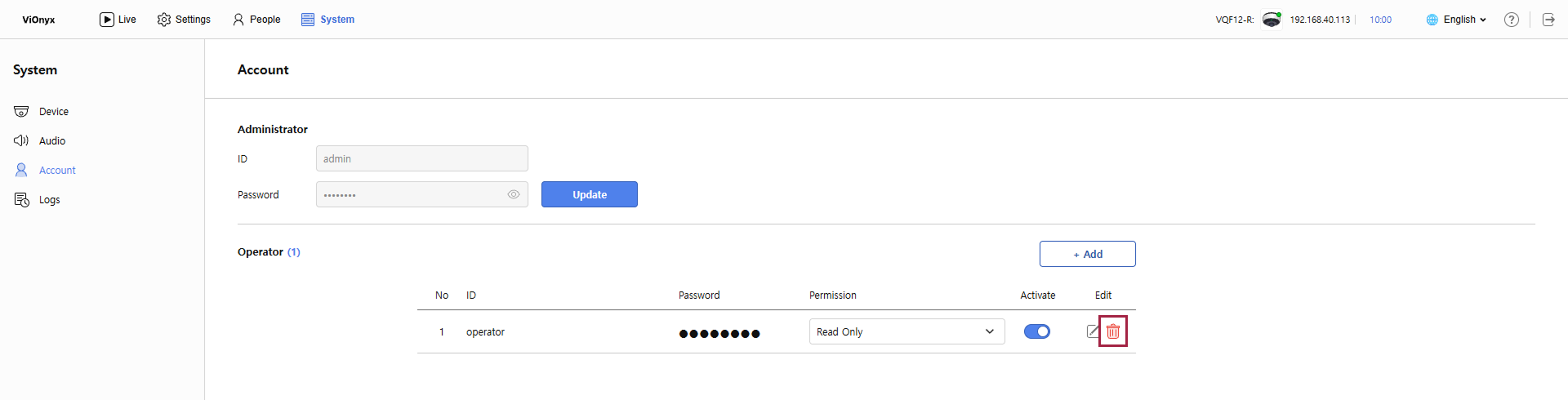
In the Operator section, click for the operator you want to delete.
-
When the warning message appears, click OK.
When deletion succeeds, a success message appears in the upper right corner of the screen. The operator account is removed from the list.