Manage Schedules
A schedule is a weekly timetable created by combining days of the week and time slots. When an AI rule action uses a schedule, the action executes only during the time slots in the schedule. A single schedule can be used across multiple AI rules.
Create schedules in the following situations.
-
Send webhooks only during weekday business hours
-
Play intrusion detection alert audio only at night
-
Prevent relays from operating on weekends
The device provides the Always schedule by default. The Always schedule runs 24 hours a day and cannot be edited or deleted.
Check the schedule list
-
Click the AI&Rule menu in the upper-left corner of the screen.
-
Click Schedule on the left sidebar.

The schedule list shows registered schedules and the AI rules that use each schedule.
-
Next to Schedule() at the top of the screen, the system shows the number of schedules.
-
Enter the schedule name or ID in the search field () to find a specific schedule.
-
Select a value from the Rows per page list () to set schedules per page.
-
To change the sort order, select a criterion from the Sort by Name() list.
The following items are displayed in the schedule list.
| Item | Description |
|---|---|
| ID | The unique ID of the schedule. Always schedule is 0. |
| Name | The name of the schedule. |
| Description | The description entered when adding or editing the schedule. |
| Used By | AI rules that use the schedule. When no AI rules use the schedule, None appears. When multiple AI rules apply, they appear in the and N more format. |
| Actions | This feature enables editing () or deleting () schedules. |
Add schedule
Start adding a schedule
-
Click + Add in the upper right of the schedule list screen.
-
Enter the schedule information when the Add Schedule pop-up appears.
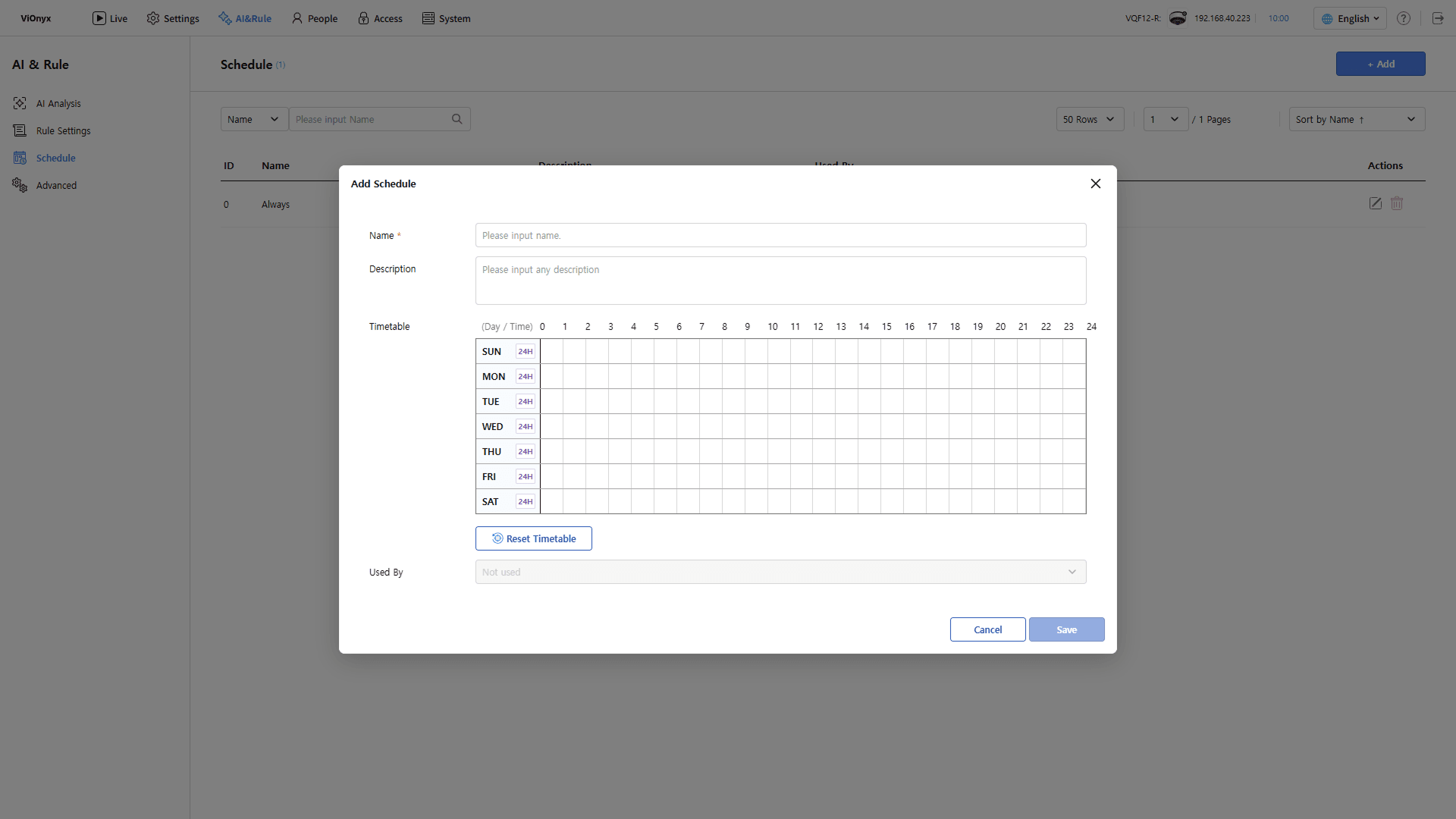
Enter a name and description
-
Name: Enter the schedule name. This field is required. Use a unique name for each schedule. You can enter up to 48 characters.
-
Description: Enter a description for the schedule. For example, add an applied time range like Mon-Fri 09:00-18:00 to distinguish schedules when selecting them in rules.
Set time slots in the timetable
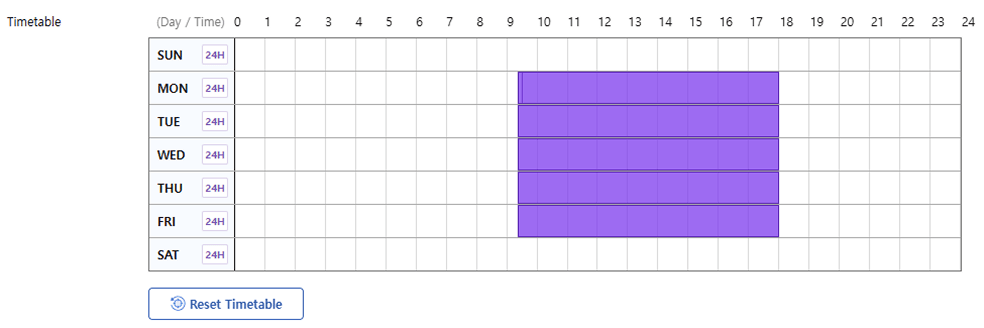
Select the days and time slots when the schedule runs in Timetable. The vertical axis shows the day of the week (Sunday~Saturday), and the horizontal axis shows time (0~24). The selected time slots appear as blocks.
-
Select time slots: Drag from the start time to the end time in the desired day row. Select in 10-minute increments.
-
Move a time slot: Drag the block left or right to move it to a different time.
-
Select or clear 24 hours: Click 24H next to the day name. The timetable selects all 24 hours for that day. Click again to clear all.
-
Delete a block: Select the block to delete. The icon appears. Click the Remove block button.

-
Initialize all: To clear all time slots and set them again, click Reset Timetable.
Save schedule
After completing all settings, click Save. The system adds the saved schedule to the schedule list. Select it in the AI rule operation settings.
-
The Used By field is read-only and shows the AI rules that use the schedule. A newly created schedule has no AI rules using it yet, so it appears as Not used.
-
To apply a saved schedule to an AI rule, see AI Rule Settings.
Modify schedule
-
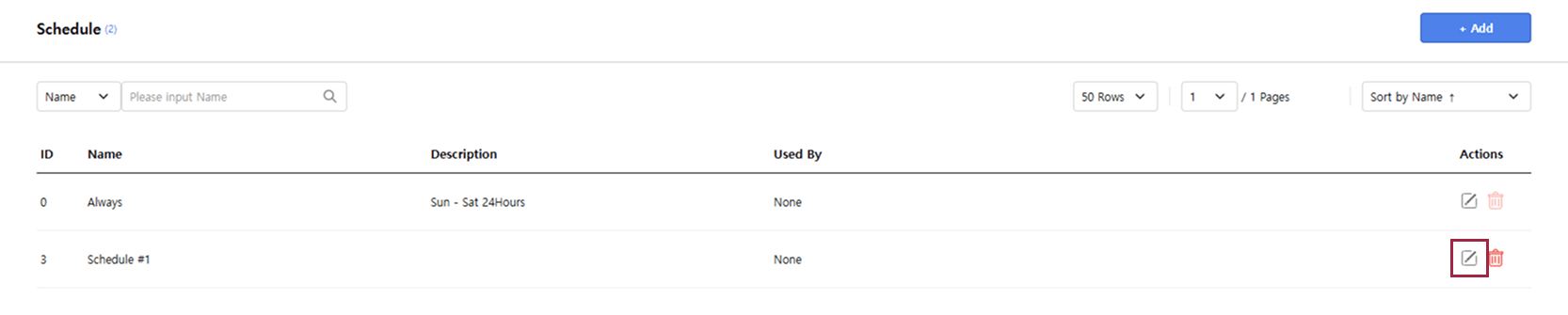
In the schedule list, click the button to the right of the schedule.
-
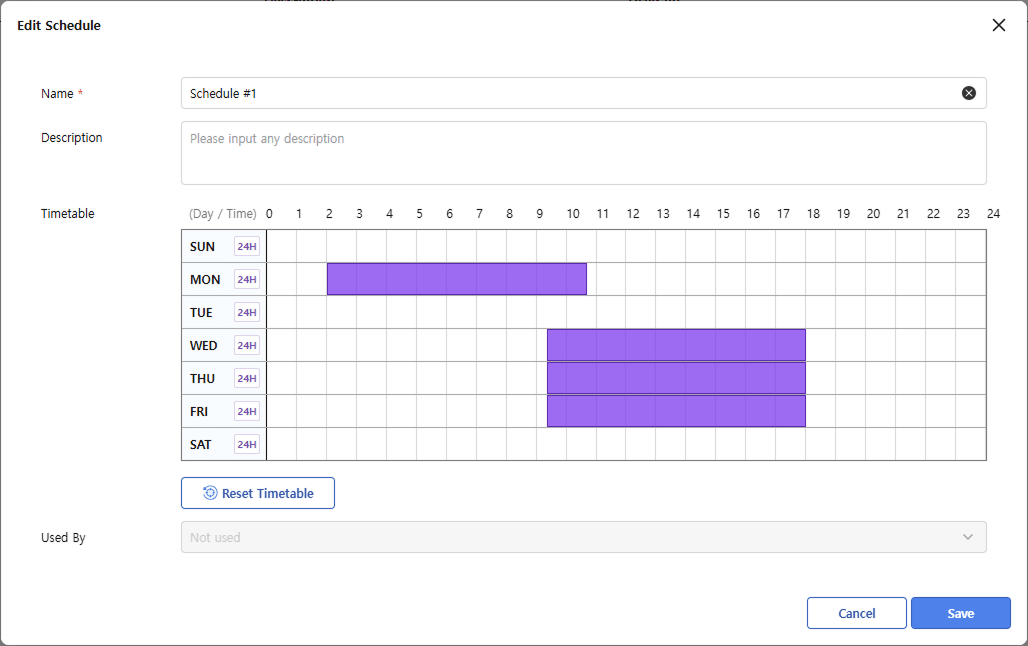
When the Edit Schedule pop-up appears, edit the name, description, and timetable.
-
Click Save to save the changes.
Saving the modified schedule applies it to all AI rules that use it.
-
If multiple AI rules share a schedule, check the affected AI rules in the Used By column before editing.
-
The Always schedule, the default schedule, cannot be modified.
Delete schedule
-
In the schedule list, click the button to the right of the schedule.
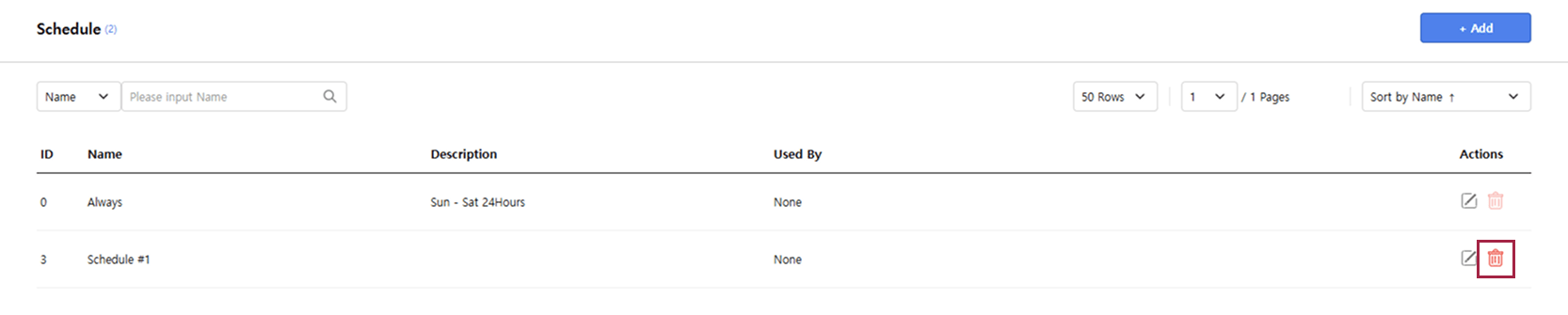
-
If a confirmation message appears, review it and click OK.
Deleted schedules cannot be recovered.
-
Do not delete schedules that AI rules use. In the AI rules listed in the Used By column, select another schedule, then try deleting it again.
-
The Always schedule, the default schedule, cannot be deleted.