Edit and Delete Users
Edit a registered user's information or add/change a face. Delete users who are no longer needed, and view a user's activity history in the event log.
Modify or delete users in the following situations.
-
When you need to change a user's name, department, or other information
-
When you need to update a user's face photo or add a new face
-
When a user leaves or must be removed from the system
-
When you need to review a user's authentication records and change history
-
When false authentication occurs for a registered user
-
Even if you upload a high-quality photo when editing user information, previous template data may remain. Delete the user and register again.
-
Deletion is irreversible. Back up any required data and verify carefully before deleting a user.
Edit user information
Edit a registered user's information or add/change a face.
-
Click the People menu in the upper-left corner of the screen.
-
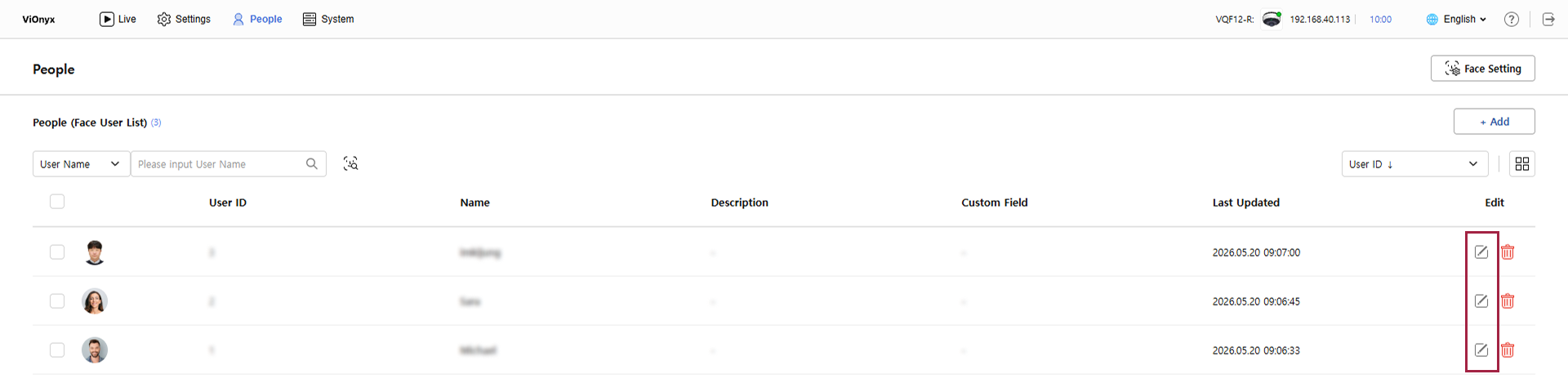
In the user list, click the button in the Edit column for the user you want to edit.
-
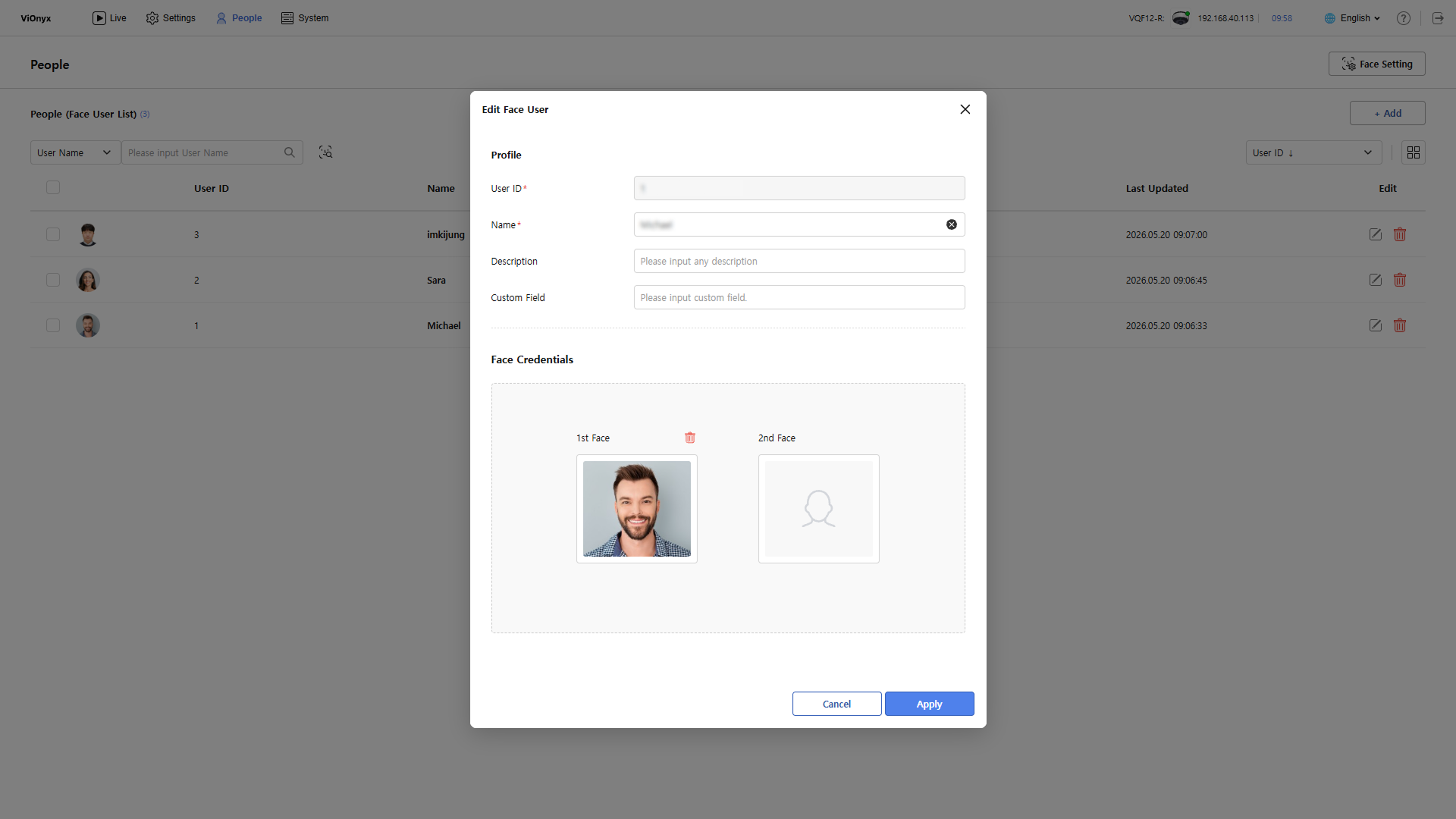
When the Edit Face User window appears, edit the required information.
-
After editing user information, click Apply.
After saving edits, a success message appears in the top-right and the view returns to the user list.
-
For more information on user details, see Add Users.
-
The User ID cannot be changed.
-
Face photos can be deleted individually. Click in the upper right corner of that face photo.
Delete users
Delete users who are no longer needed.
Delete an individual user
-
Click the People menu in the upper-left corner of the screen.
-
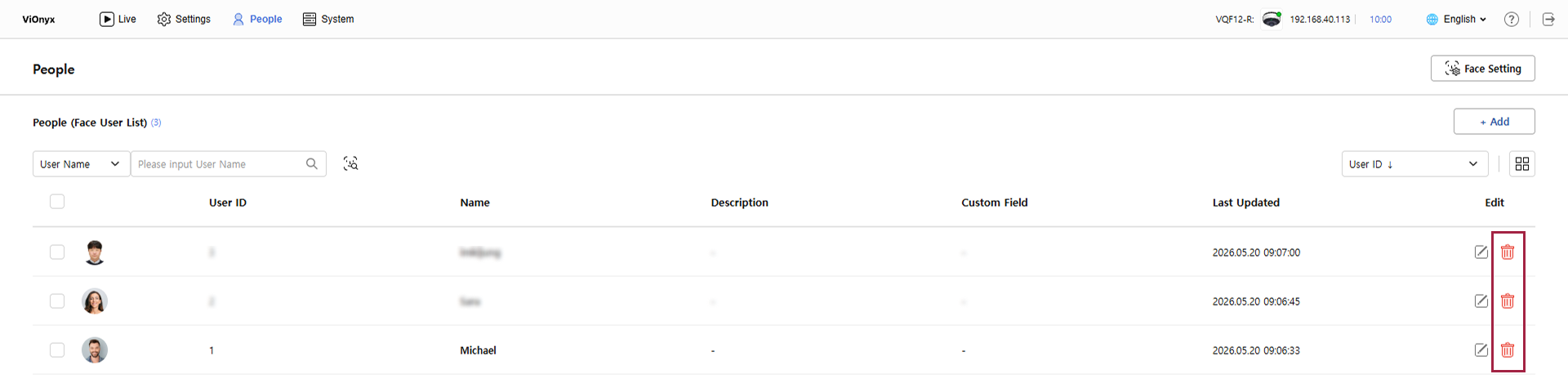
In the user list, click at the far right of the user to delete.
-
When the deletion confirmation message appears, click OK.
A deletion confirmation message appears in the top-right and the user is removed from the user list.
Delete multiple users
-
Click the People menu in the upper-left corner of the screen.
-
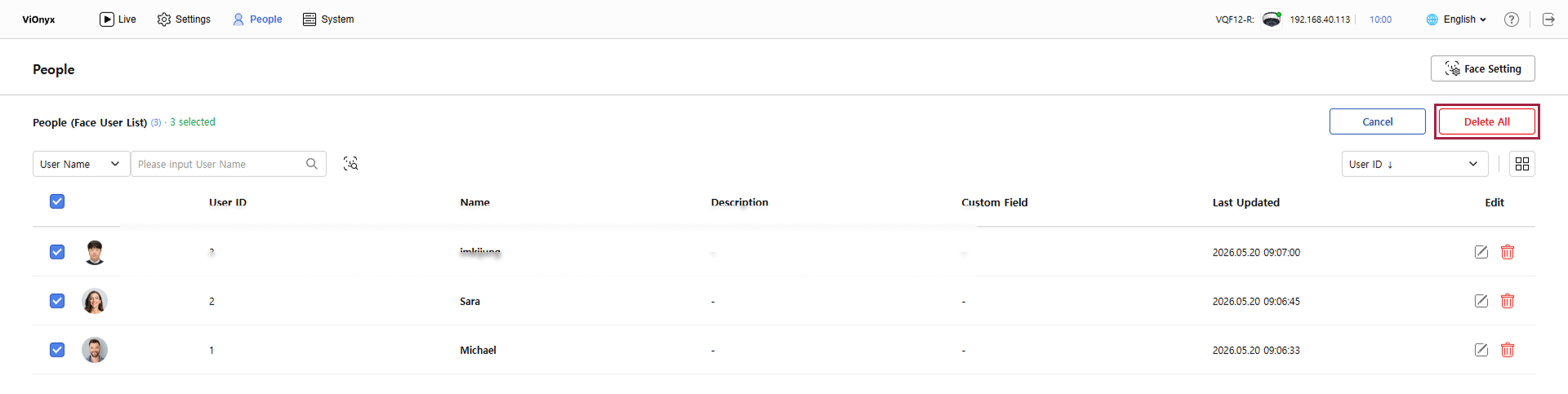
In the user list, click the checkbox at the far left of the user to delete. Select multiple users.
-
When the delete button appears at the top-right of the screen, click Delete.
-
When the deletion confirmation message appears, click OK.
A deletion confirmation message appears in the top-right and the user is removed from the user list.
View user event logs
View registered users' activity history in the event log.
-
Click the People menu in the upper-left corner of the screen.
-
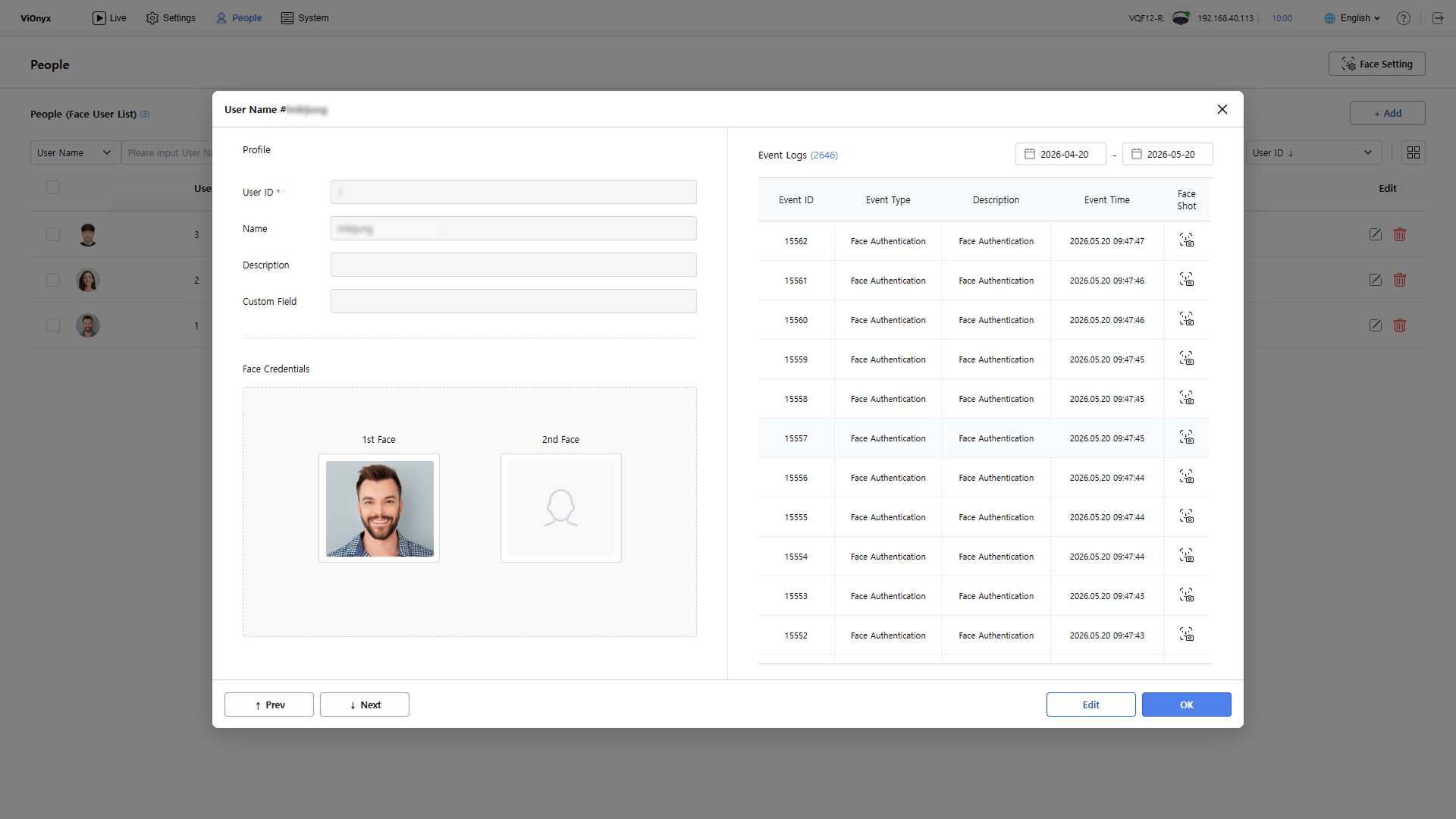
In the user list, click the user to view the event log.
-
When the user detail popup appears, view the event list on the right under Event Logs.
-
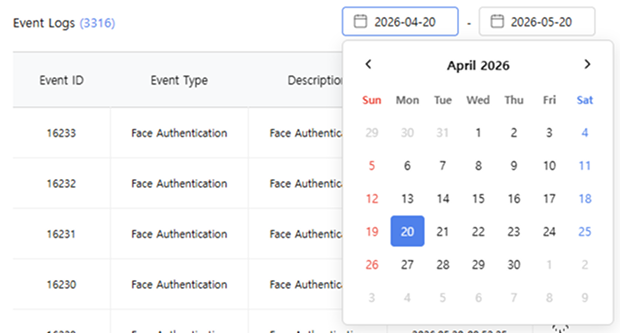
Use the calendar icon in the top-right to view events for a specific date.
-
Event logs are recorded automatically and track all important user activities.