User Search and View
Enter a name or ID in the user list to quickly find a user. Switch between table and card views to show user information as needed.
Use the user search and view feature in the following situations.
-
When you must quickly find a specific user among many users
-
When you need to view user profiles at a glance in card view
-
When you want to sort the user list by name, ID, and last update time
User search
Provides a search feature to find the user you need. Search by user name or ID, or find similar users by facial image.
Keyword search
Enter a name or ID in the user list to search for the user you need.
-
Click the People menu in the upper-left corner of the screen.
-
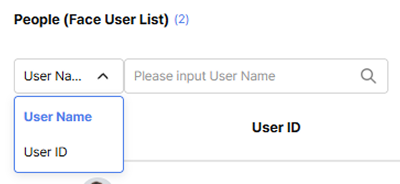
Select the search criteria in the search field at the top left of the user list. Select User Name or User ID.
-
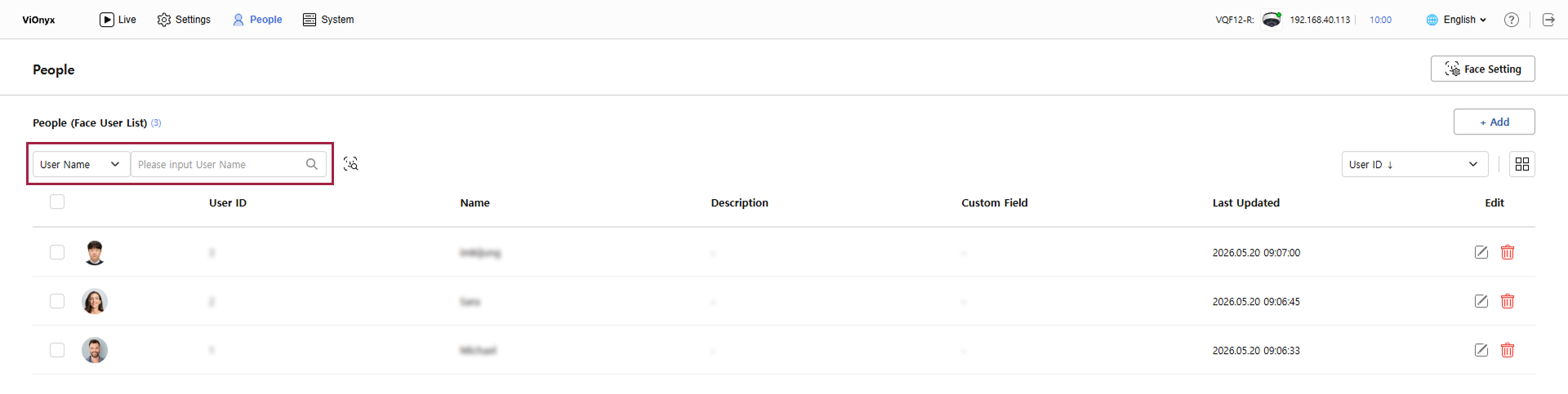
Enter a search term in the search field.
-
Users matching the entered search term appear in the list.
-
Supports partial search. For example, entering 'Kim' shows all users whose names include 'Kim'.
-
The currently selected filters determine the search results. Change filters to update the search results accordingly.
Find by facial image
Upload a facial image to search for users with a similar face.
-
Click the People menu in the upper-left corner of the screen.
-
Click to the right of the search field.
-
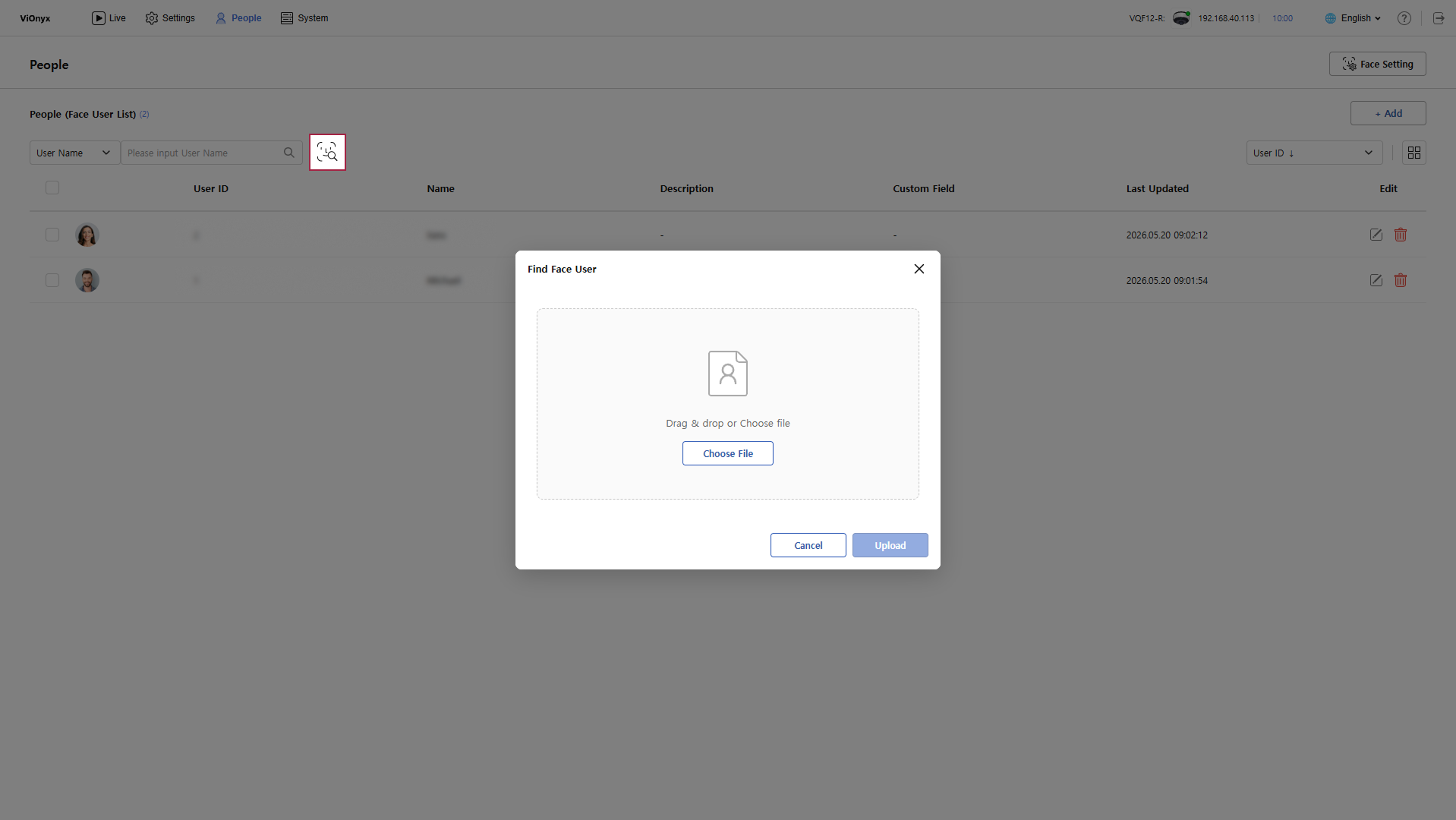
When the Find Face User window appears, drag and drop a facial image or upload it through Choose File.
-
After completing the facial image upload, click Upload.
-
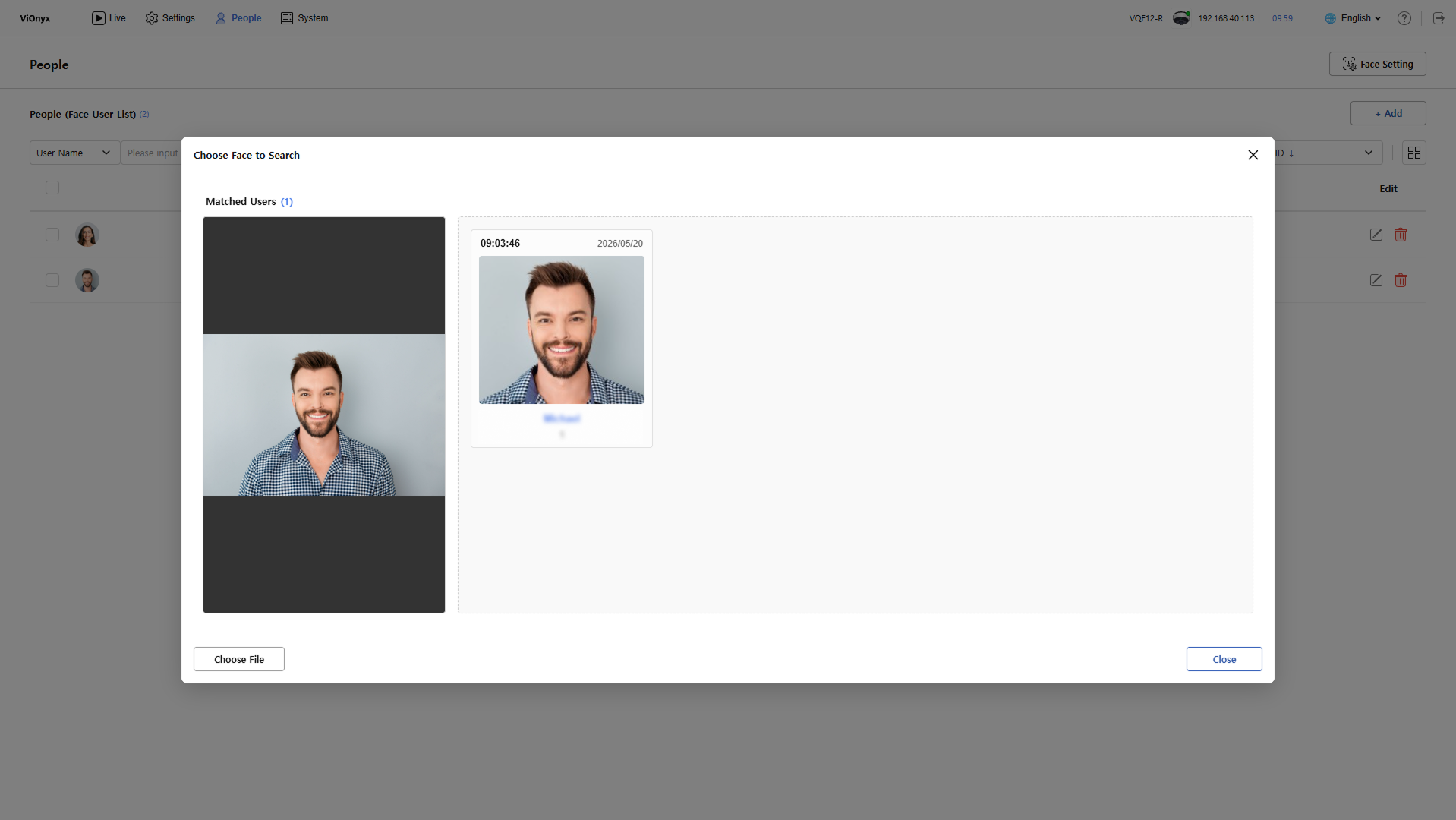
When the Choose Face to Search window appears, a list of users matched to the uploaded facial image appears.
-
Select the desired user from the matched users to go to that user's details page.
-
To search again with a different facial image, click Choose File at the bottom left, and upload a new facial image.
-
If you upload an image that is not a facial image, a message appears that says it is not a valid facial image. Try again with a facial image.
Change view mode
Display the user list in a table or card view. Click  or
or  at the top right of the user list to select the view mode you want.
-
Switch to List View
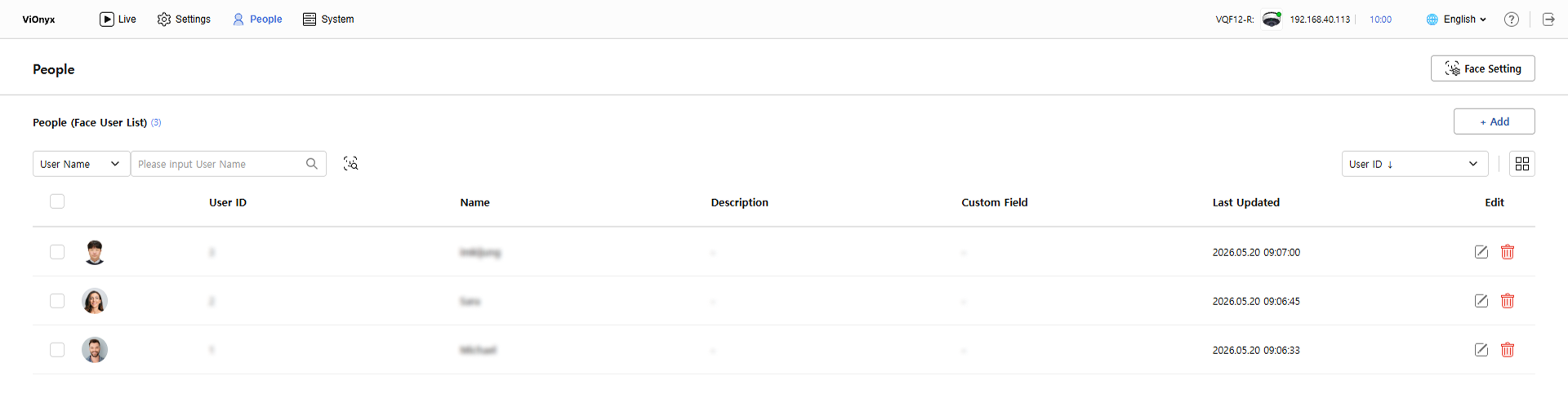
-
Switch to Grid View
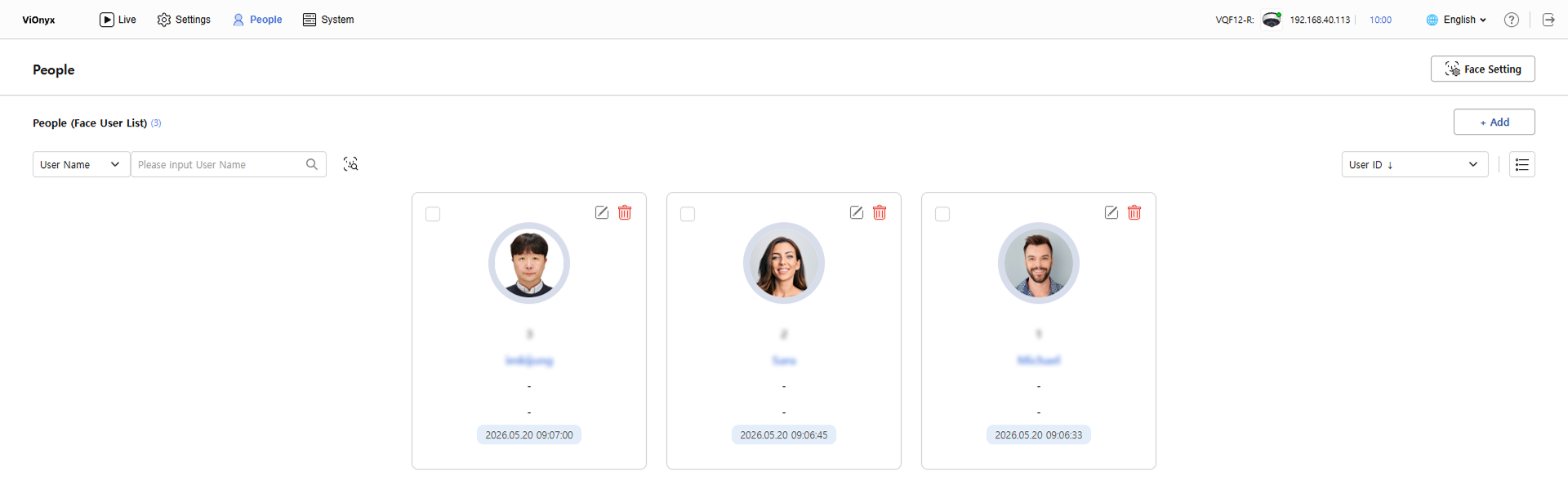
Switch to List View, and Switch to Grid View both provide the same feature. Only the display differs; search, filter, and sort results are identical.
User list sorting
You can sort the user list in ascending or descending order by user ID and last update time.
-
Click the sort drop-down option at the top right of the user list.
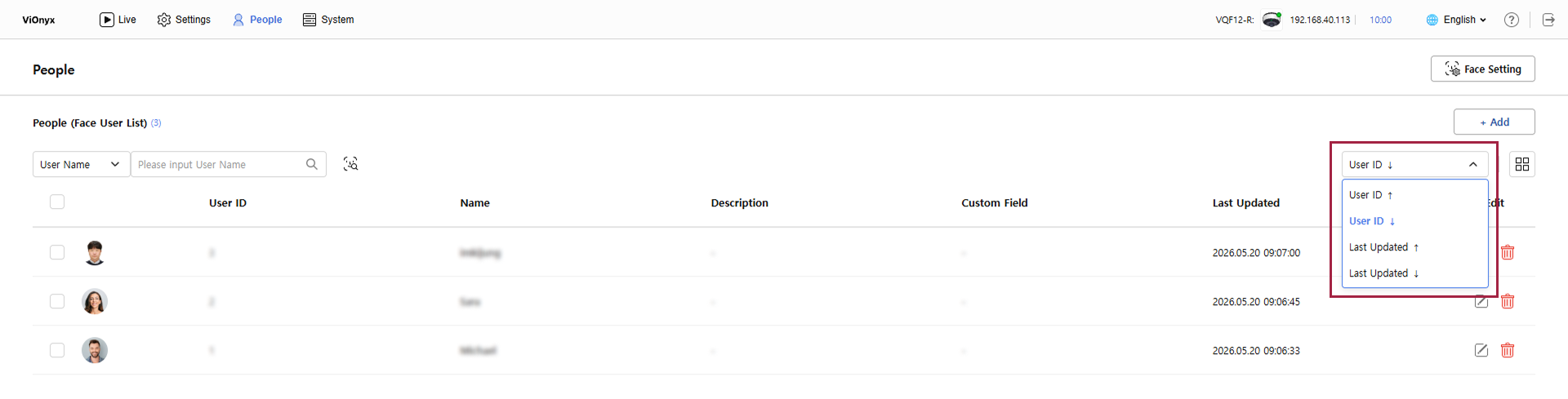
-
Select the desired sort criteria.