AI Rule Settings
Use AI rules to automatically execute audio playback or send webhooks based on event type and conditions. This document guides the complete procedure for creating and operating rules.
Set AI rules in the following situations.
-
Send a webhook to an external server when a specific AI event occurs.
-
Play audio on the device when a specific AI event occurs.
-
Automate different follow-up actions by event type.
Before you start
Before starting rule setup, check the following.
-
AI events must already exist. Refer to the following documents to create AI events.
-
Prepare the audio clips to play before using audio.
-
Prepare the webhook receiver URL beforehand.
-
You must configure at least one audio or webhook action.
Create AI rule
Start creating a rule
-
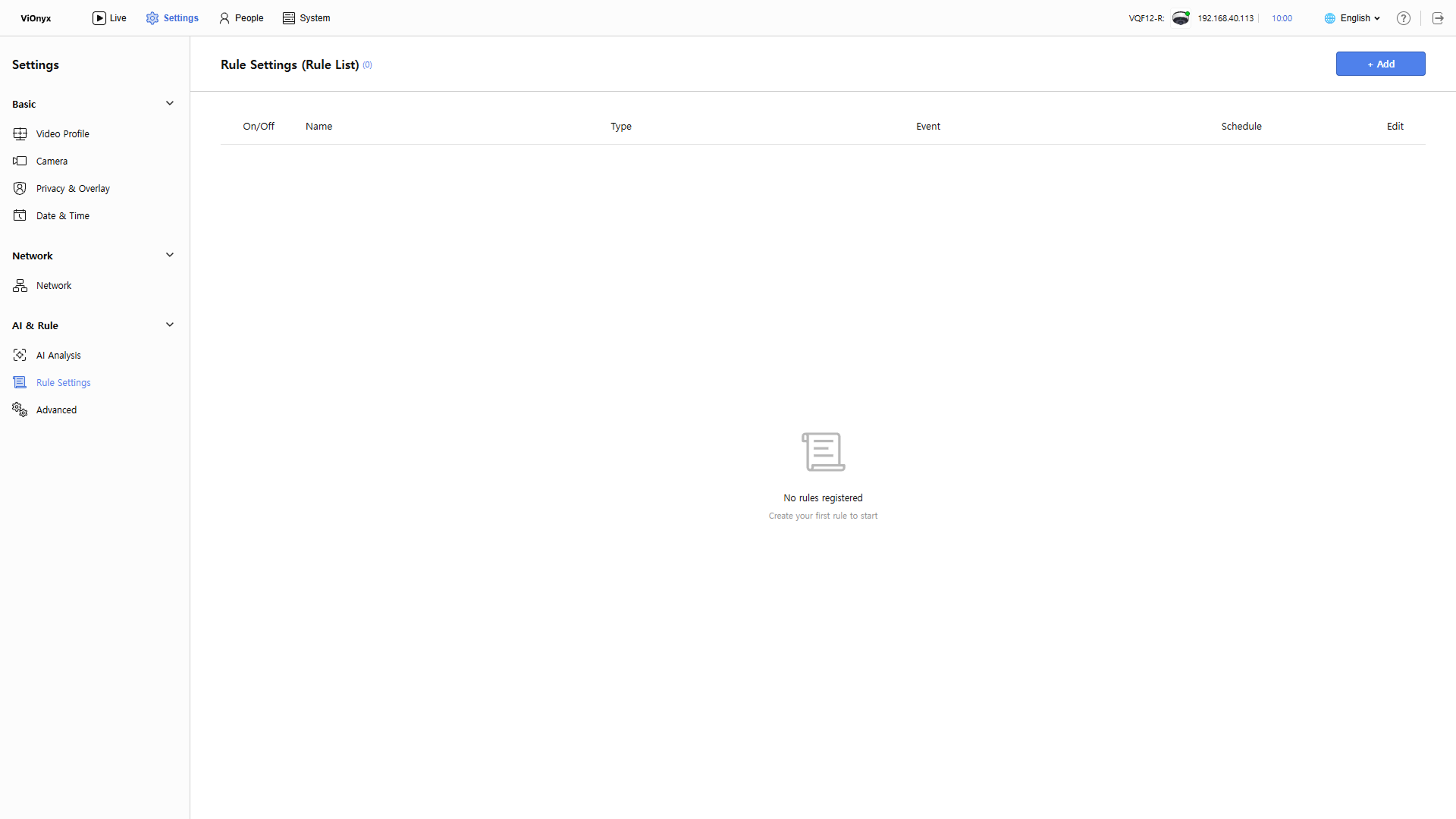
Click Settings in the upper-left of the screen.
-
In the left sidebar, click AI & Rule → Rule Settings.
-
Click + Add at the top right of the screen.
-
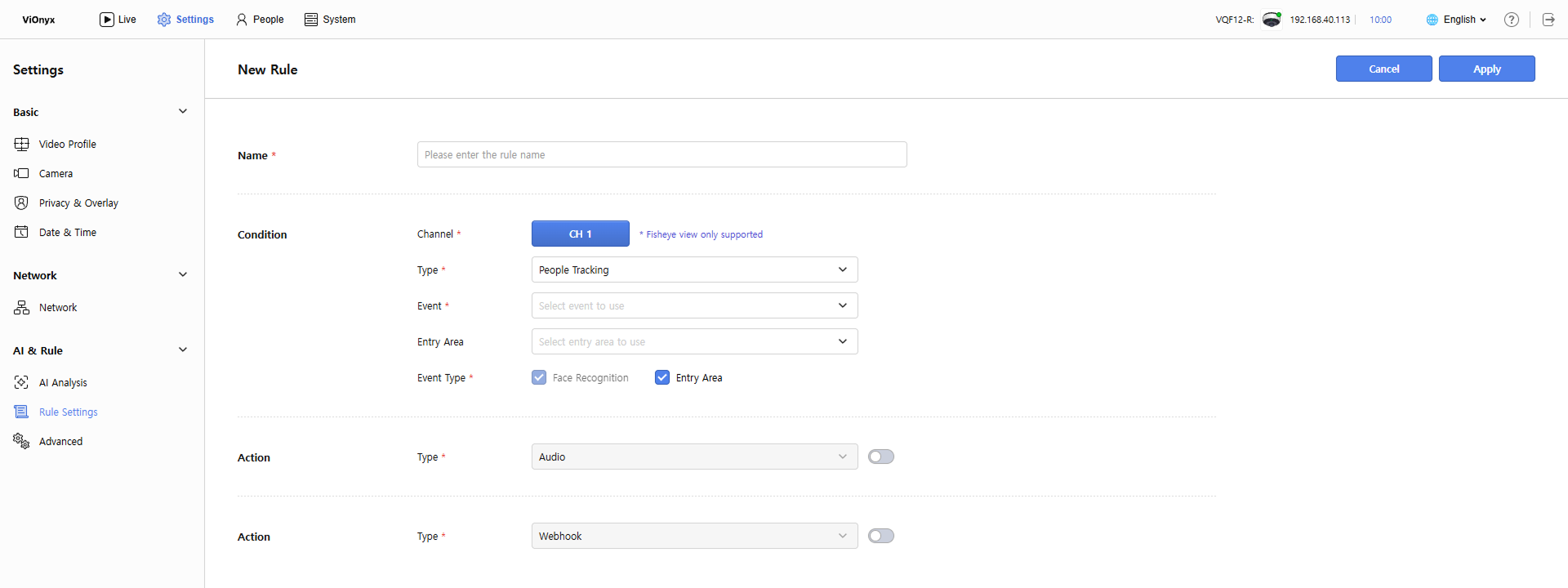
When the New Rule screen appears, enter the rule name and set conditions and actions.
Enter rule name
Enter the rule name in the Name input field. Rule name is required. Up to 64 characters.
Set conditions
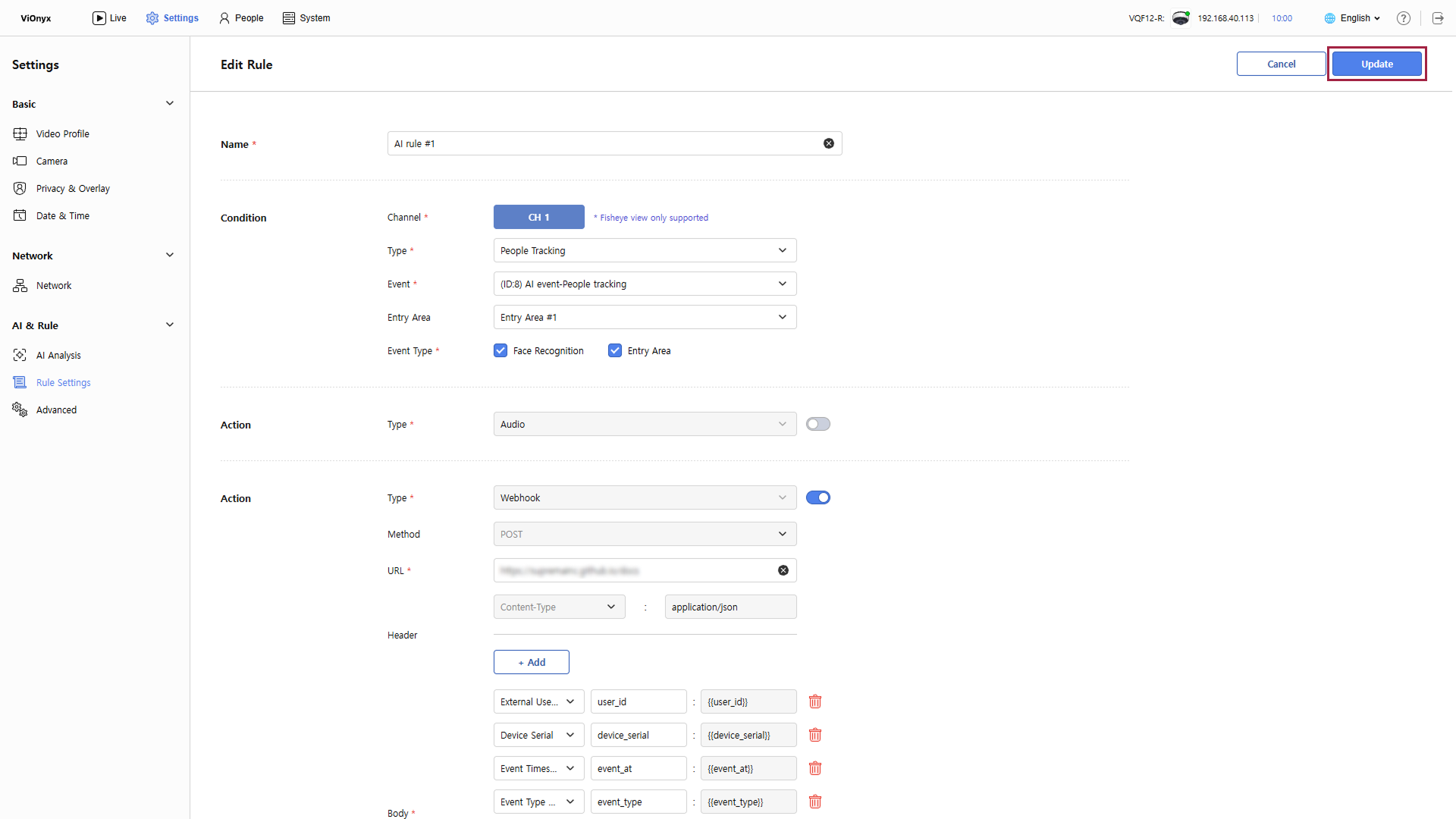
Conditions determine whether a rule executes when an AI event occurs. Set conditions as instructed below. The Type and Event options appear based on the settings specified when creating the AI event.
-
Channel: The channel is fixed to CH 1. Only Fisheye view is supported.
-
Type: Select the AI event type. Select one of the following.
- People Tracking
- Intrusion
- Line Crossing
- People Counting
-
Event: Select the AI event that will trigger the rule. The event list shows AI events that match the selected type. Events appear in the format
(ID:N) event_name. -
Entry Area / Intrusion Area / Line / Counting Area: Add conditions for an area based on the selected event type.
-
Event Type: Select the event type that determines whether the rule executes. The rule executes based on the selected event type.
You must select at least one event type.
Audio action settings
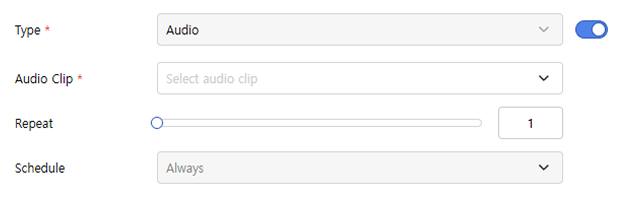
Audio action plays audio from the camera when an AI event occurs. Click the toggle button to enable the audio action.
-
Audio Clip: Select the audio clip to play. Select an audio clip from the list of clips uploaded to the system.
-
Repeat: Set the number of times to repeat audio playback. Plays the audio clip repeatedly the number of times you set. It can be set to a maximum of 10 times.
-
Schedule: The schedule when the rule runs and plays audio. You cannot change this option.
Prepare audio clips before configuring audio actions. Upload audio clips in System → Audio. For more information, refer to Upload Audio Clips.
Webhook action settings
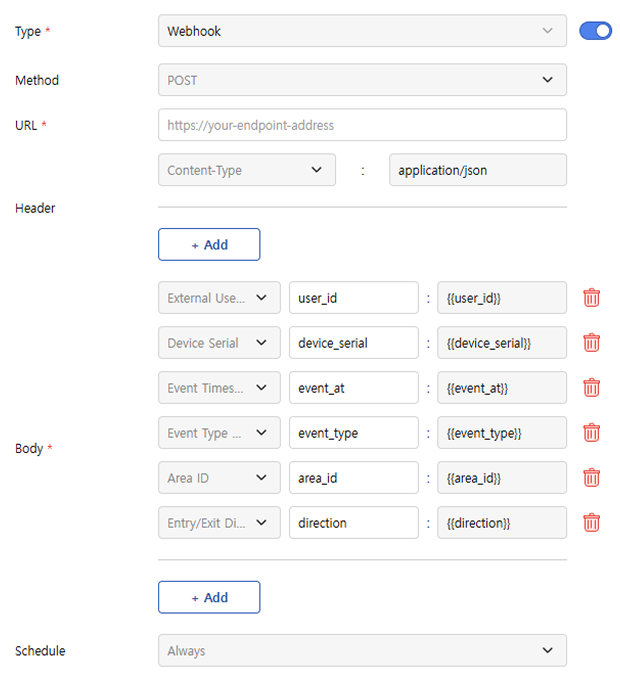
Webhook action sends a webhook to an external server when an AI event occurs. Click the toggle button to enable the webhook action.
-
Method: The webhook transmission method. Only the
POSTmethod is supported. -
URL: Enter the URL to receive the webhook. The address must be valid and start with
http://orhttps://. -
Header: Set the HTTP headers to include in the webhook. Click + Add to add headers. Enter each header as a key-value pair.
-
Body: Set the HTTP body to include in the webhook. Click + Add to add body items. Enter each body item as a key-value pair.
Custom items cannot be empty; up to 10 items can be added.
-
Schedule: The schedule when the rule runs and sends the webhook. You cannot change this option.
Webhook send logs and response codes can be checked in the system logs for troubleshooting.
Save rule
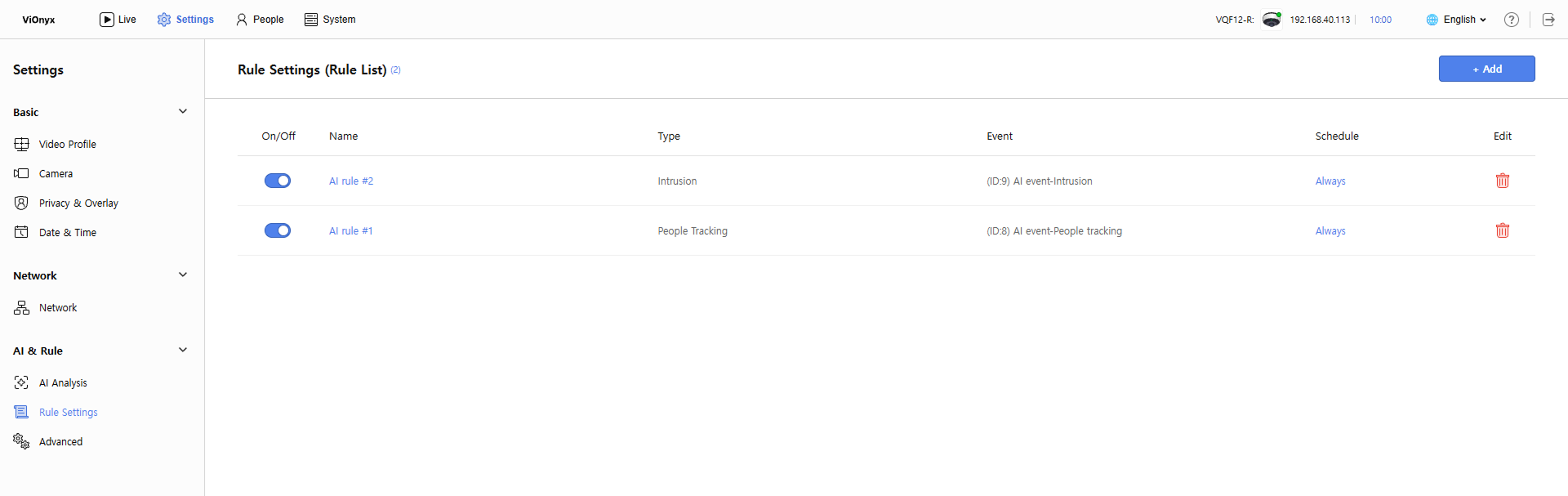
After completing rule setup, click Apply at the top right to save the rule. Saved rules appear in the rule list. The rule list shows the rule name, type, event, and schedule.
Enable/Disable AI rules
In the rule list, click the leftmost toggle for a rule to enable or disable it. Enabled rules execute the configured actions when an AI event occurs. Disabled rules do not execute actions when AI events occur.

The rule list shows enabled status at a glance. Rules with a blue toggle are enabled; rules with a gray toggle are disabled.
Edit AI rule
Click a rule in the rule list to view or edit its details. On the rule details screen, after modifying conditions and actions, click Update to save changes.
Delete AI rule
In the rule list, click on the right of a rule to delete it. Deleted rules cannot be recovered.
