Set Up Facial Authentication
Use Facial Authentication settings to manage authentication efficiency, security level, and spoof detection at once. Adjust values appropriately based on your organization’s security policy and operating environment.
-
Click the People menu in the upper-left corner of the screen.
-
Click Face Setting in the upper right corner of the screen.
-
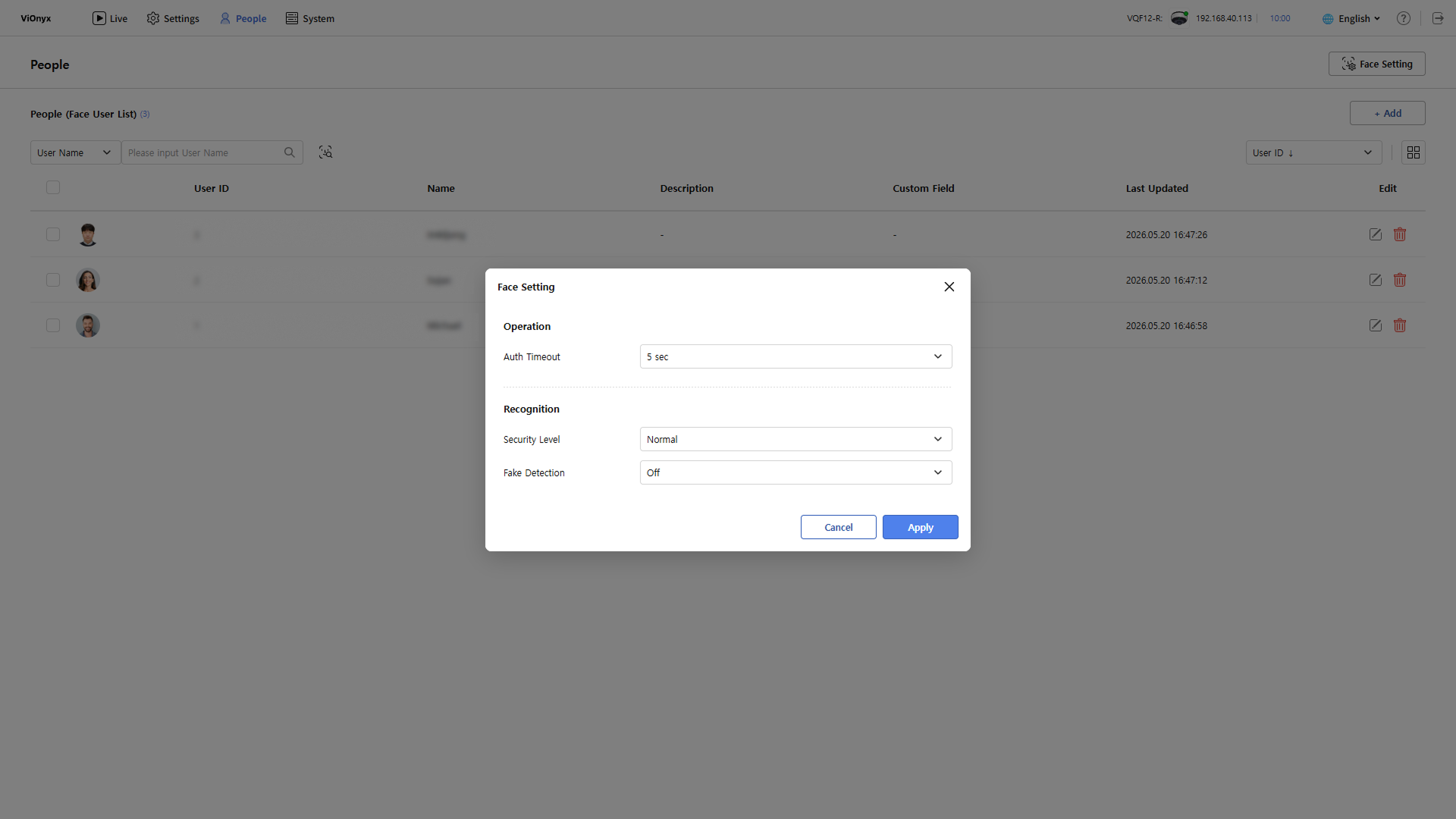
When the Face Setting window appears, set the required options.
-
Security Level: Set the security level. The higher the security level, the stricter the authentication becomes.
-
Fake Detection: Prevent user authentication with spoofed faces, such as photos.
-
-
When you finish setting the options, click Apply.
-
For areas that require high security, set the Security Level option to Most Secure.
-
The Auth Timeout option is not supported.