Update Administrator Account Password
Change the administrator account password to enhance camera access security. Change the password regularly as a security best practice.
Change the password in the following situations.
-
When setting up the administrator account for the first time to enhance security
-
When renewing the password to comply with routine security policy
-
If the password is compromised and requires immediate change
-
When replacing the administrator, set a new password
Check password rules
Check the following rules before setting the password. All rules must be met.
-
The password must be at least 12 characters long. Maximum length: 64 characters.
-
Include at least one lowercase letter (
a-z) and one uppercase letter (A-Z). -
Include at least one digit (
0-9) and one special character.Example special characters:
"!@#$%^&*()-_=+[]{} -
Do not include sequences of 4 or more consecutive characters (e.g.,
1234,abcd) or 4 or more identical characters. -
The username (case-insensitive) must not be included in the password.
admin, Admin, ADMIN, Admin123! etc.
-
Common weak passwords such as
password,qwerty,123456are not allowed.
Change administrator password
-
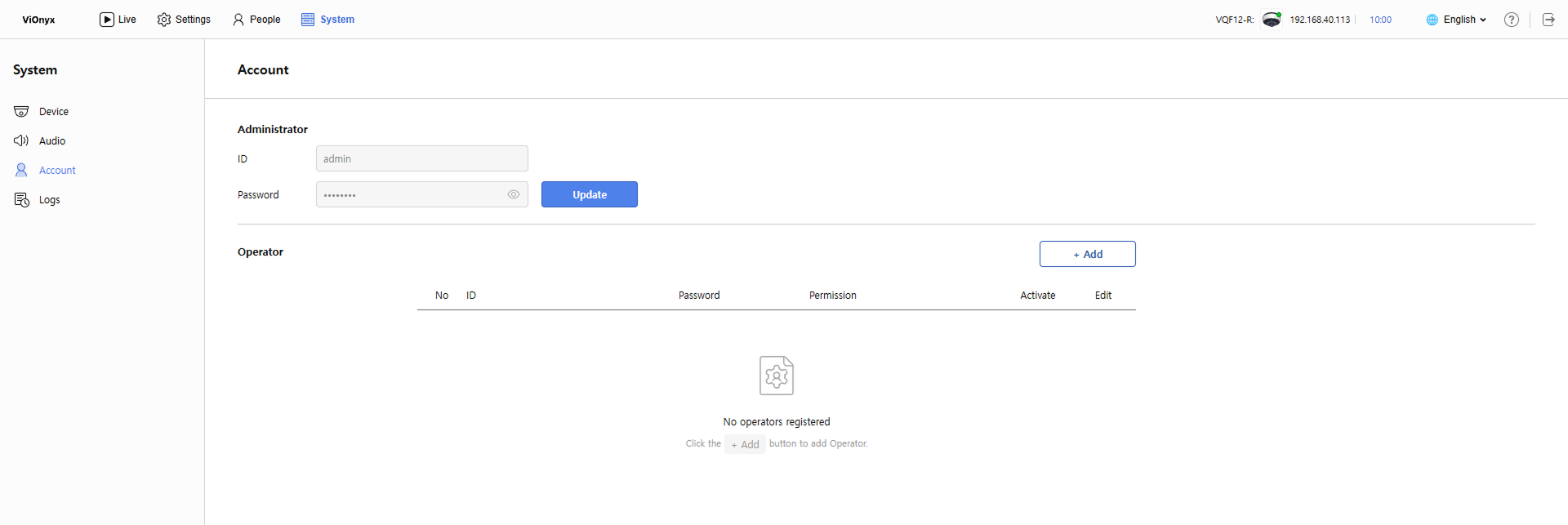
Click the System menu in the upper-left corner of the screen.
-
Click Account in the left sidebar.
-
In the Administrator section, click Update.
-
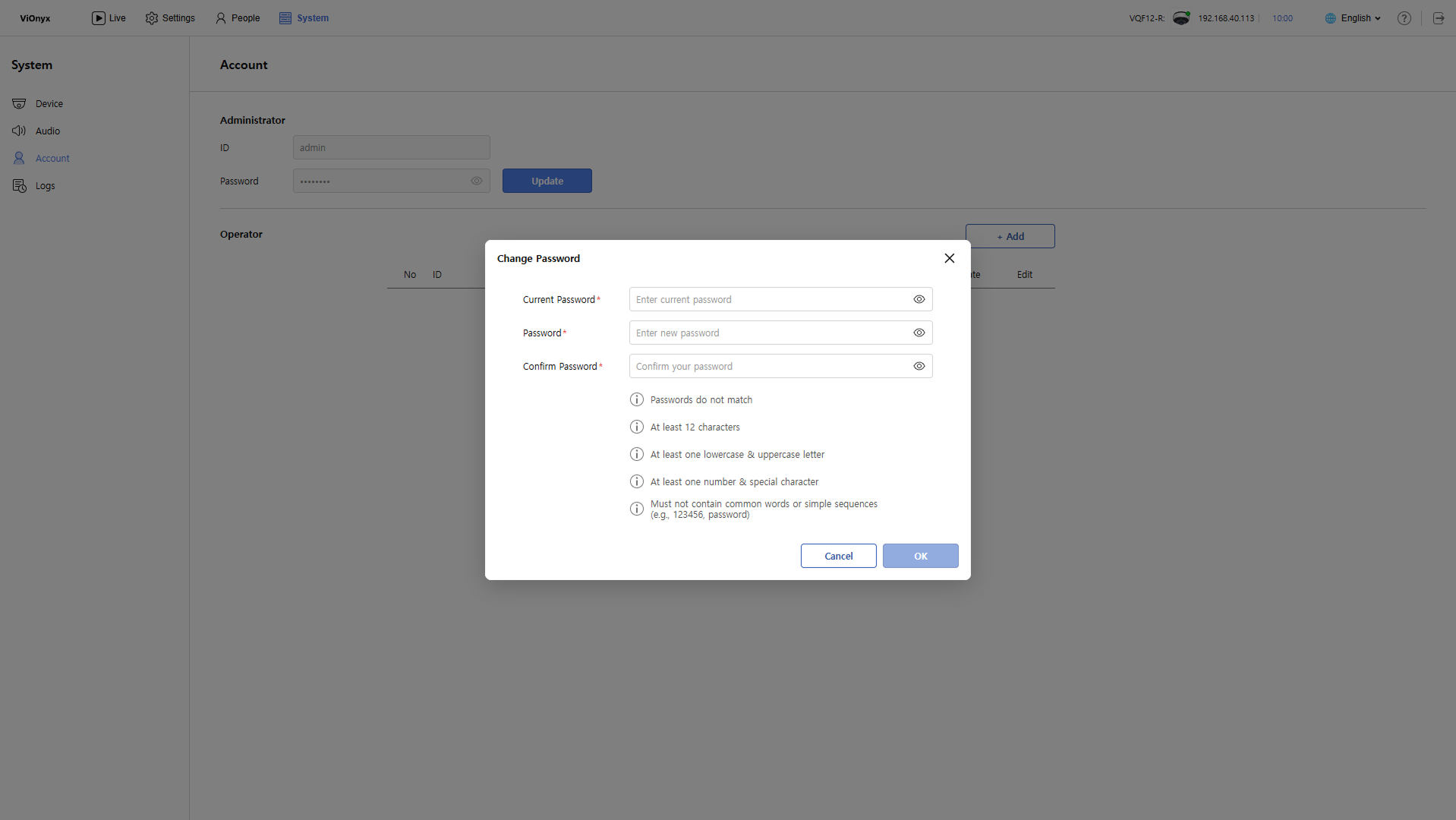
When the Change Password window appears, enter the current administrator password in the Current Password input field.
-
Enter the new password in the Password and Confirm Password input fields, in that order.
-
Click OK to change the new password.
When a success message appears, the password change is complete.
-
After changing the password, you may need to log in again.
-
Password change events are recorded in the system log.
If you forget the password
Recover a lost administrator password using the following methods.
-
Factory reset: Running a factory reset restores the administrator account to the default values. Warning: Factory Reset deletes all data. For more information about how to perform a factory reset, see the ViOnyx Installation Guide.
-
Contact technical support: Contact Suprema Global Technical Support Team for help.