Upgrade Firmware
This feature updates the camera firmware to the latest version. Firmware updates apply new features, performance improvements, and security patches.
Update the firmware in the following situations.
-
To use new features
-
To apply security patches to protect the camera
-
To improve the camera's performance
-
When technical support recommends a specific firmware version
-
The camera restarts during a firmware update and is unavailable during that time.
-
Ensure the device has sufficient power before starting the firmware update.
-
Use only official firmware files (.bin) provided by Suprema technical support.
Check current firmware version
Check the camera's installed firmware version.
-
Click the System menu in the upper-left corner of the screen.
-
Click Device in the left sidebar.
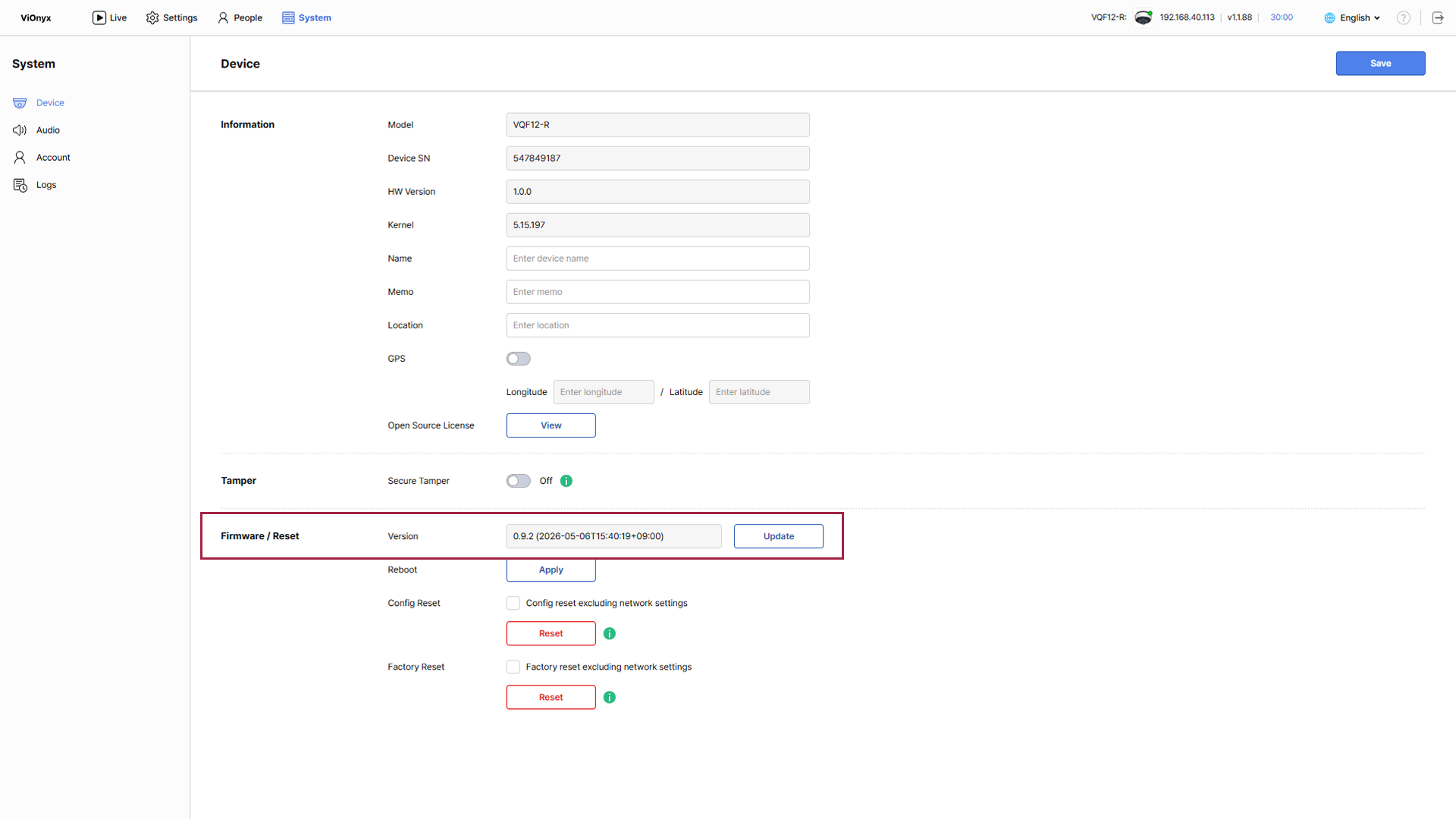
In the Firmware / Reset section, check the currently installed firmware version in Version.
Upgrade firmware
Select the new firmware file to update the device.
-
Click the System menu in the upper-left corner of the screen.
-
Click Device in the left sidebar.
-
In the Firmware / Reset section, click Update.
-
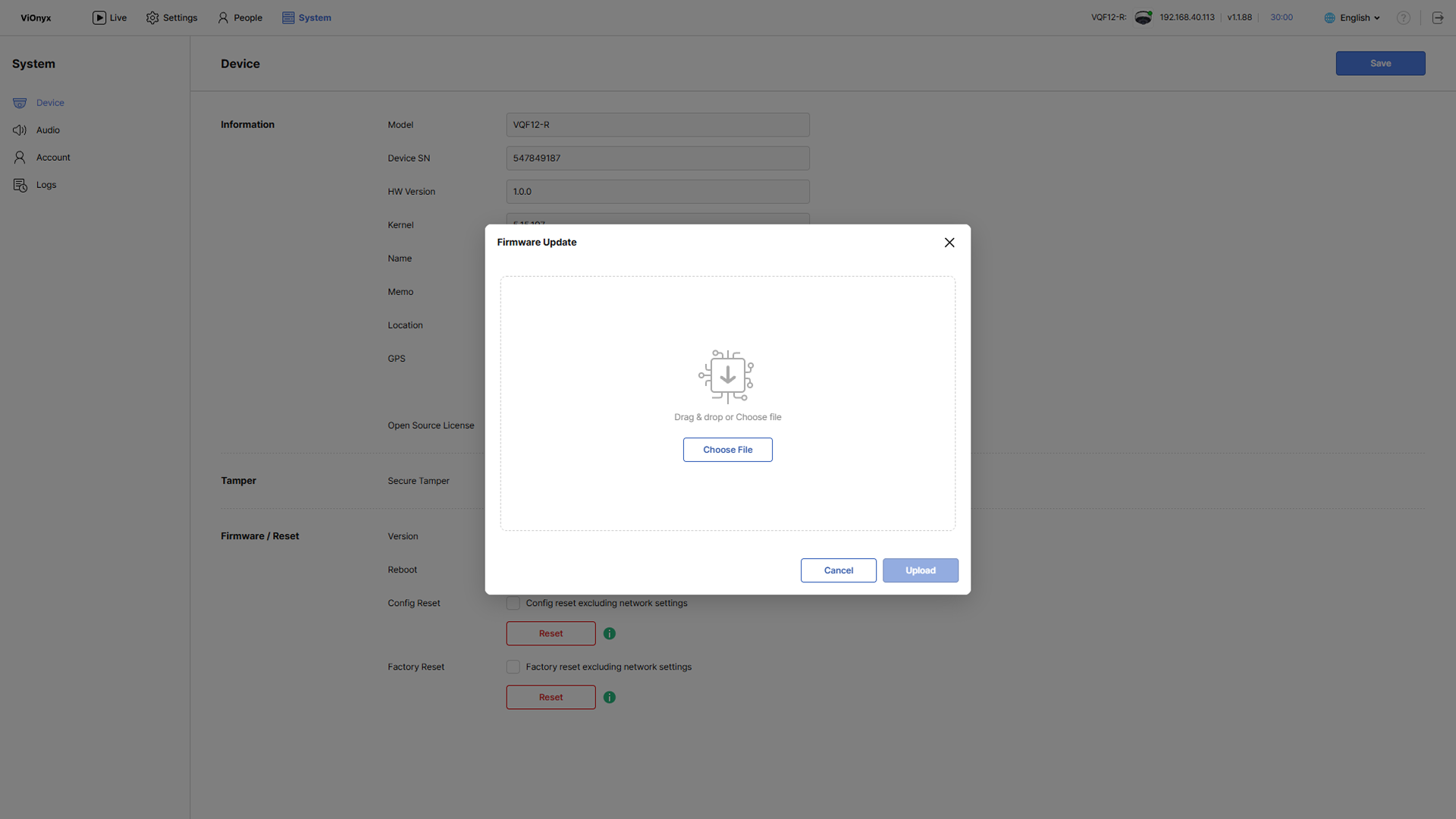
When the Firmware Update popup appears, select the firmware file (.bin) provided by Suprema.
-
The file extension must be .bin.
-
Drag the file into the upload area or click Choose File to select the file.
-
-
After selecting a file, Upload becomes active.
-
Click Upload to start the firmware update.
-
After the upload completes, a reboot confirmation popup appears. Click OK to restart the camera and complete the firmware update.
-
Reconnect to the web UI after the camera reboots. To verify the new firmware version, go to Device.
-
You cannot cancel the firmware update once it has started. Wait until the update completes.