View system logs
You can view and manage logs for camera user access, event occurrences, and system operations. Filter logs by the desired criteria in the web interface, export them in CSV format, or download encrypted device logs when more detailed analysis is needed.
Check logs in the following situations.
-
To check who accessed the camera and when
-
To track when a specific event occurred
-
To check major system operations such as boot and reboot
-
To review access records for security monitoring
-
To collect system logs for troubleshooting
-
Logs are retained automatically according to the device's memory size.
-
Each log type is retained for approximately one month.
-
When memory is full, the oldest logs are deleted automatically.
-
Only administrators and operators with read/write permission can view system logs.
View logs
-
Click the System menu in the upper-left corner of the screen.
-
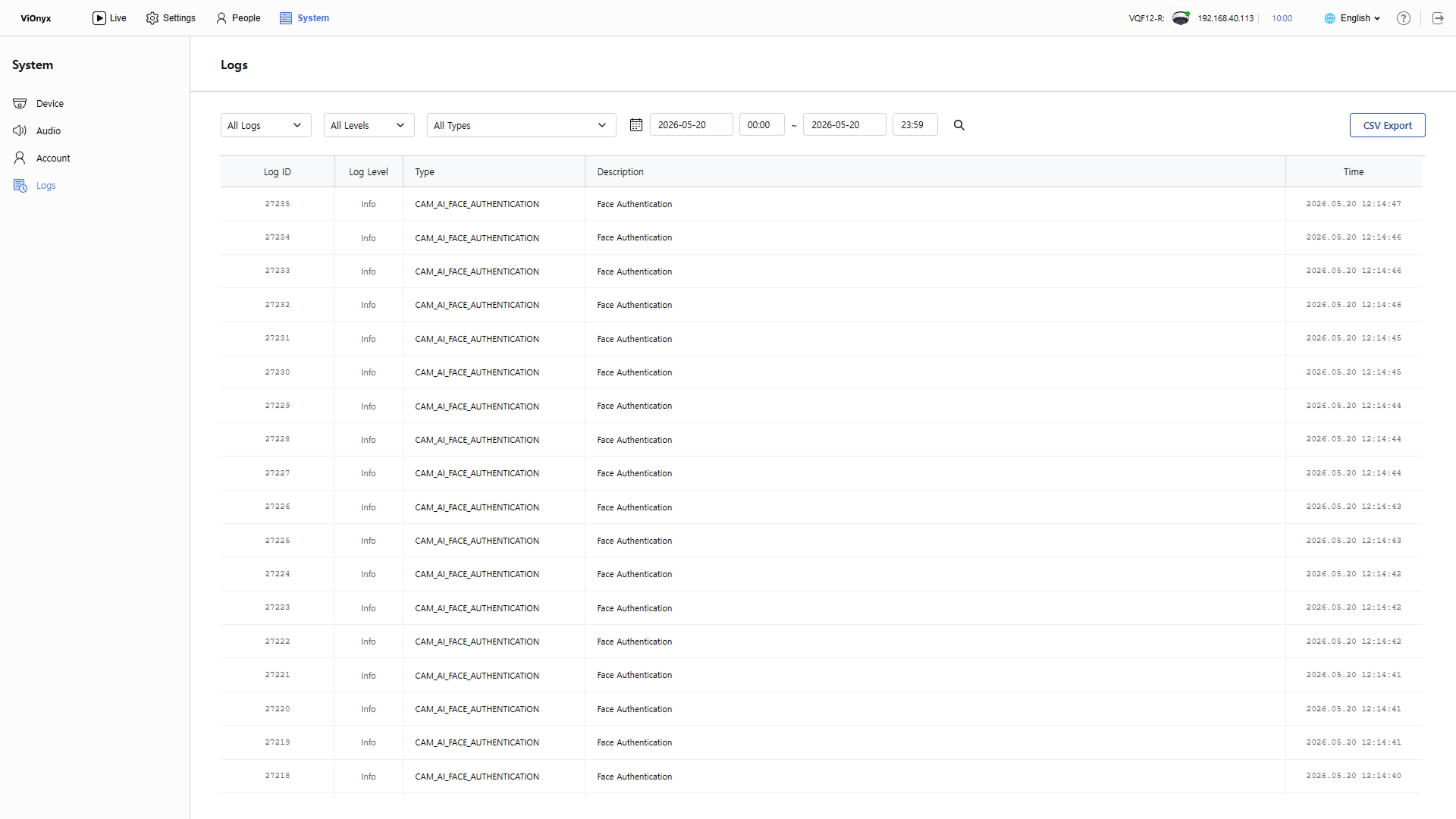
Click Logs in the left sidebar. View all logs.
-
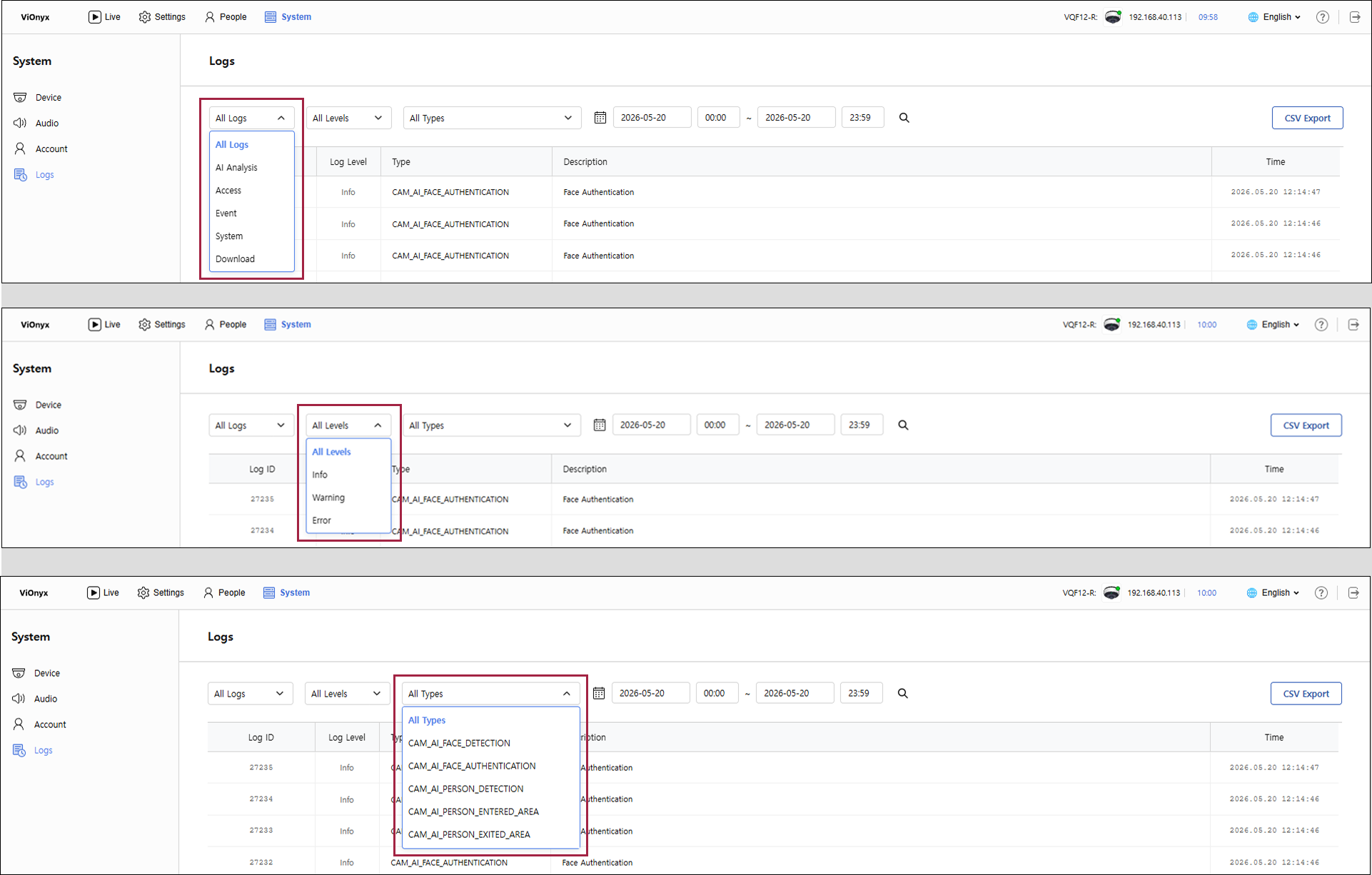
To filter logs by log category, level, and type, select the desired criteria in All Logs, All Levels, and All Types at the upper left of the log list.
-
Click at the top of the log list to filter logs based on the selected criteria.
-
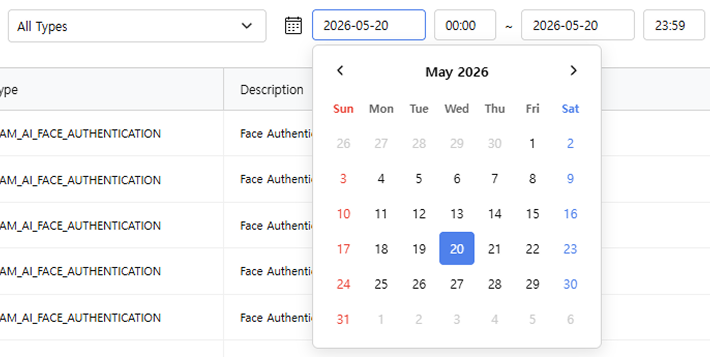
To view logs for a specific period, click the date and time input fields. When the calendar and time picker appear, select the desired start date and time. Set the end date and time the same way.
-
Scroll down the list to refresh it and keep viewing older logs.
-
For more information about log types, see System Log Types.
Log types
Logs are categorized as follows.
-
AI Analysis: View event records related to AI analysis.
-
Access: Records of users accessing the camera web interface.
-
Event: Records of event occurrences, Webhook sends, and rule executions.
-
System: Records of system operations such as boot, reboot, and initialization. This log is viewable by administrators only.
Select Download to download the device's encrypted log file. For more information, see #downloadDeviceLogs.
Log levels
Logs are categorized by the following levels.
-
Info: View general informational message logs.
-
Warning: View warning message logs.
-
Error: View error message logs.
Export logs
Download logs in CSV format for external analysis or archiving.
-
Click the System menu in the upper-left corner of the screen.
-
Click Logs in the left sidebar.
-
Select the log type to export in All Logs at the upper left of the log list. Set a search period to export logs for a specific time range.
-
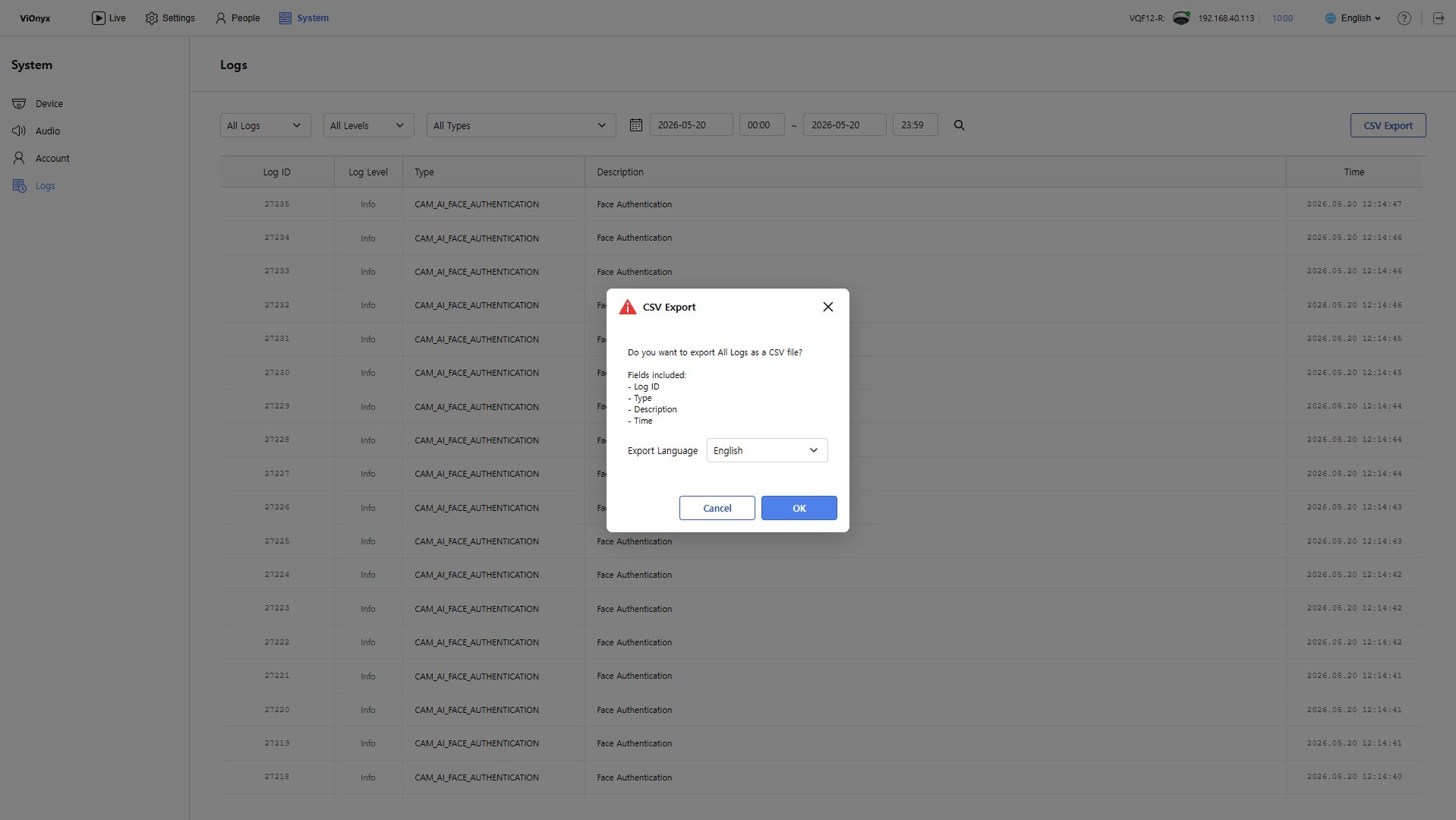
Click CSV Export at the top right of the screen.
-
When the CSV Export popup appears, select the language to export.
-
Click OK.
Download the log list as a CSV file.
-
CSV filename format:
system-logs-YYYYMMDD_HHMMSS.csv.Example: system-logs-20240326_153000.csv
-
The file is saved to the browser's default download folder or to a user-selected location.
Log retention and management
Automatic log deletion
When the camera's memory is full, the oldest logs are deleted automatically.
| Log type | Retention period |
|---|---|
| System Logs | Approximately one month |
| Access Logs | Approximately one month |
| Event Logs | Approximately one month |
How to retain important logs
To retain important logs long-term, follow these steps:
-
Export logs to CSV regularly.
-
Store exported files on external storage (NAS, cloud storage, etc.).
-
Include the export date and log period in the file.
Device log download
Download log files stored on the device in encrypted form. Device logs are detailed log files that include all events and operational records generated by the camera system for troubleshooting. The file is encrypted to keep it secure, and provide it to Suprema Global Technical Support Team when needed for troubleshooting.
-
Click the System menu in the upper-left corner of the screen.
-
Click Logs in the left sidebar.
-
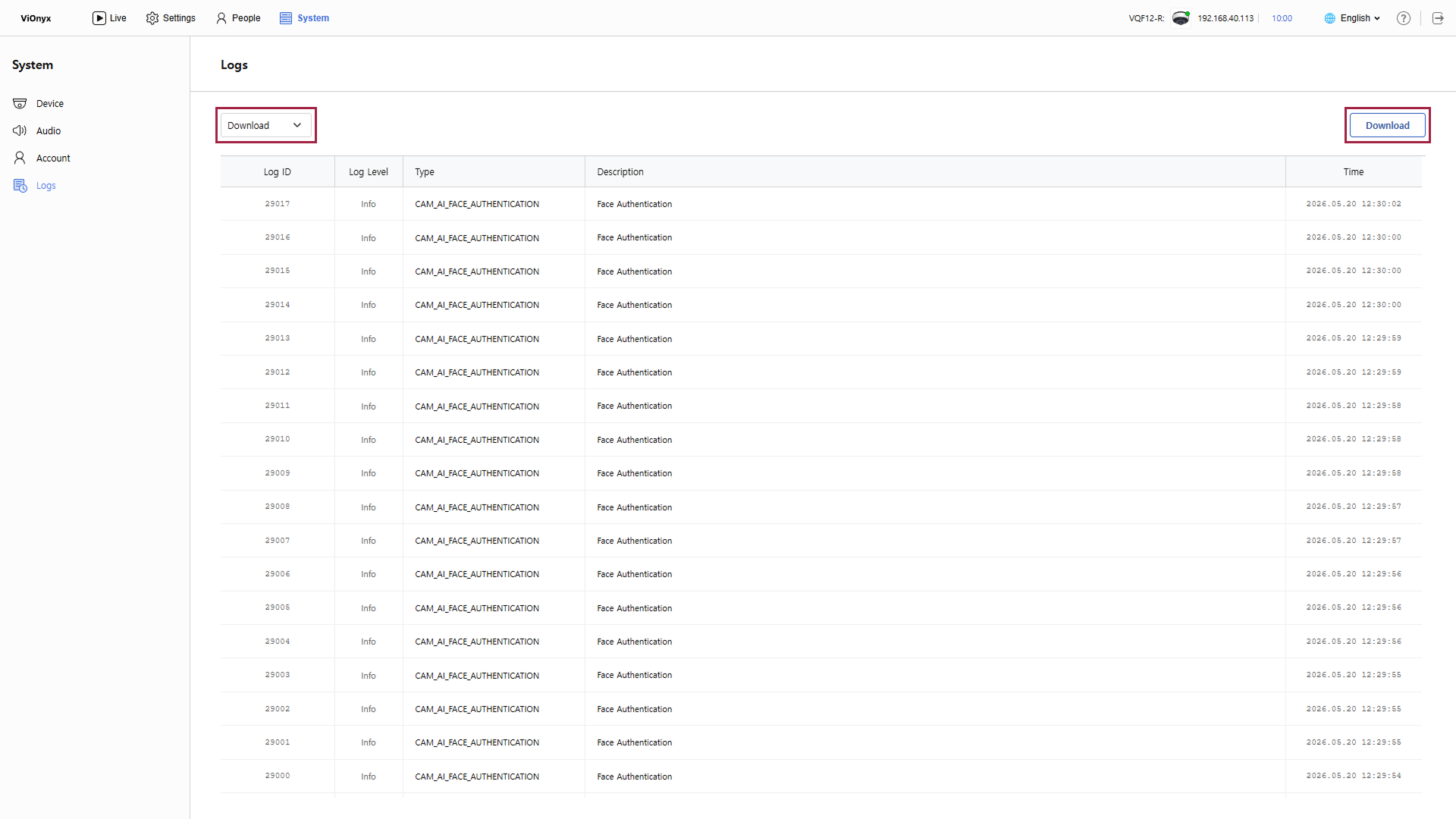
Select Download in All Logs at the upper left of the log list.
-
Click Download at the upper right of the log list.
Download the device log file locally. The file name uses the format device_logs_{device-serial-number}_YYYYMMDDTHHMMSS.zip.enc.
Example: device_logs_1234567890_20240326T153000.zip.enc