Authentication
Describes the supported authentication methods and authentication procedures.
If you use Suprema CLUe mode, you can only enroll, edit, and delete authentication modes on the Suprema CLUe server, not on the device.
Authentication mode
Set the authentication mode. You can combine Fingerprint, PIN, Card / QR Code, and ID for authentication mode, and you can also set schedules for each authentication mode.
Fingerprint authentication is only available for the XS2-ODPB and XS2-OAPB products.
Registering auth mode
-
Press
 , enter the password, and access the menu.
 -
Press AUTHENTICATION → Auth Mode.
-
Select
 .
. -
Pressing
 will display the credential that can be added on the screen. Select the credentials to add. Press the
  while the credential is added, and the added credential will be deleted.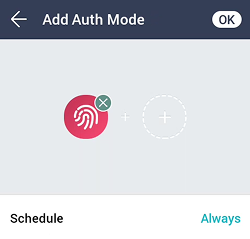
-
After setting the desired authentication mode, set Schedule.
Category Description Fingerprint -  : This mode uses only fingerprint.
- +  : This mode requires entering a PIN after authenticating via fingerprint.
Card / QR Code -  : This mode uses only card / QR code authentication.
- + : This mode requires authentication via card/QR code followed by fingerprint authentication.
- + : This mode requires card / QR code authentication followed by PIN entry.
- + / : This mode allows for authentication via card/QR code followed by either fingerprint or PIN entry.
- + + : This mode uses both fingerprint authentication and PIN entry after authentication via card/QR code.ID -  + : This mode requires entering an ID followed by fingerprint authentication.
- + : This mode requires ID entry followed by PIN entry.
- + / : This mode allows for entering an ID followed by either fingerprint authentication or entering a PIN.
- + + : This mode uses both fingerprint authentication and PIN entry after entering an ID.Info-
Schedule can be set on the Suprema CLUe server. If no schedule is set, only Always can be selected.
-
To use QR/Barcode authentication on XS2-DPB, XS2-APB, XS2-ODPB, and XS2-OAPB models, QR/Barcode must be activated in AUTHENTICATION → QR/Barcode Operation, and a separate device license is required. For more information, refer to License.
-
-
To save the settings, press OK.
Modifying auth mode
-
Press
, enter the password, and access the menu. -
Press AUTHENTICATION → Auth Mode.
-
Select the authentication mode to modify.
-
Modify the authentication mode by referring to Registering auth mode and press OK.
Delete auth mode
-
Press
, enter the password, and access the menu. -
Press AUTHENTICATION → Auth Mode.
-
Press
 and select the authentication mode to delete. You can select multiple options.
 -
To delete the selected item, press OK.
Operation
-
Press
, enter the password, and access the menu. -
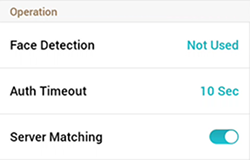
After pressing AUTHENTICATION, change the desired item in Operation.
-
Face Detection: When you use the Face Detection feature, it can detect a real human face. After authenticating with a card, QR code, or PIN, the face must be detected for authentication to succeed.
-
Auth Timeout: If authentication is not completed within the set time, authentication will fail. It can be set to 3 to 20 seconds.
-
Server Matching: When you set up server matching, it authenticates the device user or the Suprema CLUe user based on the configured authentication mode. It can be used when the device has too much user information or when the device is installed outside.
Info-
If you use Server Matching, enable server matching on both the device and the Suprema CLUe server.
-
If you use Suprema CLUe mode, Server Matching is enabled automatically.
-
-
QR/Barcode Authentication Options
You can set QR/Barcode authentication.
-
Press
, enter the password, and access the menu. -
After pressing AUTHENTICATION, enable QR/Barcode in QR/Barcode Operation.
XS2-QDPB, XS2-QAPB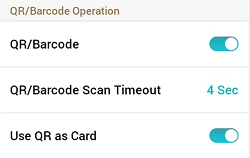
-
QR/Barcode: Select whether to use QR/Barcode authentication.
-
QR/Barcode Scan Timeout: If QR/Barcode is not scanned within the set time, authentication fails. Set between 4 and 10 seconds.
-
Use QR as Card: You can set up authentication with a QR code that has the same data as the CSN card or Wiegand card issued to the user.
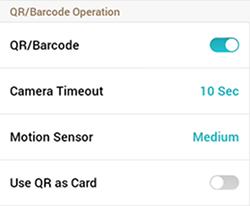
-
QR/Barcode: Select whether to use QR/Barcode authentication.
-
Camera Timeout: If QR/Barcode is not scanned within the set time, authentication fails. Set between 3 and 20 seconds. Available only when QR/Barcode is enabled.
-
Motion Sensor: Set the sensitivity for detecting movement around the device. Available only when QR/Barcode is enabled.
-
Use QR as Card: You can set up authentication with a QR code that has the same data as the CSN card or Wiegand card issued to the user. Available only when QR/Barcode is enabled.
InfoTo use QR/Barcode authentication on XS2-DPB, XS2-APB, XS2-ODPB, and XS2-OAPB models, QR/Barcode must be activated in AUTHENTICATION → QR/Barcode Operation, and a separate device license is required. For more information, refer to License.
-
Fingerprint settings XS2-ODPB, XS2-OAPB
You can change the settings for fingerprint authentication.
-
Press
, enter the password, and access the menu. -
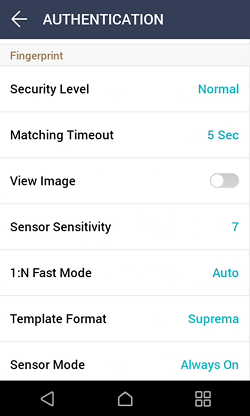
After pressing AUTHENTICATION, change the desired items in Fingerprint.
-
Security Level: You can set the security level for 1:N authentication.
-
Matching Timeout: Set the wait time for fingerprint matching. If authentication is not completed within the specified time, it will fail.
-
View Image: The original image of the scanned fingerprint can be viewed.
-
Sensor Sensitivity: Set the sensitivity of the fingerprint recognition sensor. Set the sensitivity higher to obtain precise fingerprint information.
-
1:N Fast Mode: Set the speed of fingerprint authentication. When you select Auto, authentication speed is set according to the total number of fingerprint templates enrolled in the device.
-
Template Format: Set the fingerprint template format. SUPREMA is set as default. Changing the template format will make all previously saved fingerprints unusable, so take care when changing.
InfoDelete all user fingerprint information and then change the template format. If user fingerprint information is enrolled, you cannot change the template format.
-
Sensor Mode: Set to Auto On to turn on the fingerprint sensor when it detects the user’s finger. When set to Always On, the sensor remains on even when not scanning fingerprints.
-
Live Finger Detection: Set the fake fingerprint detection level. Higher levels for fake fingerprint detection may also increase rejection rates for actual people’s fingerprints.
-
Advanced Enrollment: Assess the quality of scanned fingerprints to save high-quality fingerprint information. Enable to notify the user when fingerprint quality is low, helping them scan fingerprints correctly.
-
Duplicate Check: Check for duplicate fingerprints when enrolling.
-
Attendance Mode
You can set how to register T&A mode.
-
Press
, enter the password, and access the menu. -
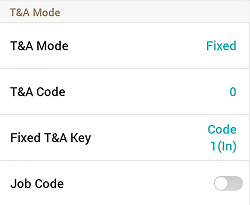
Click AUTHENTICATION, then change the desired item in T&A Mode.
-
T&A Mode: Set how to use attendance mode.
-
T&A Code: Register T&A events. To register attendance events, select T&A Code →
and set the icons to be displayed on the screen, T&A Event Name, and Schedule. -
T&A Required: Set to require a user to select a T&A event when authenticating. Available when T&A Mode is set to By User.
-
Fixed T&A Key: Set to use only a T&A event selected by the administrator. Available when T&A Mode is set to Fixed.
-
Job Code: Set whether to use the job code.
-