Add and Manage Devices on the Panel
BioStar Air connects multiple types of secondary devices to the CS-20 primary panel. Support for RS-485, OSDP, and Wiegand enables easy integration with existing security systems. This article explains how to configure, manage, and remove secondary devices.
Configure secondary devices
After registering the CS-20, configure secondary devices using one of the following methods:
| Secondary devices | Description |
|---|---|
| Suprema RS-485 devices | Connect XPass D2 and OM-120 via existing RS-485 wiring and standard communication protocols. |
| OSDP device | Uses a security-enhanced communication protocol |
| Wiegand device | Existing Wiegand-compatible devices, such as card readers |
Configure secondary devices
Connect devices that support RS-485 communication to the CS-20 to configure them as secondary devices. Secondary devices appear nested under the CS-20 in the panel list.
-
In the panel list, click at the far right of the registered CS-20 panel.

-
Click Add Secondary Devices to open the Add Secondary Devices window.
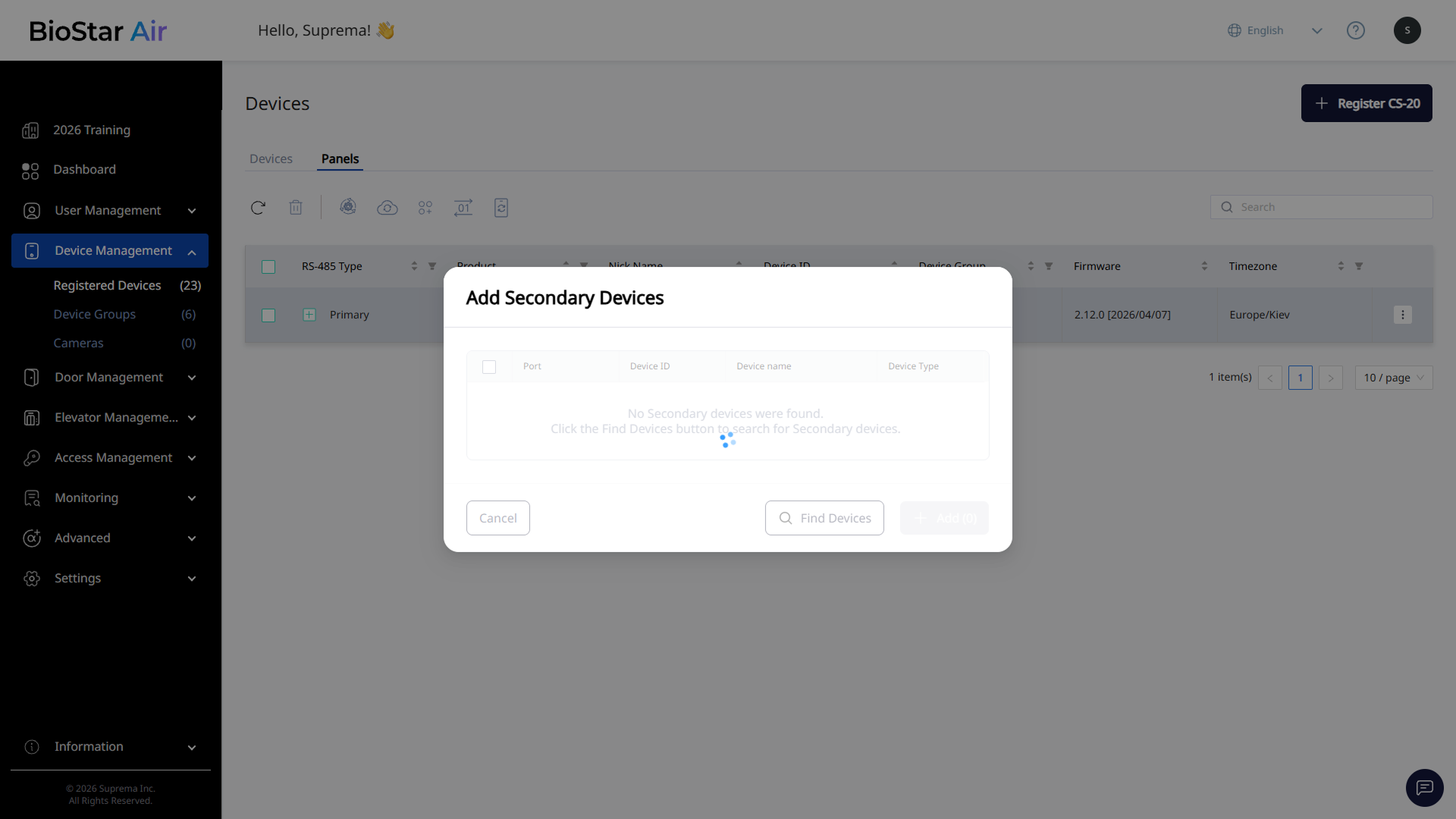
If no secondary devices are found, click Find Devices to re-scan devices connected to the CS-20.
-
When connected secondary devices appear in the list, click the checkbox next to each device to select the ones to add.
-
Once your selections are complete, click Add.
Connected secondary devices appear nested under the CS-20. View all devices connected to the CS-20 at a glance in the panel list.

For best performance, reliability and access to the latest features, make sure to check for firmware updates as soon as devices are registered. New firmware may have become available between the time the device was packaged and installed. For more information on firmware upgrades, see Upgrade Firmware.
-
For more information on editing and managing secondary devices, see Manage Registered Edge Devices.
-
For more information on secondary device fields and settings, see Device and Panel Configuration Options.
-
For more information on upgrading XPass D2 devices, see Upgrade Firmware.
Configure OSDP devices
OSDP (Open Supervised Device Protocol) is a security-enhanced communication protocol. In environments requiring high security, connect OSDP-compatible devices to the CS-20.
-
In the panel list, click at the far right of the registered CS-20 panel.
-
Click Add OSDP Devices from the popup menu.
-
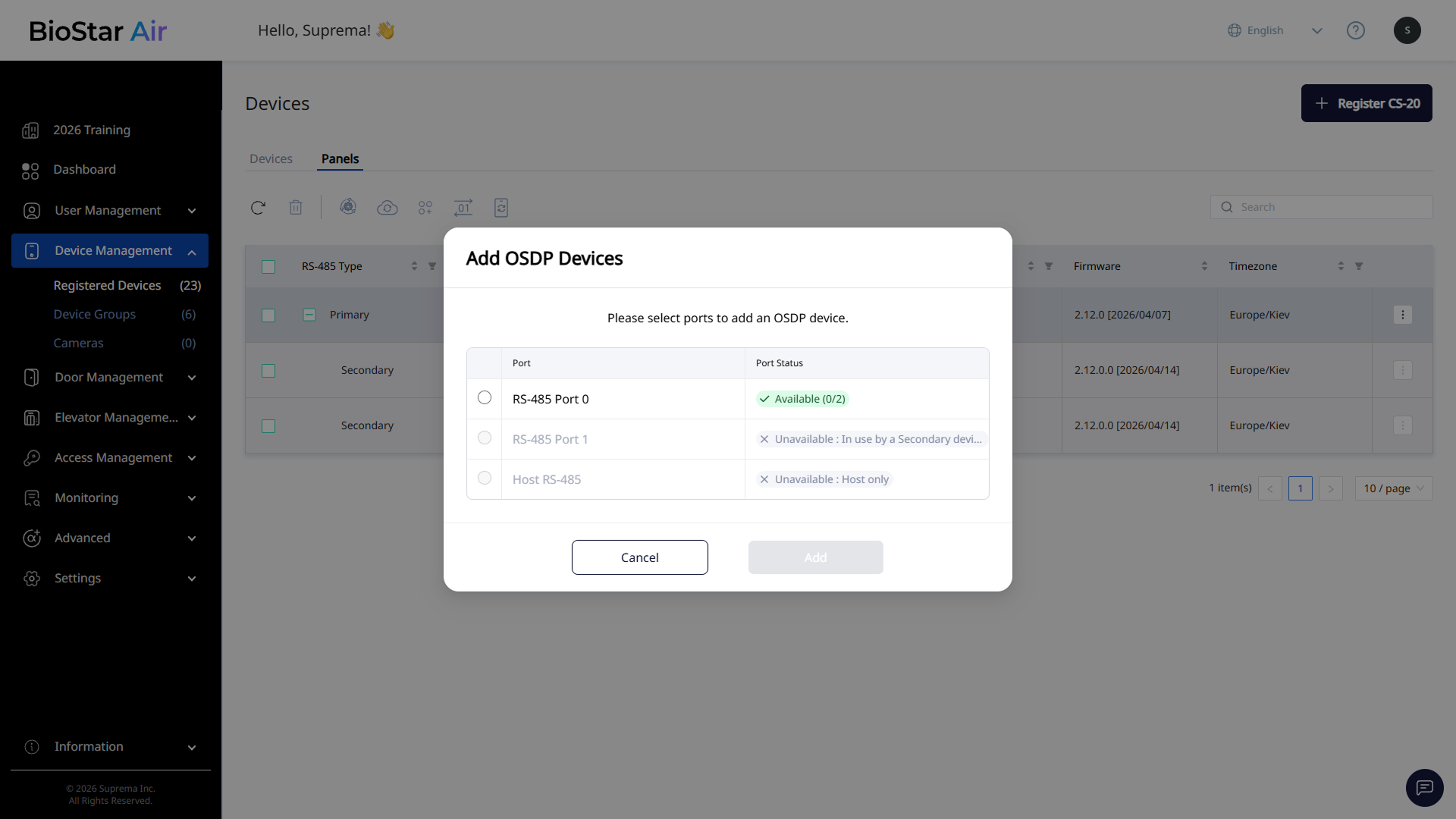
When the Add OSDP Devices window appears, select the port to add the device to.
-
After selecting a port, click Add.
-
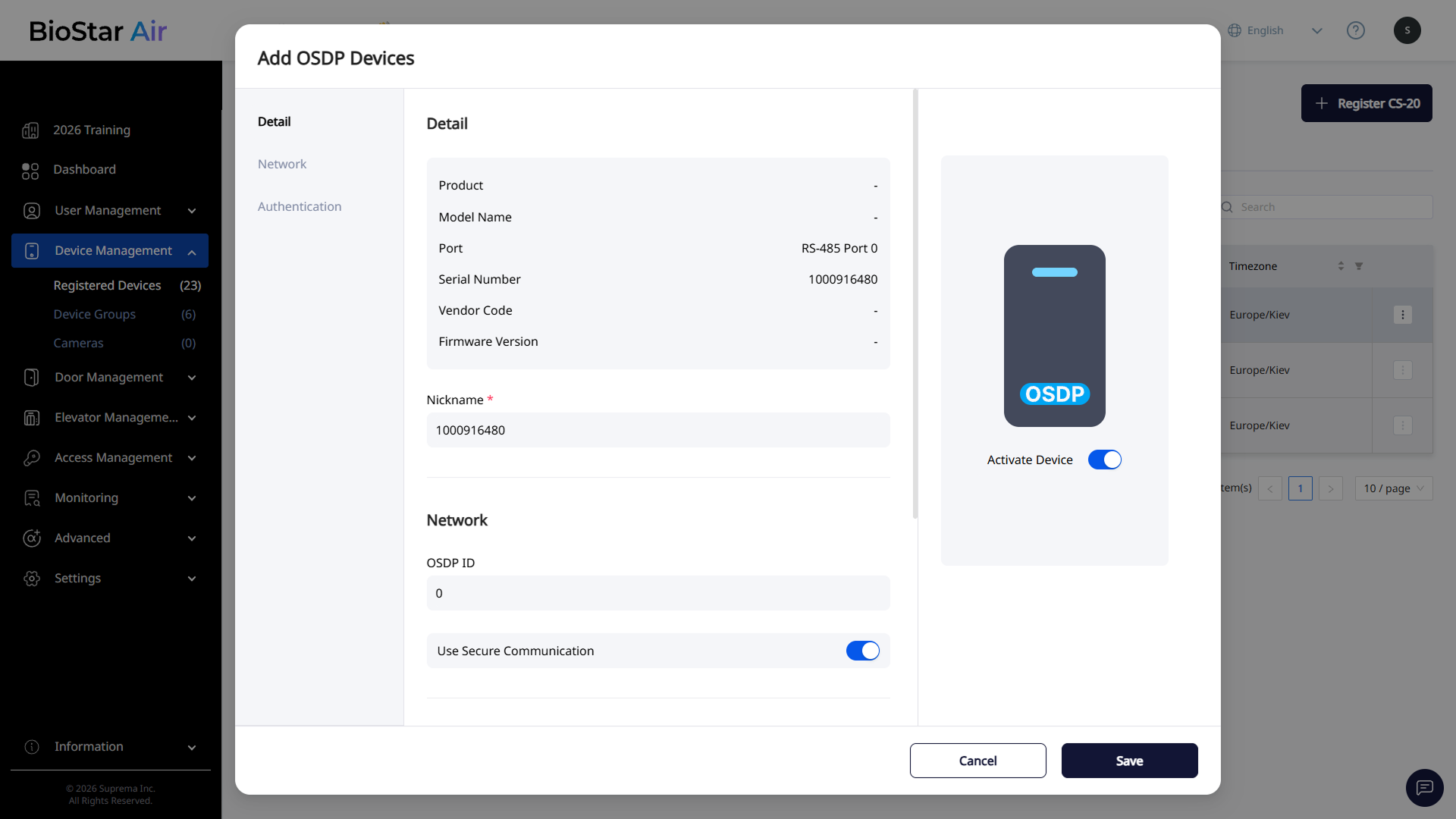
After completing the required settings in the Add OSDP Devices window, click Save.
Configure Wiegand devices
Wiegand is a communication protocol widely used in access control systems. Connect a Wiegand device to the CS-20 to configure it as a Wiegand secondary device.
-
In the panel list, click at the far right of the registered CS-20 panel.
-
In the popup menu, click Add Wiegand Devices.
-
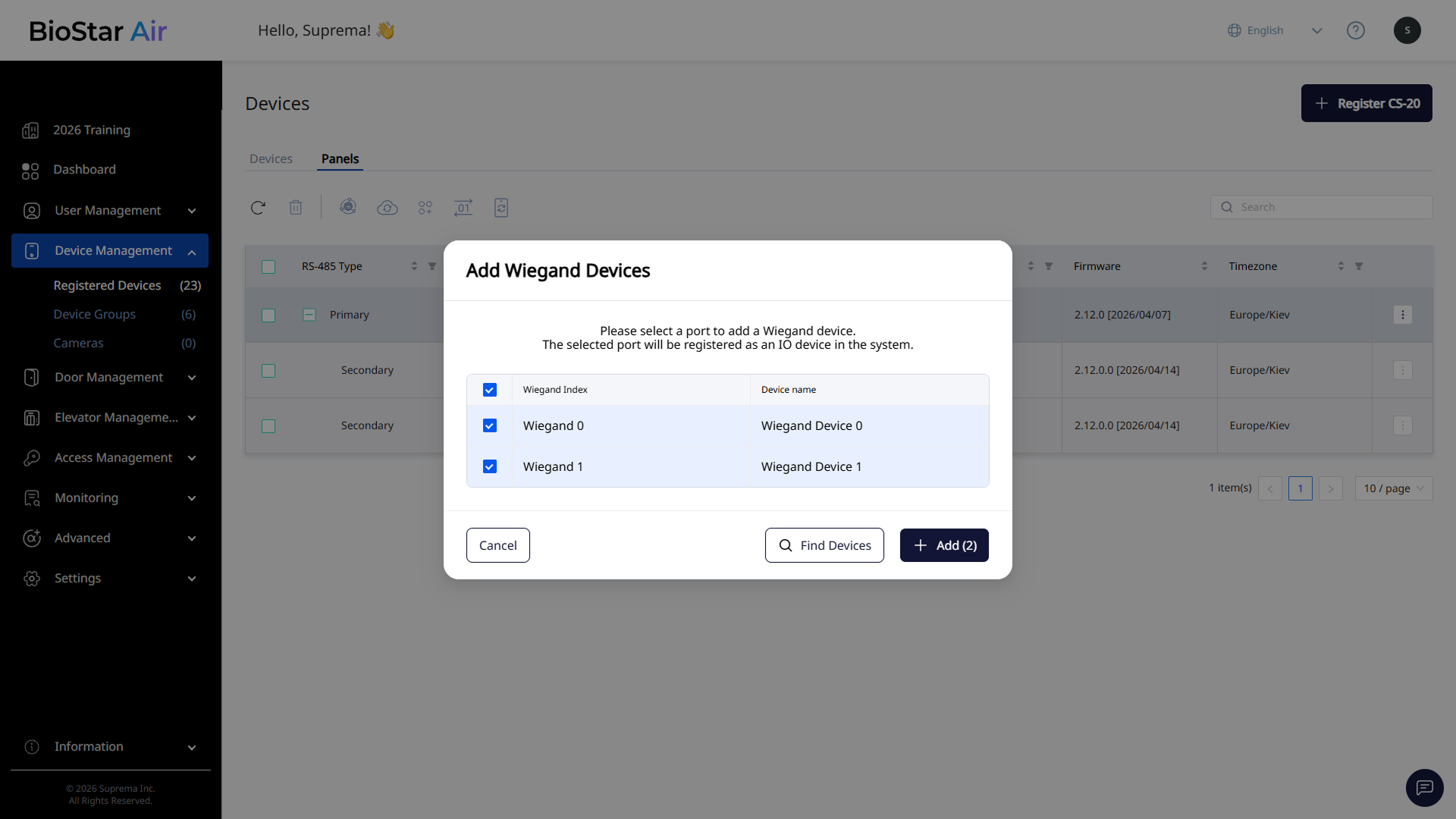
When the Add Wiegand Devices window appears, select a port to add a device.
-
After selecting a port, click Add.
Edit OSDP/Wiegand device information
-
Click Device Management → Registered Devices in the left sidebar.
-
Click the Panels tab.
-
Click the primary device's + icon in the list to expand the list of connected secondary devices.
-
Click the OSDP or Wiegand secondary device to edit its information.
-
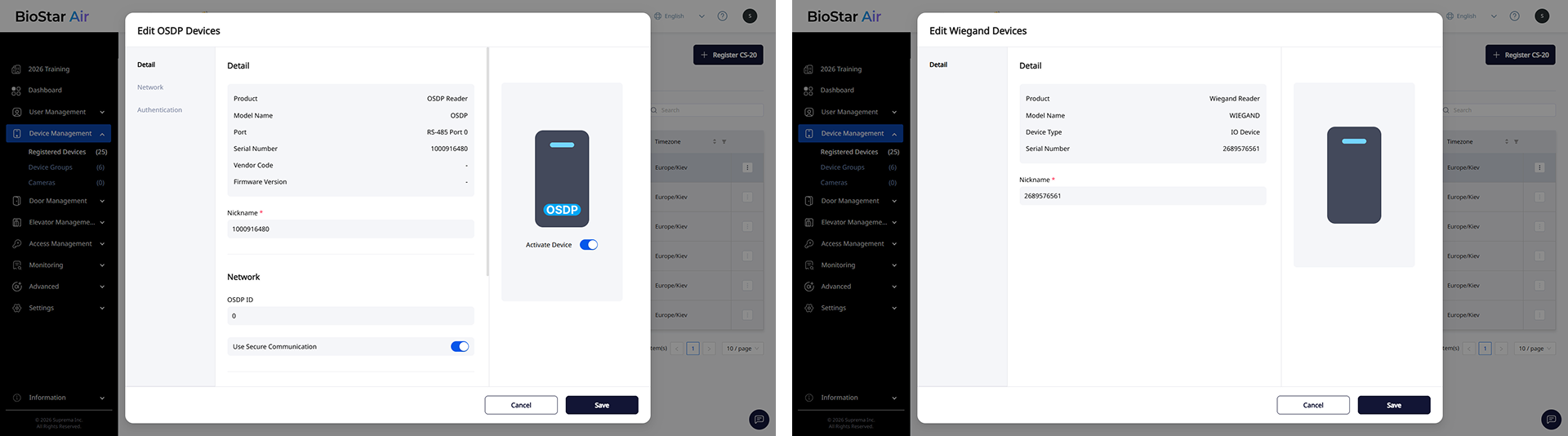
When the Edit device information window appears, edit the details or settings.
-
OSDP device: Set device name, network settings, authentication settings (RF Card, RF Card + PIN), and authentication timeout.
-
Wiegand device: Edit the device name.
-
-
Click Save at the bottom to save the changes.
Delete secondary devices
-
Click Device Management → Registered Devices in the left sidebar.
-
Click the Panels tab.
-
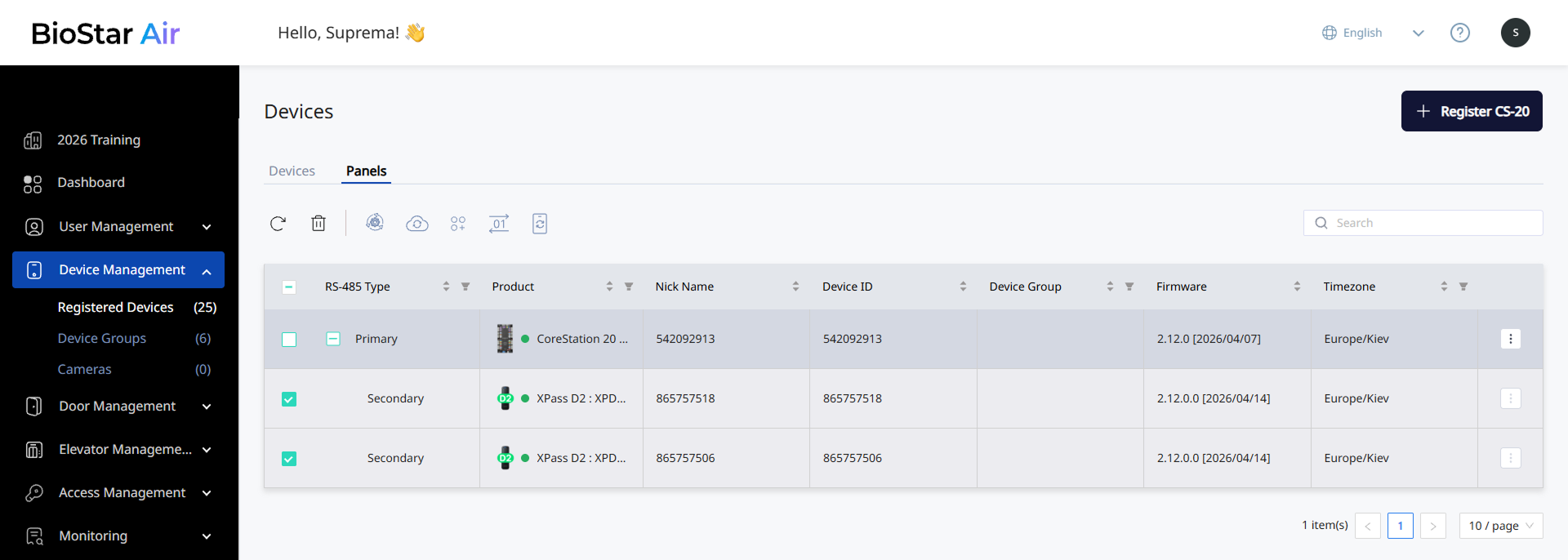
Click the primary device's + icon in the list to expand the list of connected secondary devices.
-
Click the checkbox for the secondary device to remove.
-
Click the button at the top of the list.
-
When the pop-up appears, click Confirm.