Assign Technicians to a Site
Partners can assign technicians to customer sites and set permissions. Manage granular access levels for each technician to protect sensitive personal information.
Key features of assigning technicians to sites
-
Granular access settings: Flexible options from device access to full administrator rights
-
User data protection: Comply with privacy regulations by using the option to exclude user data access
-
Efficient management: Manage technicians at each site according to partner-defined permission levels
-
Before assigning technicians to a site, invite their accounts in the Partner Portal. For more information, see Invite Technicians to the Partner Portal.
-
For more information on assigning technicians to a site in the BioStar Air administrator portal, see Manage Technician Accounts.
Assign technicians to a site
After inviting a technician in the Partner Portal, assign the technician to each individual site so they can access those sites. Follow the steps below to assign a technician to a site.
Go to the site list
-
Log in to the Partner Portal.
-
Click Site List in the left sidebar.
-
In the site list, click the site to which you want to assign a technician.
-
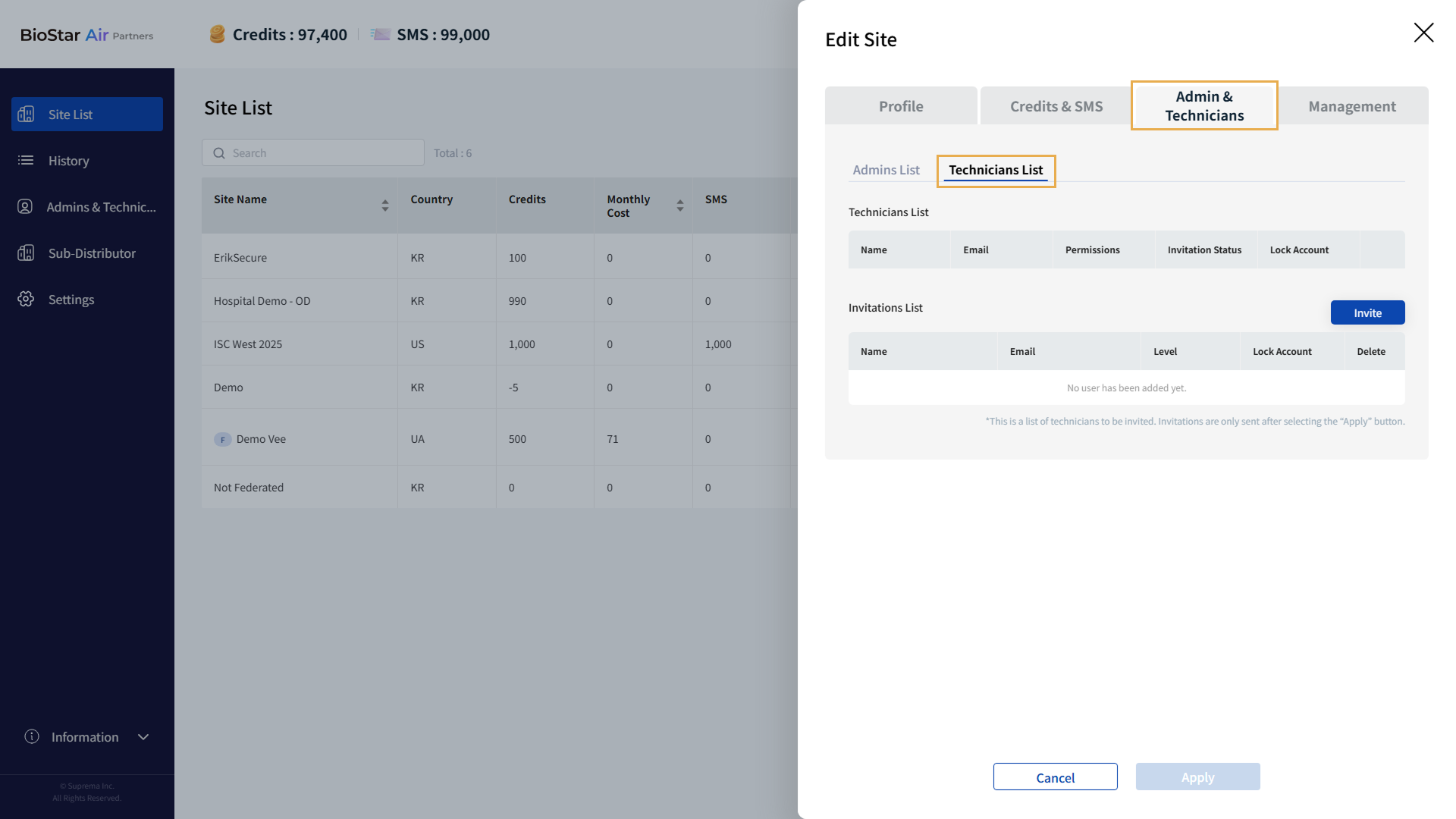
When the Edit Site panel appears, select the Admin & Technicians tab, then the Technicians List tab.
-
Click Invite.
-
When the Invite Technicians window appears, select the desired account from the Distributor Admins or Distributor Technicians list.
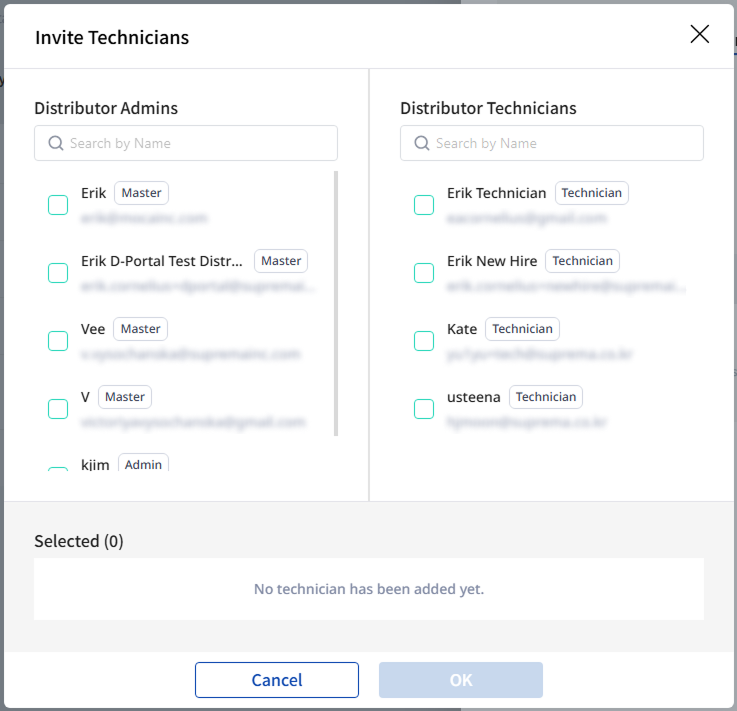
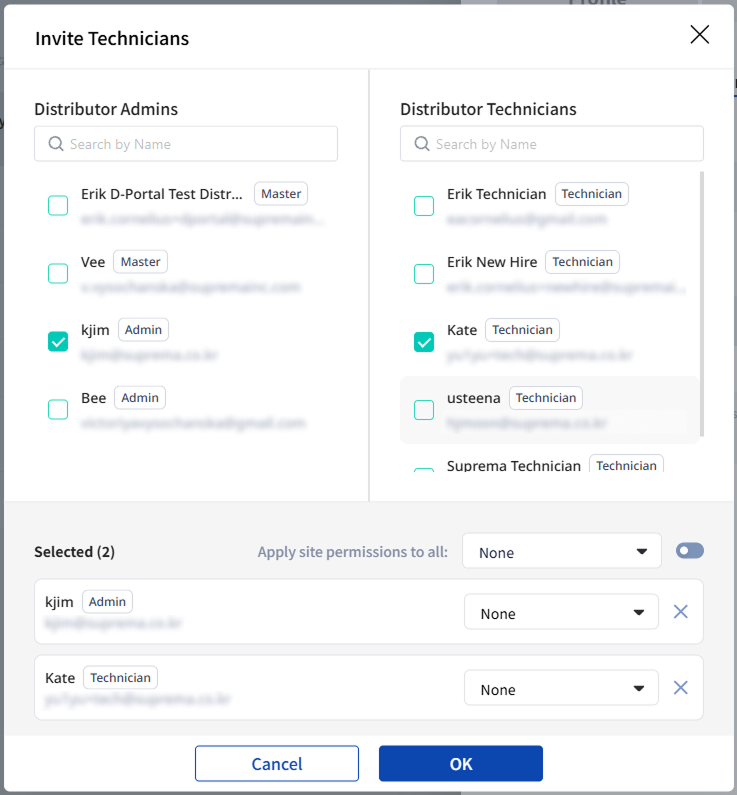
Selected accounts appear in the Selected list at the bottom.
-
Enter an administrator's or technician's name in the name search field.
-
To cancel the selected account, in the Selected list, click to the right of the account.
-
Accounts that are registered as site administrators or already assigned as technicians to the site will not appear in the list.
Set site access permissions
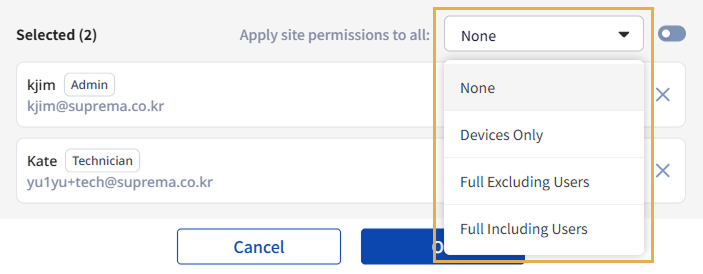
After selecting all technicians you want to invite, apply the site access permissions. Available permissions are as follows.
-
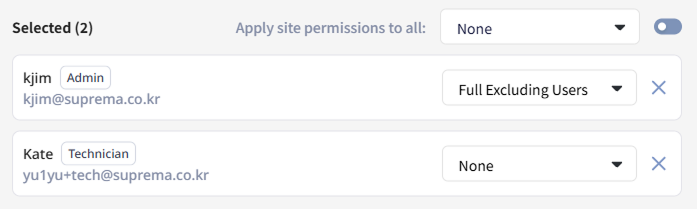
None: Can be added to the site but cannot log in.
-
Devices Only: Can only access the Dashboard and Device Management menus.
-
Full Excluding Users: Can access all menus except the User Management menu, but access to certain settings is restricted.
-
Full Including Users: Can access all menus including the User Management menu, but access to certain settings is restricted.
-
Full Excluding Users and Full Including Users have view-only access to the following menu path.
-
Settings → Admins & Technicians
-
Settings → Site
-
-
Once a technician is assigned to a site and permissions are set in the Partner Portal, only an administrator account can change those permissions in the BioStar Air admin portal.
Set permissions for individual technicians
Assign different permissions to individual technicians. To the right of each account, select the desired permission level.
Apply the same permissions to all technicians
-
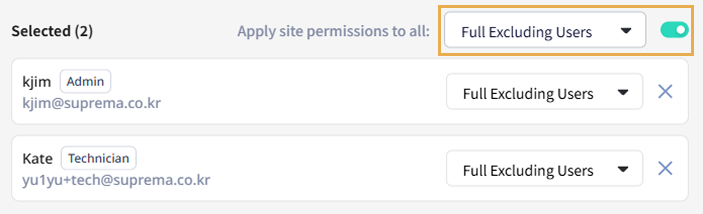
Choose the desired permission level from the Apply site permissions to all: option, then click the toggle on the right to apply the same permissions to all selected accounts.
-
When the confirmation message appears, click Yes.
-
The selected permission is applied to all accounts in the Selected list.
Technician invitation completed
-
After completing technician invitations and permission settings, click Confirm in the Invite Technicians window.
-
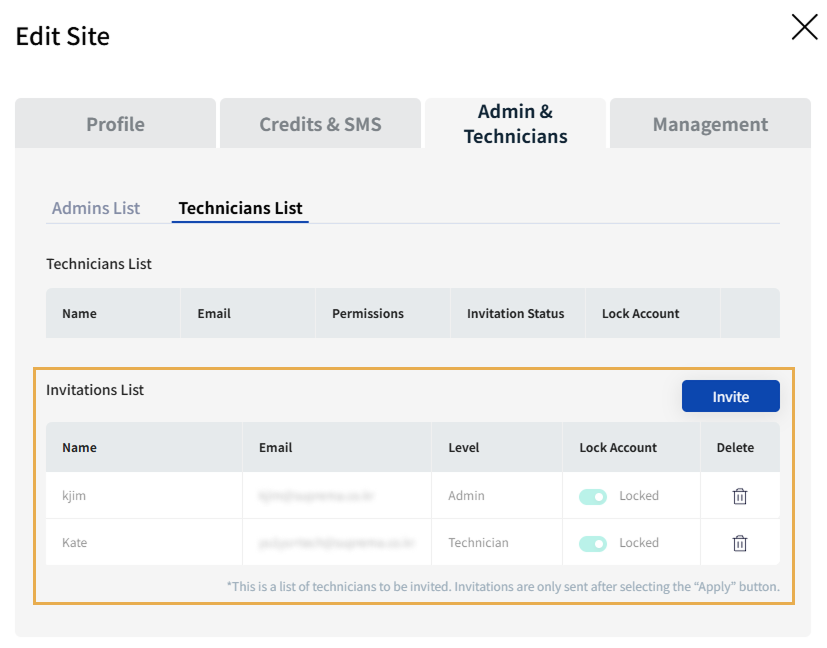
The Invite Technicians window closes, and the invited technicians are listed under Invitations List in the Edit Site panel.
-
To send invitation emails and allow technicians to access the site, click Apply at the bottom of the Edit Site panel.
Check invitation status
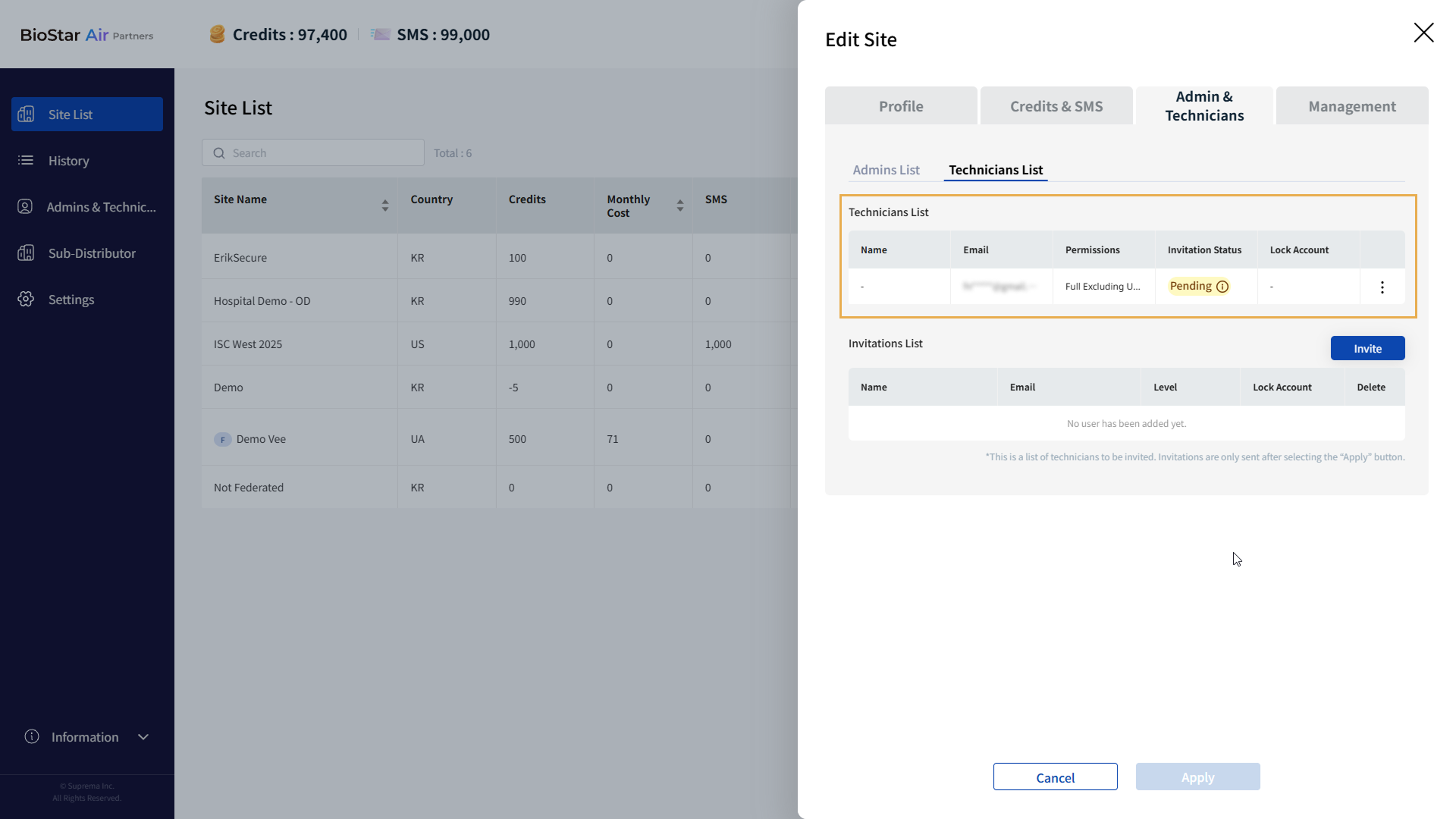
Check the invitation status of technicians invited to the site. The invitation status is shown as Pending until the invited technician accepts the invitation. Invited technicians have up to 7 days to accept the invitation. After 7 days, the invitation expires and the status changes to Expired.
-
In the site list, click the site where you invited the technician.
-
When the Edit Site panel appears, select the Admin & Technicians tab, then the Technicians List tab.
-
Technicians List: Check the invitation status.
When a technician completes signing up for the site, their status changes from Pending to Accepted.
Invitation revoked
You can cancel the invitation if the invited technician's email address was entered incorrectly, or if the issue has been resolved and the invitation is no longer needed.
-
In the site list, click the site where you invited the technician.
-
When the Edit Site panel appears, select the Admin & Technicians tab, then the Technicians List tab.
-
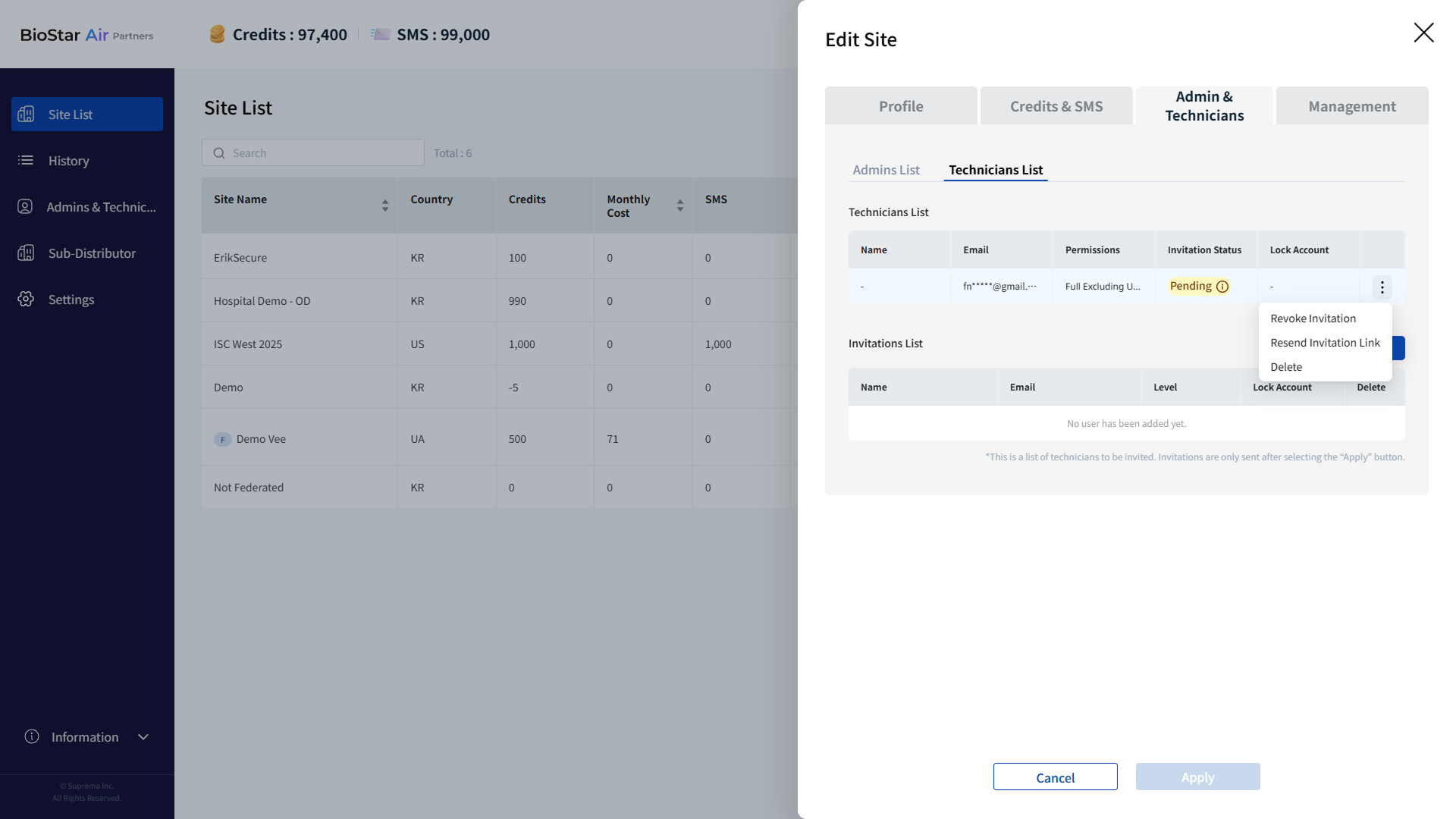
In Technicians List, for the technician whose status is Pending, click at the far right.
-
Click Revoke Invitation in the popup menu.
-
If a popup message appears, review the message and click Yes.
-
When the success message for the canceled invitation appears, click Close.
When an invitation is canceled, the technician's status changes from Pending to Revoked.
Resend invitation link
Resend the invitation link if an invited technician didn't receive the invitation email or has lost it.
-
In the site list, click the site where you invited the technician.
-
When the Edit Site panel appears, select the Admin & Technicians tab, then the Technicians List tab.
-
In Technicians List, for the technician whose status is Pending, Expired, or Revoked, click at the far right.
-
Click Resend Invitation Link in the popup menu.
-
If a popup message appears, review the message and click Yes.
-
When the success message for resending the invitation link appears, click Close.
Lock or unlock technician accounts
Lock or unlock accounts for technicians assigned to a site.
-
Click Site List in the left sidebar.
-
In the site list, click the site where you want to manage technician access.
-
When the Edit Site panel appears, select the Admin & Technicians tab, then the Technicians List tab.
-
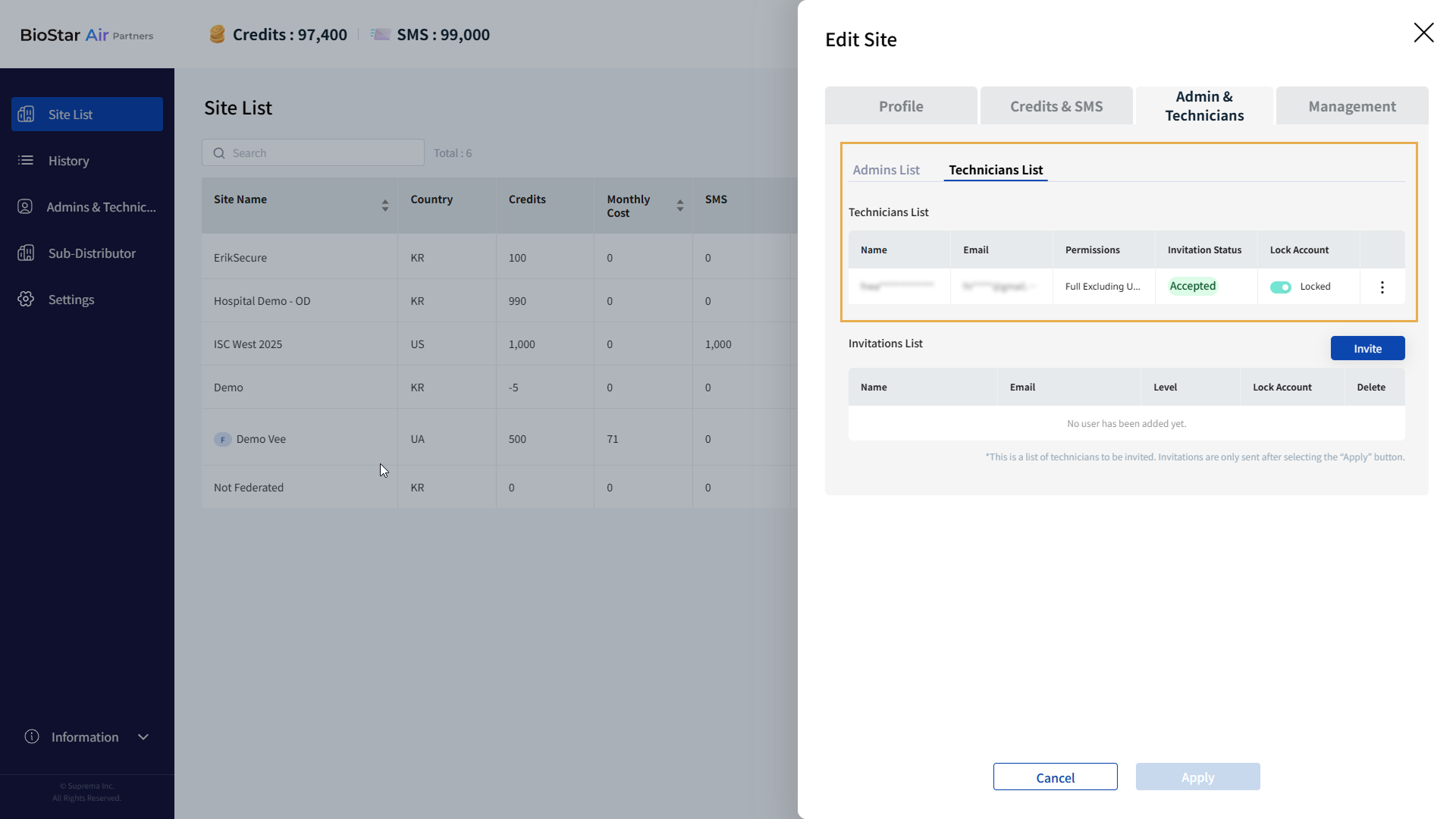
In Technicians List, click the toggle button in the Lock Account column to lock or unlock a technician account.
-
Click Apply at the bottom to apply the changes.
Newly registered technician accounts have site access set to Locked. To unlock the Locked status, use an account with administrator rights for that site in the BioStar Air portal.
Delete technician accounts
You can delete the account of a technician invited to the site. When a technician's account is deleted, they cannot sign in to the site and their access is revoked.
-
In the site list, click the site where you invited the technician.
-
When the Edit Site panel appears, select the Admin & Technicians tab, then the Technicians List tab.
-
On Technicians List, click at the far right of the technician you want to delete.
-
Click Delete in the popup menu.
-
If a pop-up message appears, review it and click Confirm.
-
When the success message confirming the technician's account deletion appears, click Close.
Deleting a technician account does not remove the account entirely; it only revokes access to that site. Re-invite a deleted technician to the site to restore access.