Configure Airfob Patch and Tag
Register the Airfob Patch in the BioStar Air app
Before you start
-
Install the BioStar Air app on your mobile device. Install the mobile app through the following link.
-
Log in using the same ID and password you use for the BioStar Air admin portal.
-
Make sure BLE is enabled on your mobile device.
-
Attach the Airfob Patch to the reader permanently or temporarily. For more information, see Install Airfob Patch.
For more information on using the BioStar Air mobile app, see Getting Started with the BioStar Air App.
Register Airfob Patch
-
Open the BioStar Air app on your mobile device and log in.
-
On the BioStar Air home screen, tap Management at the bottom.
-
Bring your mobile device within 10 cm of the Airfob Patch, then tap the button in the upper-right corner of the screen.
-
In the device search screen, tap Register for Airfob Patch to register.
-
When the device registration window appears, tap OK.
Return to the device list and confirm the added Airfob Patch.
Configuration steps
Install the Airfob Patch or Tag and register it to the BioStar Air app. Follow these steps to configure the device.
Run the app
-
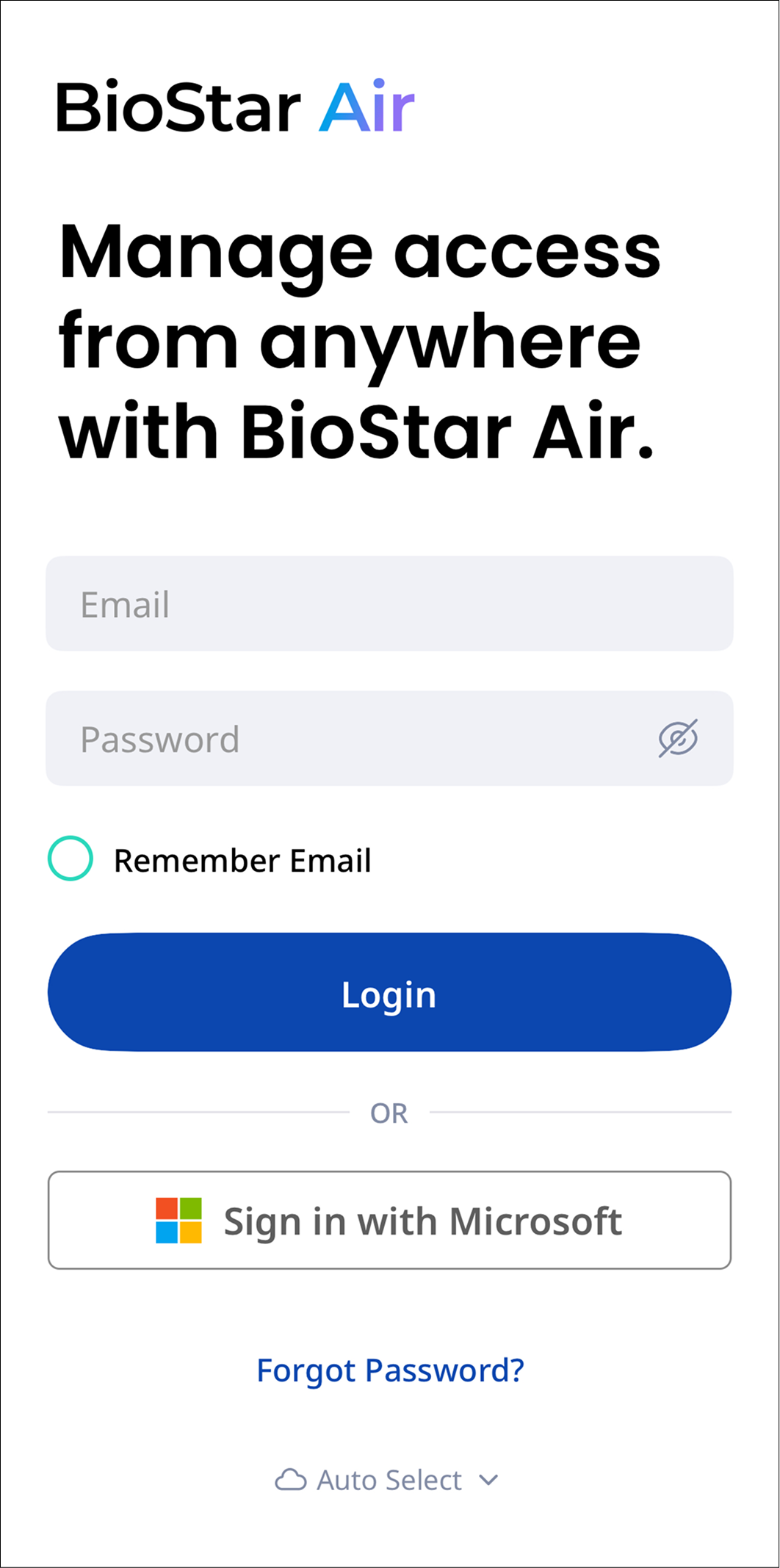
Run BioStar Air on your mobile device.
-
Sign in to the site where the Airfob Patch or Tag is registered.
Go to device settings
-
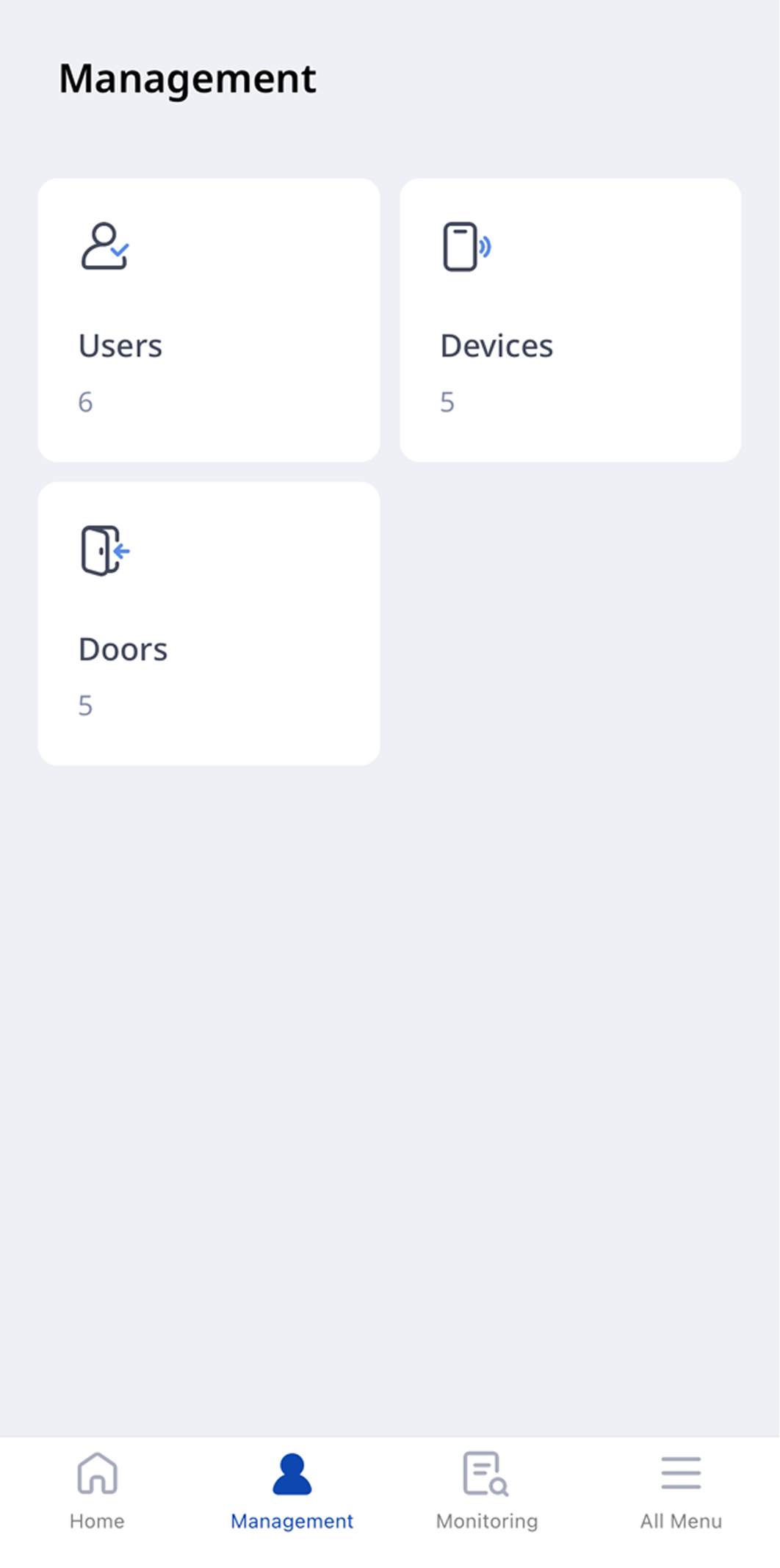
On the BioStar Air home screen, tap Management at the bottom.
-
To view the registered devices, tap Devices.
-
Select the Airfob Patch or Tag from the device list.
Enable BLE mode
-
Hold the mobile device close to the unit.
-
Activate the BLE Mode in the app.
Set the card ID output method
-
Scroll to Card ID Output Method and tap Edit.
-
Tap Select next to User Card ID.
Choose the output method
-
None: Select this option when you do not want to send a card ID. Useful for time and attendance to extend battery life.
-
Fixed Device: Sends the pre-programmed fixed card ID. Useful for door locks or intercoms that require each RFID card to be programmed individually. Only this fixed card ID appears in the device logs.
-
User Card ID: Sends a unique card ID for each user that matches the existing RFID card number in the access control system. This enables seamless integration without issuing new physical cards.
-
Direct Input: Manually specify the card ID to be sent. Useful for custom configurations where one ID must be used on multiple units.
Save your settings
-
Keep the mobile device near the unit, tap Save, and confirm the selections.
-
The update complete message appears.