Upgrade Firmware
Upgrade BioStar Air firmware to enhance device performance, strengthen security, and take advantage of new features. This simple process can be performed through the BioStar Air web portal or mobile app.
Before you start
-
Devices must be online to update firmware. Check the device status in the Product column of the device list. A green dot (
) next to the device image indicates the device is online. -
During a firmware update, the device becomes temporarily offline, but it should reconnect within 3–5 minutes.
-
We recommend running firmware updates outside business hours, as devices become temporarily offline.
-
Configure notifications to receive alerts when new firmware is updated. For more information on alert settings, see Set Up Alerts and Reports.
For more information on device management, see Manage Registered Edge Devices.
Upgrade the firmware for an individual device
- Web
- Mobile
Web
Log in to the BioStar Air portal and follow these steps to upgrade firmware.
-
Click Device Management → Registered Devices in the left sidebar.
-
Click the device in the device list that you want to upgrade.
-
When the Edit Device window appears, go to the Detail section.
-
Click Update Firmware.
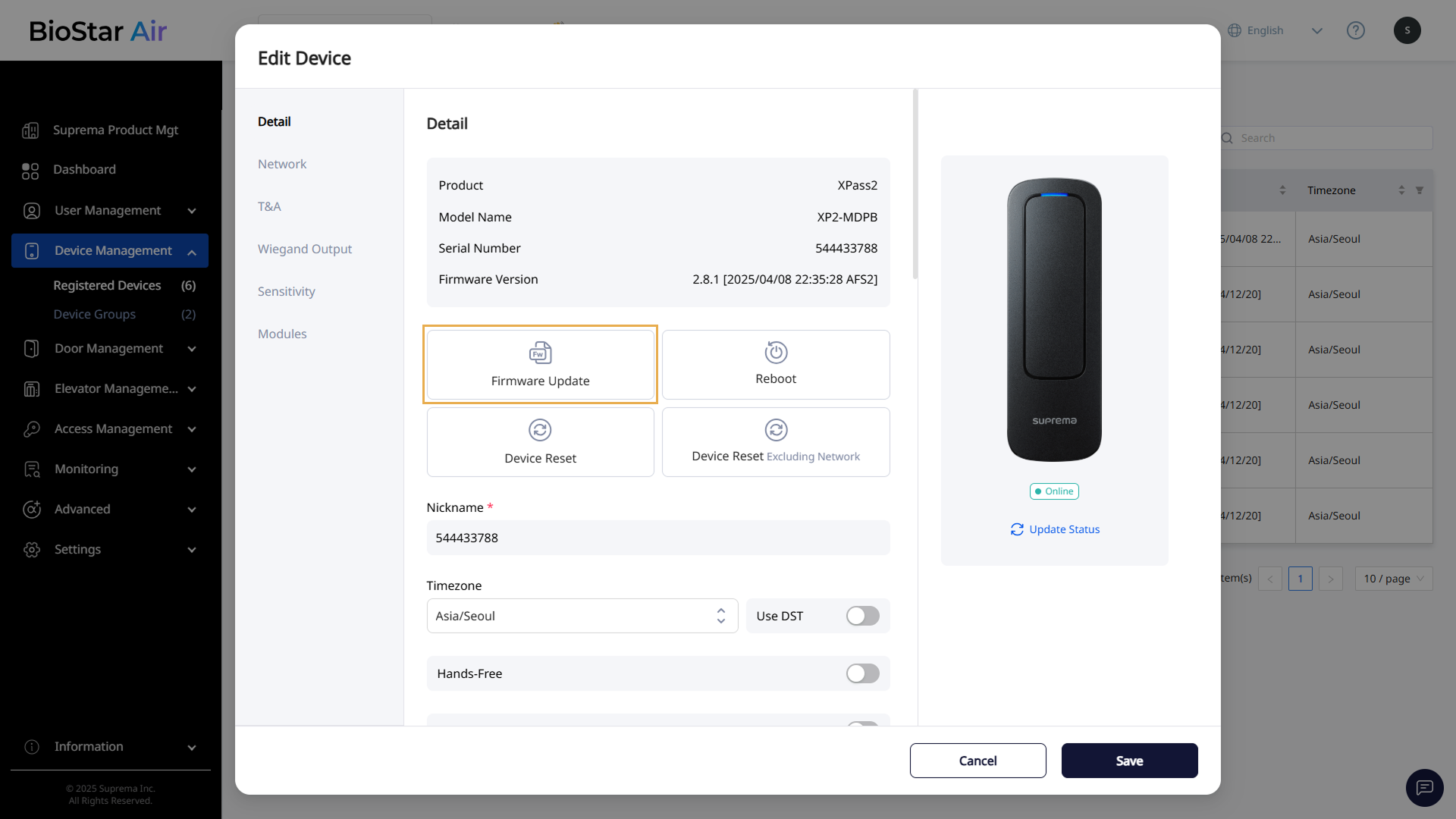
The image above is an example screen and may differ from the actual screen. -
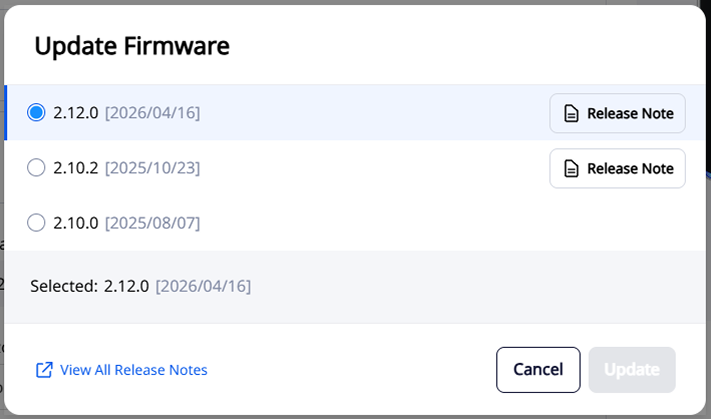
When the Update Firmware window appears, select the latest firmware version and click Update.
Wait for the device to restart automatically and come back online. A green dot (
) next to the device image indicates the device is online.-
Click Release Note to view the release notes for that firmware version.
-
Click View All Release Notes to view the firmware release notes for all devices.
Mobile
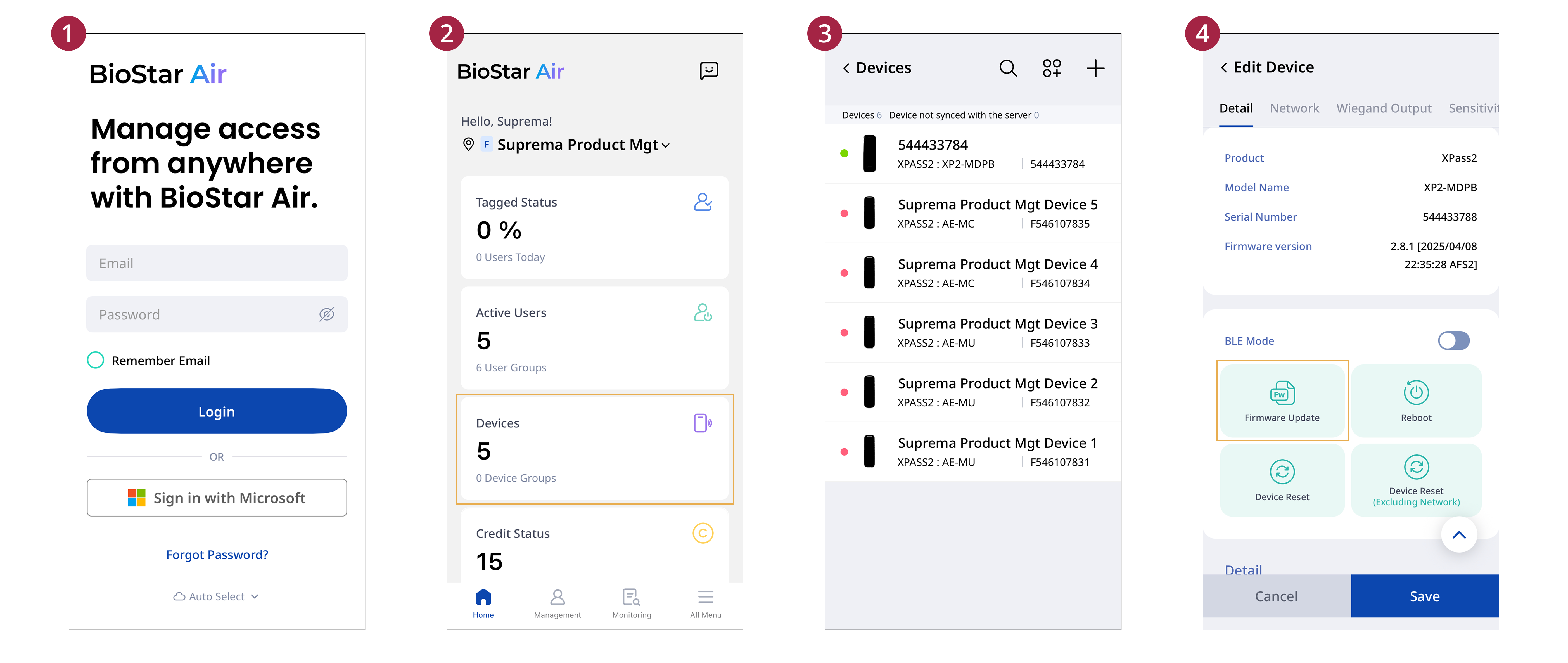
This guide explains how to upgrade the firmware using the mobile app.
-
Open the BioStar Air app on your mobile device and log in.
-
Tap the Devices card.
-
Tap the device in the list whose firmware you want to upgrade.
-
Tap Update Firmware.
-
Select the latest firmware version and tap OK.
-
When the message window appears, review the information and tap Confirm.
-
Firmware upgrade may take 5–10 minutes, during which the device is unavailable.
-
Do not power off the device.
-
The device restarts automatically after the firmware upgrade is complete.
Upgrade firmware on multiple devices at once
-
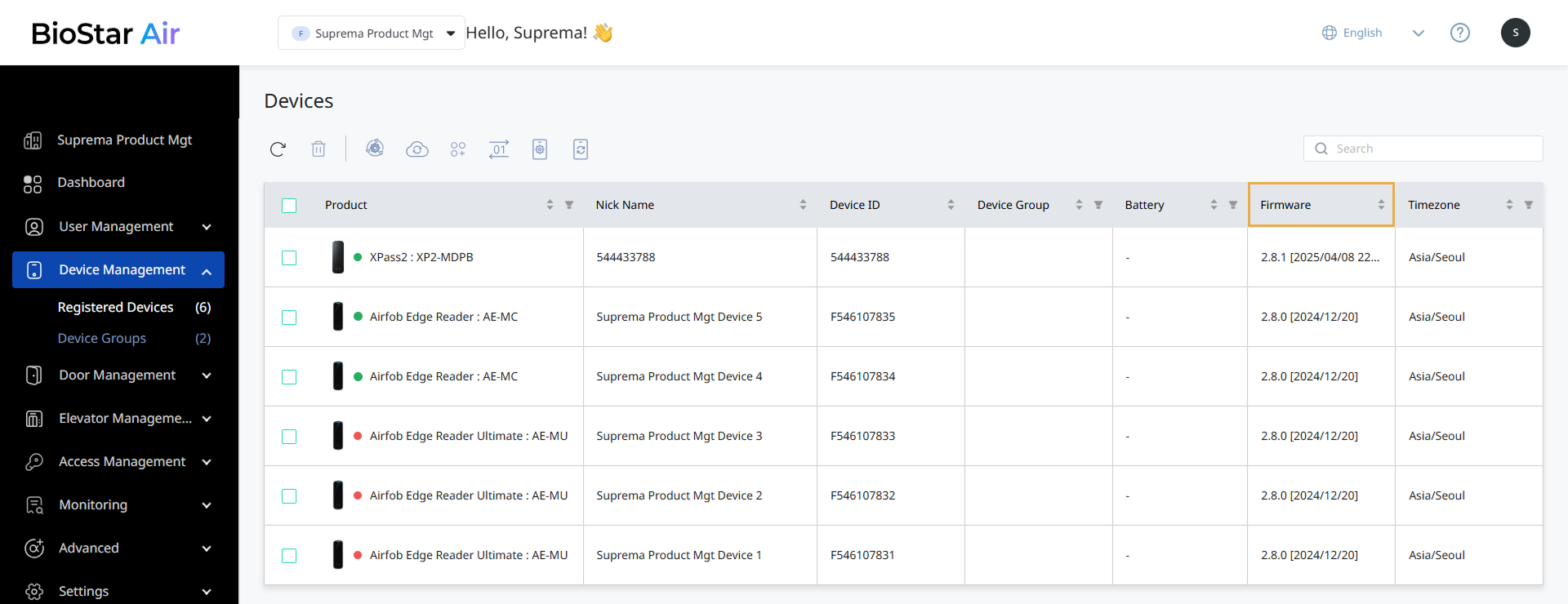
Click Device Management → Registered Devices in the left sidebar.
-
Check the current version for each device in the Firmware column in the device list.
-
Click the arrow on the right side of the Firmware column to sort devices by firmware version.
-
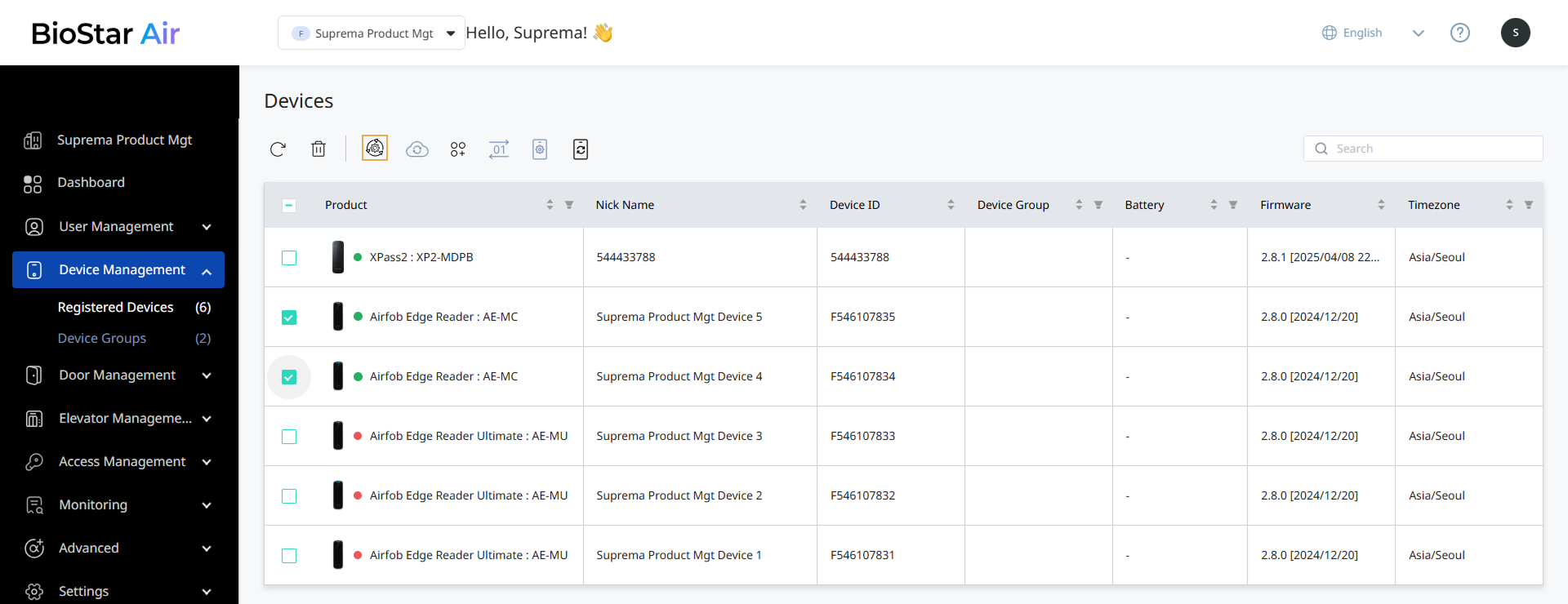
Select the checkbox to the left of each device you want to upgrade. You must select devices of the same type.
-
Click the button at the top of the device list.
-
When the Update Firmware window appears, select the latest firmware version and click Update.
Wait for the selected devices to restart automatically and come back online. A green dot (
) next to the device image indicates the device is online.-
Firmware upgrade may take 5–10 minutes, during which the device is unavailable.
-
Do not power off the device.
-
The device restarts automatically after the firmware upgrade is complete.
-
Click Release Note to view the release notes for that firmware version.
-
Click View All Release Notes to view the firmware release notes for all devices.
XPass D2 Firmware Upgrade
XPass D2 uses two firmware components.
-
MICOM: Includes updates for device operation, RS-485 communication, authentication processing, stability, and general bug fixes.
-
BLE: Includes updates related to Bluetooth communication.
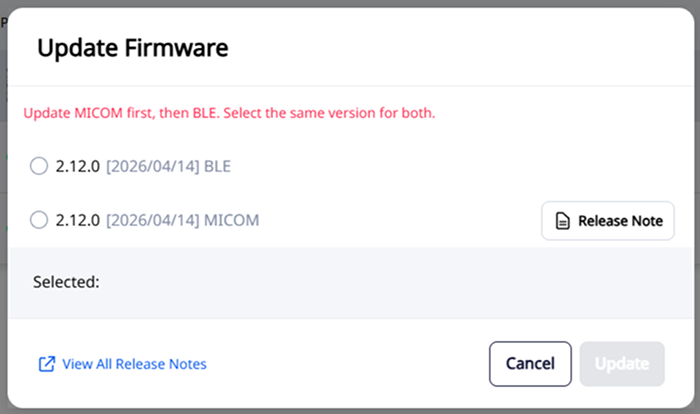
XPass D2 firmware must be updated in the order MICOM → BLE.
-
Click Device Management → Registered Devices in the left sidebar.
-
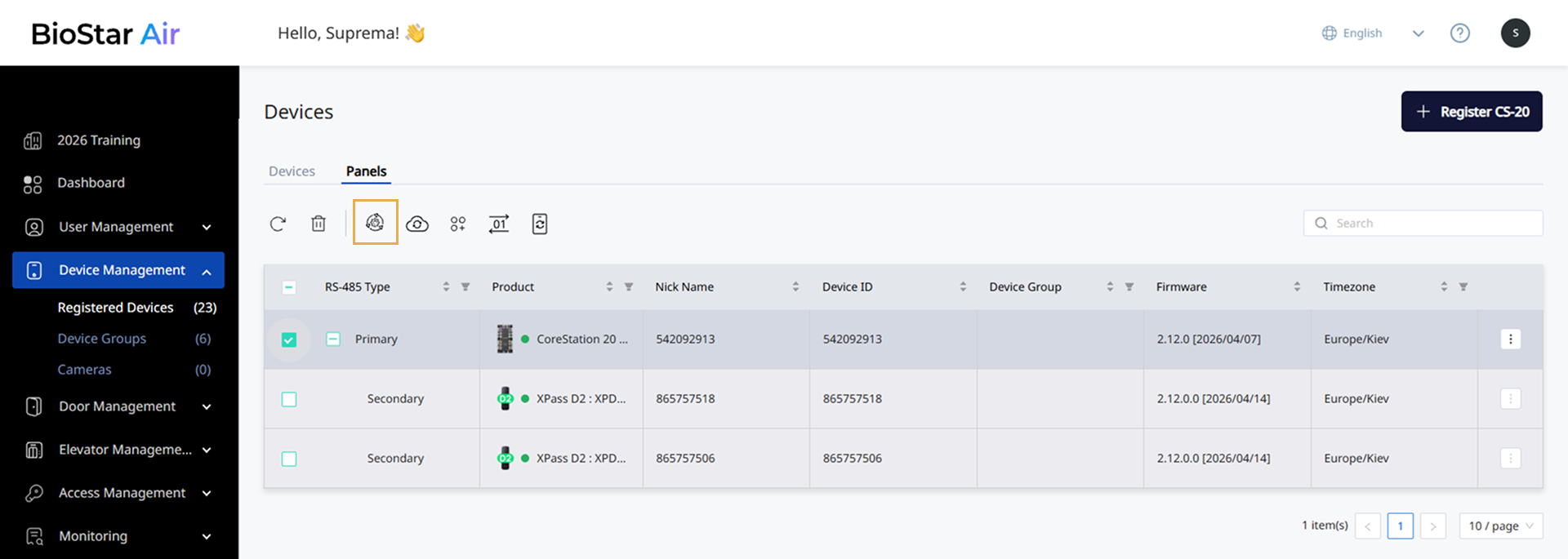
Click the Panels tab.
-
Click the XPass D2 checkbox. You can select only 1 device.
-
Click at the top of the list.
-
When the Update Firmware window appears, select the MICOM firmware version.
-
Click Update.
-
Wait for the device to restart automatically and come back online. A green dot (
) next to the device image indicates the device is online. -
Repeat the firmware upgrade process to select and update the BLE firmware version.
-
The firmware version shown on screen does not allow you to individually verify the installation status of the MICOM and BLE components. Continue the firmware upgrade until the BLE upgrade completes.
-
The device comes back online after the MICOM update and again after the BLE update. Do not rely on the green online indicator (
) alone to confirm that the full upgrade is complete. Confirm both steps are complete. -
Only one secondary device connected via CS-20 can have its firmware upgraded at a time.