Install Airfob Patch
This guide explains how to install Airfob Patch. The Airfob Patch upgrades an existing access control system to work with BioStar Air mobile credentials.
-
Airfob Patch is compatible with MIFARE 1K technology but are not compatible with 125 kHz low-frequency readers.
-
Airfob Patch authenticates encrypted Bluetooth BioStar Air credentials and emulates a MIFARE RFID signal to the reader. It attaches to access control readers with tape and requires no wiring.
-
For more information on how to register an Airfob Patch in the BioStar Air app, see Configure Airfob Patch and Tag.
Installation overview
Find the location where the Airfob Patch is powered by the reader's RF field.
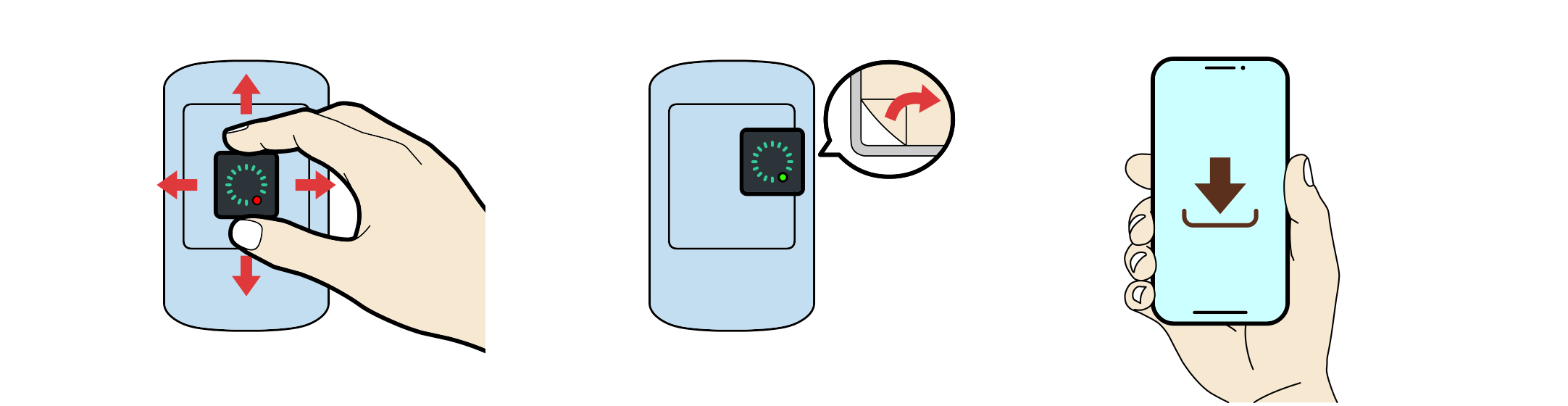
Check the Airfob Patch installation location
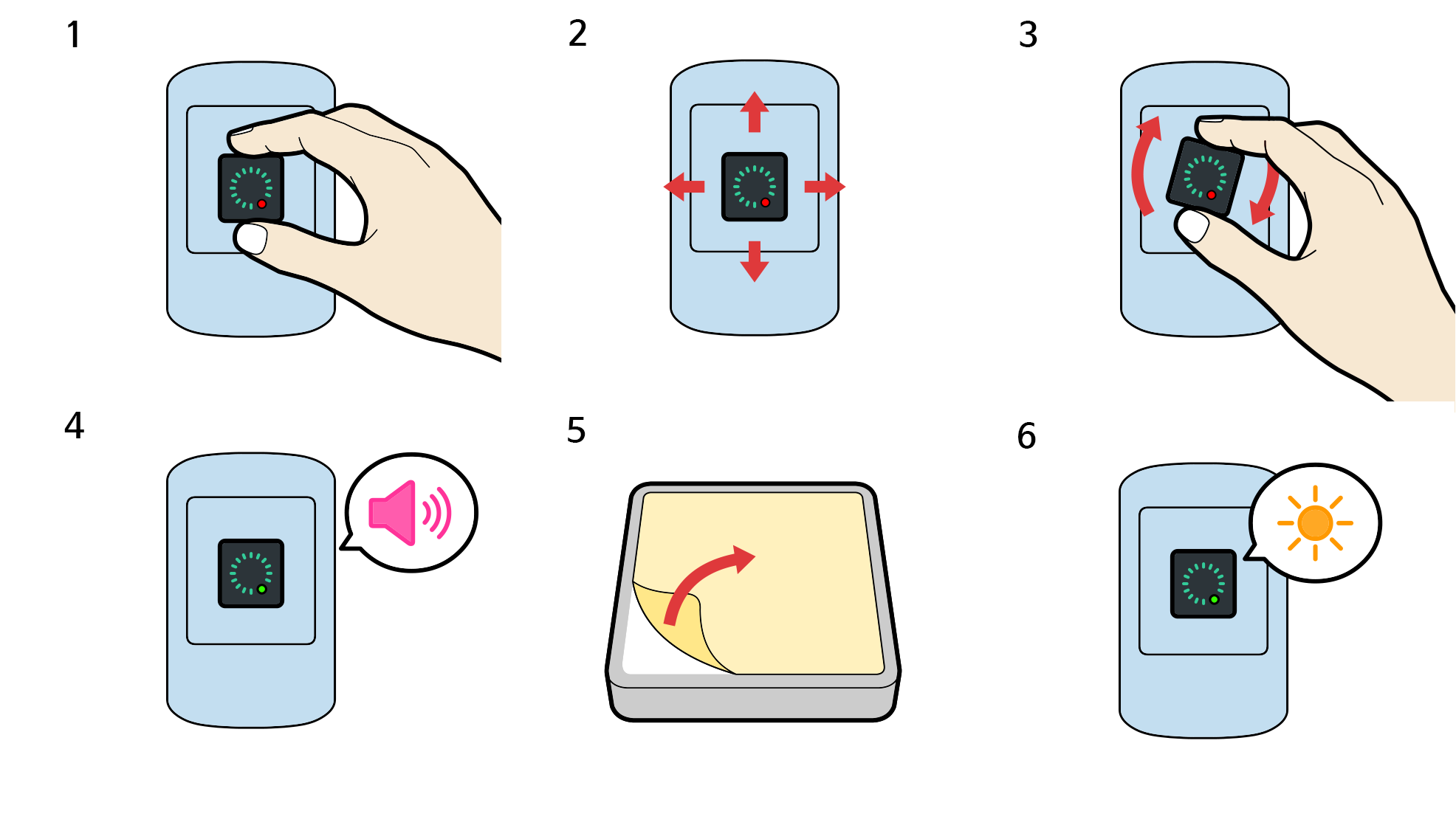
Before permanently attaching the Airfob Patch to the access control reader with the included adhesive tape, find the best location on the reader by following the actions in the diagram and instructions below.
-
Position Airfob Patch on the access control reader so that they touch each other.
-
Find a spot where the Airfob Patch LED blinks green at least once per second.
-
Hold the Airfob Patch on the reader or temporarily attach it with removable tape. Register the Airfob Patch in using the BioStar Air app. For more information, see Configure Airfob Patch and Tag.
-
Perform at least five test authentications using an Airfob or BioStar Air mobile credential.
-
Remove the protective film of the double-sided adhesive tape on the back of Airfob Patch.
-
Attach Airfob Patch permanently to the access control reader.
-
Airfob Patch does not require an additional power supply. Attaching it on access control reader will power on the device.
-
When you attach the Airfob Patch to a reader with the included double-sided tape, consider it permanent. Removing the Airfob Patch may destroy it and make reuse impossible.
Troubleshooting
Q. The access control reader does not emit five consecutive beeps.
If the access control reader does not emit five consecutive beeps, reboot the Airfob Patch.
-
Detach the Airfob Patch from the access control reader.
-
When power turns off, the Airfob Patch LED blinks red for about 6 seconds, then turns off.
-
Make sure the Airfob Patch is powered off, then start over.
Q. The Airfob Patch LED blinks red.
If the Airfob Patch LED blinks red, adjust the patch position.
-
Move the Airfob Patch to another location on the access control reader and check whether the LED blinks green.
-
If the power strength is high, the LED blinks at 0.5-second or 1-second intervals.
-
If you change the Airfob Patch position, reboot the Airfob Patch and start over.
Q. The access control reader does not recognize the Airfob Patch.
-
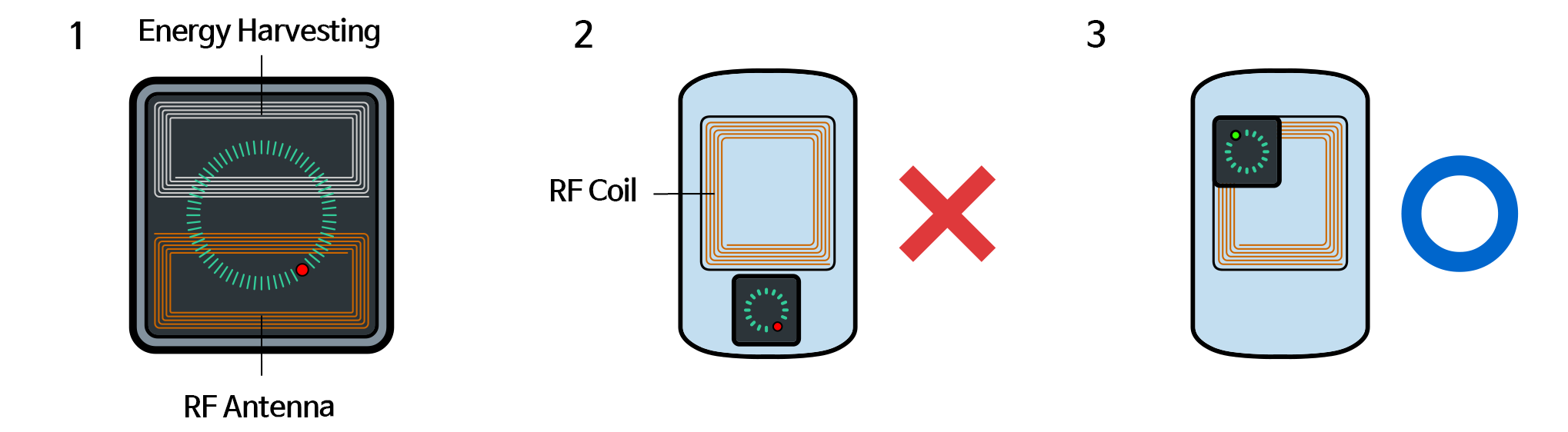
The two devices work properly when the access control reader RF coil position matches the Airfob Patch RF antenna position.
-
If valid access rights are not granted when you touch the access control reader with a mobile device, adjust or rotate the Airfob Patch to find a location where it works properly.
-
The position and orientation of the Airfob Patch may vary depending on the access control reader.
-
The operating range of the Airfob Patch may be small or large depending on the RF signal strength of the access control reader and the position and size of the RF coil.