Check Presence
The Safety → Presence menu shows users currently on site in real time. The presence status is calculated based on authentication logs from the entry and exit devices set in Perimeter. If Perimeter is not set yet, see Manage Zones first.
How presence status is determined
When users authenticate at an entry device in the perimeter zone, their status changes to On Site. When they authenticate at an exit device, it changes to Off Site.
-
For sites without an exit device in the perimeter zone, always set Off-site timer. If users are inactive for the set time, their status automatically changes to Off Site.
-
For how to set entry and exit devices for the perimeter zone and the Off-site timer setting, see Manage Zones.
-
Administrators can see the list and number of people on site from several menus:
-
Dashboard widget
-
Safety → Presence
-
Zone Management → Zones → People Inside (Perimeter)
-
Check on the dashboard
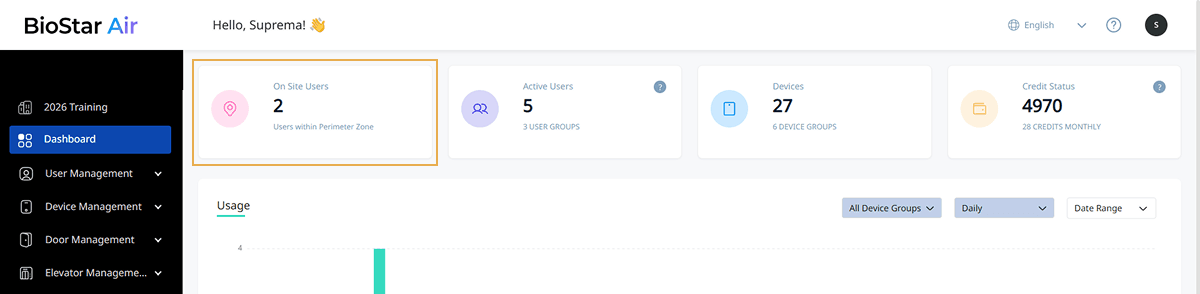
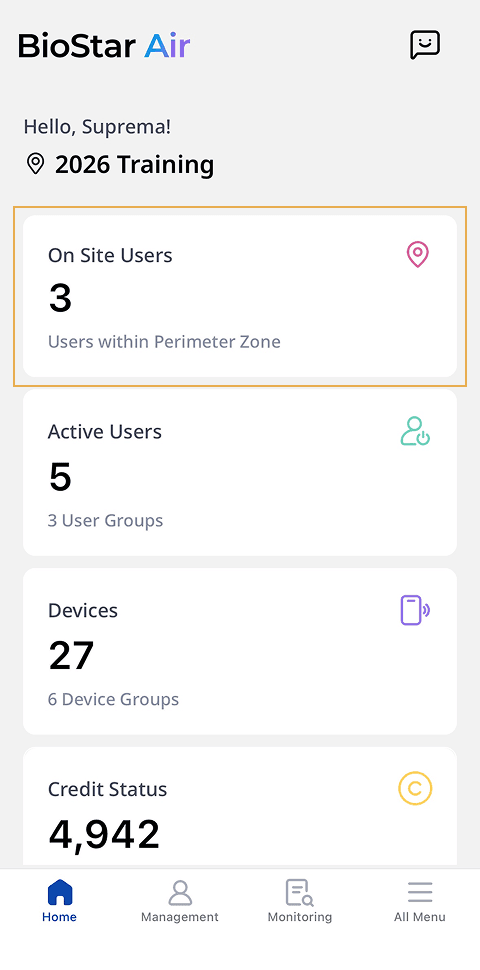
The Dashboard menu also shows the number of users currently on site in the On Site Users card.
- Web
- Mobile
Web
Mobile
Explore presence list
- Web
- Mobile
Web
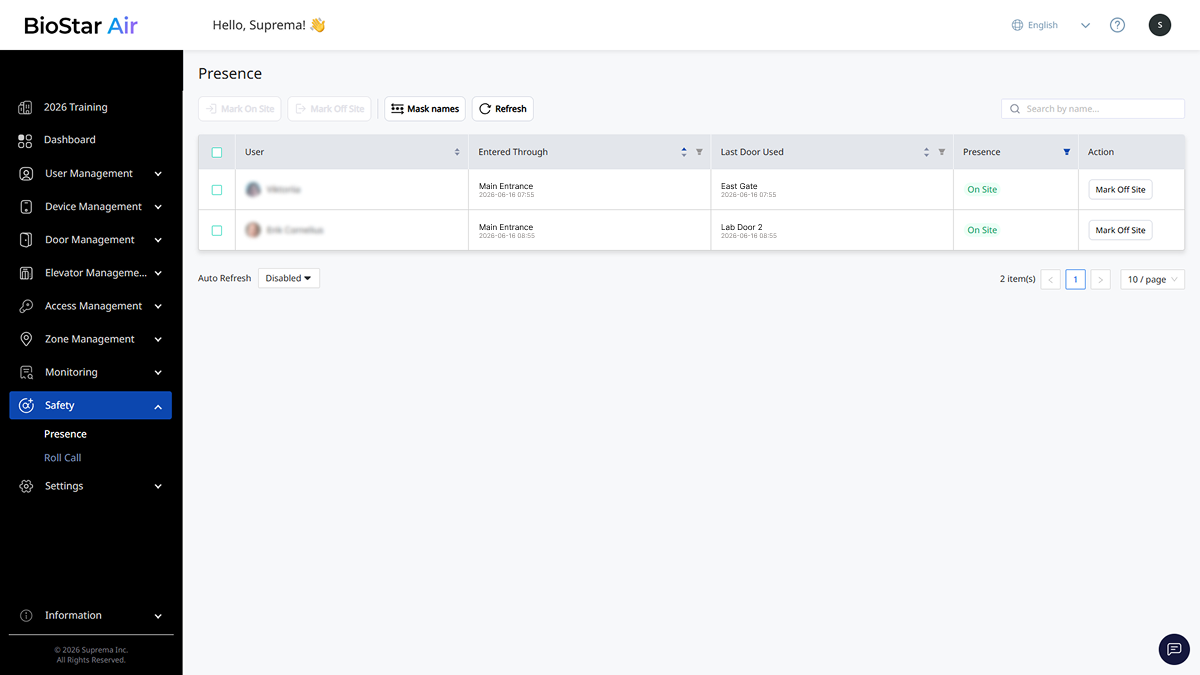
On the left sidebar, click Safety → Presence.
Mobile
-
Open the BioStar Air app on your mobile device and log in.
-
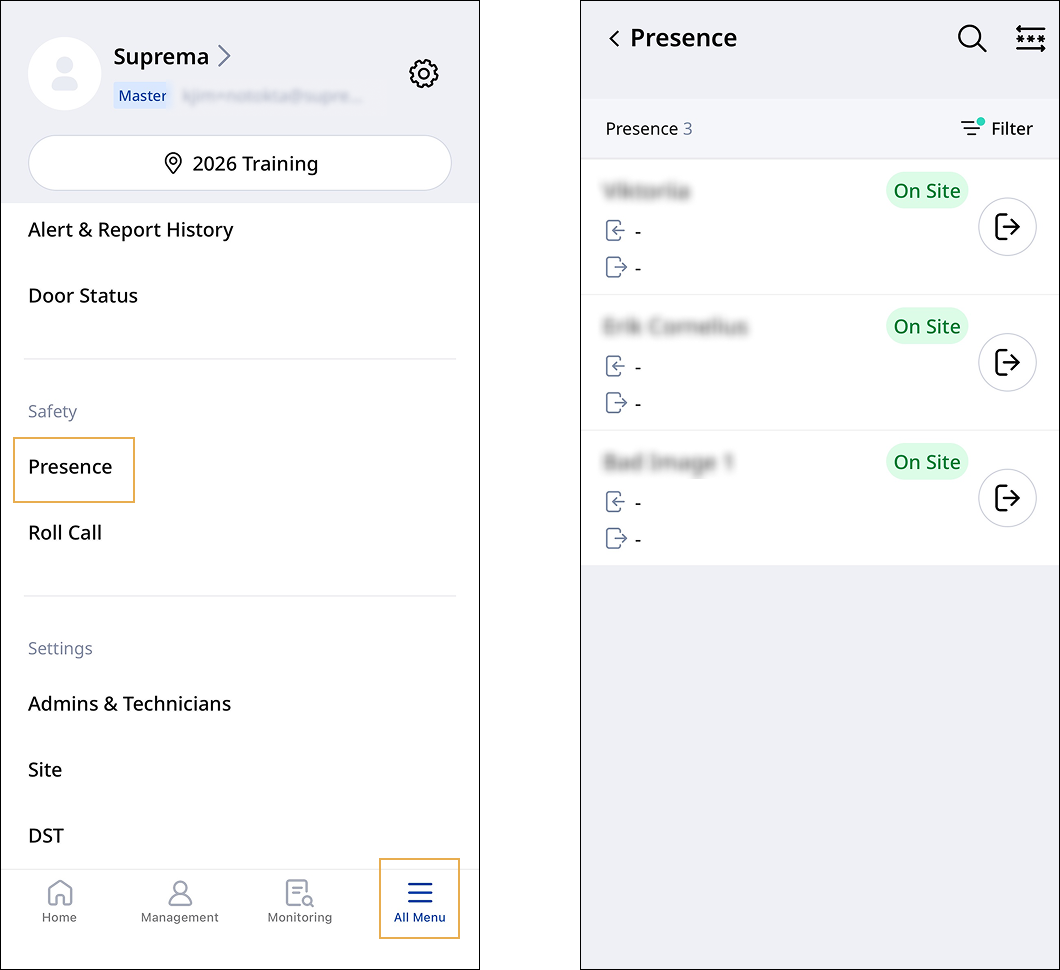
Tap All Menu → Presence at the bottom of the screen.
By default, the presence list shows only users with the On Site status.
-
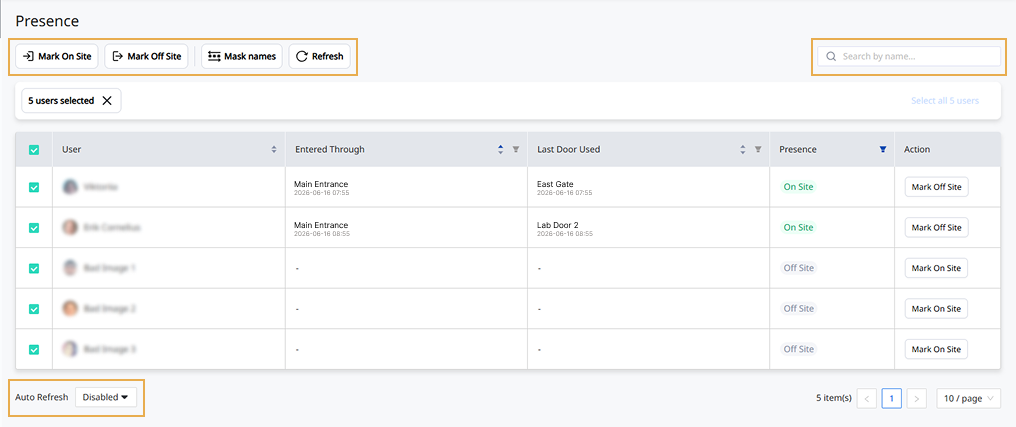
User: The user's profile photo and name.
-
Entered Through: The entry device and time when the user authenticated to enter the site.
-
Last Door Used: The most recently used door and time.
-
Presence: The user's current presence status (On Site / Off Site).
-
Action: Change the user's presence status.
Presence list management
Use the management features at the top and bottom of the list to perform the following tasks.
-
Mark On Site / Mark Off Site: Change the user's presence status to On Site or Off Site. For more information, see #manualOverride.
-
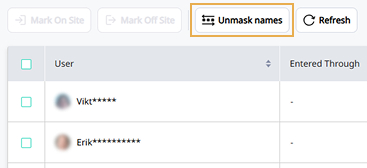
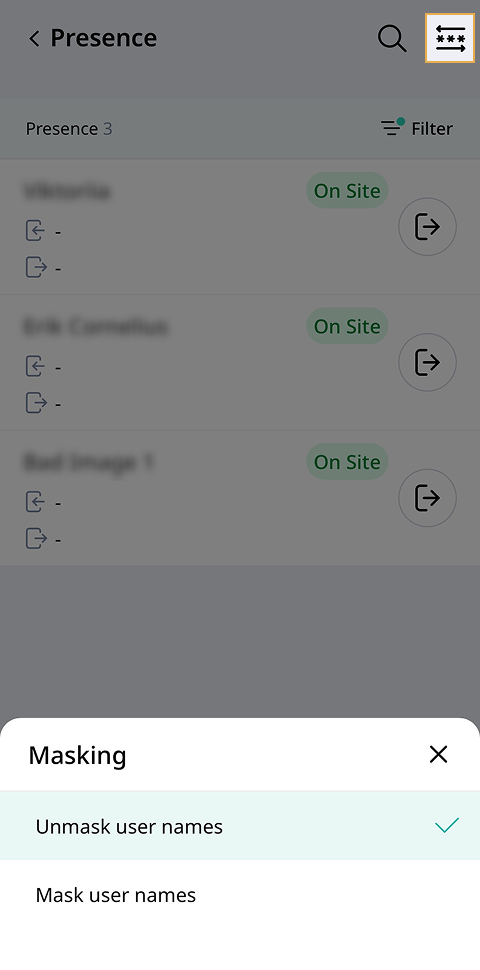
Mask names / Unmask names (): Hide or show user names. Useful when sharing the screen in sensitive environments.
- Web
- Mobile
Web
Mobile
-
Refresh: Refresh the list immediately to show the latest status. In Auto Refresh at the bottom of the list, select an auto refresh interval (Disabled / 5 Seconds / 1 Minute). The list refreshes automatically at the set interval.
-
Search by name...: Search the list by user name.
Filter presence list
- Web
- Mobile
Web
In the Presence column, click the button to filter the list by On Site, Off Site, or all users. Also filter by selected criteria in the Entered Through and Last Door Used columns.

Click Reset to clear the filter.
Mobile
-
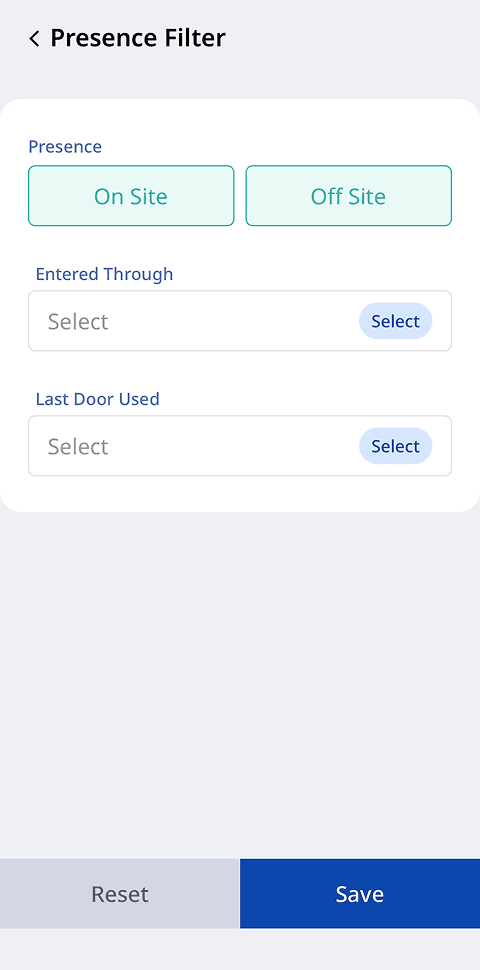
Tap Filters at the top right of the presence list.
-
Select On Site or Off Site, or select both.
-
Select criteria in Entered Through and Last Door Used.
-
Tap Save to filter the list by the selected criteria.
Tap Reset to clear the filter.
-
To view all users, select both On Site and Off Site in the Presence column.
-
The presence list shows users in On Site status by default.
Manually change presence status
When actual conditions differ from the presence status recorded in the system, an administrator can change the status.
-
Presence accuracy varies depending on the site’s entry and exit device setup. Sites with clearly defined entry and exit devices provide more reliable presence information.
-
If a device goes offline or event delivery is delayed, the presence status may update after synchronization completes.
-
Presence status differs from access permissions. Users shown as On Site cannot necessarily access every door.
-
Users with expired, inactive, or suspended accounts cannot change presence status until the account is active.
Manual changes only update the status recorded in the system. They do not physically verify a user’s location. Check the change history in Monitoring → Audit Logs.
Change a user’s presence status
- Web
- Mobile
Web
-
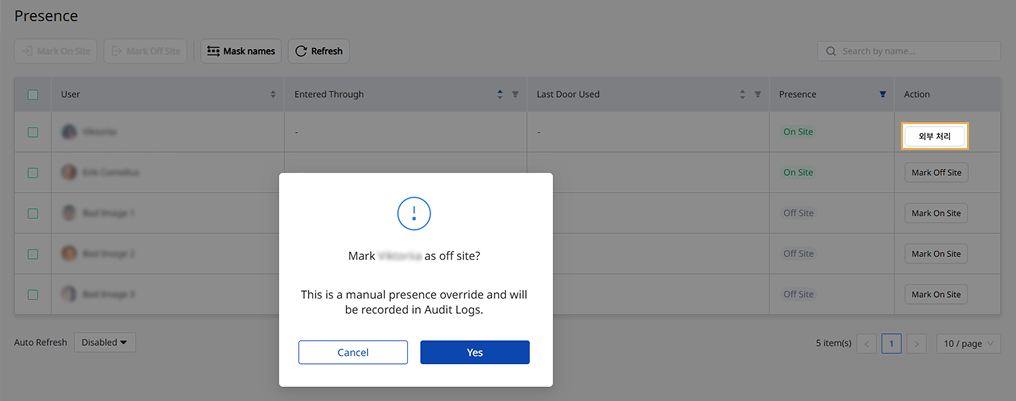
In the user’s Action column, click Mark On Site or Mark Off Site.
-
When the confirmation message appears, click Yes.
Mobile
-
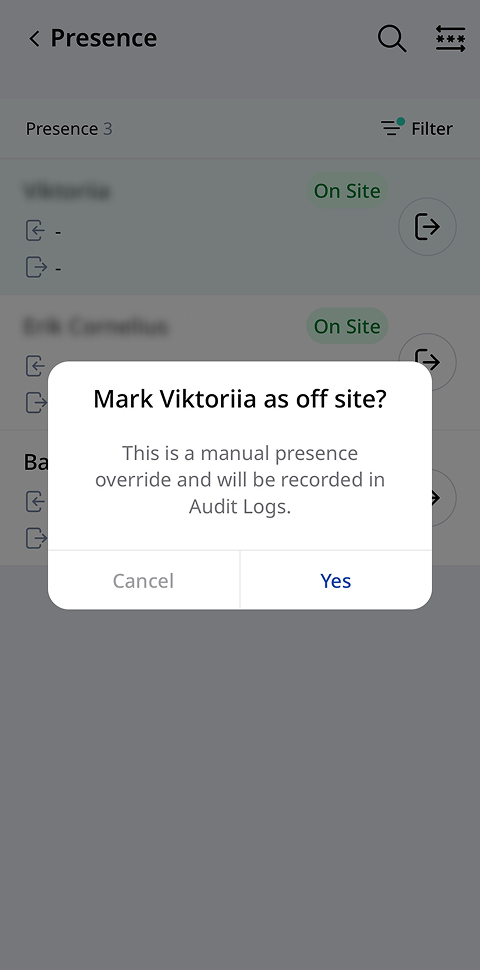
In the list, tap or next to the user to change status.
-
When the confirmation message appears, tap Yes.
Change presence status for multiple users
- Web
- Mobile
Web
-
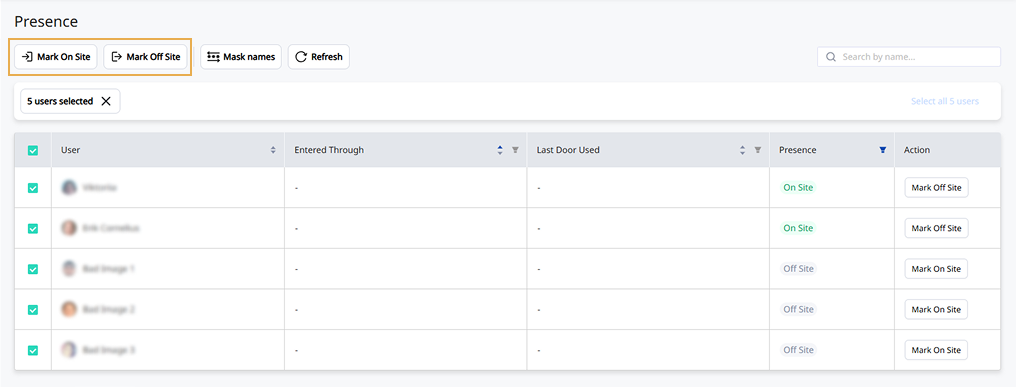
Click the checkbox for each user to change presence status. Select one or more users.
-
Click Mark On Site or Mark Off Site at the top of the list.
-
When the confirmation message appears, click Yes.
Mobile
-
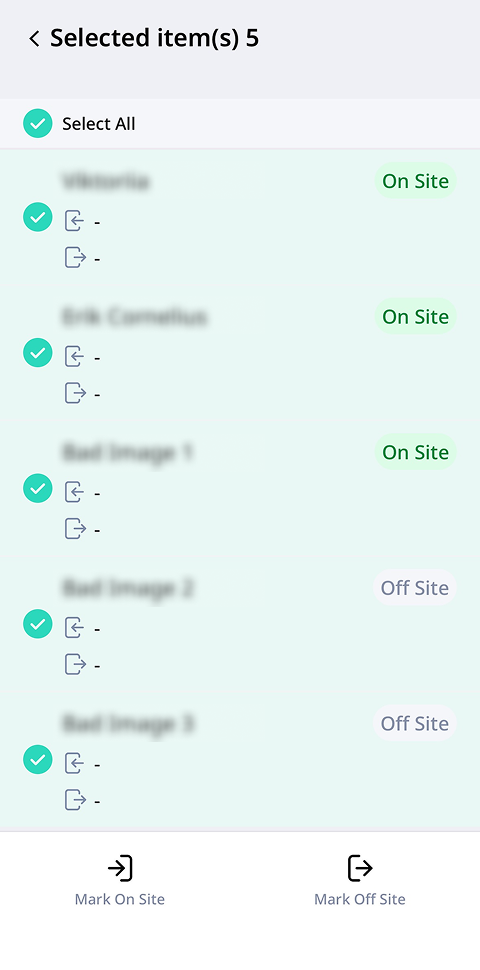
Touch and hold the user in the list to change their status.
-
Select the user to change the status. Select one or more users.
-
Tap Mark On Site() or Mark Off Site() at the bottom of the screen.
-
When the confirmation message appears, click Yes.