Manage Registered Panels
Manage all panels registered in BioStar Air from a single location. Monitor each panel’s status, edit information as needed, organize panels into groups, and update firmware. This document covers all necessary features, from viewing the panel list to managing groups.
In BioStar Air, devices are classified as primary devices that act as controllers and secondary devices that connect to controllers. Some systems use the terms Master/Slave for this concept, but BioStar Air documentation does not use those terms.
View the panel list
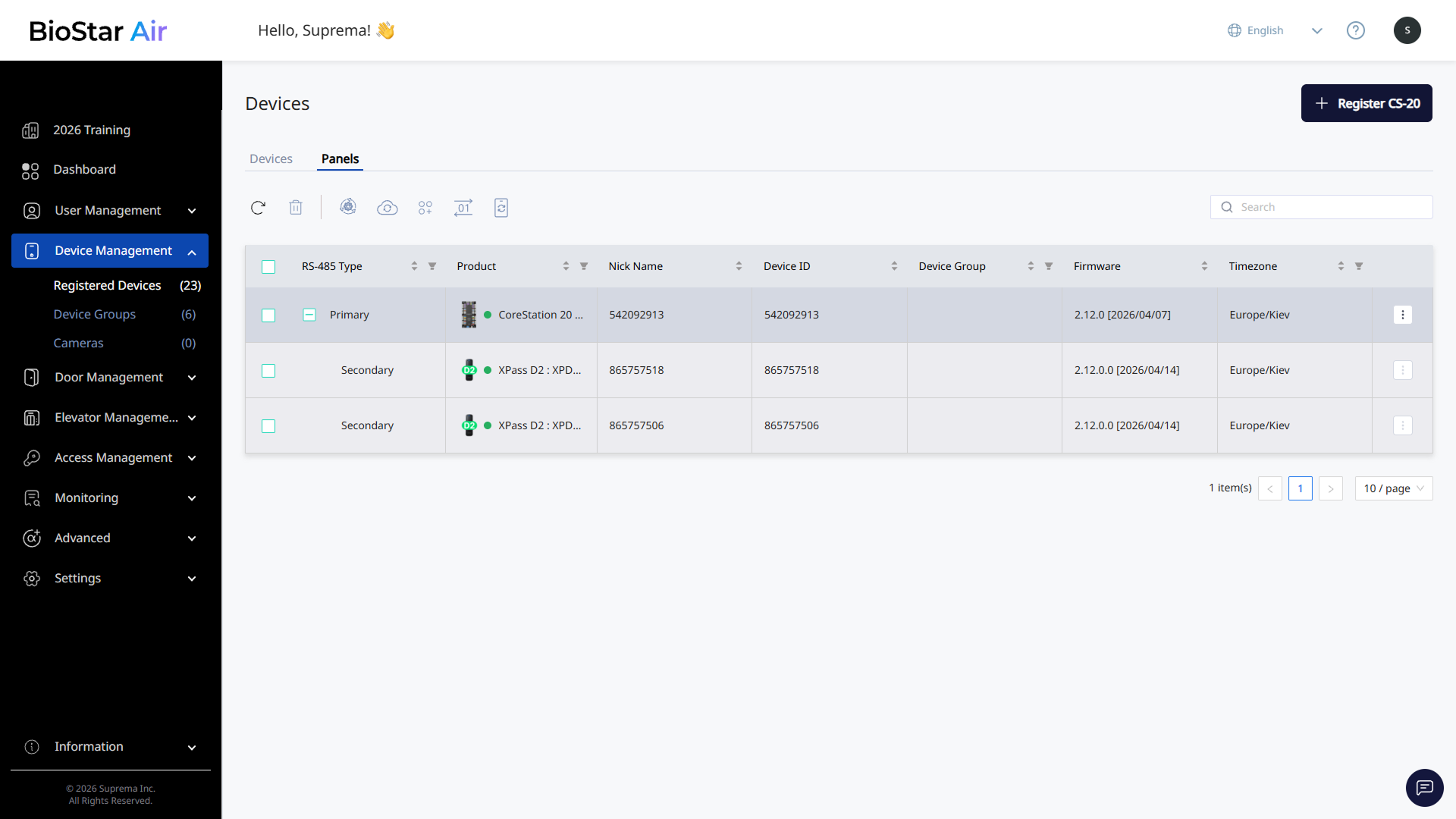
Manage registered panels from the Panels tab. The panel list provides key information at a glance, including the type and status of each panel or secondary device, name, ID, group, firmware, and time zone.
Panel and device status
Check each panel or secondary device’s connection status from the status icons in the panel list.
- Green: The panel or secondary device is online, can be controlled remotely, and can be updated.
- Red: The panel or secondary device is offline.
- Orange: Firmware is updating.
-
Warning: Synchronization is required between the server and the panel or secondary device. See #resyncing-offline-devices for resync instructions.
Panel and device information
Each column in the panel list includes the following information.
-
RS-485 Type: Indicates panels or secondary devices that support RS-485 communication. Indicates whether the device is a primary or a secondary.
-
Product: The panel or secondary device name, model, and status retrieved from the Suprema database.
-
Nick Name: A user-editable field for easier identification. You can edit the information in the window that appears when you click a panel or subdevice in the list.
-
Device ID: The unique identifier assigned to the panel or subdevice.
-
Device Group: The group to which the panel belongs.
-
Firmware: The currently installed firmware version.
-
Timezone: The time zone set on the panel or subdevice.
Filter
Use the filter in the header of the panel list. Click in the header to set the desired conditions.
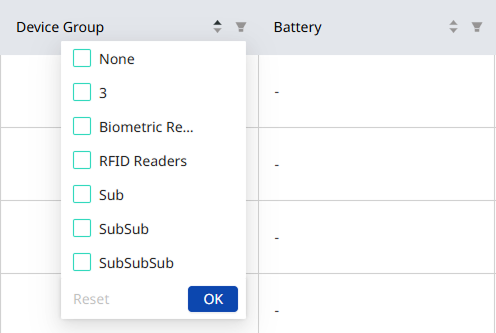
To reset the applied filters, click and select Reset.
Edit panel information
-
Click Device Management → Registered Devices in the left sidebar.
-
Click the Panels tab.
-
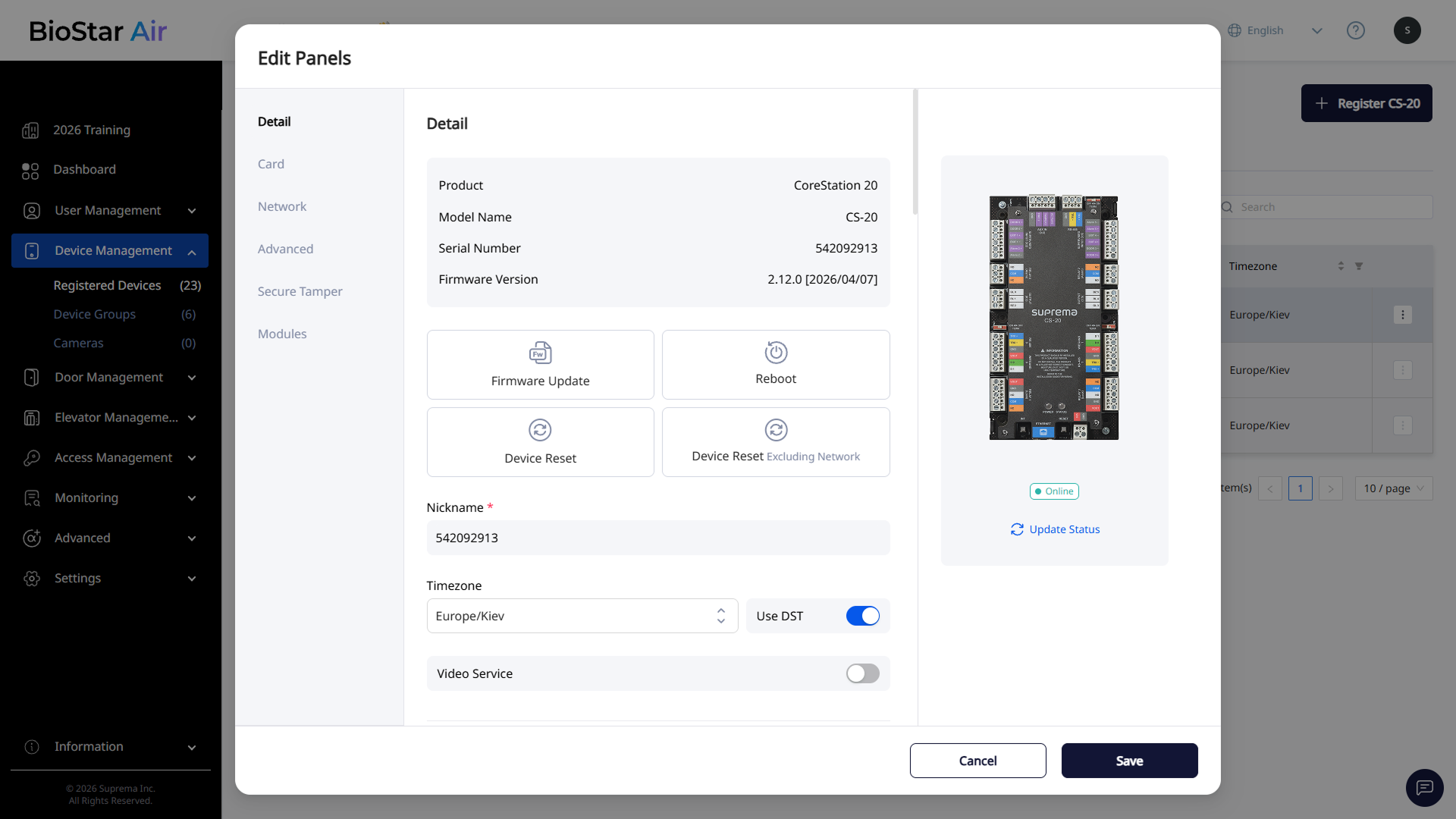
Click the panel whose information you want to edit in the list to open the Edit Panels window.
-
Edit the panel’s details or settings.
-
Click Save at the bottom to save the changes.
For more information on editing fields and setting options for each section, see Device and Panel Configuration Options.
Panel management features
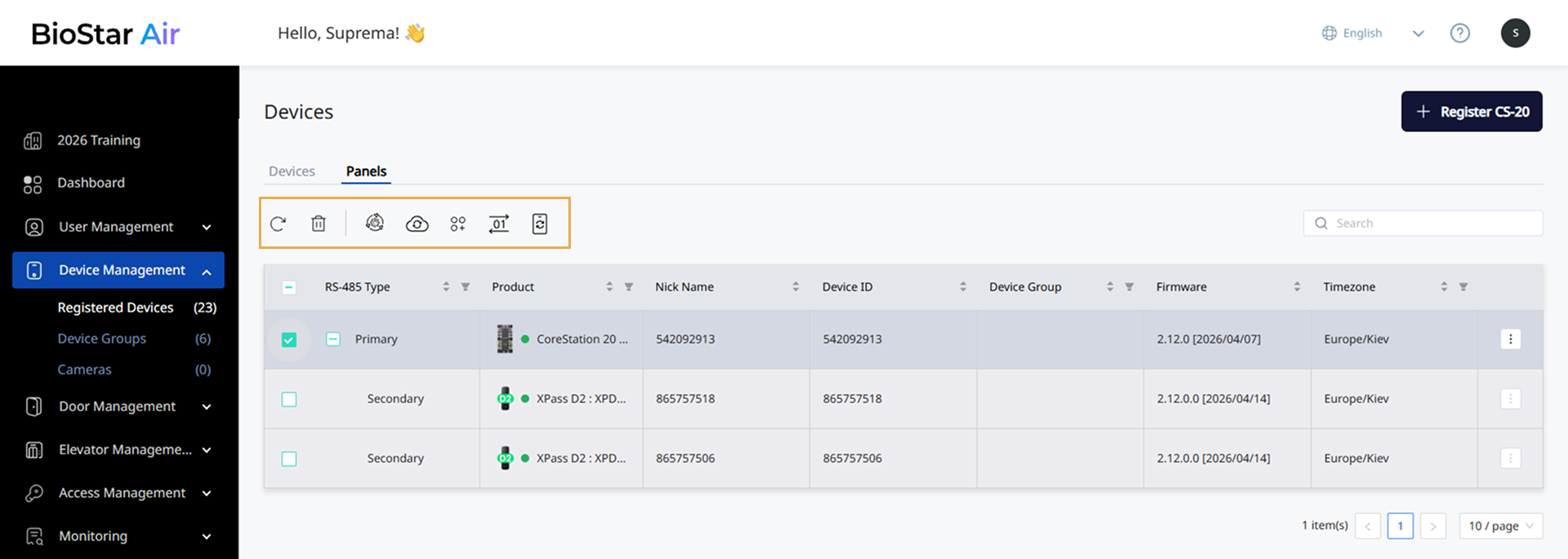
Select a panel in the list to use the management features at the top.
-
: Refresh the list.
-
: Delete registered panels or subdevices.
-
: Update the firmware of selected panels or subdevices in the list. For more information about firmware upgrades, see Upgrade Firmware.
-
Subdevices connected to a CS-20 can be upgraded one at a time.
-
For more information on upgrading XPass D2 devices, see Upgrade Firmware.
-
-
: Synchronize biometric templates from selected panels to the server.
-
: Assign selected panels to a group. For more information on managing groups, see #device_group_in_device_list.
-
: Switch the RF card byte order of the selected panel in the list to MSB or LSB.
-
MSB: Processes card data in order from large byte units to small byte units, sequentially storing the card serial number (CSN) from left to right.
-
LSB: Processes card data in order from small byte units to large byte units, storing the card serial number (CSN).
-
-
: Import settings originally configured in standalone mode.
-
: Update the status of selected panels.
Subdevices connected to a CS-20 only support the refresh (), delete (), and firmware update () functions.
Resync offline panels and secondary devices
If a panel or auxiliary device has been offline for a long time, its information may fall out of sync with the server and require manual resync.
-
Click Device Management → Registered Devices in the left sidebar.
-
Click the Panels tab.
-
In the list, check the panel or auxiliary device with the icon in the Product column.
-
Select the checkbox for the panel or auxiliary device.
-
In the toolbar at the top of the list, click the button.
Panels or auxiliary devices that have been offline for less than 7 days sync automatically when they reconnect, so no action is required.
Manage panel groups
Select individual panels in the panel list to add them to or remove them from a group.
-
Click Device Management → Registered Devices in the left sidebar.
-
Click the Panels tab.
-
In the panel list, select the checkbox for the panel you want to add to or remove from a group.
-
Click at the top of the panel list.
-
When the Manage Device Groups window appears, add the selected panels to a group or remove them from it.
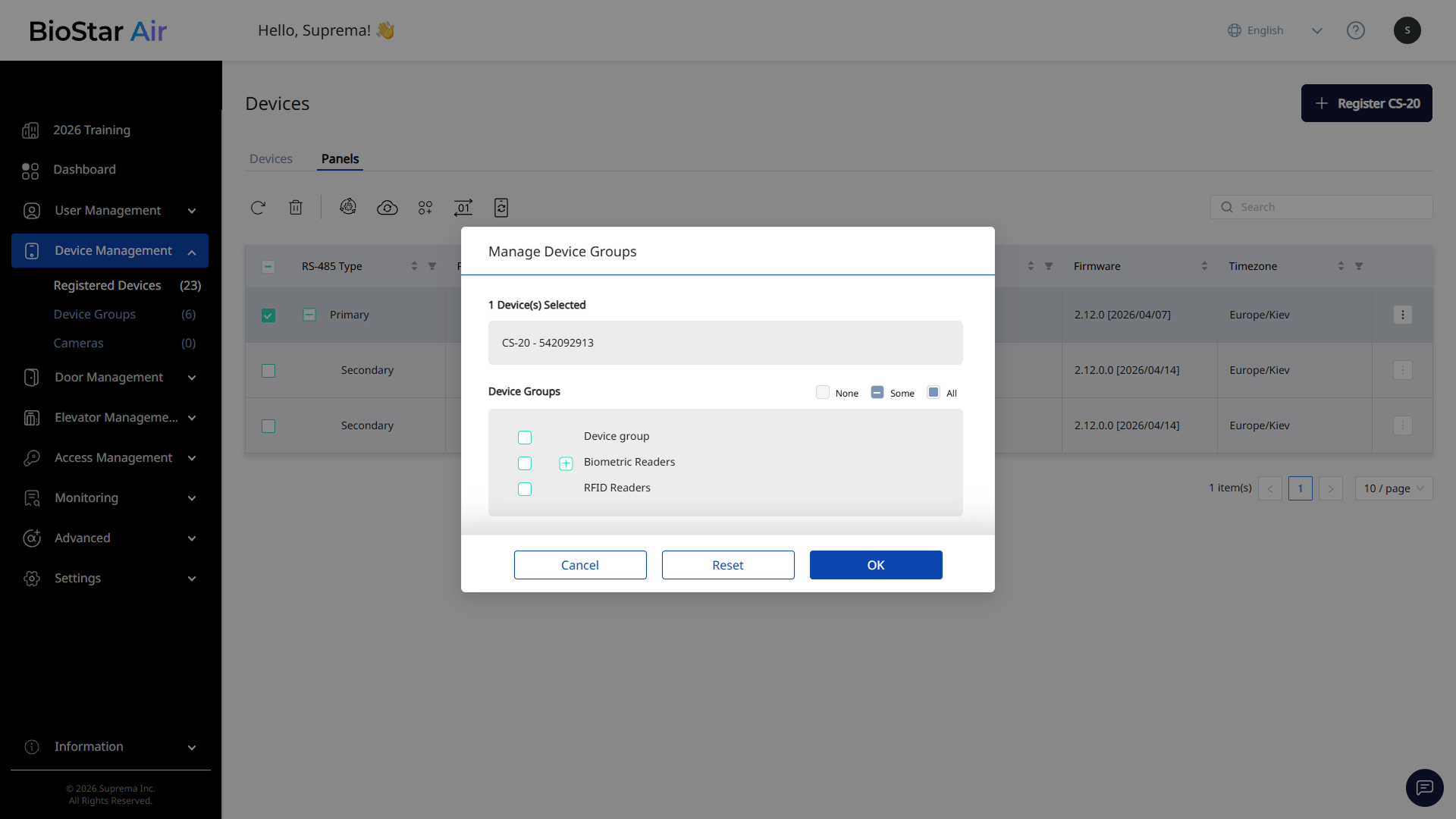
Device Groups checkboxes have the following meanings:
-
None: Removes the selected panels from the group.
-
Some: Some of the selected panels are in the group.
-
All: Adds the selected panels to the group.
-
-
Click OK to save the changes.
-
Selecting another group in the Manage Device Groups window moves the selected panels to that group.
-
A panel can belong to multiple groups. A single panel can be assigned to multiple groups.
-
Secondary devices in the panel list only support firmware upgrades.
-
Click Reset to initialize the changes.