Check APB Violations
In the Zone Management → Violations menu, review users who violate the zone anti-passback (APB) rules and clear violations as needed. If you have not set zones and APB mode yet, first refer to Manage Zones.
When violations occur
The system records an APB violation when a user tries to enter or exit out of sequence based on the zone’s APB mode.
-
In zones set to Hard mode, an APB violation blocks access, and the system records the violation.
-
In zones set to Soft mode, the system allows access, but records an APB violation.
-
APB rules do not apply to users in the APB exception group, so they do not appear in the violations list.
Review the violations list
- Web
- Mobile
Web
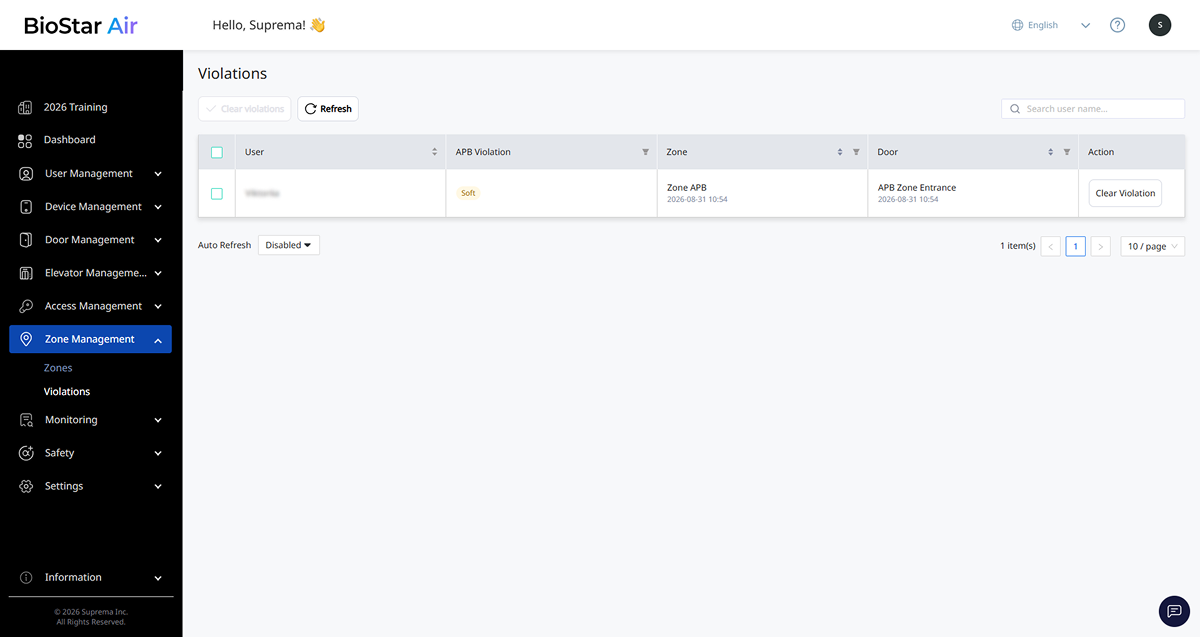
In the left sidebar, click Zone Management → Violations.
Mobile
-
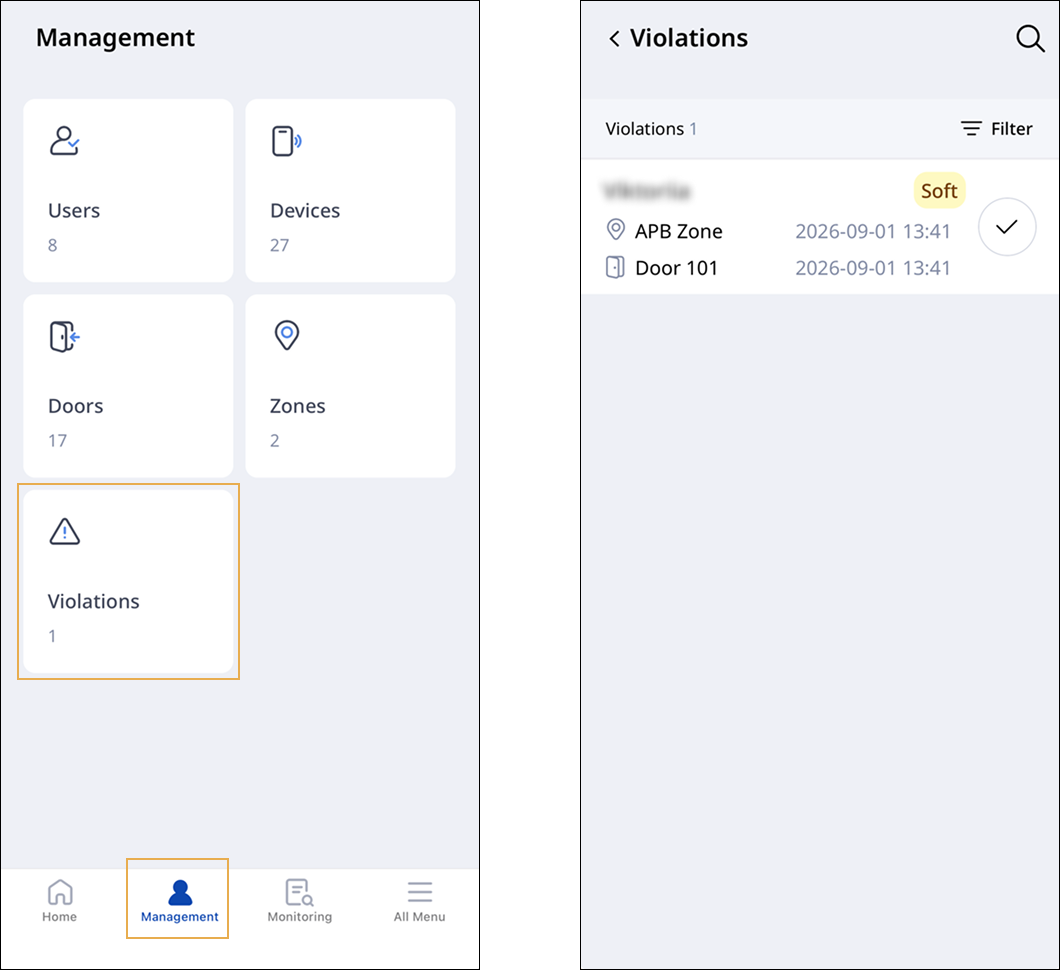
Open the BioStar Air app on your mobile device and log in.
-
Tap Management at the bottom of the screen.
-
Tap the Violations card.
The list shows users with active APB violations. If no active APB violations exist, an empty state screen appears instead of the list.
-
User: User with a recorded APB violation.
-
APB Violation: Mode (Hard/Soft) where the APB violation occurred.
-
Zone: The zone where the APB violation occurred.
-
Door: The door where the APB violation occurred.
-
Action: Clear an individual APB violation.
Review cleared APB violations and past APB violation history in Monitoring → Event Logs.
Manage the violations list
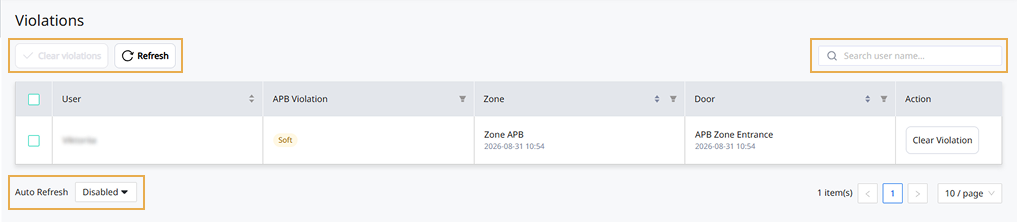
Use the management features at the top and bottom of the list to perform the following tasks.
-
Clear Violation: Clear APB violations for the selected user in the list. For more information, see #clearingViolations.
-
Refresh: Refresh the list immediately to show the latest status. In Auto Refresh at the bottom of the list, select an auto refresh interval (Disabled / 5 Seconds / 1 Minute). The list refreshes automatically at the set interval.
-
Search user name…: Search by user name.
Filter the violation list
- Web
- Mobile
Web
In the list header, click the button in the APB Violation, Zone, or Door column to filter the list by that condition.

Click Reset to clear the filter.
Mobile
-
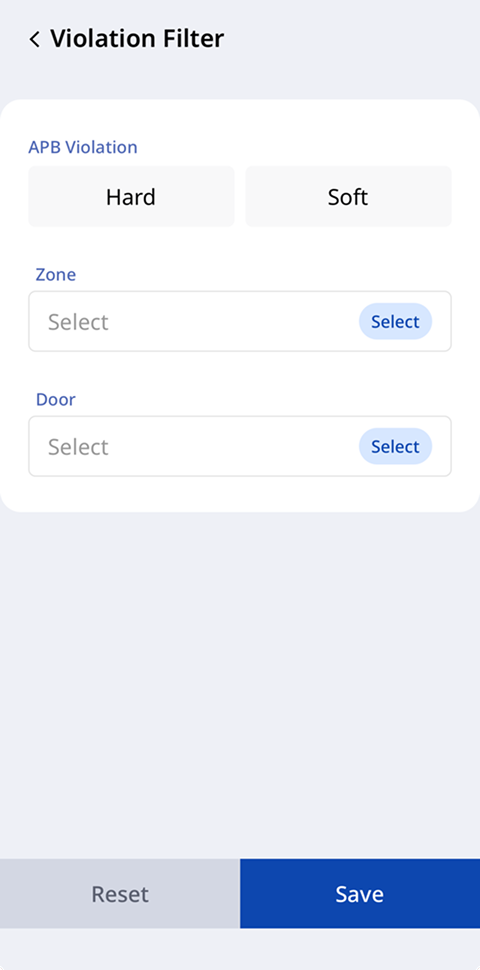
Tap Filters at the top right of the violation list.
-
Select a filter condition in APB Violation, Zone, or Door.
-
Tap Save to filter the list by the selected criteria.
Tap Reset to clear the filter.
Clear violations
Clearing an APB violation initializes the user's active APB violation status and restores normal zone access.
-
Clear Violation initializes only the user's active APB violation status. The event that triggered the APB violation remains in the event log.
-
Existing APB violations remain after the zone is disabled. Clear them in the violation list.
-
Users in an APB exception group do not appear in this list, but remain included in the zone presence count.
Clear a violation for an individual user
- Web
- Mobile
Web
-
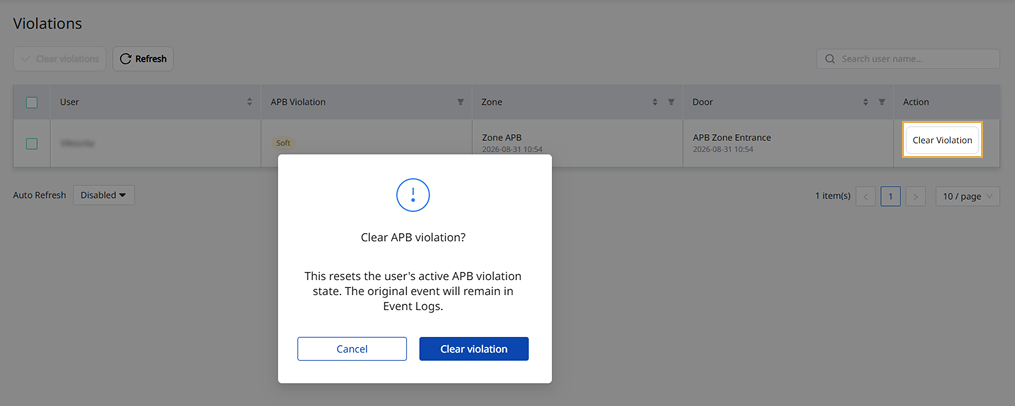
In the list, click Clear Violation in the Action column for the user whose APB violation to clear.
-
When the confirmation message appears, click Clear Violation.
Mobile
-
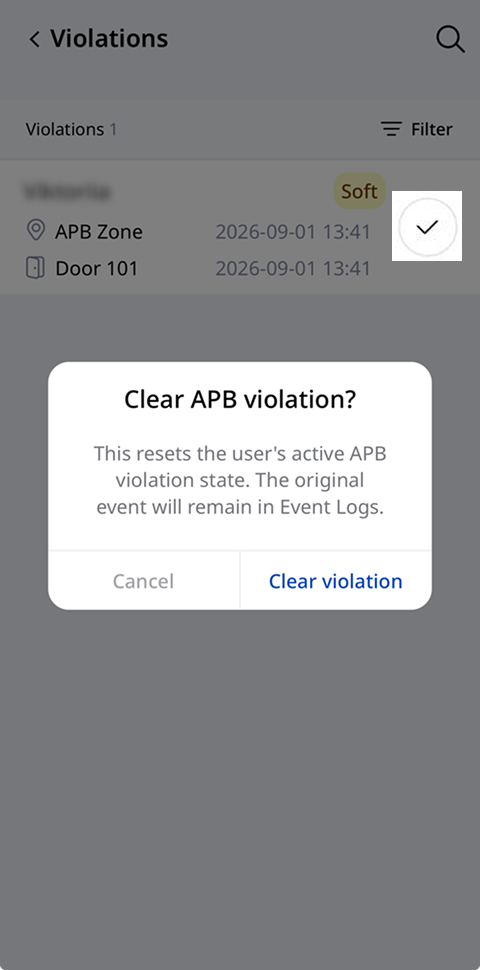
In the list, tap in the user's row to clear the APB violation.
-
When the confirmation message appears, tap Clear Violation.
Clear violations for multiple users
- Web
- Mobile
Web
-
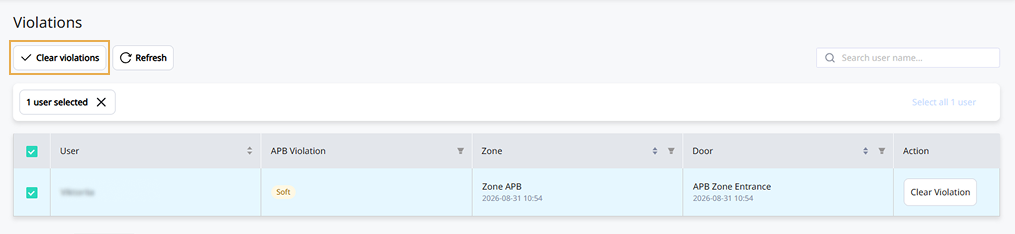
Select the checkboxes next to users with APB violations to clear. Select one or more users.
-
Click Clear violations at the top of the list.
-
When the confirmation message appears, click Clear violations.
Mobile
-
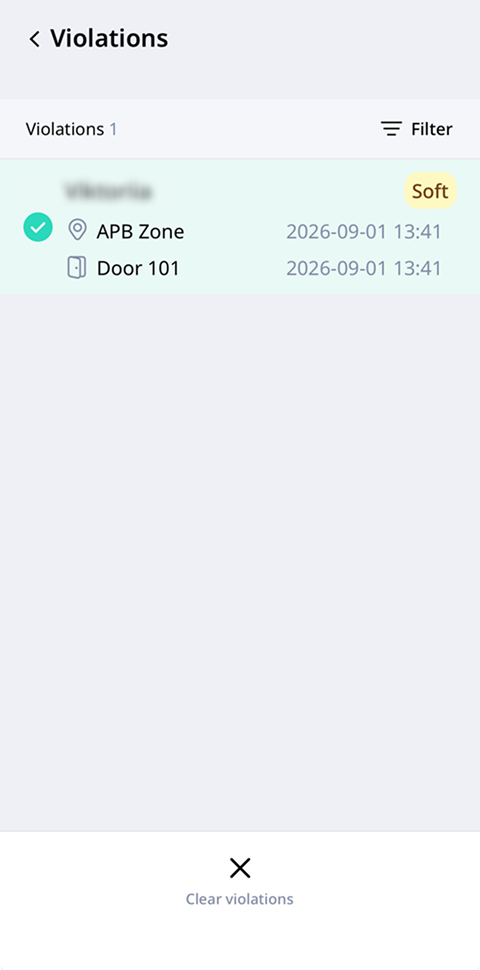
Touch and hold a user in the list.
-
Select users whose violations to clear. Select one or more users.
-
Tap Clear violations at the bottom of the screen.
-
When the confirmation message appears, tap Clear violations.