Manage Zones
With BioStar Air's Zone feature, organize doors into logical zones and apply Anti-Passback (APB) rules as needed to enforce users entering and exiting in the correct order. Optionally apply Anti-Passback rules per zone. Zones without APB can still use other Zone features, such as Presence to see who is inside. Zones can range from perimeter zones that cover an entire site to specific areas inside a building.
Before you start
Check the following before creating a zone.
-
Add the doors to the system before assigning them to a zone. For more information on registering doors, see Manage Registered Doors.
-
A device can be used in only one zone at a time.
-
Changing the zone’s entry and exit devices does not change the door settings.
-
If the zone’s entry and exit devices are not set correctly, APB behavior and the presence count may differ from actual movement.
-
Offline devices may apply changes later than online devices. Changes apply to online devices first. Offline devices apply changes after they reconnect.
-
Only devices with firmware v2.13 or later can be assigned to a zone. Make sure that verify the device assigned to the zone uses the latest firmware.
-
Doors used in an APB zone are protected to prevent setting conflicts. To change door settings that affect APB behavior, remove the door from the zone first.
Explore zone list
- Web
- Mobile
Web
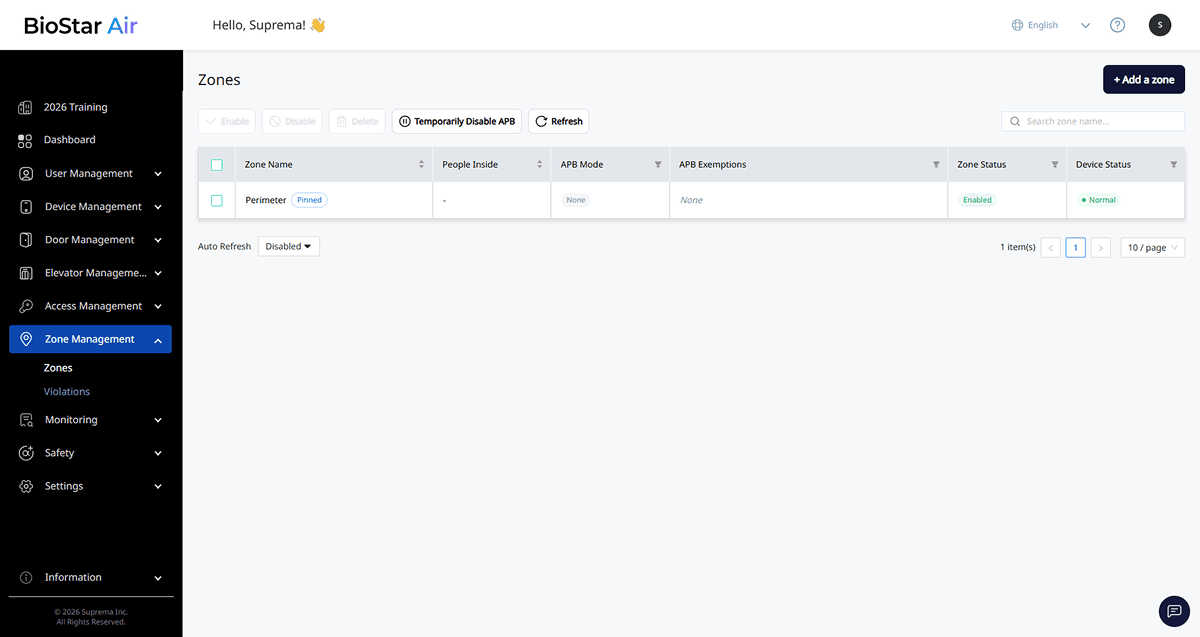
Click Zone Management → Zones on the left sidebar.
Mobile
-
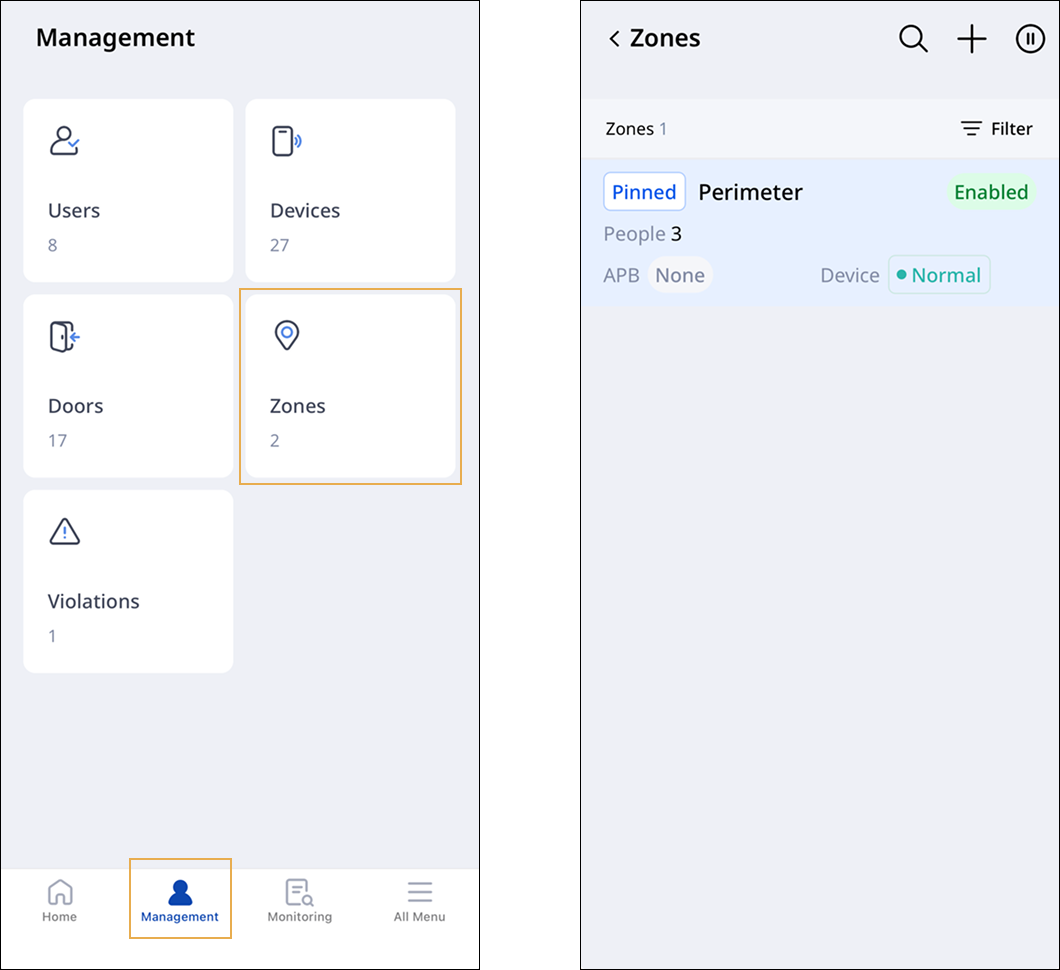
Open the BioStar Air app on your mobile device and log in.
-
Tap Management at the bottom of the screen.
-
Tap the Zones card.
The zone list shows all zones set up for the site at a glance.
-
Zone Name: Zone name. Perimeter shows the Pinned badge next to the name.
-
People Inside: Number of users recorded as present in the zone. For more information, see #checkingPeopleInside.
-
APB Mode: The APB mode applied to the zone (Hard / Soft / None).
-
APB Exemptions: The APB exemption group assigned to the zone.
-
Zone Status: This indicates whether the zone is activated.
-
Device Status: This indicates whether devices assigned to the zone are online.
Perimeter zones and internal zones
On first site setup, the system provides Perimeter by default. Perimeter is like the site’s main gate. Rename and delete are unavailable, and the list shows the Pinned badge.
-
Entry and exit devices in Perimeter help calculate Presence in Dashboard > On Site Users and Safety > Presence.
-
Create separate zones for areas that need internal control (e.g., server rooms, specific floors) in addition to perimeter zones, enabling fine-grained movement control within the site.
Checking people inside
- Web
- Mobile
Web
Check how many people are currently in each zone in the People Inside column of the zone list.

Mobile
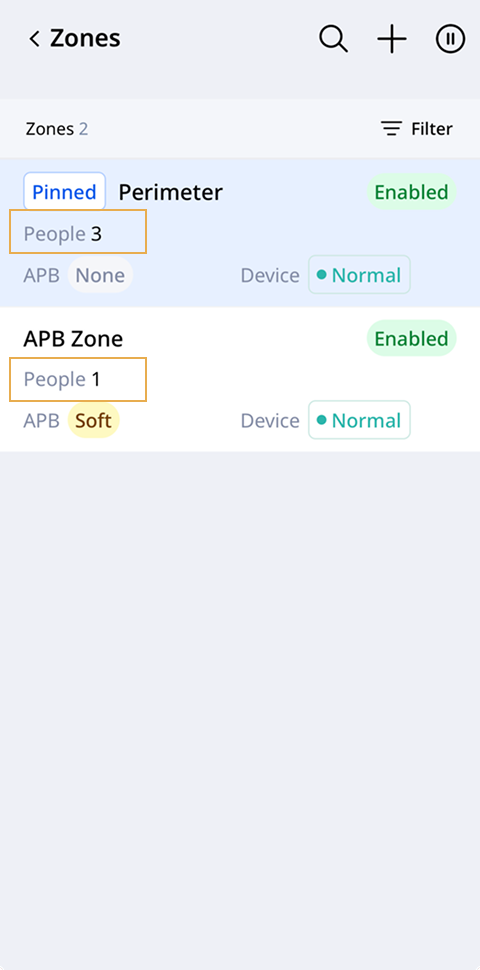
Check how many people are currently in each zone in the People item of the zone list.
-
The system calculates this number based on authentication logs from the entry and exit devices set for the zone. Authenticate at an entry device to increase the count, and authenticate at an exit device to decrease it.
-
Users in an APB exemption group are not subject to APB rules, but remain included in the people-inside count.
-
Deactivating a zone initializes the zone’s people-inside count to 0.
-
To keep the latest value, click Refresh at the top of the list or set an auto-refresh interval.
Zone management feature
Use the management features at the top and bottom of the zone list to complete the following tasks.

-
Enable / Disable: Enable or disable selected zones.
-
Delete: Delete selected zones. Perimeter cannot be deleted.
-
Temporarily Disable APB: Pause APB for all zones on the site, including the perimeter zone.
-
Refresh: Refresh the list immediately to show the latest status. In Auto Refresh at the bottom of the list, select an auto refresh interval (Disabled / 5 Seconds / 1 Minute). The list refreshes automatically at the set interval.
-
Search zone name…: Search the list by zone name.
Filter zone list
- Web
- Mobile
Web
In the list header, click the button in the APB Mode, APB Exemptions, Zone Status, or Device Status column to filter the list by that condition.
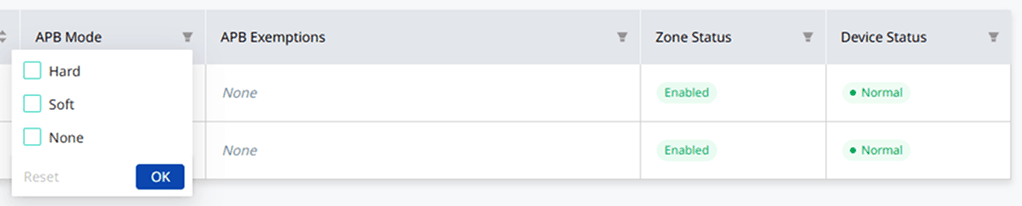
Click Reset to clear the filter.
Mobile
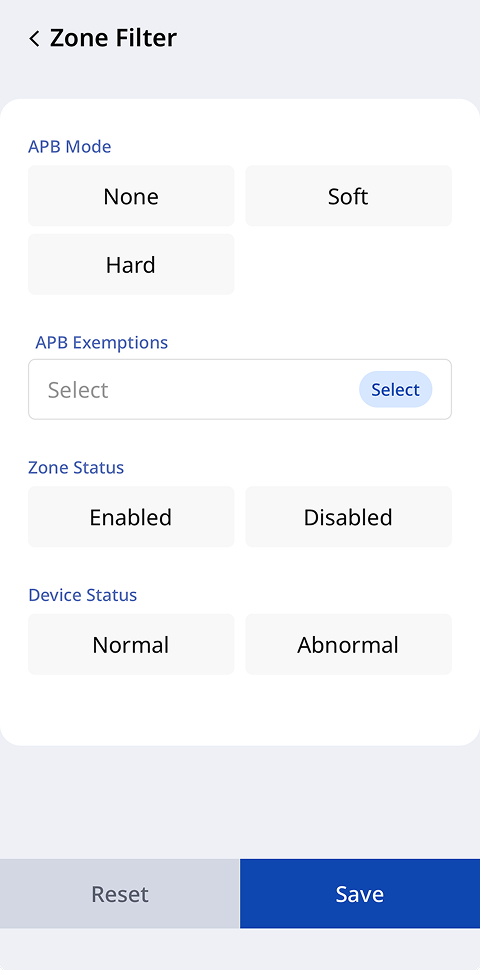
-
Tap Filters at the top right of the zone list.
-
Select criteria in APB Mode, APB Exemptions, Zone Status, or Device Status.
-
Tap Save to filter the list by the selected criteria.
Tap Reset to clear the filter.
Add zones
- Web
- Mobile
Web
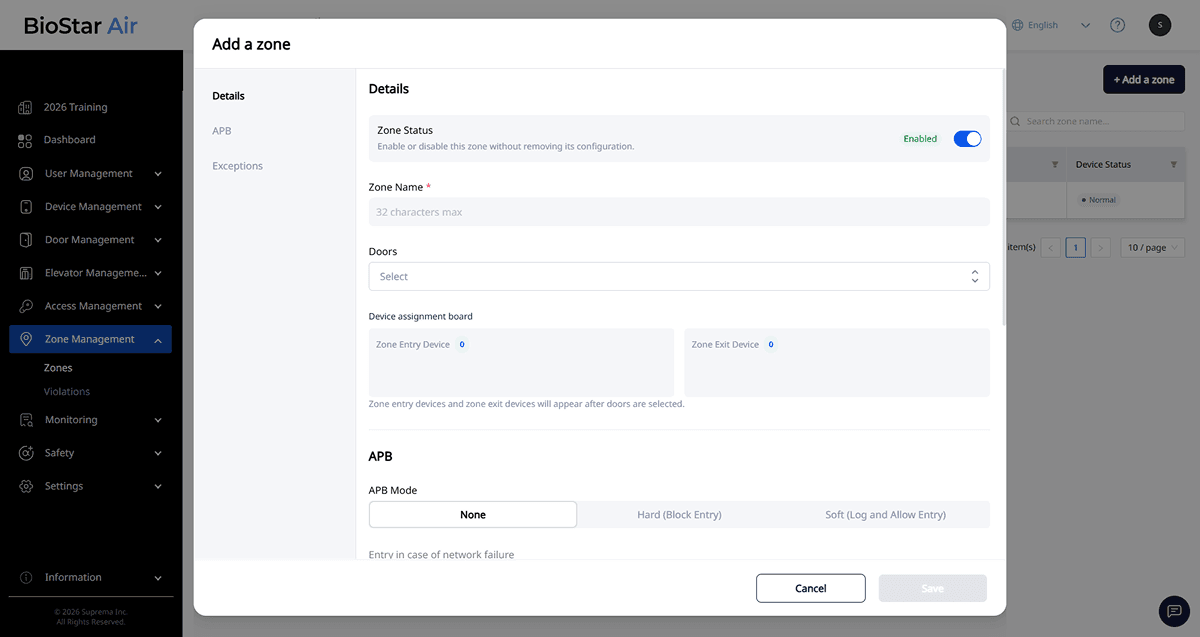
Click Zone Management → Zones on the left sidebar. Click + Add a zone at the top right of the screen.
Mobile
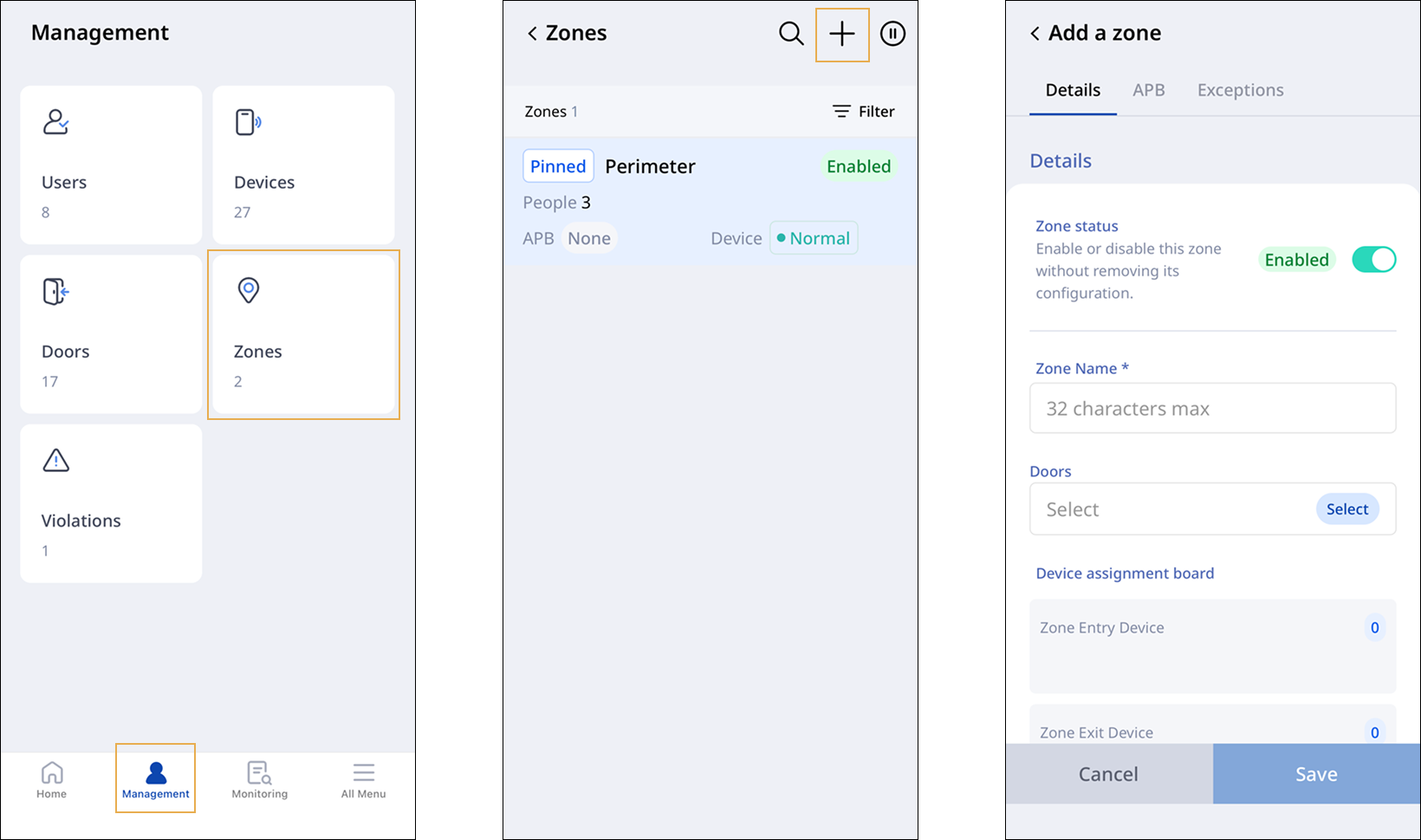
-
In the BioStar Air app, tap Management at the bottom of the screen.
-
Tap the Zones card.
-
Tap at the top right of the screen.
Enter basic information
Enter the zone's basic information in the Details section.
- Web
- Mobile
Web
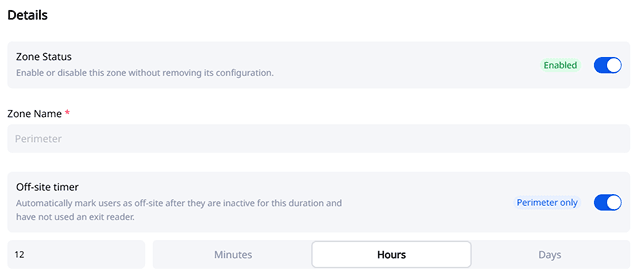
Mobile
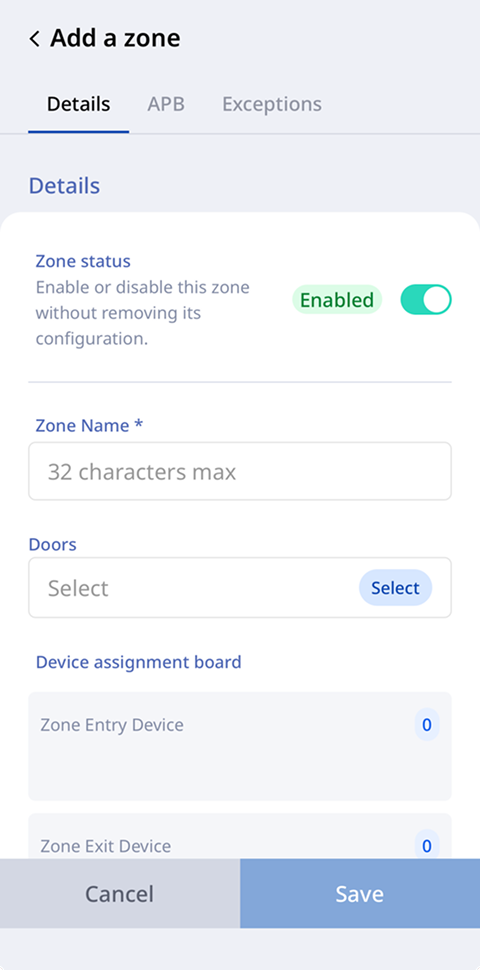
-
Zone Status: Select whether to activate the zone immediately. Activate or deactivate the zone later without changing the settings.
-
Zone Name: Enter up to 32 characters. For sites with multiple buildings, use a name that clearly indicates the location.
-
Off-site timer: Users with no activity for the set time and who did not use an exit device automatically switch to Off Site status. If no exit device is assigned to the perimeter zone, set this option.
The Off-site timer option appears only when setting a perimeter zone.
Assign doors and devices
Select the doors and devices to assign to the zone.
- Web
- Mobile
Web
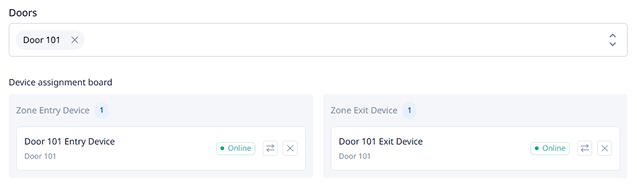
Mobile
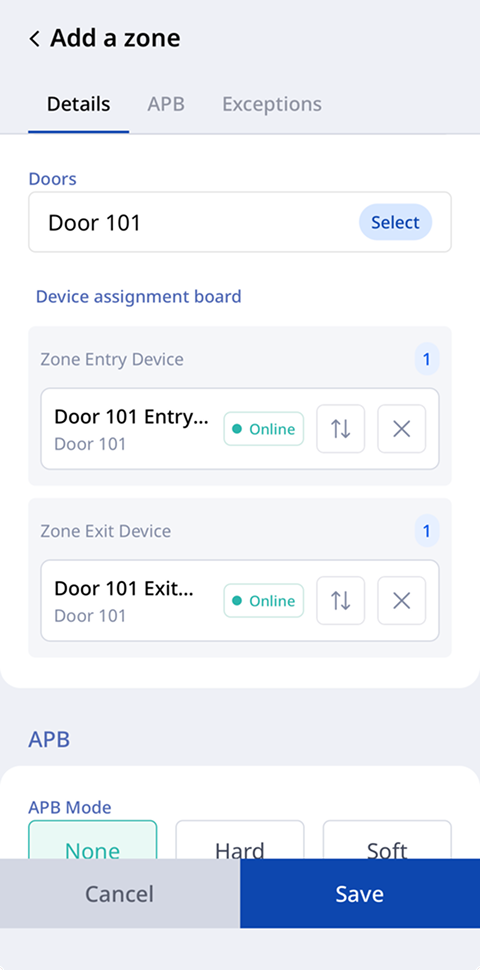
-
Door: Select the doors to include in the zone. More than one door can be selected. Select a door, and its devices appear in Device assignment board.
-
Device assignment board: Assign each device as Zone Entry Device or Zone Exit Device. Devices appear with Device ID to distinguish them. Click the Move (⇄) button to set the device as an entry or exit device.
-
Only devices with firmware v2.13 or later appear in Device assignment board. Make sure that verify the device assigned to the zone uses the latest firmware.
-
For more information on device management, see Manage Device and Panel Groups.
-
For more information on managing registered doors, see Manage Registered Doors.
Set APB mode
In the APB section, set anti-passback rules. Anti-Passback rules are optional. If strict control is unnecessary, select None mode to use zones only for Presence checks.
- Hard
- Soft
Hard
Hard (Block Entry)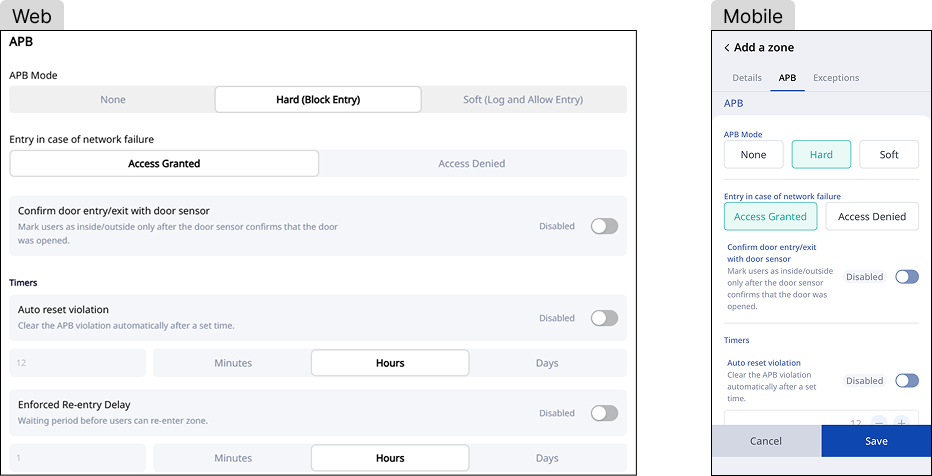
Soft
Soft (Log and Allow Entry)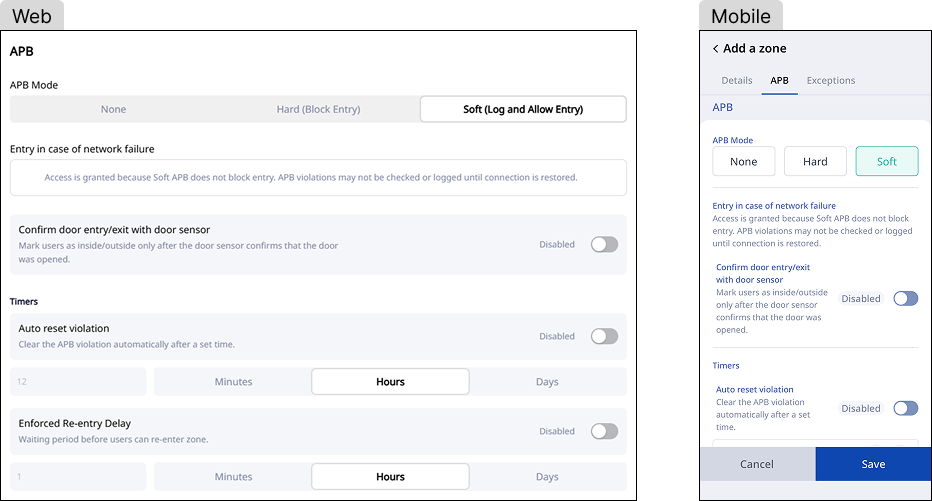
-
APB Mode: Select the APB mode.
-
Hard (Block Entry): Blocks access when a user violates an APB rule and logs a violation event.
-
Soft (Log and Allow Entry): Allows access but logs an APB violation in the event log.
-
None: Does not apply APB to the zone. Zones without an APB mode continue to count presence.
-
-
Entry in case of network failure: Select whether to allow or deny access if the BioStar Air server is unreachable due to a network failure. Soft mode does not block access, so access is always allowed, and the system may not verify or log violations until the network connection recovers.
-
Confirm door entry/exit with door sensor: When enabled, the door sensor must confirm the door opens before marking users as On Site or Off Site.
-
Timers
-
Auto reset violation: Automatically clears an APB violation after the set time.
-
Enforced Re-entry Delay: The wait time before a user can enter the same zone again.
-
Set exceptions
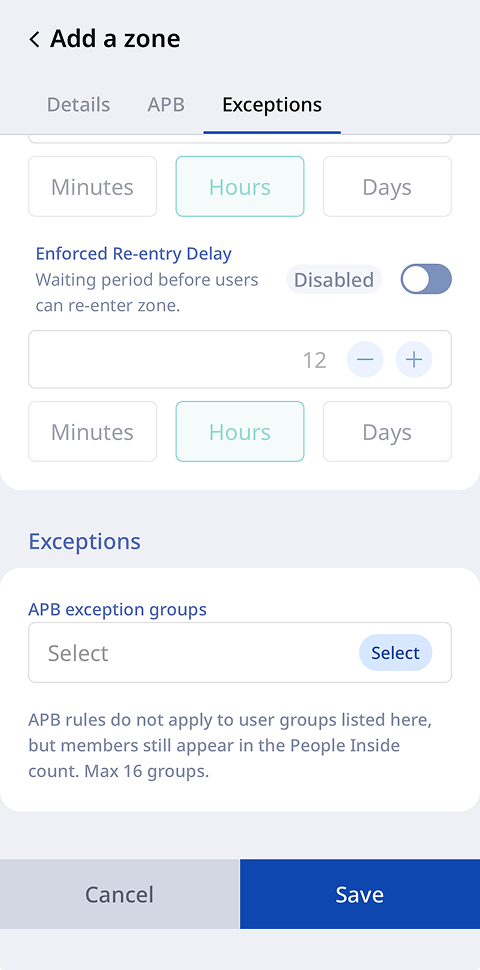
In the Exceptions section, select user groups exempt from APB rules.
- Web
- Mobile
Web

Mobile
-
Specify up to 16 user groups as exceptions per zone.
-
Users in an exception group are exempt from APB rules but remain in the presence count.
-
If APB Mode is None, the Exceptions section is disabled.
For more information on managing user group, refer to Manage User Groups.
Save zone
Click Save to save the zone settings.
Notes for adding a zone
-
Doors already assigned to another APB zone, doors with no device, or doors dedicated to Airfob Patch do not appear in the door selection list.
-
Enable Auto reset violation (if the zone is not a perimeter) or Off-site timer (if the zone is a perimeter) to save a zone without an exit device.
-
Zones must have unique names.
-
Changing APB Mode to None initializes all saved detailed settings (APB Mode, Timers, APB exception groups) for the zone. Use the Disable zone or Temporarily Disable APB feature to pause APB enforcement without changing settings.
Enable or disable zones
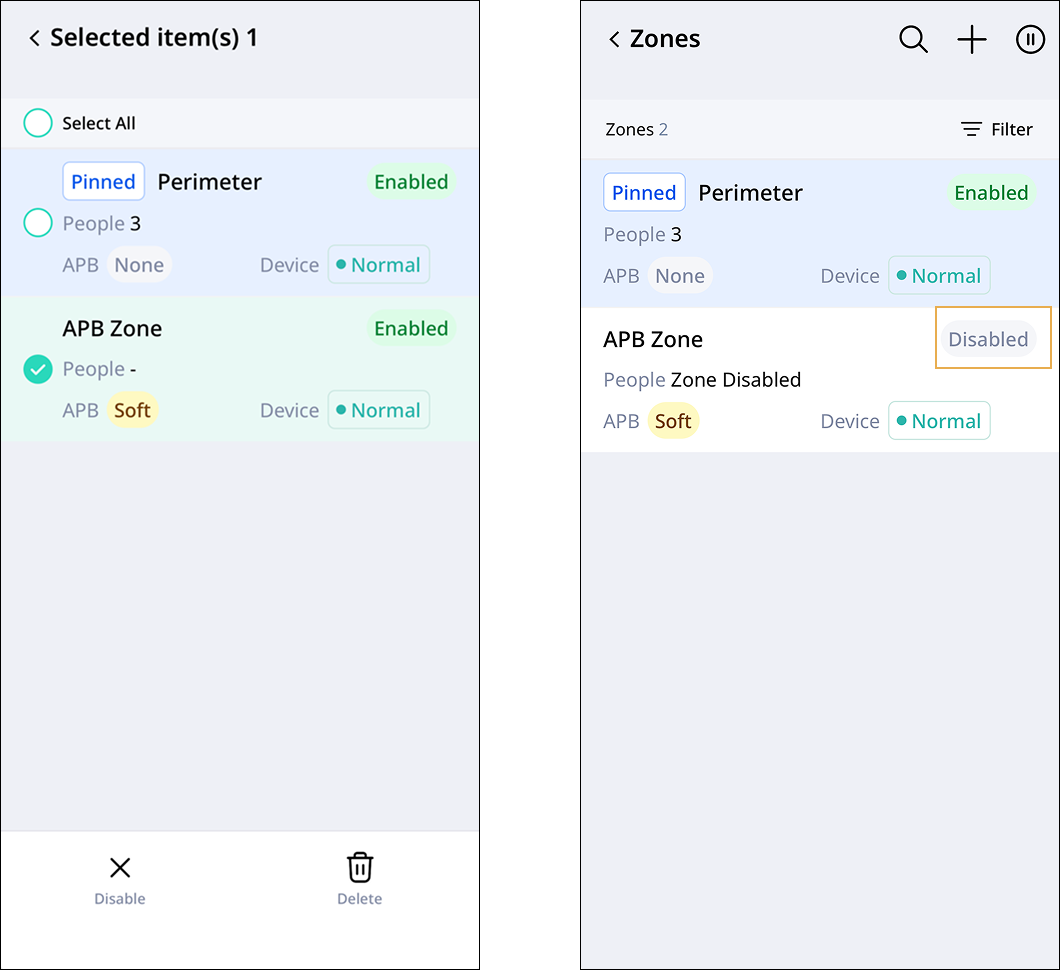
This feature lets administrators enable or disable zones. The settings remain unchanged. Disabling a zone initializes the zone presence count to 0. However, existing APB violations remain. Clear them from the Check APB Violations menu.
- Web
- Mobile
Web
-
Click the checkbox for the zone to enable or disable in the list. Select one or more zones.
-
Click Enable or Disable at the top of the list.
-
When the confirmation message appears, click Enable or Disable.
Check each zone status in the Zone Status column in the list.

Mobile
-
Touch and hold the zone to enable or disable in the list.
-
Select the zone to enable or disable. Select one or more zones.
-
Tap Enable or Disable at the bottom of the screen.
-
When the confirmation message appears, click Enable or Disable.
Edit zone
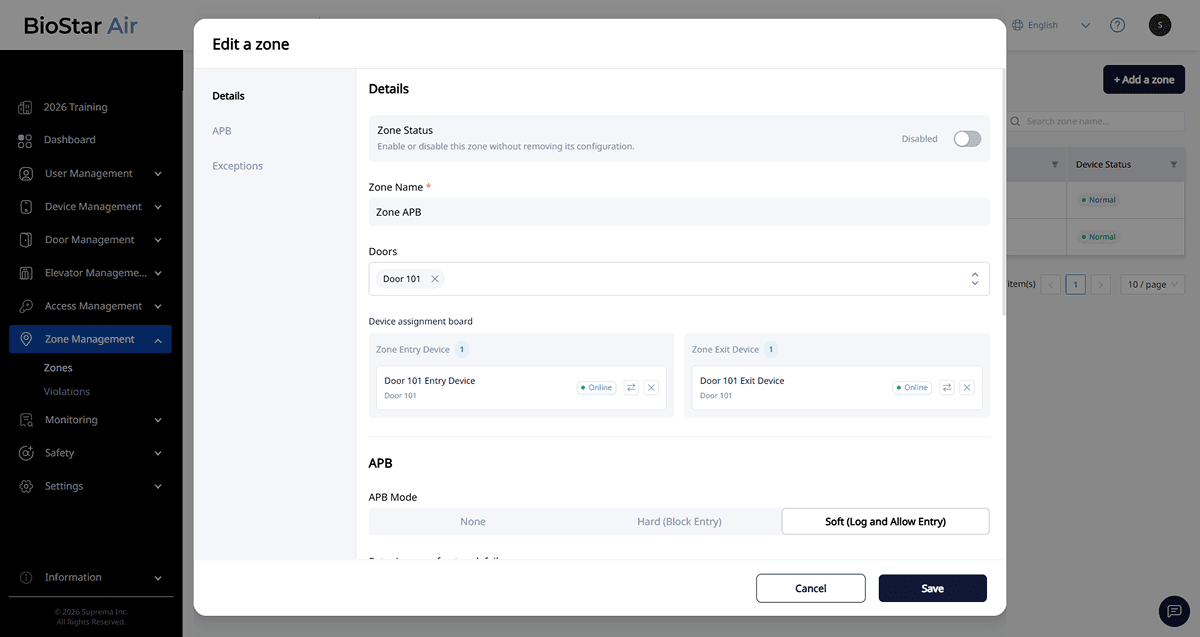
Edit the details, APB settings, and exception settings for an existing zone.
- Web
- Mobile
Web
-
Click the zone to edit in the list.
-
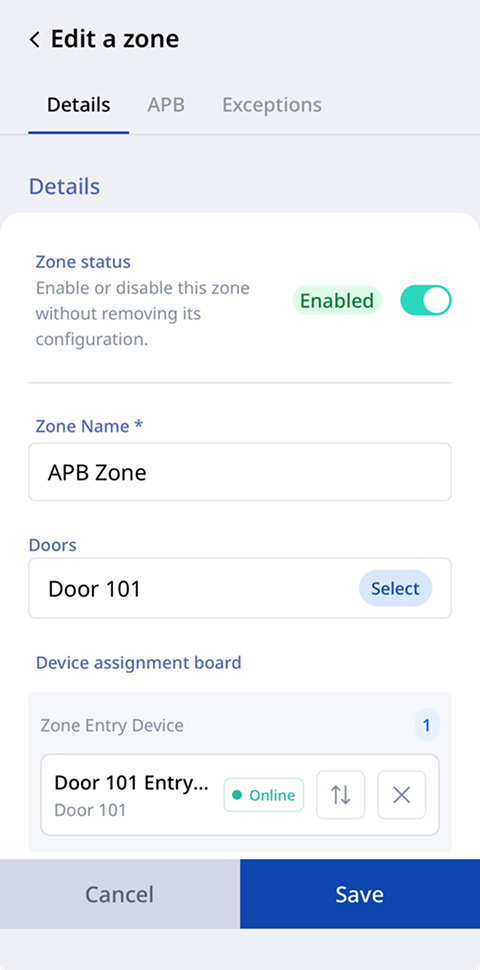
The Edit a zone window appears.
-
Edit the required fields in the Details/APB/Exceptions section.
-
Click Save to save the changes.
Mobile
-
Tap the zone to edit in the list.
-
The Edit a zone screen appears.
-
Edit the required fields in the Details/APB/Exceptions section.
-
To save the changes, tap Save.
For more information about the detailed settings in the Details/APB/Exceptions section, see #addingZone.
Temporarily Disable APB
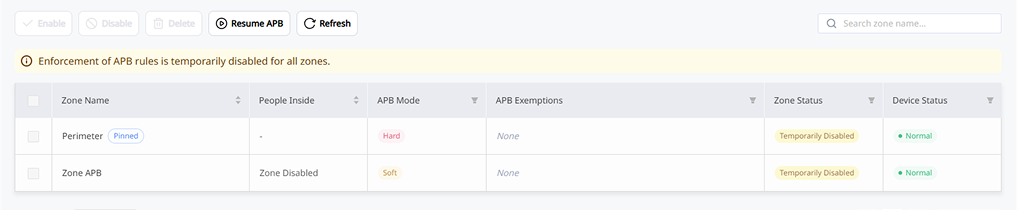
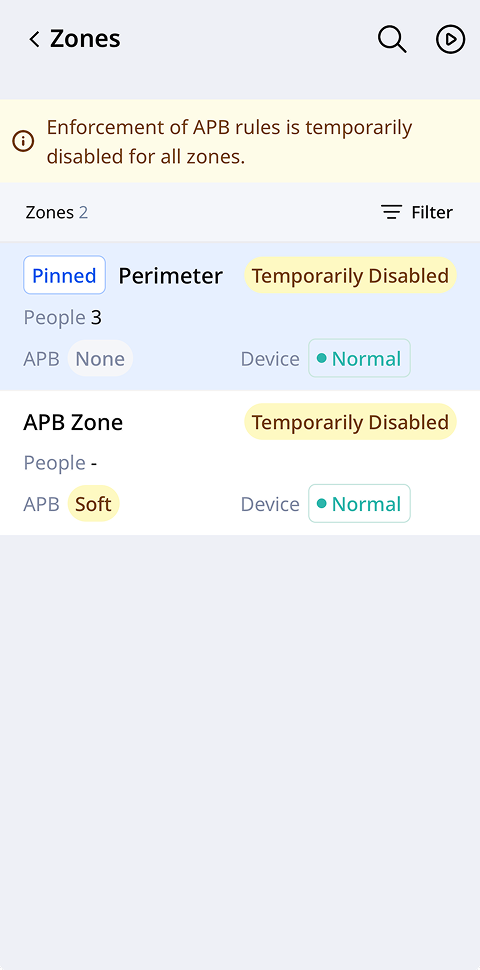
Select Temporarily Disable APB() at the top of the list to pause site-wide APB (for special events or peak traffic). APB pauses for all zones, including perimeter zones. After resuming, each zone returns to its previous state. During the pause, the zone list locks, so do not make other changes.
Click Resume APB() to resume the APB mode set for zones.
- Web
- Mobile
Web
Mobile
You cannot enable an anti-passback zone while an Roll Call is in progress. Try again after Roll Call ends. For more information about Roll Call, see Roll Call.
Delete a zone
- Web
- Mobile
Web
-
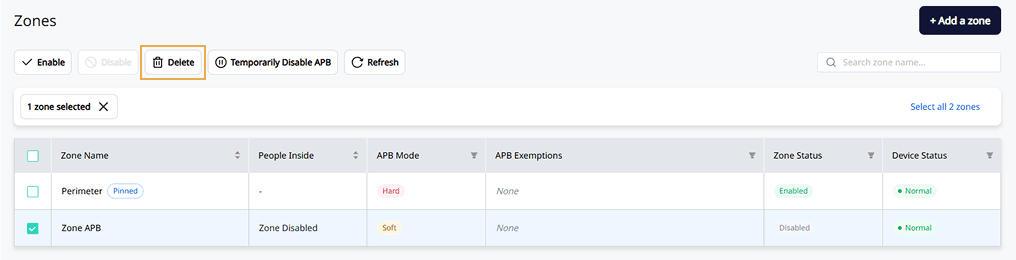
Select the checkbox for the zone to delete in the list. Select one or more zones.
-
Click Delete at the top of the list.
-
Click the Delete button when the confirmation message window appears.
Mobile
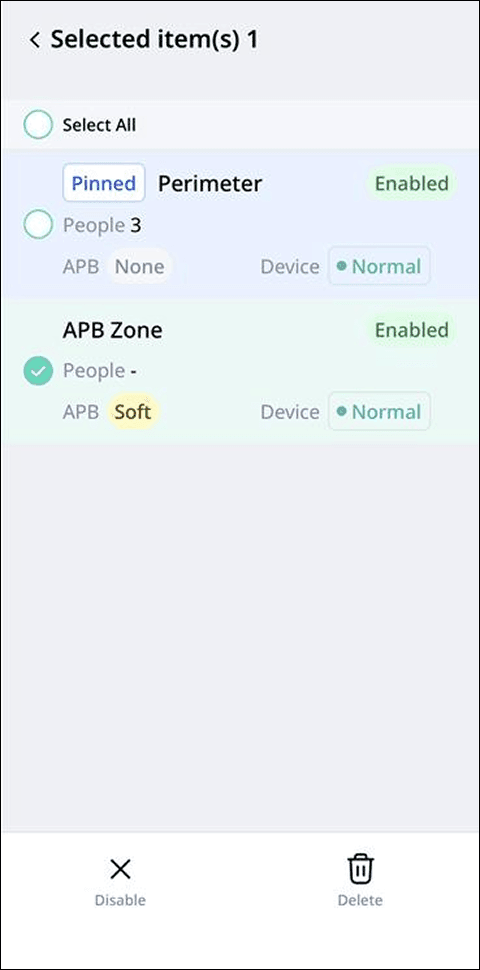
-
Touch and hold the zone to delete in the list.
-
Select the zone to delete. Select one or more zones.
-
Tap Delete at the bottom of the screen.
-
When the confirmation message appears, click Delete.
-
Perimeter cannot be deleted.
-
Only the selected zone is deleted. Doors and devices assigned to the zone remain. Deletion cannot be undone.
-
The system cannot delete a zone while assigned devices are offline, syncing, or upgrading firmware. Wait until the devices reconnect, or remove them from the zone, then try again.