Manage Administrator Accounts and Roles
Use BioStar Air's administrator and role management features to effectively control site access. Assign the 4 roles — Observer, Operator, Administrator, and Master — to grant each person only the permissions they need, ensuring both security and operational efficiency.
This document covers the entire administrator account lifecycle, from inviting administrators to assigning roles, managing permissions, and locking accounts.
Watch the following video for a guide on managing administrators.
View administrators
Click Settings → Admins & Technicians in the left sidebar.
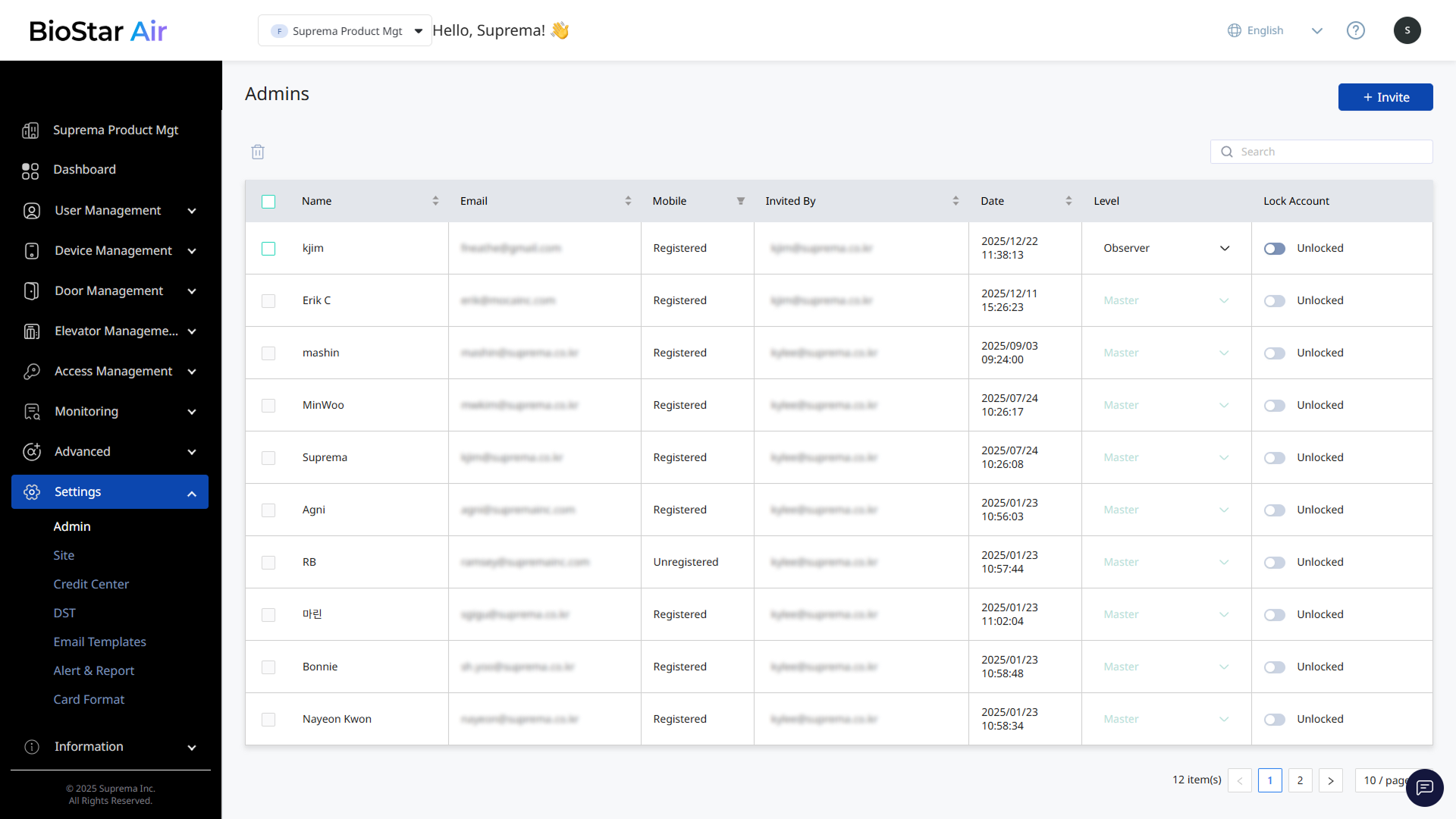
Enabling the Technician Access option changes the Settings → Admin menu to the Admins & Technicians menu. The Admin and Technicians tabs let you manage admin and technician accounts separately.
For more information on how to enable Technician Access, see Manage Technician Accounts.
Administrator List
The Admins & Technicians menu shows a list of all administrators. The administrator list includes the following information.
-
Name: The administrator's name.
-
Email: The administrator's email address.
-
Mobile: The administrator's phone number.
-
Invited By: The email address of the person who invited the administrator.
-
Date: The date the administrator was invited.
-
Level: The administrator's permission level. For more information, see #administrator-levels.
-
Invitation Status: The invitation status of the administrator account. For more information, see #invitationStatus.
-
Lock Account: The lock status of the administrator account. You can lock or unlock an account. For more information, see #deactiveAdmin.
Invitation status
The administrator list shows each administrator's invitation status.
Pending sign-up
An invited administrator's status appears as Pending until they accept the email invitation and complete registration. An invited administrator can accept the invitation by clicking the link in the email to register or sign in to access the site.

An invited administrator has up to 7 days to accept the invitation. After 7 days, the invitation expires and the status changes to Expired. If the invitation expires, you can resend the invitation link so the invited account can sign up again. For more information on resending invitation links, see #resendInvitation.
Sign-up complete
When an invited administrator accepts the email invitation and completes registration, the invitation status changes to Accepted. After completing registration, an administrator logs in to the site and accesses menus and features based on their assigned role.

Invitation revoked
You can cancel the invitation if the invited administrator's email address is incorrect or if the invitation is no longer needed. If you cancel the invitation, its status changes to Revoked. For more information on canceling administrator invitations, see #cancelInvitation.

Administrator levels
Each administrator level in BioStar Air has specific permissions, and higher levels inherit the permissions of lower levels.
Each administrator role has different permissions across BioStar Air. Observer has the most restricted access and some menus are hidden.
Compare permissions
| Feature | Observer | Operator | Administrator | Master |
|---|---|---|---|---|
| View Dashboard/Logs | ✔️ | ✔️ | ✔️ | ✔️ |
| Export Logs and Generate Reports | ✔️ | ✔️ | ✔️ | ✔️ |
| User Management | ❌ | ✔️ | ✔️ | ✔️ |
| Manage User Groups | ❌ | ✔️ | ✔️ | ✔️ |
| Manage Access Levels | ❌ | ✔️ | ✔️ | ✔️ |
| Manage Schedules | ❌ | ✔️ | ✔️ | ✔️ |
| Manage Holiday Groups | ❌ | ✔️ | ✔️ | ✔️ |
| Control and Configure Devices | ❌ | ❌ | ✔️ | ✔️ |
| Invite Administrators | ❌ | ❌ | ✔️ | ✔️ |
| Assign Master Role | ❌ | ❌ | ❌ | ✔️ |
| Edit or Delete Master Administrators | ❌ | ❌ | ❌ | ✔️ |
| Create Subsites | ❌ | ❌ | ❌ | ✔️ |
| Configure Site Settings | ❌ | ❌ | ❌ | ✔️ |
Observer (Lowest Level)
-
Dashboard and logs can be viewed.
-
Export logs and generate reports.
-
Cannot modify settings, users, or devices.
-
Access to menus is restricted. Most menus do not appear on the screen.
Operator
-
Can manage Users, User Groups, Access Levels, Schedules, and Holiday Groups.
-
No access to device control or management settings.
-
Suitable for managing everyday user and access configurations.
Admin
-
Can invite new administrators. However, cannot assign the Master role.
-
Has full device control authority to modify settings and manage connected devices.
-
Cannot delete or modify administrators with the Master role.
-
This role is typically recommended for IT staff responsible for system management.
Master (Highest Level)
-
Has full access to all settings and features.
-
Cannot be deleted or modified by administrators.
-
Can create subsites to manage different locations or organizations.
-
Can configure site settings, including critical system-wide configurations.
-
Responsible for accepting the terms before other administrators log in.
-
Usually assigned to the company owner or a highly trusted executive.
Invite new administrators
Add new administrators.
-
Click Settings → Admins & Technicians in the left sidebar.
-
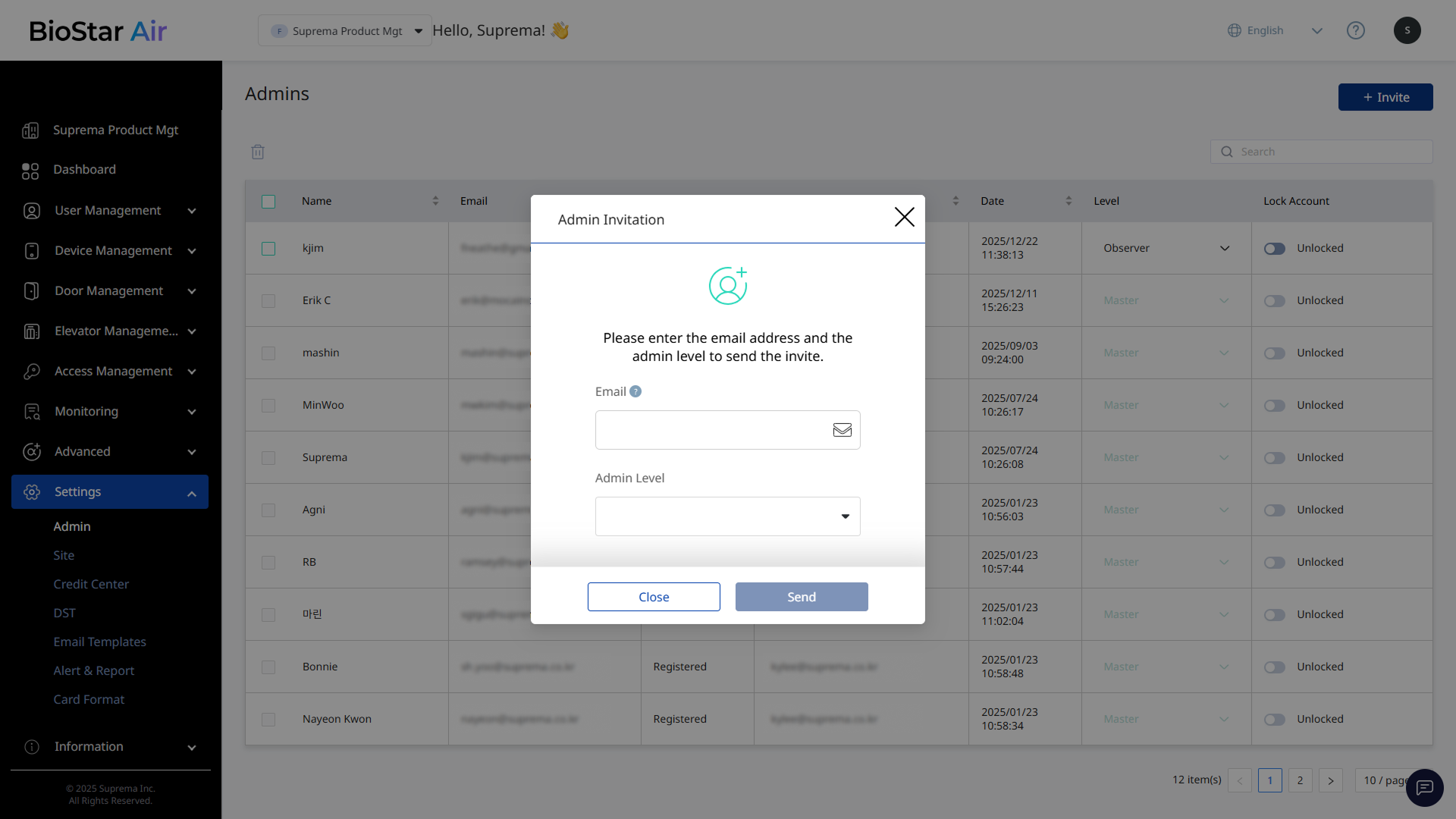
Click Invite at the top right of the screen.
-
When the Admin Invitation window appears, enter the email address.
-
In Admin Level, select the role to assign to the new administrator.
-
Click Send to send the invitation.
Invited accounts appear in the administrator list with Invitation Status set to Pending. When an invited account accepts the invitation by email, its Invitation Status changes to Accepted.

-
An invited account can accept the invitation for up to 7 days. If 7 days pass, the invitation expires and the account's status changes to Expired.
-
Each administrator must have a unique email address. If necessary, use an alias address (for example, erik+training@example.com).
-
Click the link in the invitation email. Sign up if the administrator does not have an account. If the administrator already has an account, log in to access the site directly.
Invitation revoked
If an invited account hasn't accepted the invitation yet, you can cancel it. Canceling the invitation prevents accounts that are pending sign-up from signing up using the invitation link in the email.
-
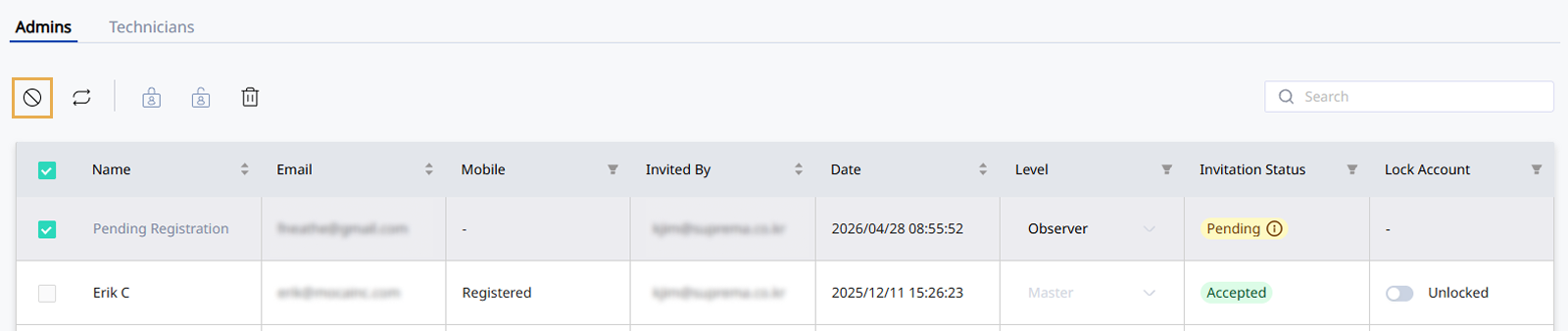
Click the checkbox for accounts with invitation status Pending in the administrator list. Select 1 or more accounts.
-
Click at the top left of the administrator list.
-
When a popup appears, review the message and click Yes.
Accounts in the administrator list whose invitations have been revoked change to Revoked.
Resend invitation link
You can resend the invitation link if an invited account didn't receive or lost the invitation email, or if the invitation link has expired. Resending the invitation link lets the user sign up using the new link.
-
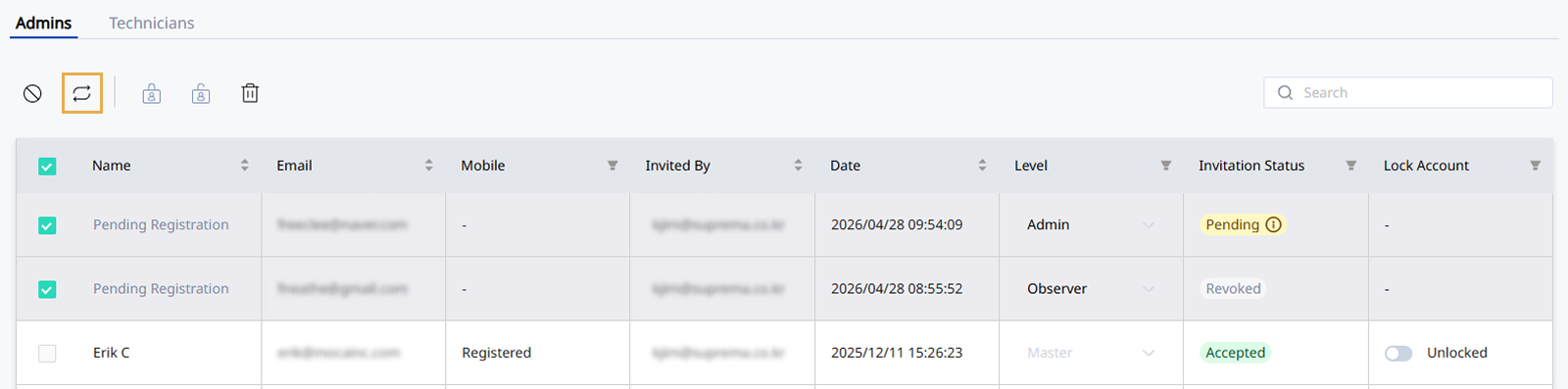
Click the checkbox for accounts with invitation status Pending, Expired or Revoked in the administrator list. Select 1 or more accounts.
-
Click at the top left of the administrator list.
-
When a popup appears, review the message and click Yes.
Accounts whose invitation link is resent will change to Pending.
Lock or unlock administrators
Use the Lock Account option to lock or unlock administrators who have completed sign-up by accepting an email invitation. Locking an account prevents the administrator from logging in. Account information is retained so the account can be reactivated later if needed.
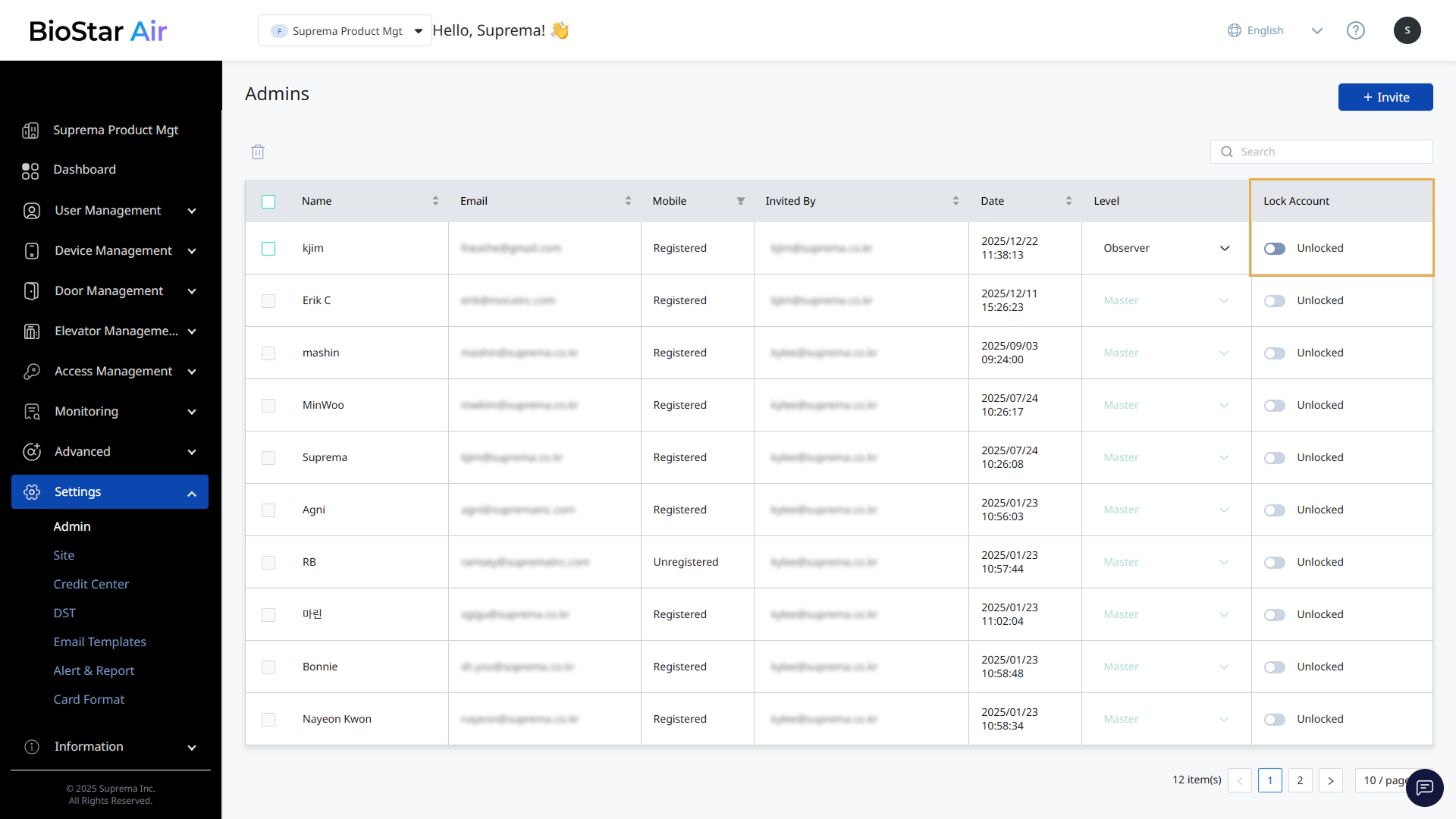
In the Lock Account column, locked administrators appear as Locked, and unlocked administrators appear as Unlocked.

-
Only administrator accounts that have completed sign-up can be locked or unlocked.
-
The Lock Account option may be restricted by the administrator's role. Administrators with the Master role cannot lock other administrators with the Master role.
Lock or unlock an individual administrator
-
Find the administrator to lock or unlock in the list.
-
Click the toggle switch in the Lock Account column.
-
When the message window appears, click the Confirm button.
Lock or unlock multiple administrators
-
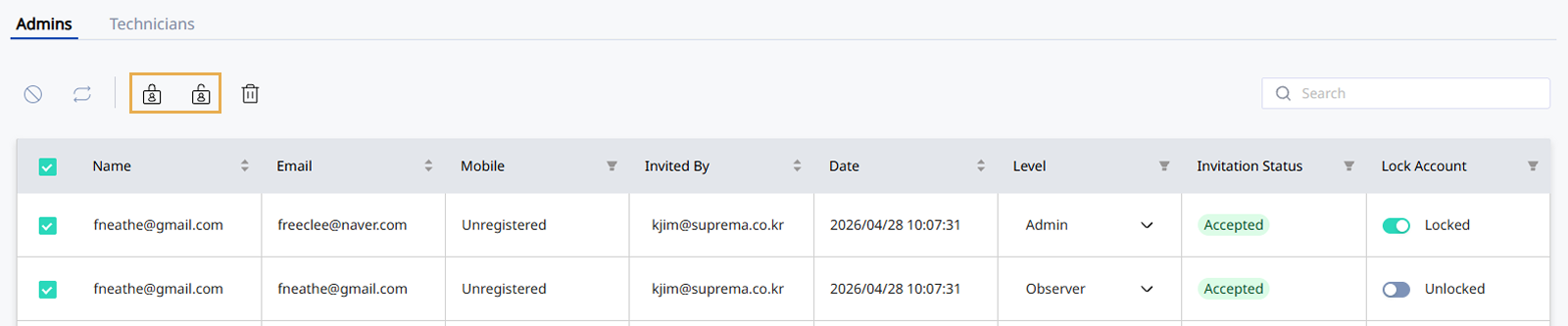
In the administrators list, click the checkbox for the administrator you want to lock or unlock. You can select 1 or more administrators.
-
Click or in the upper left corner of the screen.
-
When a popup appears, review the message and click Yes.
Change an administrator's role
Administrators can change the roles of administrators at a lower level. Adjust roles when employees' duties change, when their responsibilities expand or contract, or during organizational restructuring. Downgrading a role removes an administrator's access to features they previously had.
-
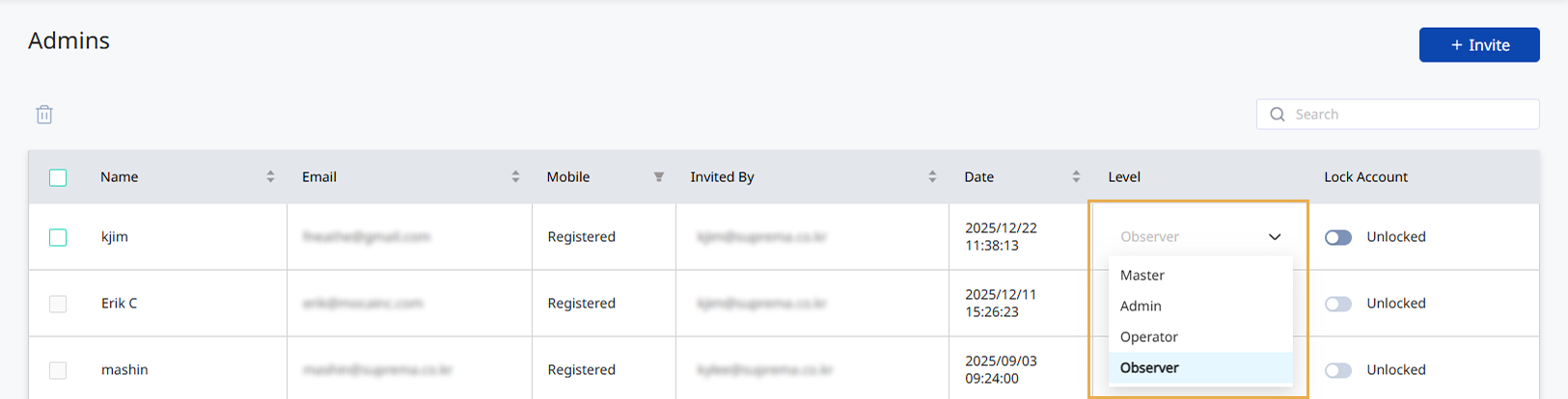
Find the administrator whose role you want to change in the list.
-
Select the new administrator level in the Level column.
-
When the message window appears, click the Confirm button.
Only Master administrators can assign or modify the Master role for other administrators.
Release override status
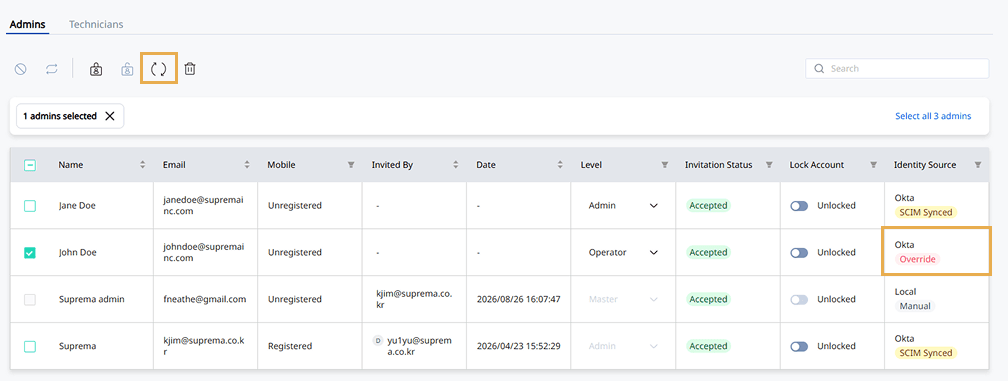
Manually changing a SCIM-synced administrator’s permissions or lock status locally sets Override. Cancel local changes and restore SCIM management.
-
In the administrators list, click the checkbox next to the administrator whose status is Override. You can select 1 or more administrators.
-
Click in the upper left of the screen.
-
When a popup appears, review the message and click Yes.
The system clears the Override status for the selected administrator account and changes it to SCIM Synced.
For more information on SSO & SCIM settings, see Set Up SSO & SCIM.
Delete administrator account
If you delete an administrator account, that administrator will not be able to log in to the site, and the deleted account information cannot be recovered.
-
In the administrators list, click the checkbox for the administrator you want to delete. You can select 1 or more administrators.
-
Click in the upper left of the screen.
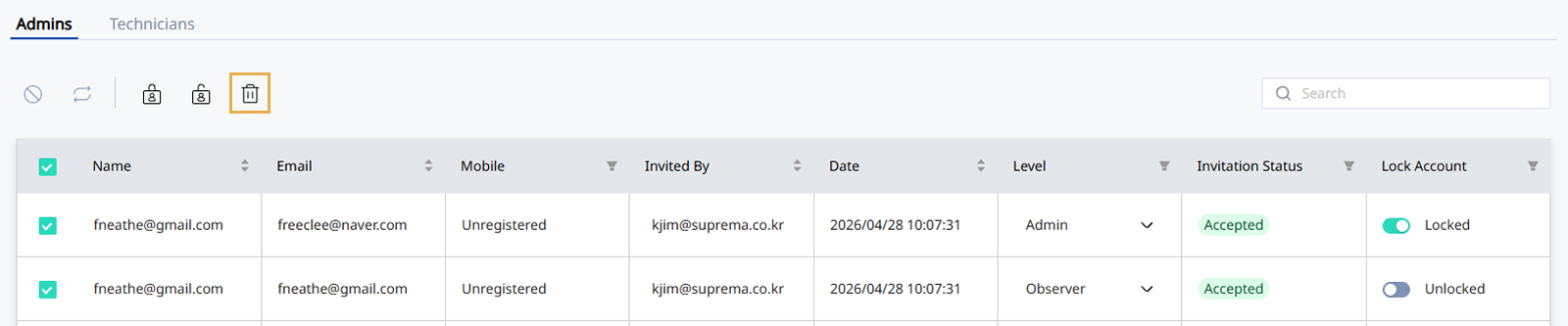
-
When a popup appears, review the message and click Yes.
Deleted administrator accounts no longer appear in the administrator list.