Roll Call
With BioStar Air's Roll Call feature, organizations can track which users have safely evacuated during an emergency. Set muster points and run a roll call in the BioStar Air mobile app. Administrators can quickly identify on-site users based on presence information and confirm safety.
Accurate muster lists based on Presence
-
Roll call does not assume all users are on site. Using Presence logic, include only users confirmed to be on site at the time of the emergency as roll call targets.
-
Assign user groups to muster points and designate dedicated administrators. Safety managers can focus on assigned users.
-
The Suprema Pass app guides mobile credential users on site to the correct muster point and warns off-site users not to enter the facility during an emergency.
-
Ensure that muster points are correctly assigned to user groups to avoid confusion.
-
Regularly test the roll call feature to ensure smooth operation during a real emergency.
-
Use access events to verify attendance for safety compliance.
Watch the following video for a roll call and muster point guide.
Before you start
-
Roll call accuracy depends on presence detection. If Perimeter is not set correctly, the roll call list may differ from the actual on-site headcount.
-
Mobile notifications require the Suprema Pass app. Users who use only RF cards or biometric credentials cannot receive mobile roll call notifications.
-
On-site users not assigned to a muster point may not receive guidance.
-
If the Assigned Admins setting is incorrect, the expected roll call screen may not appear for administrators.
-
If a device goes offline or event delivery is delayed, it can affect presence information and roll call accuracy.
-
Inactive users do not receive roll call notifications.
Users and administrators who use earlier versions of the Suprema Pass or BioStar Air app can continue using the legacy roll call method. Update to the latest version to use the new features.
Set muster points
A muster point is a designated location where users authenticate their credentials to indicate they are safe during an emergency.
-
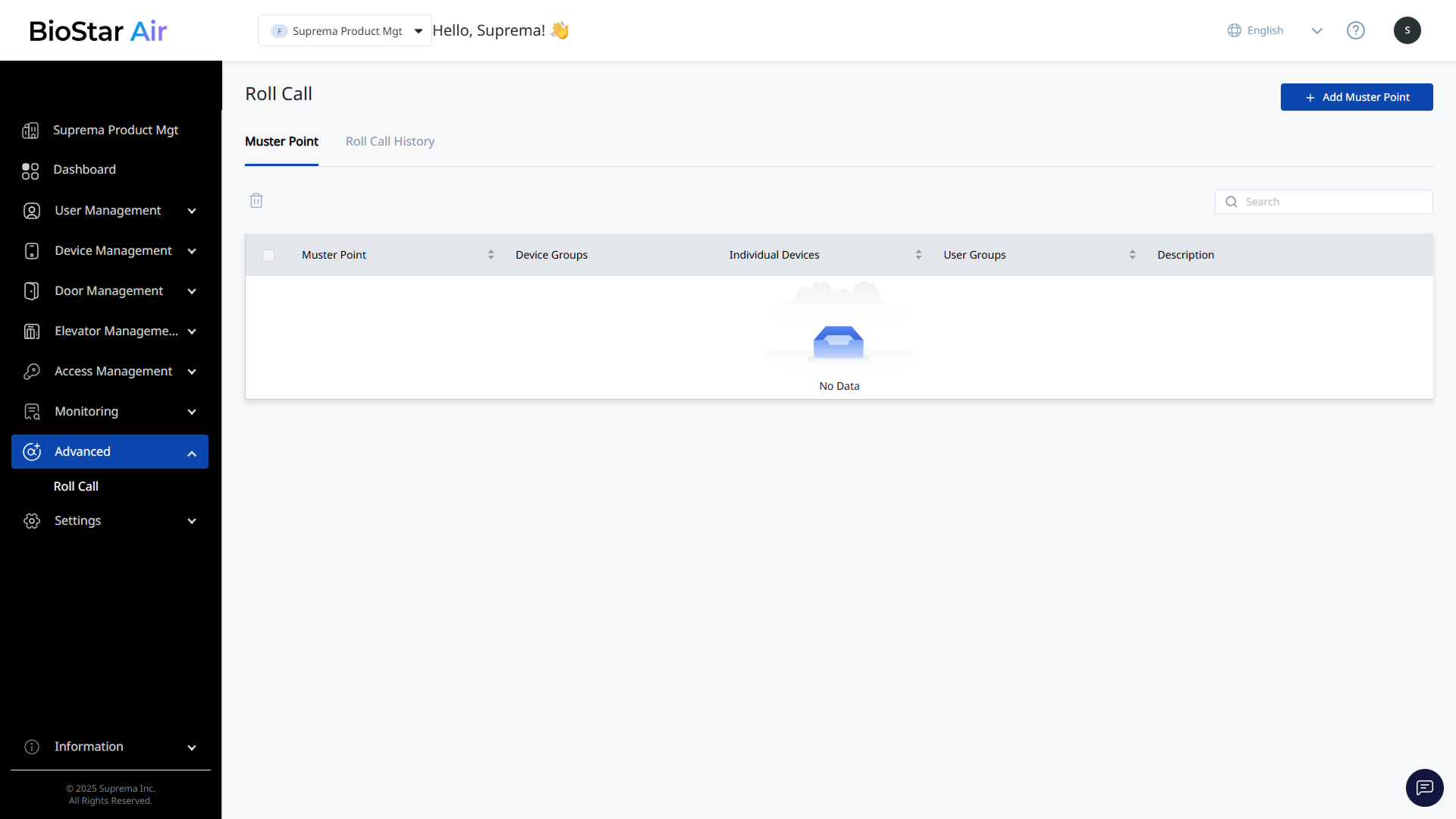
Click Safety → Roll Call on the left sidebar.
-
Click Add Muster Point at the top right of the screen.
-
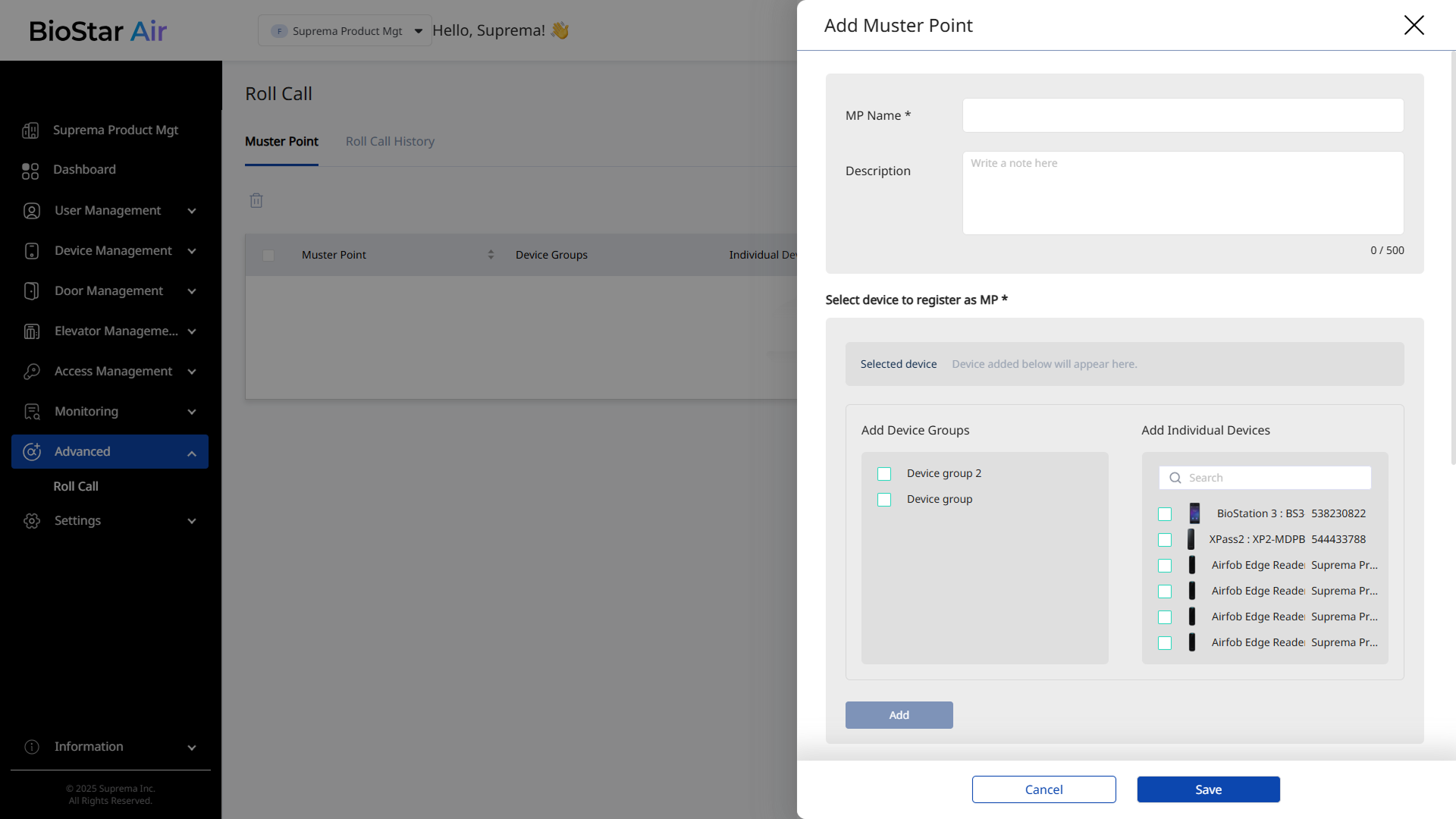
Enter the muster point name and description (optional) when the Add Muster Point panel appears.
-
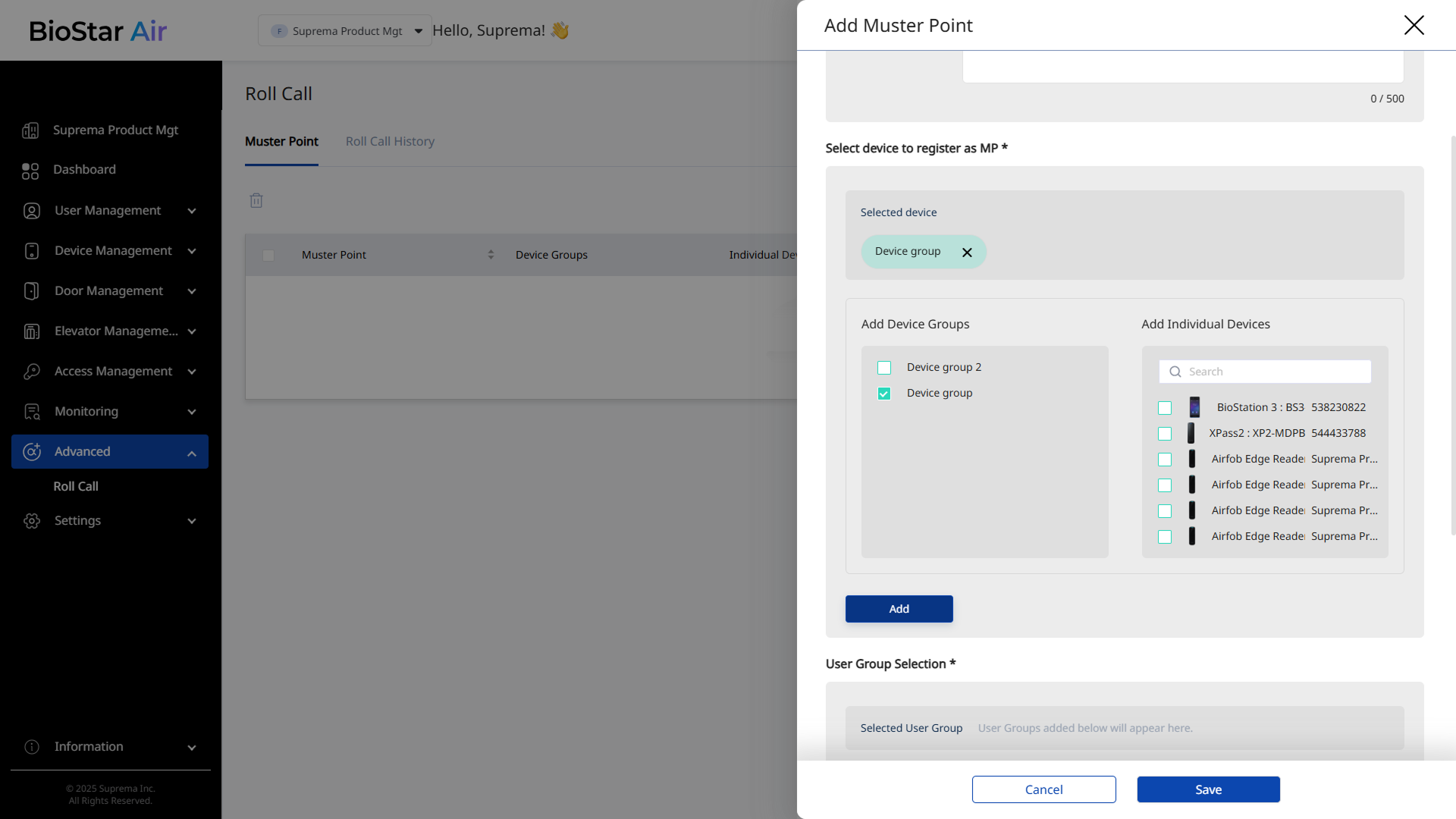
In the Select device to register as MP * section, add the device group or device to assign to the muster point. Select the checkbox for the device group or device, and click Add.
-
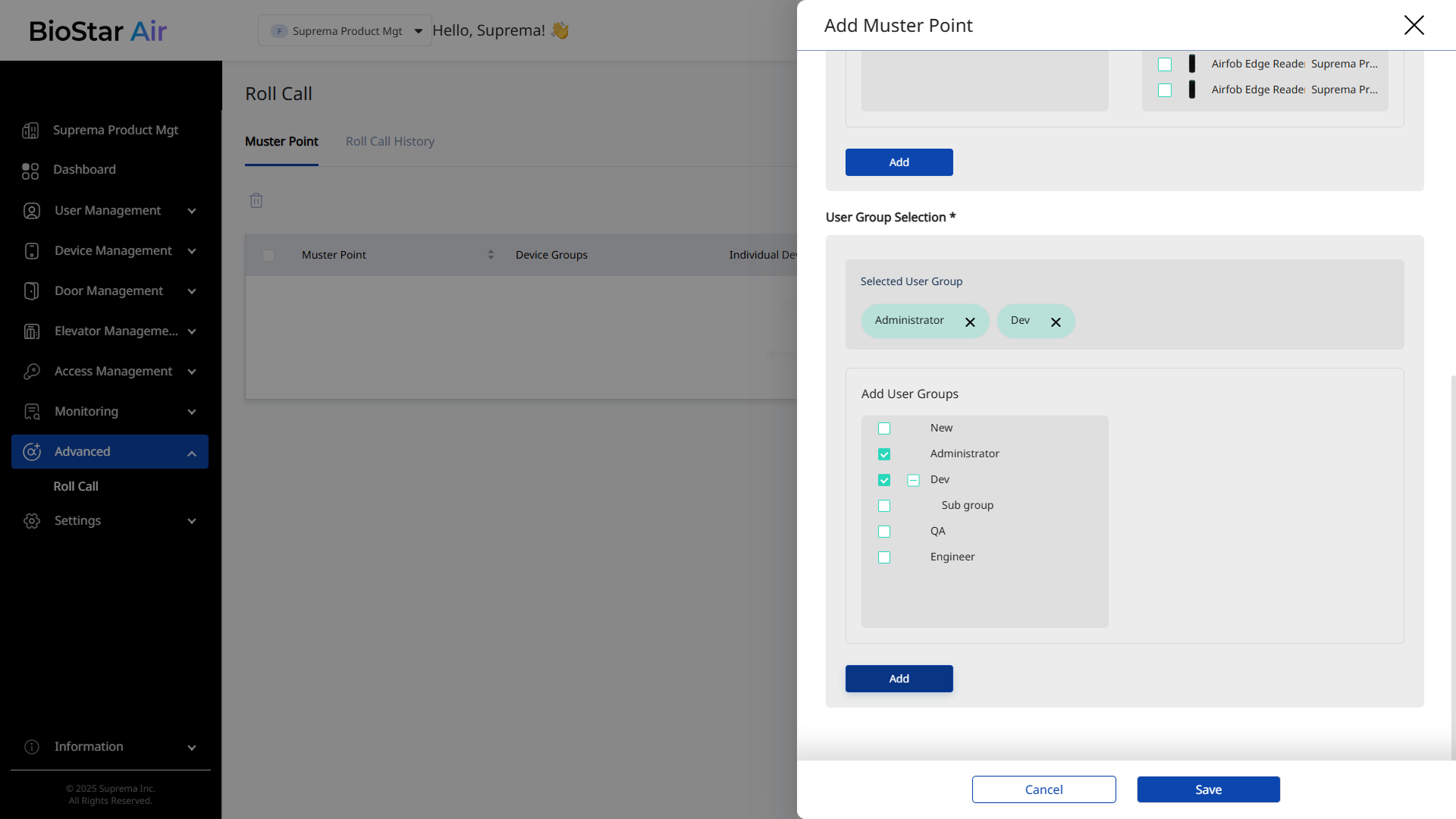
In the User Group Selection * section, select the user groups that must report when they arrive at the muster point.
-
Select the checkbox for the group, and click Add.
-
All Activated Users: Assigns all currently active users on BioStar Air site to a chosen muster point. Running a roll call does not assume all active users are on site. It targets only users with confirmed on site status based on presence detection. Enabling this option disables the ability to choose individual user groups. Disable this option first to select only certain user groups.
-
-
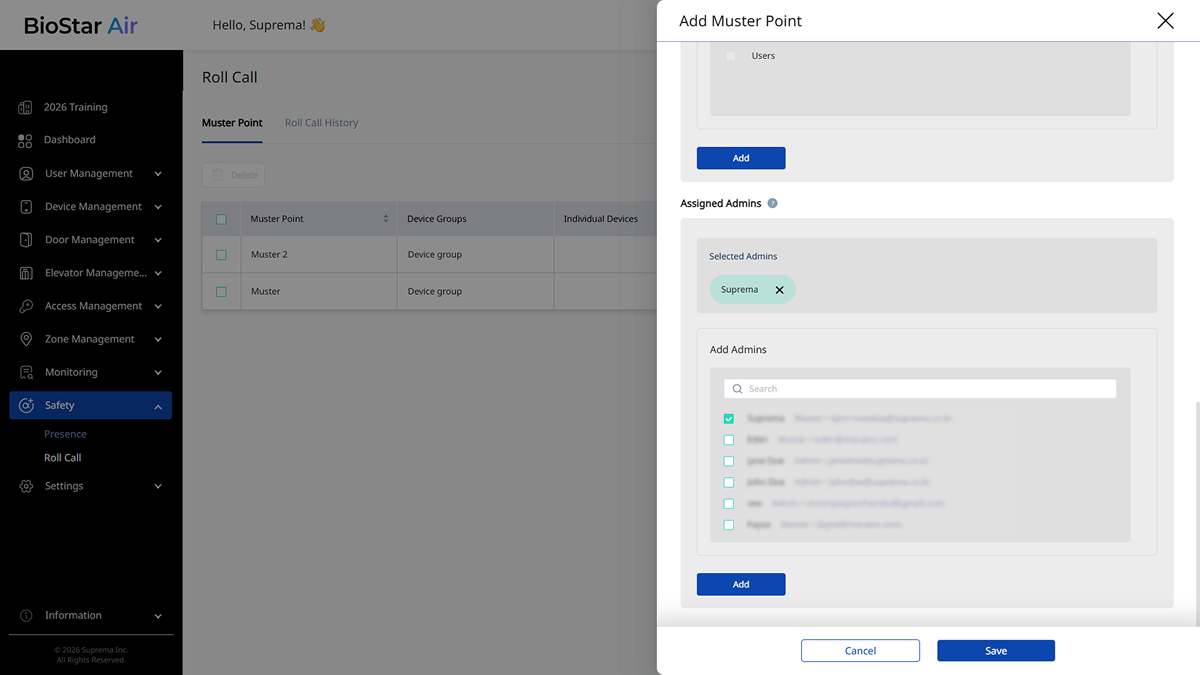
In the Assigned Admins section, select the checkbox for the administrator who will run Roll Call at the muster location, then click Add.
-
If you select Assigned Admins, only the selected administrators can start the Roll Call. During an ongoing Roll Call, they can view and manage only users in their assigned muster points.
-
If you do not assign Assigned Admins, users with the Master, Admin, or Operator role can start Roll Call.
-
An administrator cannot be assigned as the designated administrator for multiple muster points at the same time.
-
-
Click Save to save the muster point settings.
Best practices for muster points
-
Make the muster point name and description clear and easy to understand. For example, use names like 'East Parking Lot' or 'Main Building Lobby'.
-
When adding multiple devices to a muster point, select a device group instead of individual devices. Device groups let you manage multiple devices at once. For more information on device group management, refer to Manage Device and Panel Groups.
-
In a large campus with multiple buildings, assign only relevant users to a specific muster point.
-
Wired access control devices support both mobile and card authentication, whereas Airfob Tag and Airfob Patch support only mobile credentials.
Start roll call
Start on mobile
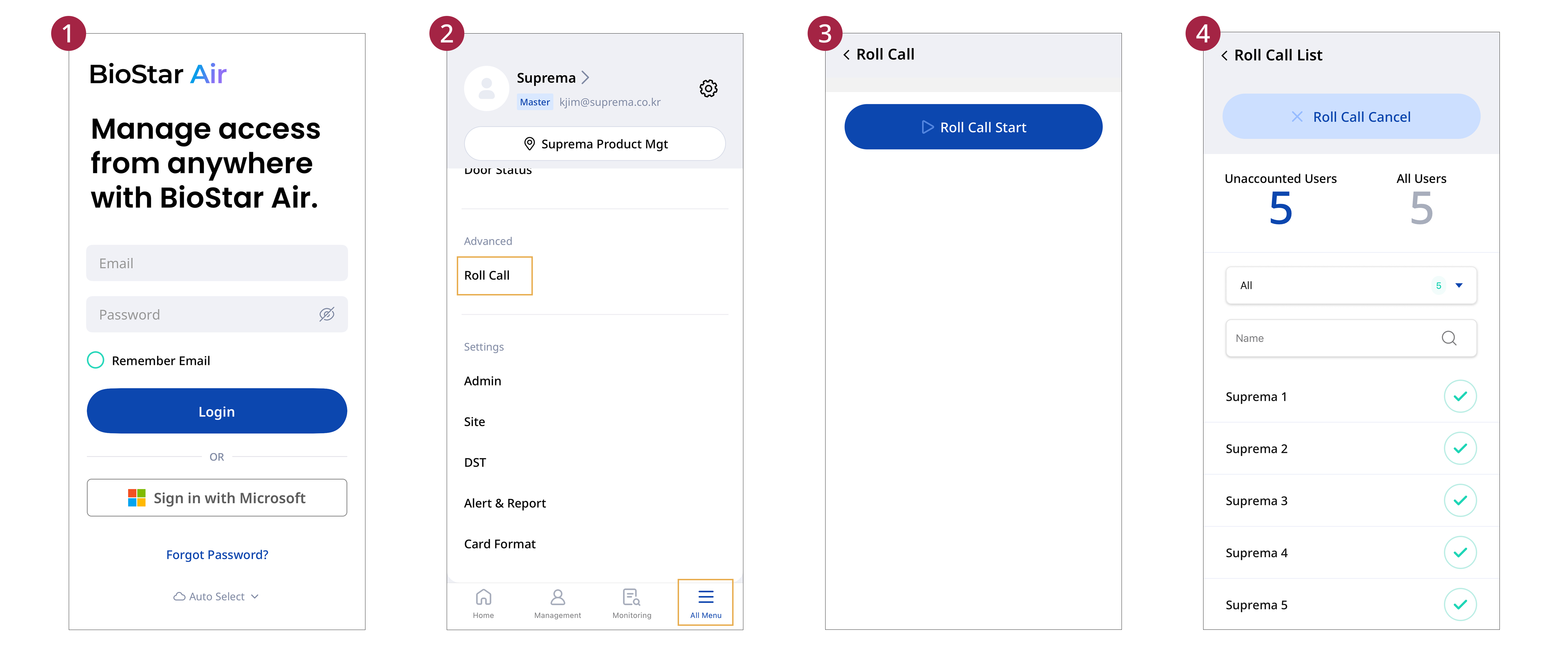
Start a roll call and check attendance in the BioStar Air mobile app.
-
Open the BioStar Air app on your mobile device and log in.
-
Tap All Menu → Roll Call at the bottom of the screen.
-
Tap Start Roll Call.
-
Select the muster point to start Roll Call, then tap Continue.
To run Roll Call in all muster points, select Site-wide, then tap Continue.
-
Select a muster point in the ongoing Roll Call list.
-
A list of all users who must gather at the muster location appears.
Differences by administrator role
-
Master, Admin, and Operator users can view the Roll Call list. This applies when they are not assigned as Assigned Admins for the muster point. They start new Roll Calls in the order listed above.
-
Assigned Admins receives a notification when Roll Call starts in the assigned muster point. Tap the notification to go directly to the progress screen for the assigned muster point.
Explore the active Roll Call screen
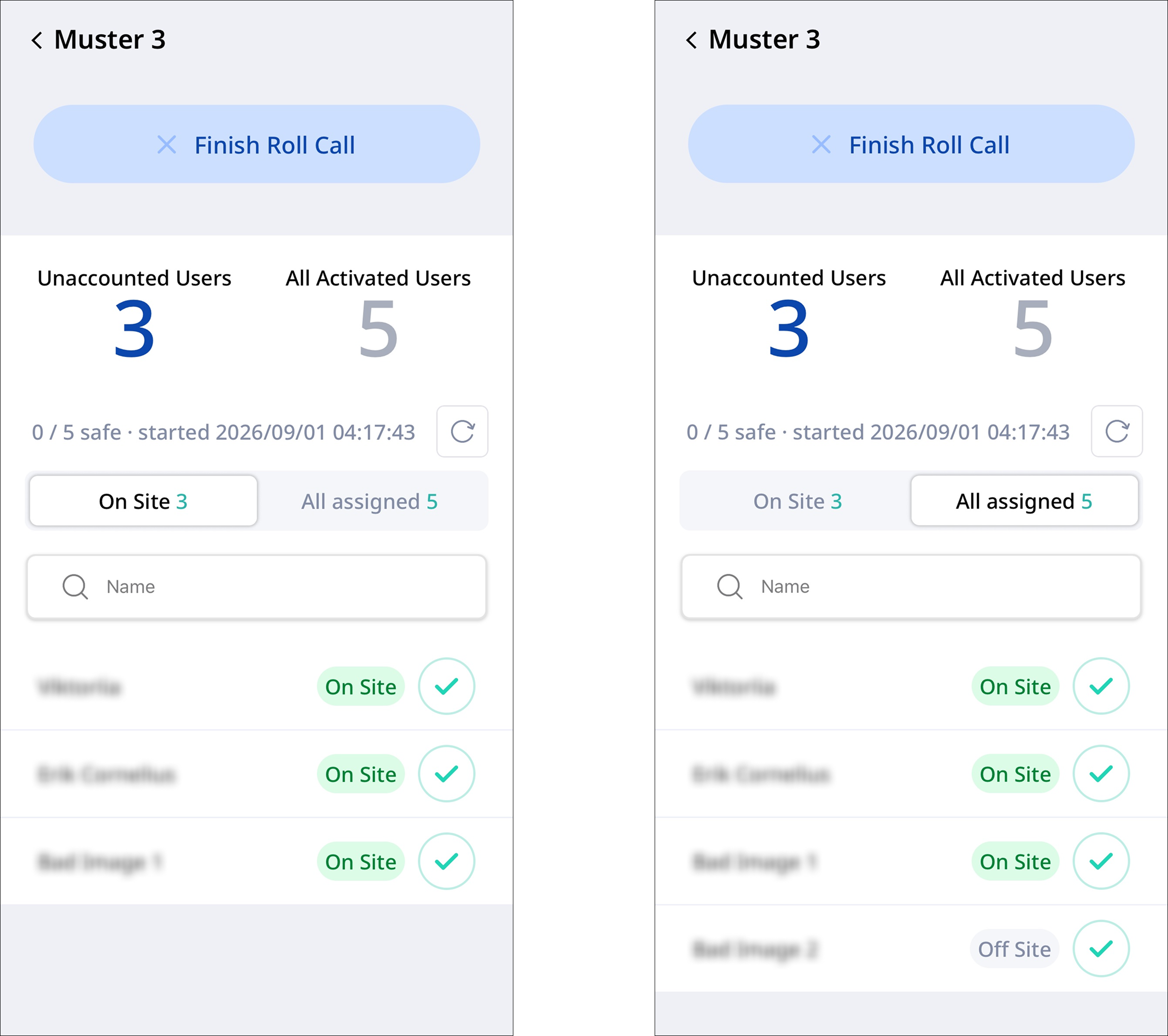
When Roll Call starts, the progress status appears with the muster point name.
-
At the top of the screen, check the number of Unaccounted Users and All Activated Users.
Below the headcount, people marked Safe/total people and the Roll Call start time appear. Tap the refresh () button to check the latest status.
-
Switch the user range shown in the list.
-
On Site: Shows only users whose Presence status is On Site.
-
All assigned: Shows all users assigned to this muster point, regardless of Presence status. Users marked Safe move to the bottom of the list.
-
-
Use search to find a certain user.
-
On the right of each user in the list, check Presence status (On Site / Off Site).
Mark users safe
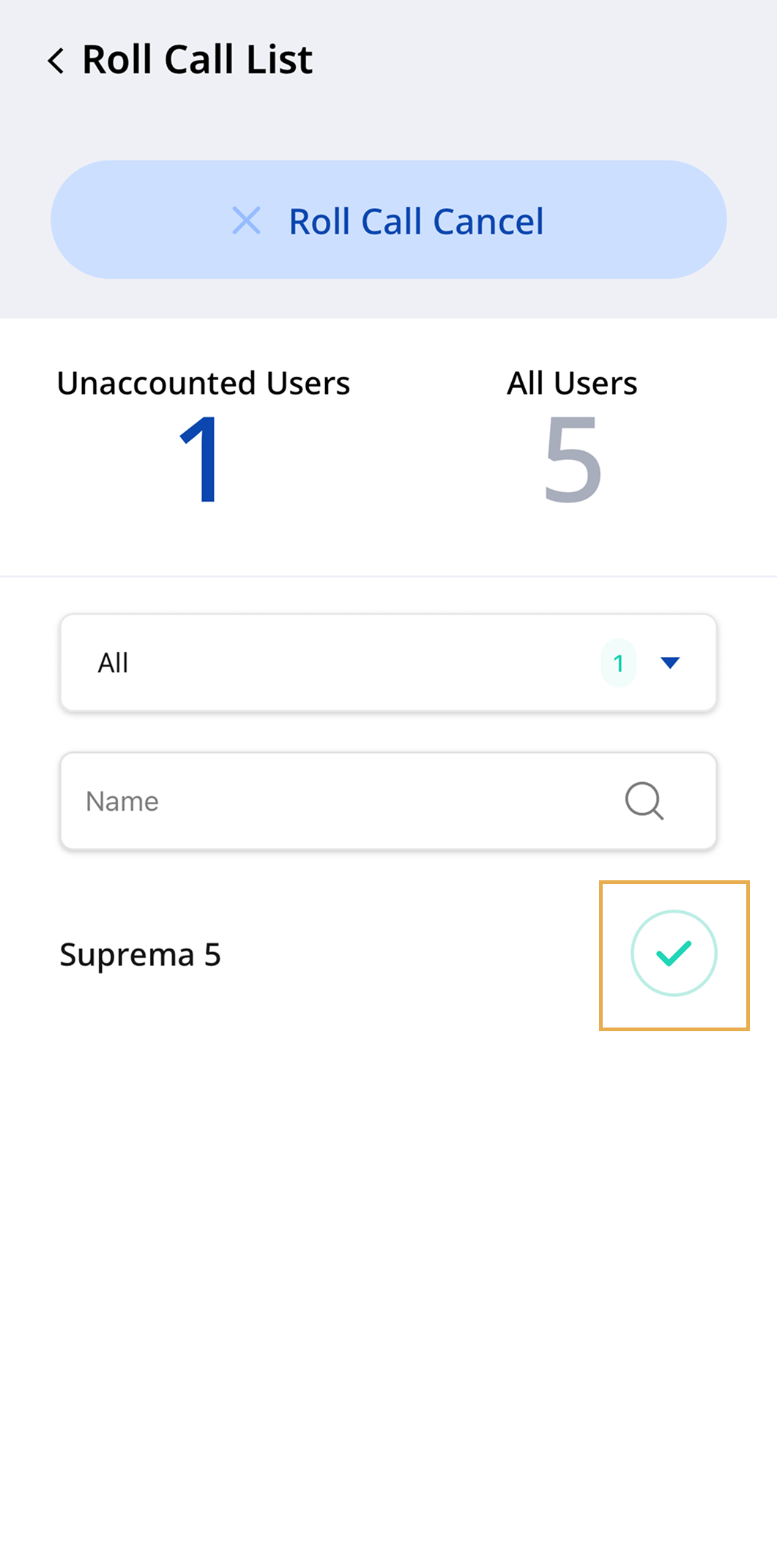
Administrators or users can mark themselves safe in the following ways.
-
An administrator can touch and hold the check mark next to a user’s name in the mobile app to mark the user safe.
-
Users tag their credential on a device at the assigned muster point.
Complete roll call
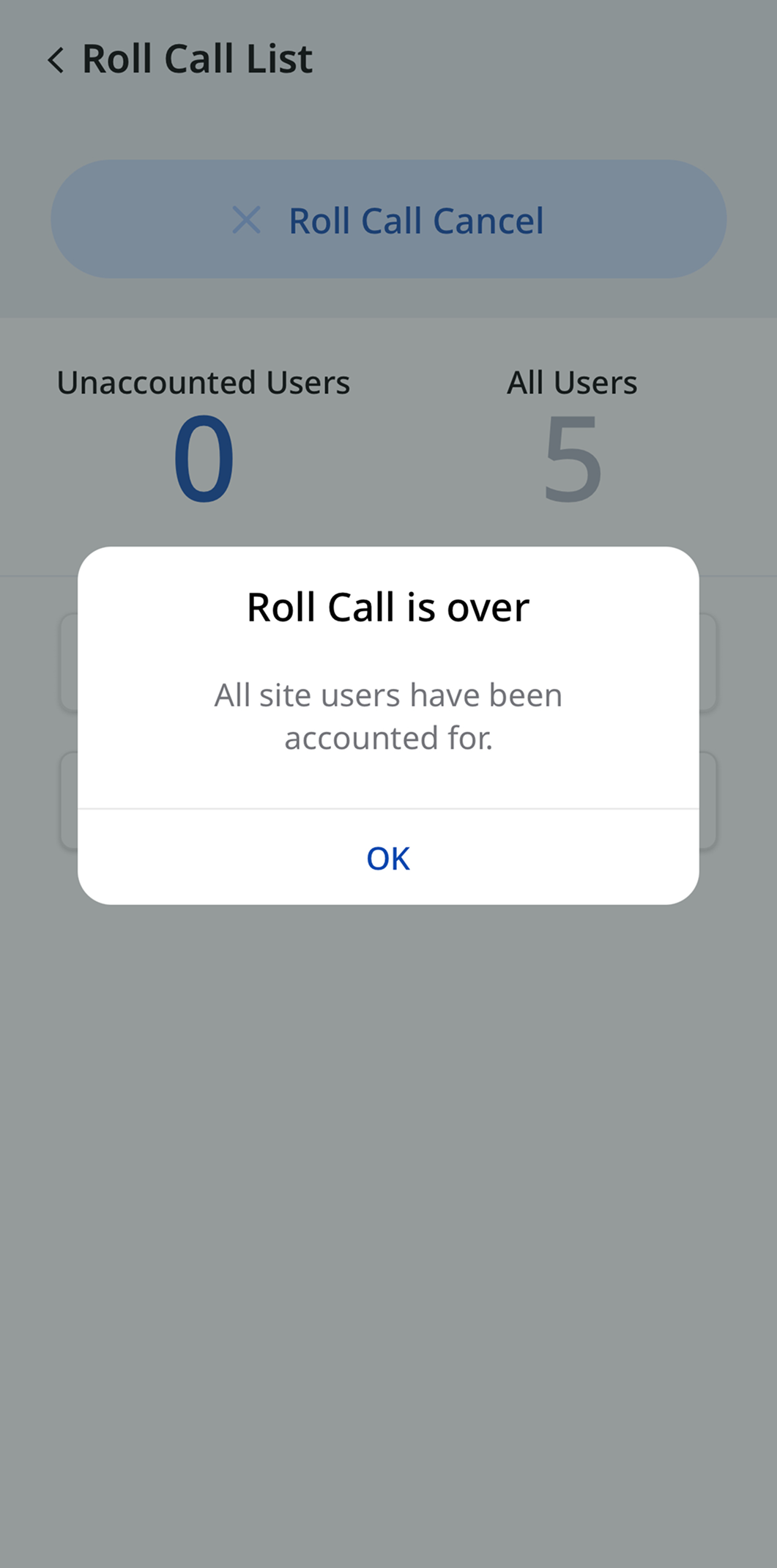
Complete the roll call when any of the following conditions are met.
-
When the completion message window appears because the number of On Site users—that is, Unaccounted Users—included in the Roll Call scope becomes 0, tap the Yes button
-
When the administrator manually marks all users as safe and taps the Finish Roll Call button
-
24 hours have passed
End scope by role
-
The site master can end Roll Calls individually one by one, select multiple calls to end at once, or end all ongoing Roll Calls at the site at once.
-
Admin or Operator selected in Assigned Admins can end only Roll Calls for the zones they manage.
Manually mark users in the Off Site status as safe. For example, mark users working from home that day as safe in advance.
View roll call history
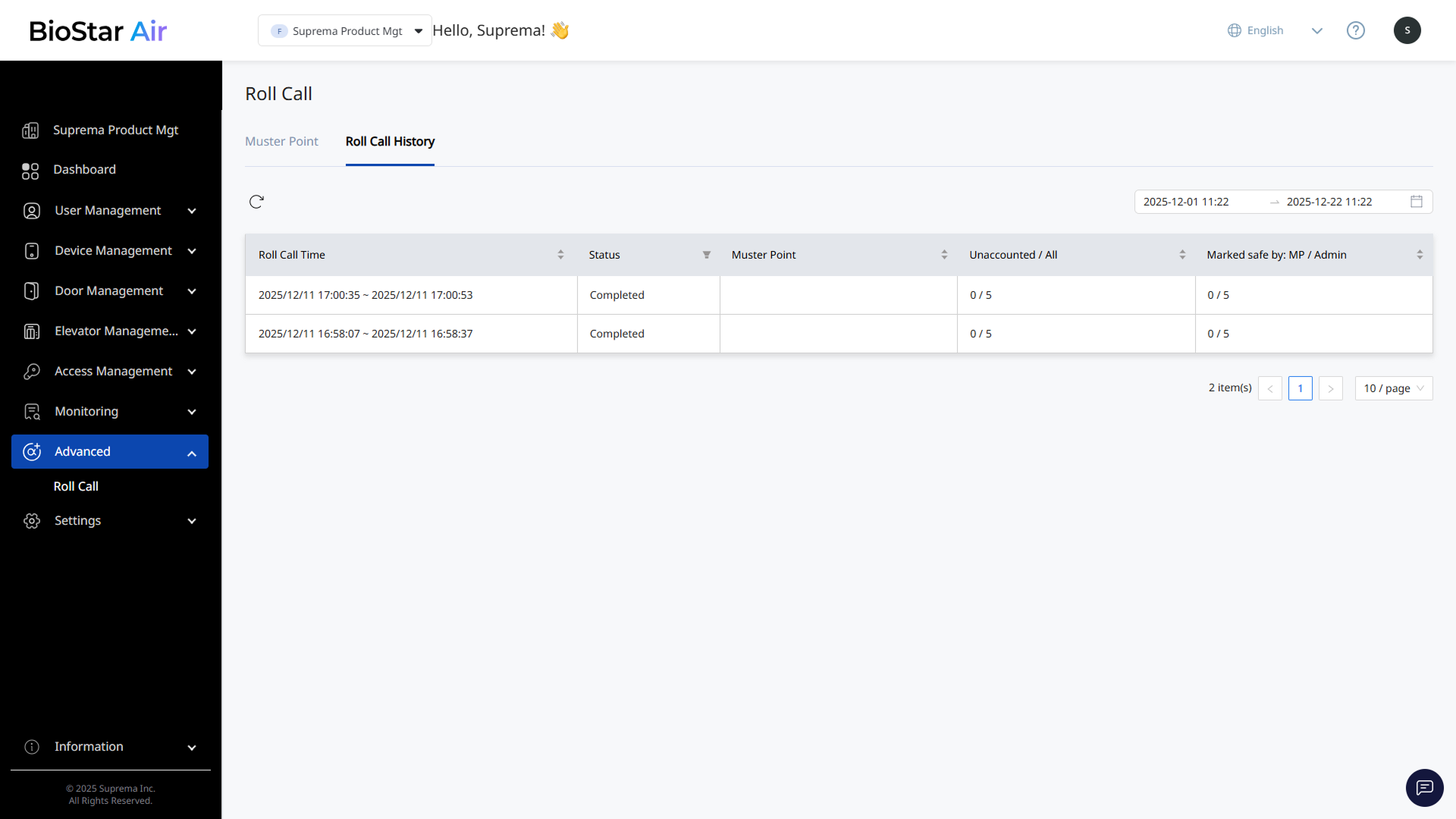
View the history of previous roll calls.
-
Click Safety → Roll Call on the left sidebar.
-
Click the Roll Call History tab.
-
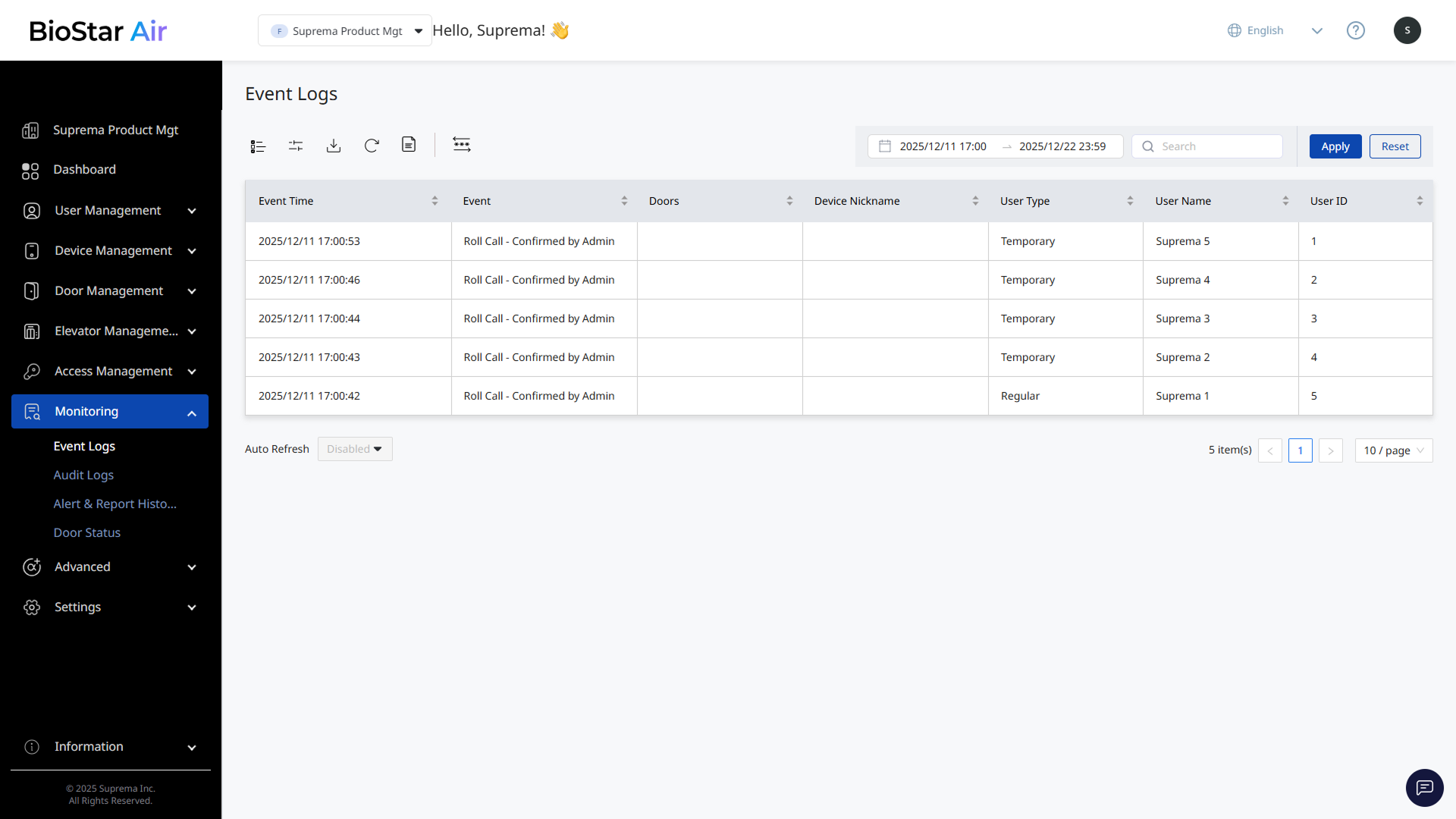
Click a completed roll call entry to view its details.
-
View the list of all access events recorded during the roll call.
-
Check whether each user was marked safe or unconfirmed.
-
Check the start and end times of the roll call.