Manage Technician Accounts
A technician is a professional granted access to a customer site. To manage technician accounts, invite technicians in the Partner Portal, assign them to sites, and set their permission levels.
In the BioStar Air portal, modify an invited technician's access permissions or lock/unlock their site access. You can also delete a technician account entirely to remove their site access.
-
For more information on inviting technicians in the Partner Portal and assigning them to sites, see Manage Partner Technicians.
-
Activities of invited technicians are recorded per account and can be viewed at Monitoring → Event Logs / Audit Logs.
Before you start
Before managing technician accounts, ensure that technician accounts are allowed to access the site in the site security settings. If technician accounts are not allowed to access the site in the site security settings, you won't be able to manage them.
-
Click Settings → Site in the left sidebar.
-
Click the Security tab.
-
Enable the Technician Access option.
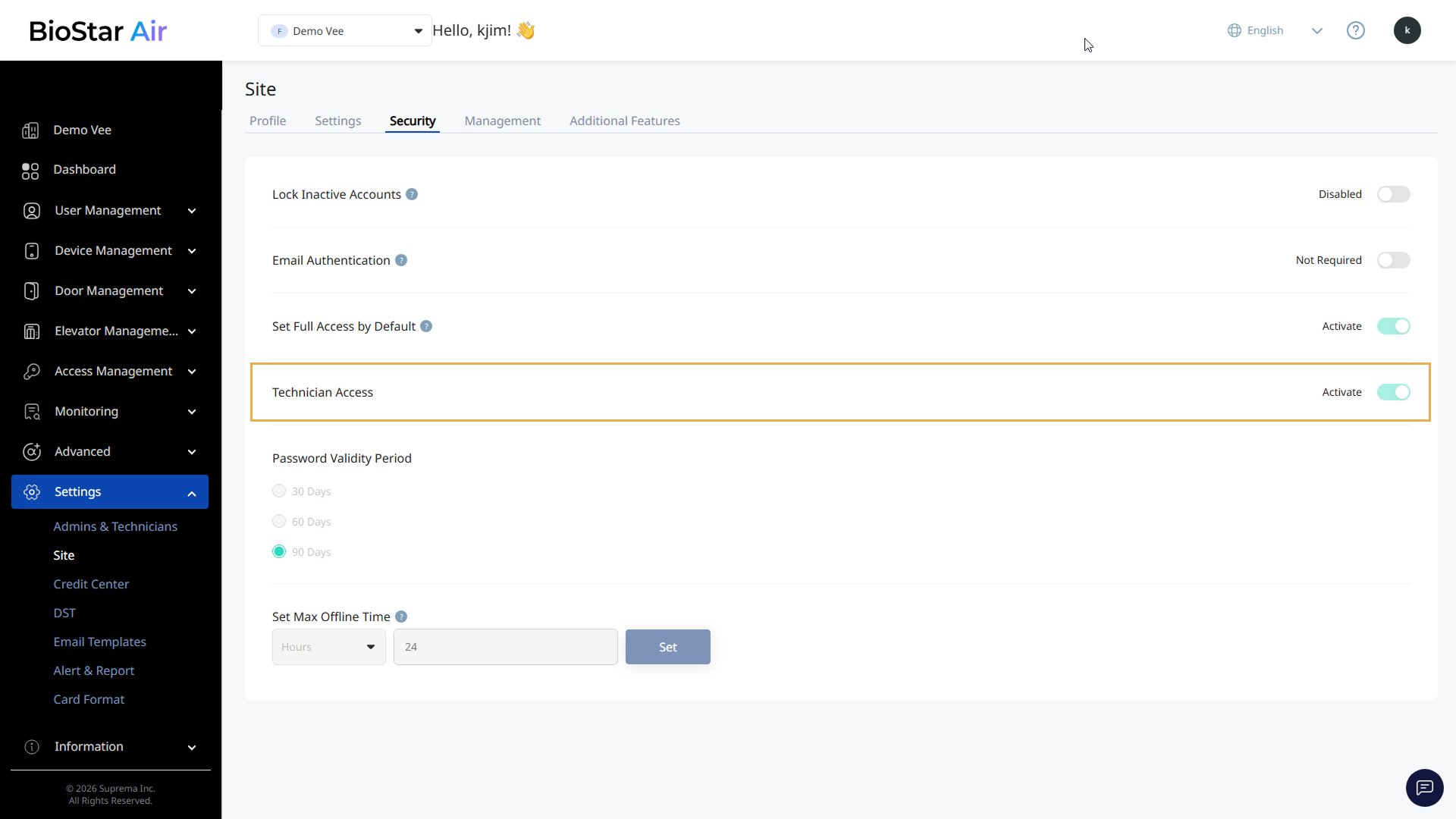
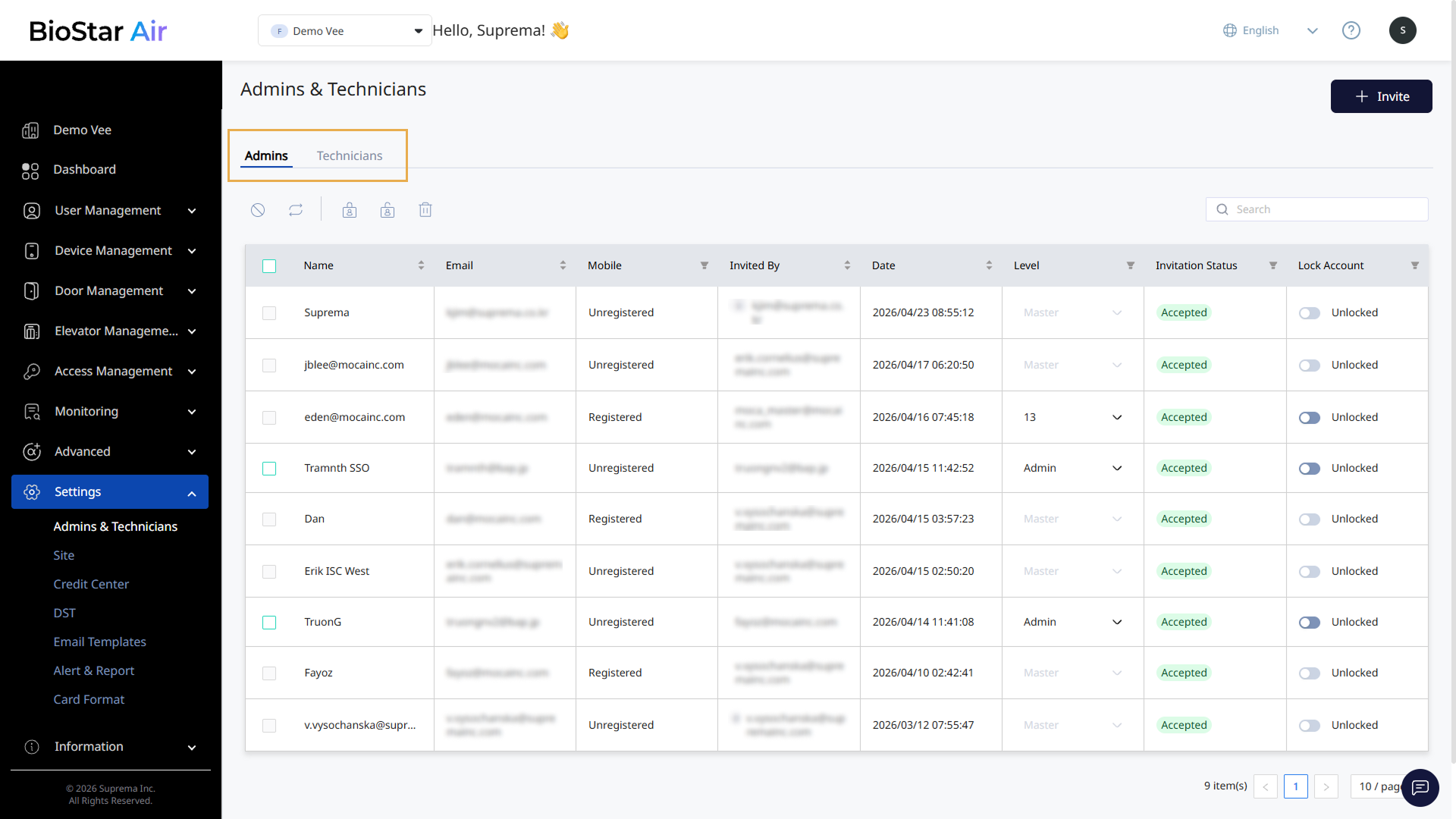
Enabling the Technician Access option changes the Settings → Admin menu to the Admins & Technicians menu. The Admin and Technicians tabs let you manage admin and technician accounts separately.
Change technician permissions
Follow the instructions below to change access permissions for technicians invited to the site.
-
Click Settings → Admins & Technicians in the left sidebar.
-
Click the Technicians tab.
-
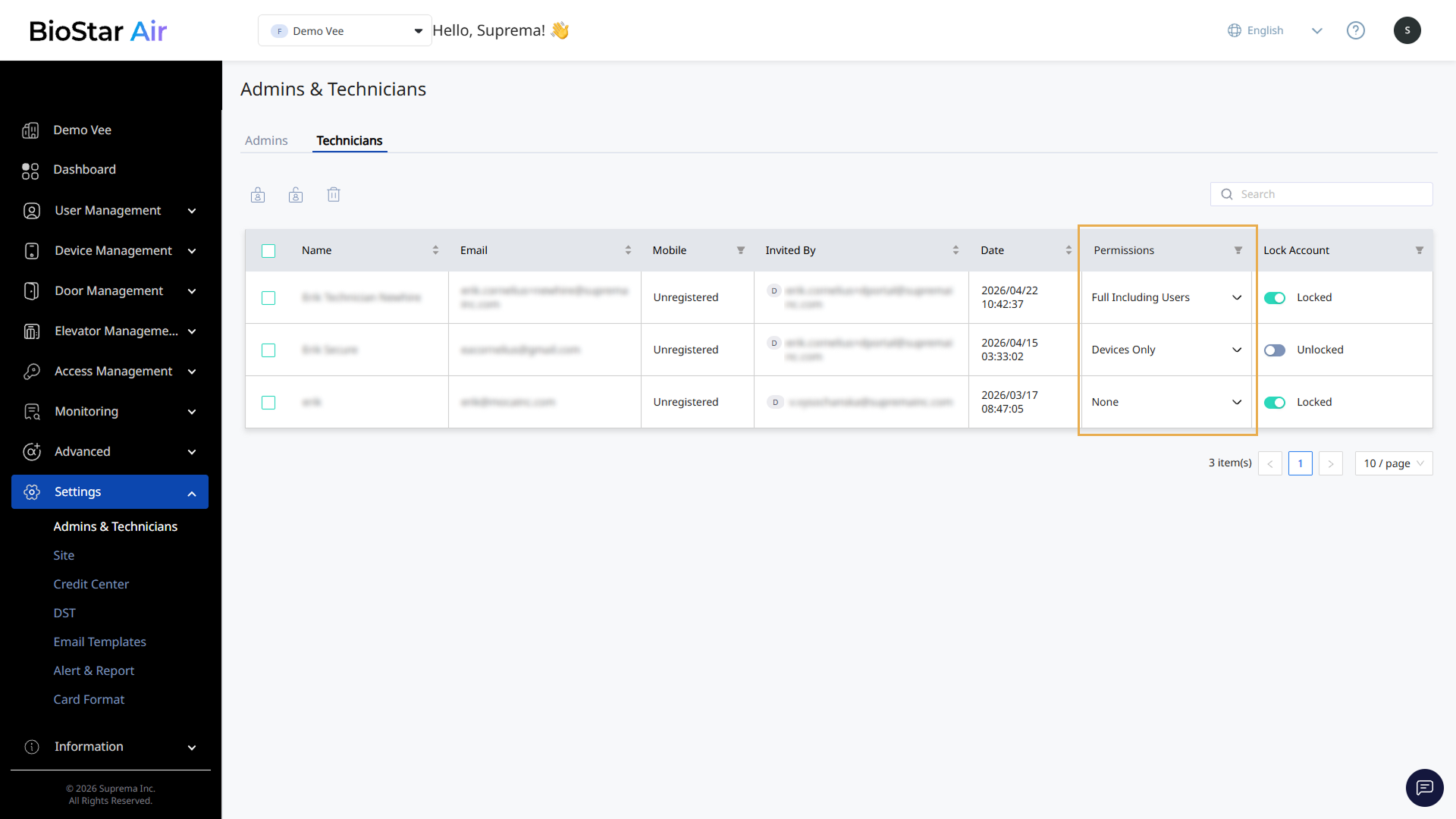
In the technician list, click the Permissions column for the technician whose access permissions you want to change.
-
Select the desired permission level from the access dropdown.

-
None: Cannot log in to the site.
-
Devices Only: Provides access only to the Dashboard and Device Management menus.
-
Full Excluding Users: Provides access to all menus except User Management, but access to certain setting features is restricted.
-
Full Including Users: Provides access to all menus including User Management, but access to certain setting features is restricted.
-
-
Click Yes when the confirmation message window appears.
The technician's access permissions are updated, and a success message appears at the top of the screen.
Full Excluding Users and Full Including Users have view permission but not edit permission for the following menu paths.
-
Settings → Admins & Technicians
-
Settings → Site
Lock or unlock technician accounts
If a technician's support is no longer needed, or if site access must be restricted for security reasons, you can lock the technician's account to prevent them from accessing the site. If you need the technician's support again, you can unlock the account to allow them to access the site.
If you lock an invited technician's account, they won't be able to sign in to the site.
Lock or unlock an individual technician account
-
Click Settings → Admins & Technicians in the left sidebar.
-
Click the Technicians tab.
-
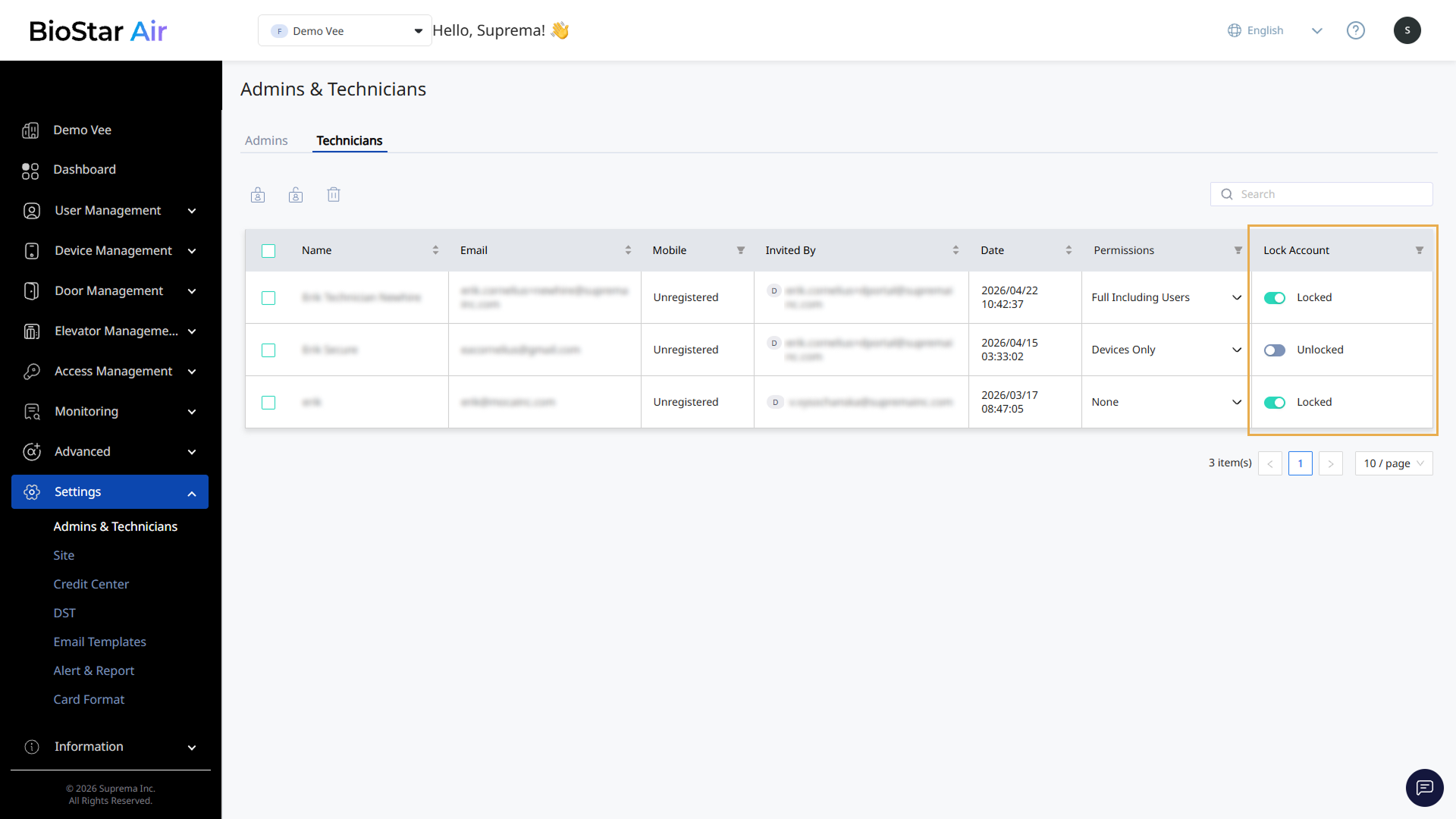
In the technician list, click the toggle in the Lock Account column for the technician whose account you want to lock or unlock.
-
When a popup appears, review the message and click Yes.
Lock or unlock multiple technician accounts
-
Click Settings → Admins & Technicians in the left sidebar.
-
Click the Technicians tab.
-
In the technician list, click the checkboxes next to the technicians whose accounts you want to lock or unlock. You can select 1 or more technicians.
-
Click or at the top of the technician list.
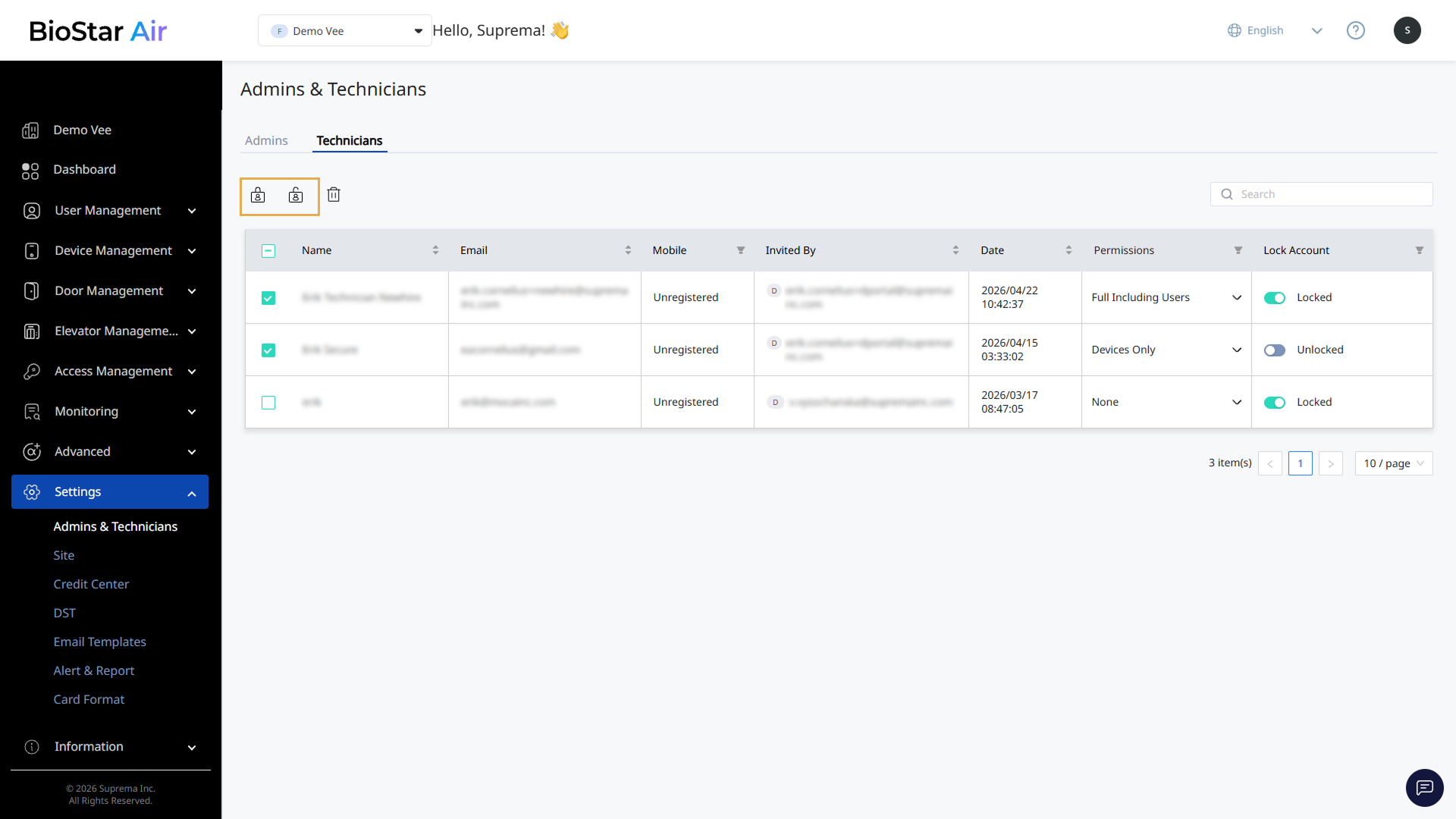
-
When a popup appears, review the message and click Yes.
The selected technicians' accounts are locked or unlocked, and a success message appears at the top of the screen.
If selected technicians have mixed lock statuses, a bulk action locks all accounts or unlocks all accounts.
Delete technician accounts
Deleting an invited technician's account completely removes their access to the site.
-
Click Settings → Admins & Technicians in the left sidebar.
-
Click the Technicians tab.
-
In the technician list, click the checkbox next to the technician whose account you want to delete. You can select 1 or more technicians.
-
Click at the top of the technician list.
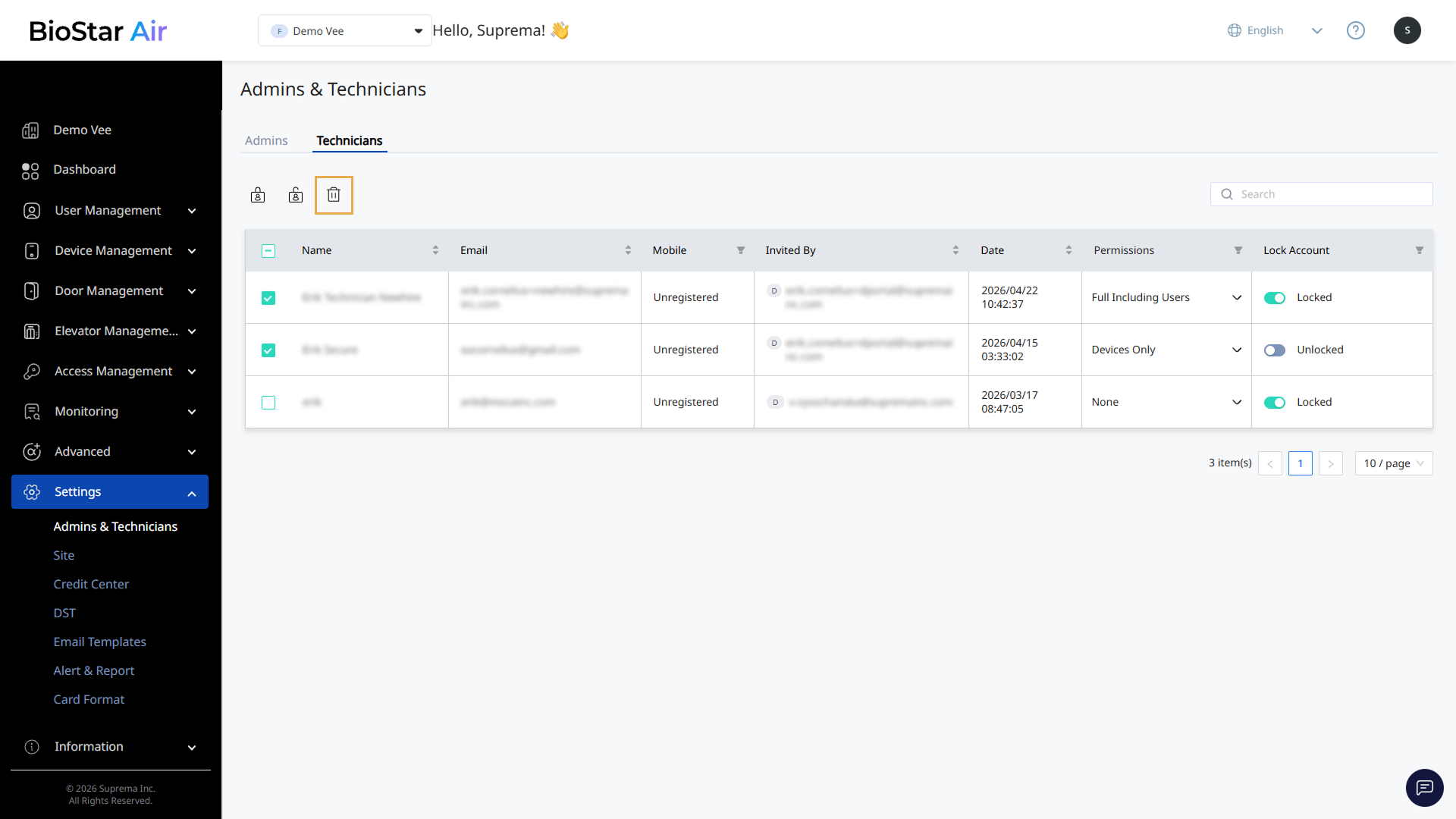
-
When a popup appears, review the message and click Yes.
After the selected technicians' accounts are deleted, a success message appears at the top of the screen, and those technicians no longer appear in the technician list.
A deleted technician account cannot be recovered. Technicians who have been removed from a site can be reassigned to that site through the Partner Portal. For more information on assigning a technician to a site in the Partner Portal, see Assign Technicians to a Site.