Monitor Door Status
Monitor the status of doors connected to BioStar Air in real time. Check whether a door is locked or unlocked and the status of its relay sensor, and lock or unlock it remotely to control access.
Refer to the following video to watch the video guide on monitoring door status.
Door status monitoring
- Web
- Mobile
Web
Monitor door status in the BioStar Air web portal. Click Monitoring → Door Status in the left sidebar. View the list of doors registered to BioStar Air.
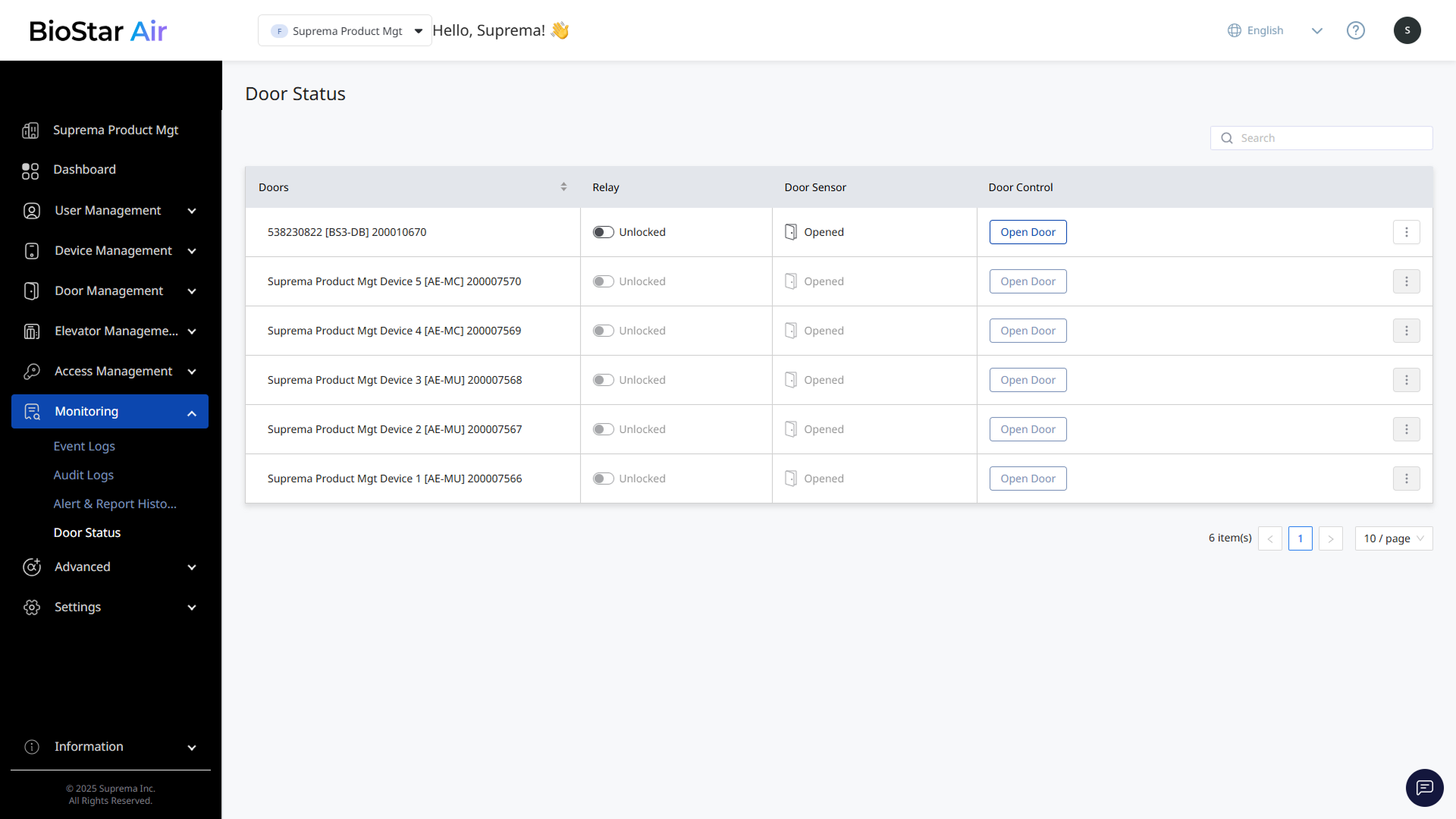
Check the following items for each door.
-
Relay: Indicates whether the door is locked or unlocked.
-
Door Sensor: Indicates whether the door is physically open or closed.
Mobile
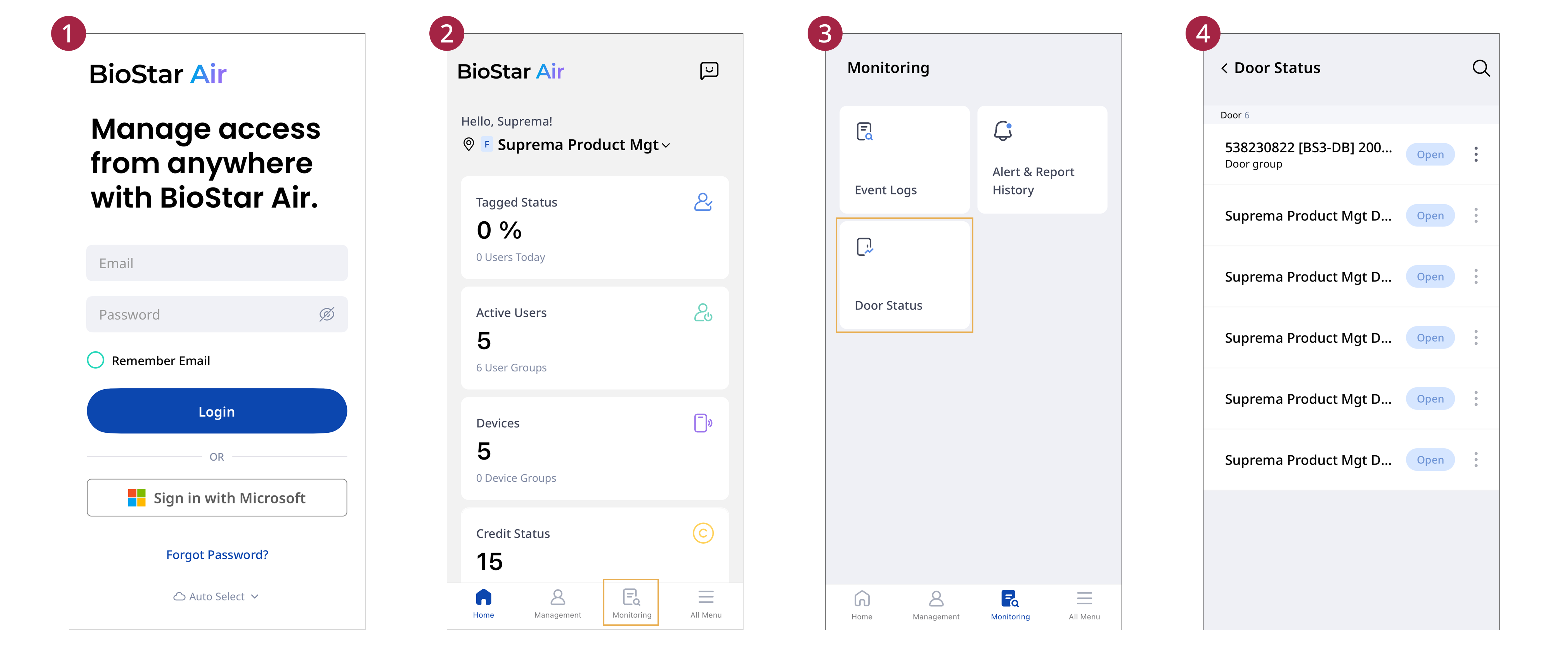
Monitor door status using the BioStar Air app on a mobile device.
-
Open the BioStar Air app on your mobile device and log in.
-
Tap Monitoring at the bottom of the home screen.
-
Tap the Door Status card.
-
View the list of doors registered to BioStar Air.
For more information on door registration and management, refer to Manage Registered Doors.
Unlock a door
Unlock the door remotely when it is online and connected to BioStar Air.
- Web
- Mobile
Web
-
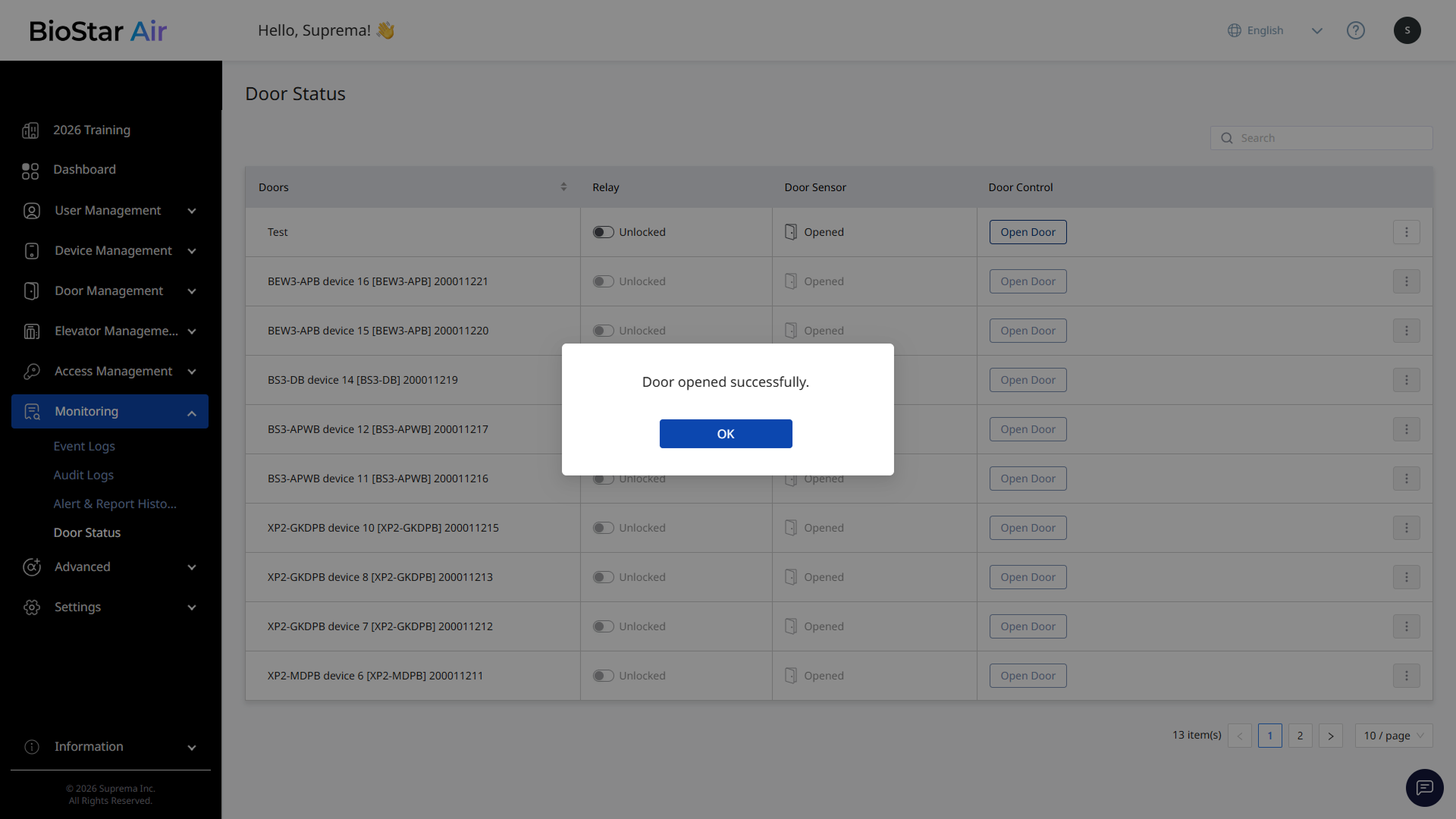
In the Door Control column, click Open Door.
-
The status in the Relay column changes to unlocked, and a success message appears.
-
After the configured time elapses, the door returns to locked.
Mobile
-
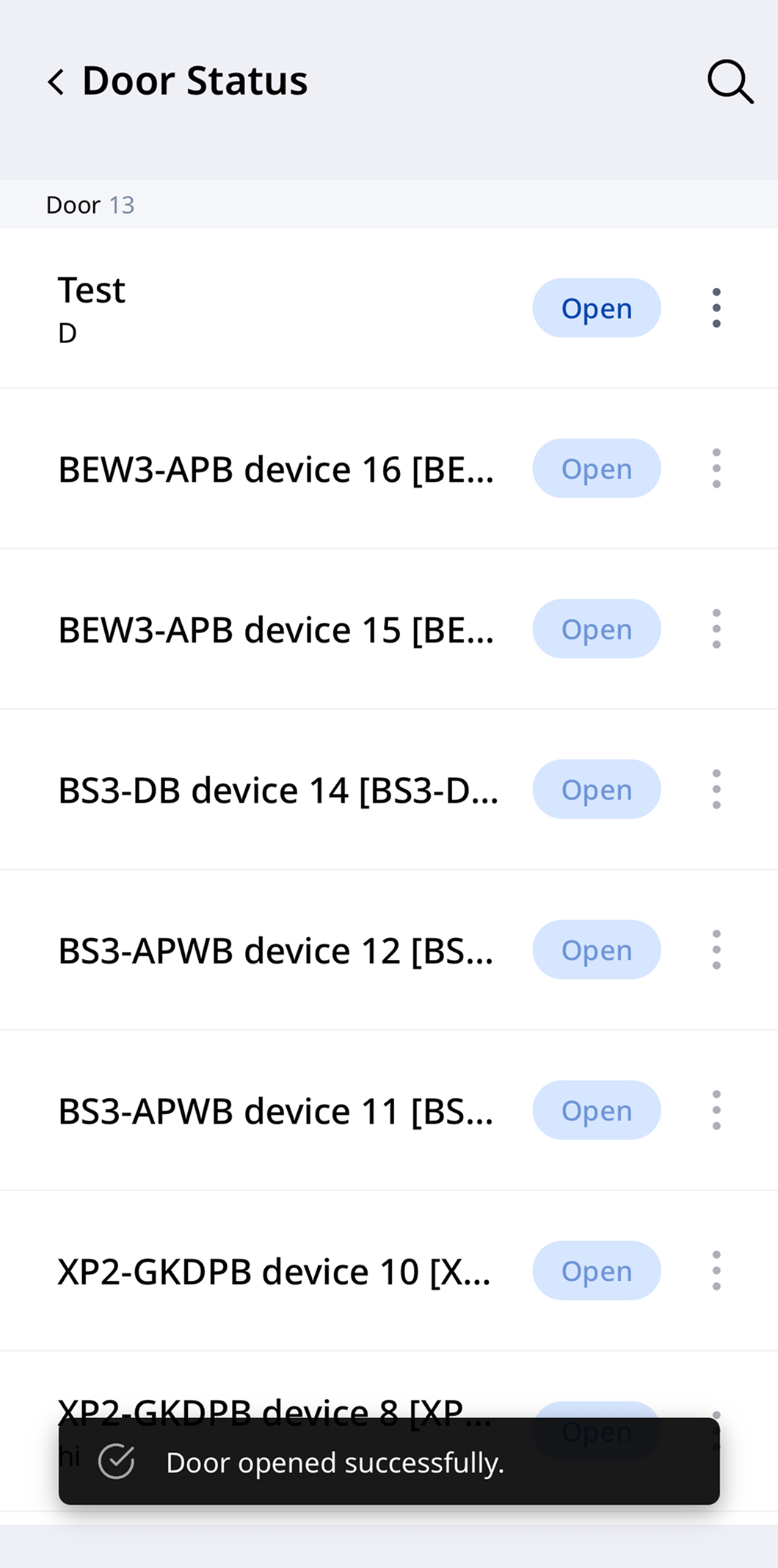
Tap Open Door to remotely unlock the door.
-
A success message will appear at the bottom of the screen.
-
After the configured time elapses, the door returns to locked.
For information on setting the duration that the door remains open, refer to Manage Registered Doors.
Set always-open mode
Keep a door unlocked indefinitely. Use this when temporary or visitor access is needed.
- Web
- Mobile
Web
-
In the door list, click at the far right of the door to keep open.

-
Click Unlock Mode in the popup menu.
-
The status in the Door Control column changes to Remain Unlocked.

Click → Release to return to normal operation.
Mobile
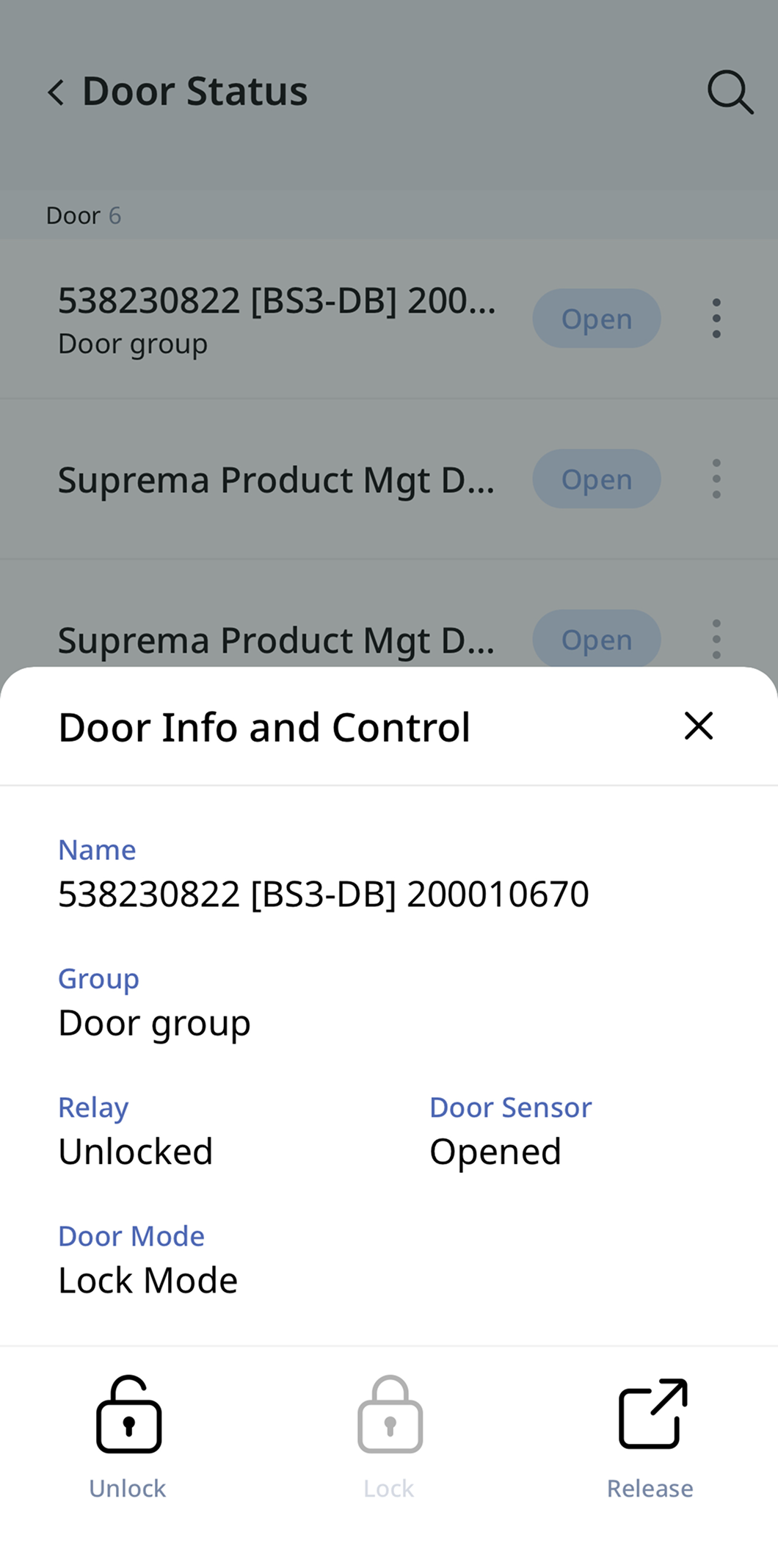
-
Tap at the far right of the door.
-
When the Door Info and Control option appear, tap Unlock.
-
A success message will appear at the bottom of the screen.
Tap → Release to return to normal operation.
Set lock mode
Keep a door locked regardless of the current schedule. Use this when enhanced security is required.
- Web
- Mobile
Web
-
In the door list, click at the far right of the door to keep locked.
-
Click Lock Mode in the pop-up menu.
-
The status in the Door Control column changes to Remain Locked.

Click → Release to return to normal operation.
Mobile
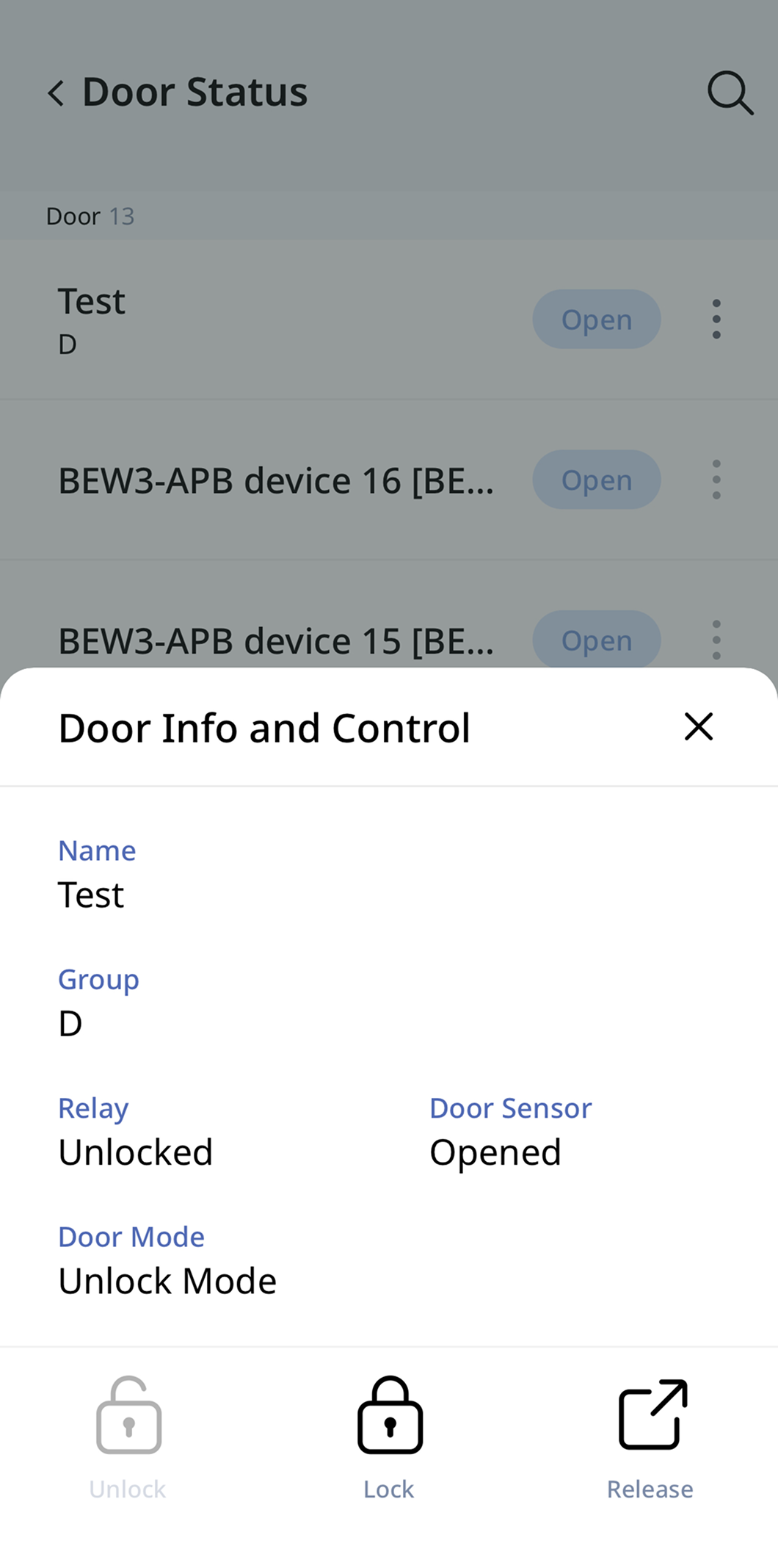
-
Tap at the far right of the door.
-
When the Door Info and Control option appear, tap Lock Mode.
-
A success message will appear at the bottom of the screen.
Tap → Release to return to normal operation.