Invite Partner Administrators
Guide on inviting partner administrator accounts, assigning roles, and managing permissions in the Partner Portal. Partner administrators control access to customer sites to enhance security and operational efficiency.
Partner administrators are assigned one of 4 roles — Observer, Operator, Administrator, or Master — each with different access permissions. This document compares the permissions of each role and provides step-by-step guidance from inviting administrator accounts to managing permissions, locking/unlocking accounts, and deleting accounts.
Understand administrator roles and permissions
Administrators in the Partner Portal can be assigned one of the following 4 roles.
-
Observer: Can view site information but cannot make changes.
-
Operator: Can set up new sites and allocate credits but cannot modify administrator permissions or invite new administrators.
-
Admin: Can invite and manage other administrators but cannot remove master level users.
-
Master: Has full control of the portal, including user management, site creation, and credit allocation. Only master level users can activate the Partner Portal account initially.
Set up and activate a master account before users with other permission levels can access the portal.
Invite Administrators
Follow the steps below to invite administrators.
-
Log in to the Partner Portal with an account assigned the Admin role or higher.
-
Click Admin & Technicians in the left sidebar.
-
Click Invite at the top right of the screen.
-
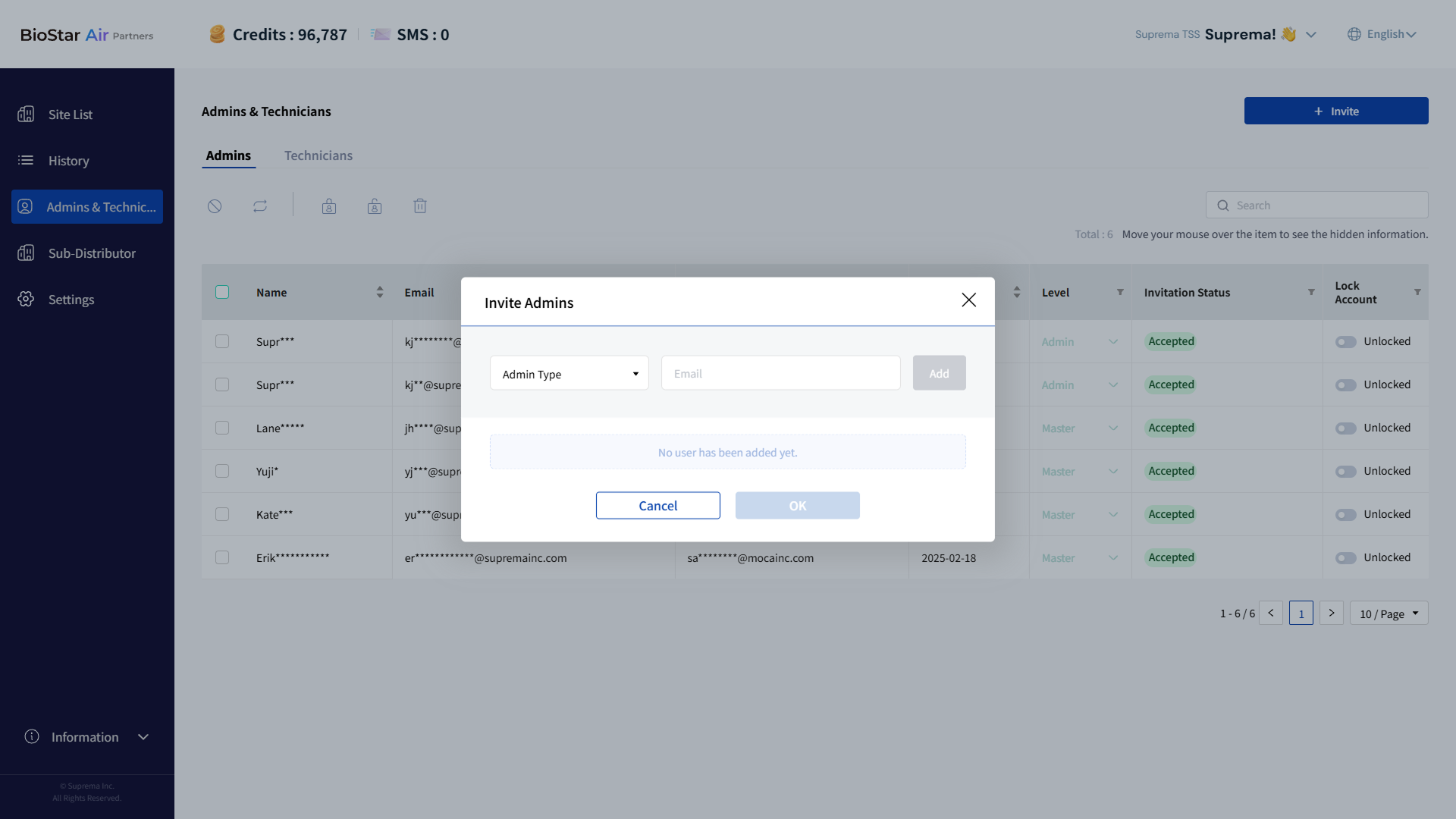
When the Invite Admins window appears, select the administrator role to invite from the Admin Type field.
-
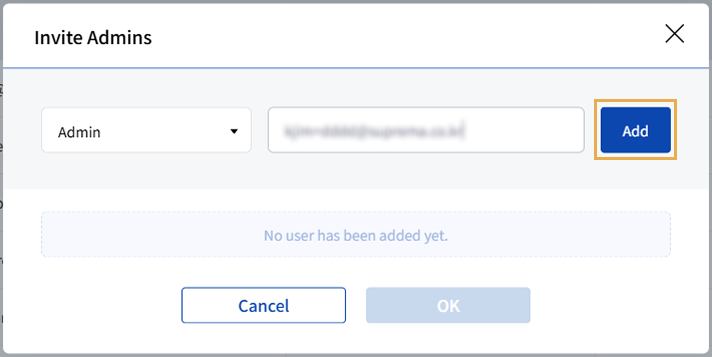
Enter the email address of the administrator to invite.
-
Click Add when it becomes active.
-
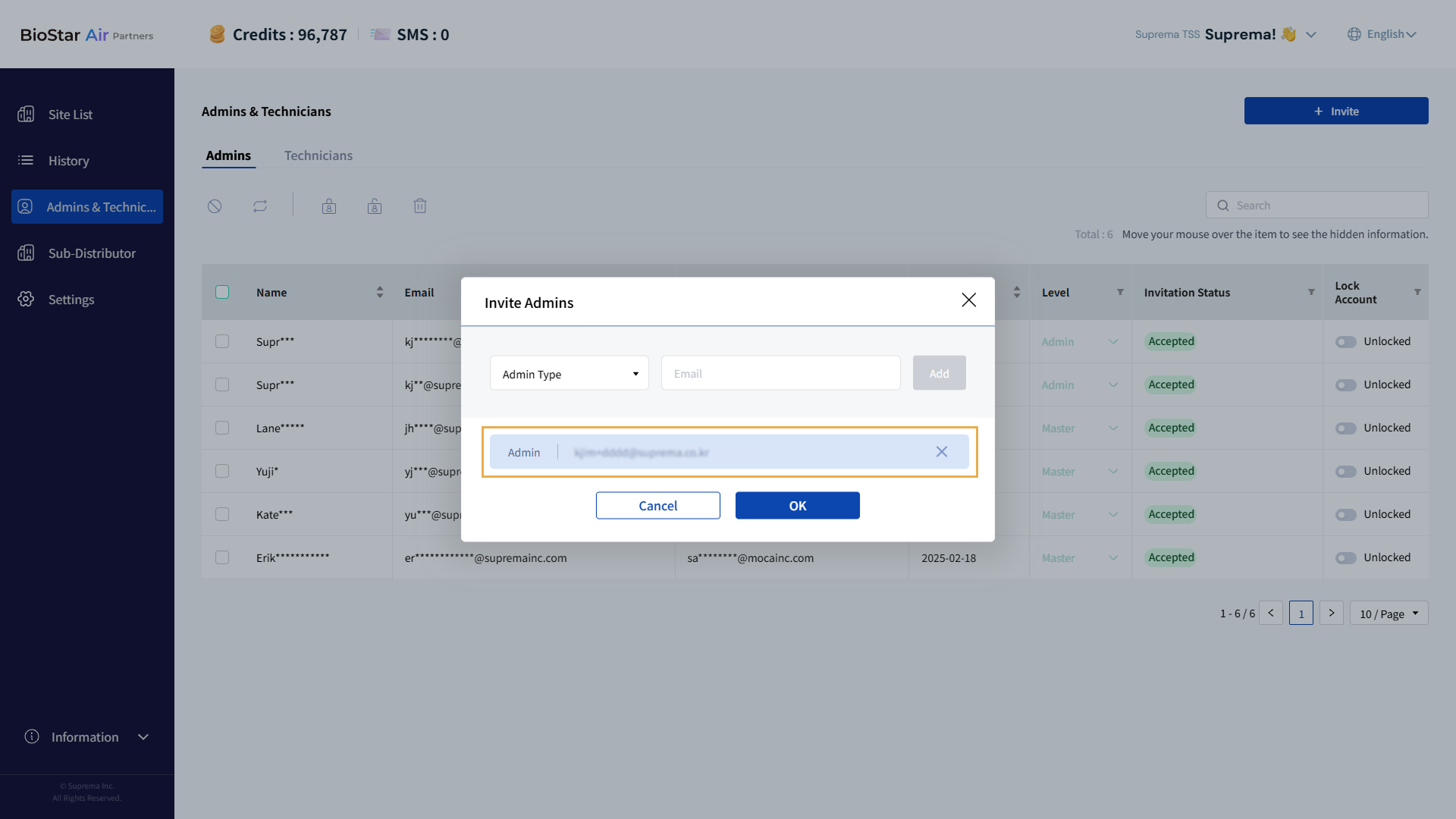
Added administrators appear below the email address field. Repeat steps 4–6 to invite additional administrators.
-
After adding all administrators, click OK.
-
When the confirmation message appears, click Confirm.
Inviting administrators to the Partner Portal does not grant site access; invite them to each site separately.
Invitation status
After inviting administrators, check the invitation status of each invited account in the administrators list.
Pending sign-up
Invited administrators remain in the Pending status until they accept the invitation via email and activate their account. Invited administrators can click the link in the email to register their account or log in to the Partner Portal.

Invited administrators have up to 7 days to accept the invitation; after 7 days the invitation expires and the status changes to Expired. If the invitation expires, you can resend the invitation link so the invited account can sign up again. For more information on resending invitation links, see #resendInvitation.
Sign-up complete
When an invited administrator accepts the email invitation and completes registration, the invitation status changes to Accepted.

Invitation revoked
You can cancel the invitation if the invited administrator's email address is incorrect or if the invitation is no longer needed. If you cancel the invitation, its status will change to Revoked. For more information on revoking administrator invitations, see #revokeInvite.

Invitation revoked
You can cancel an invitation if a partner entered an administrator's email address incorrectly or if the invitation is no longer needed. After you cancel an invitation, the user will not be able to use the invitation link to sign up.
-
In the administrators list, click the checkbox next to the administrator whose invitation status is Pending. You can select 1 or more administrators.
-
Click at the top left of the administrator list.
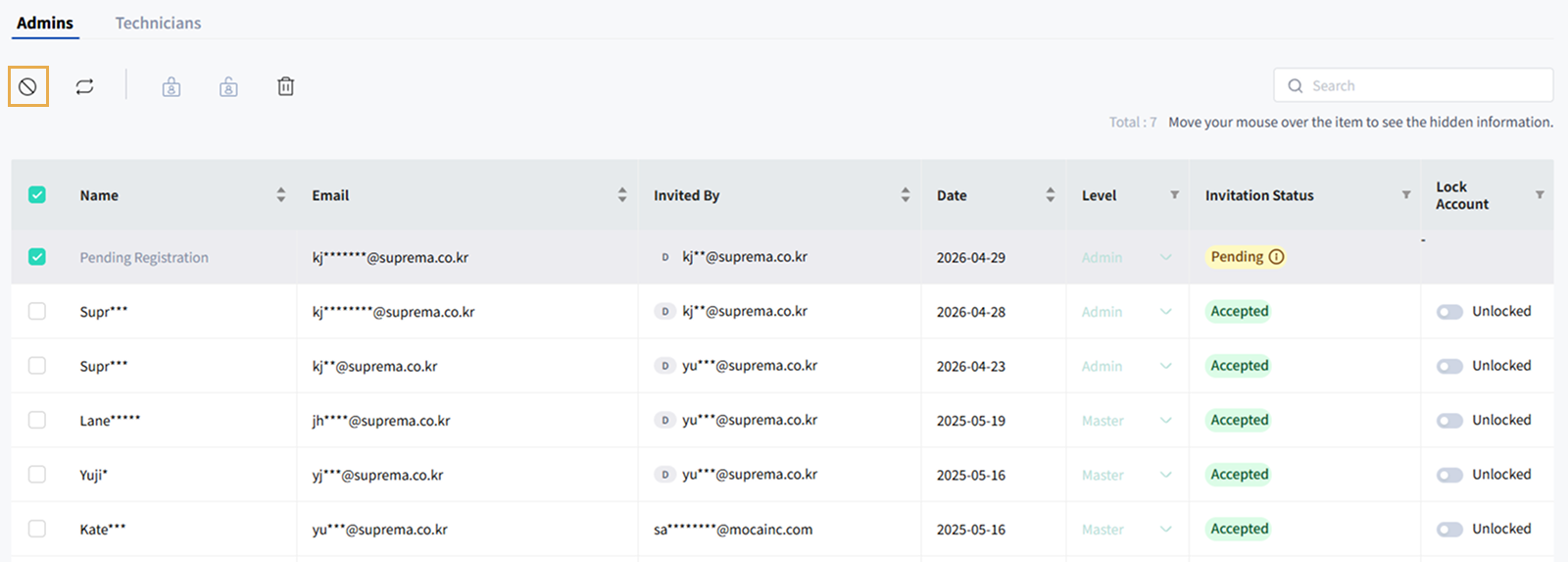
Only administrators with the Pending status can have their invitations canceled.
-
If a popup message appears, review the message and click Yes.
-
When the success message for the canceled invitation appears, click Close.
In the administrators list, the invitation status for an administrator whose invitation was canceled changes to Revoked.
Resend invitation link
Resend the invitation link if an invited administrator did not receive the invitation email, lost it, or if the invitation link has expired.
-
In the administrators list, click the checkbox next to any administrator whose invitation status is Pending, Expired, or Revoked. You can select 1 or more administrators.
-
Click at the top left of the administrator list.
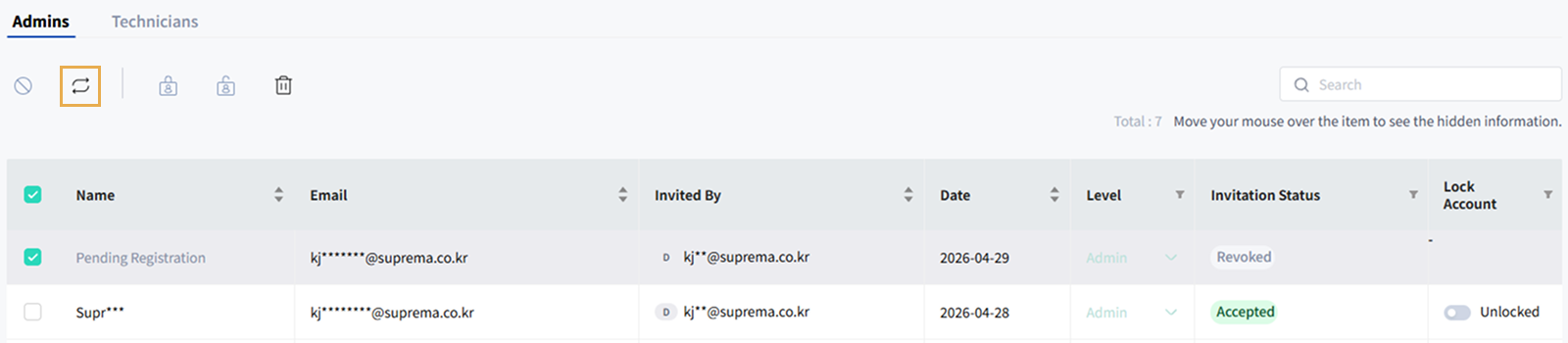
-
If a popup message appears, review the message and click Yes.
-
When the success message for resending the invitation link appears, click Close.
In the administrators list, the invitation status of an administrator whose invitation link was resent changes to Pending.
Admin management
After an invited administrator accepts the email invitation and completes sign-up, you can manage the administrator in the administrators list. Lock or unlock an administrator's account, or change their role. If an administrator is no longer needed, you can delete their account.
Lock or unlock an administrator account
Lock or unlock an account using the Lock Account option for administrators who have accepted the email invitation and completed sign-up. When an account is locked, the administrator cannot sign in to the partner portal. Account information is retained so the account can be reactivated later if needed.
For locked administrators, the Lock Account column shows Locked; for unlocked administrators it shows Unlocked.

-
Accounts for administrators who have completed sign-up are unlocked by default.
-
Accounts with the Admin role or higher cannot be locked or unlocked.
Lock or unlock an individual administrator
Click the toggle in the Lock Account column of the administrators list to lock or unlock individual administrator accounts.
-
Click the toggle in the Lock Account column of the administrators list.

-
If a pop-up message appears, review it and click Confirm.
Lock or unlock multiple administrators
To lock or unlock multiple administrator accounts at once, select them in the administrators list.
-
In the administrators list, click the checkbox for the administrator you want to lock or unlock. You can select 1 or more administrators.
-
Click or in the upper left corner of the screen.
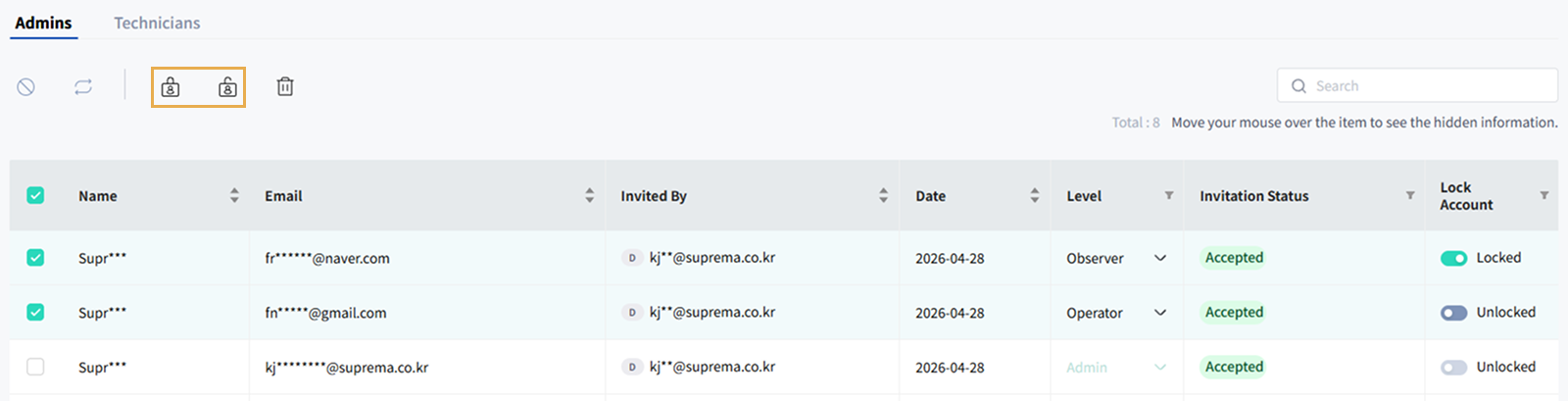
-
If a popup message appears, review the message and click Yes.
-
When the success message confirming the account lock or unlock appears, click Close.
Change administrator role
Change an administrator's role. For more information on administrator roles, see #adminRoles.
-
In the administrators list, click the Level column for the administrator whose role you want to change.
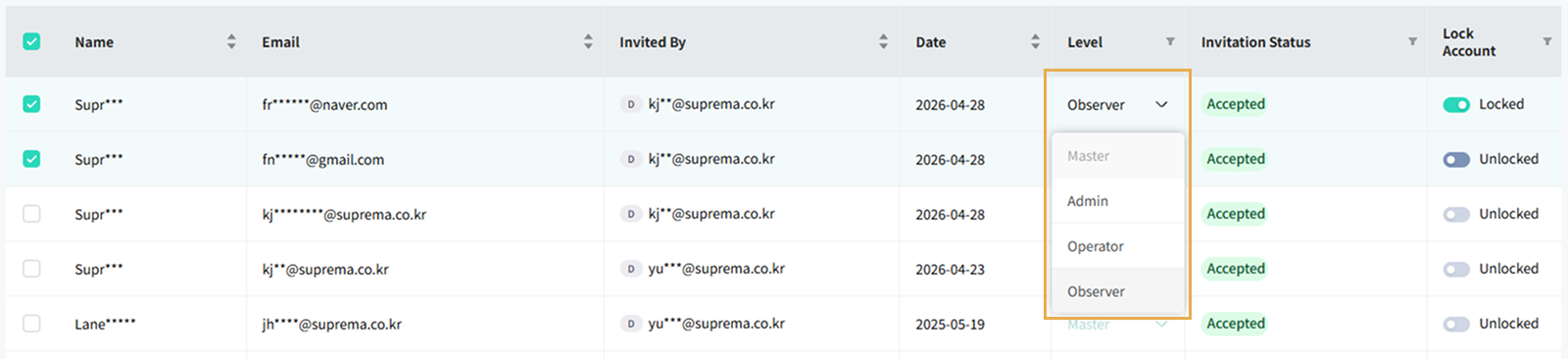
-
Select the permission you want to change from the list.
-
When a pop-up message appears, click Confirm.
The user's permissions are updated in the administrators list.
Delete administrator account
You can delete an administrator account when it is no longer needed. Deleting an administrator account prevents the administrator from logging into the partner portal, and the account information is permanently removed and cannot be restored.
-
In the administrators list, click the checkbox for the administrator you want to delete. You can select 1 or more administrators.
-
Click in the upper left of the screen.
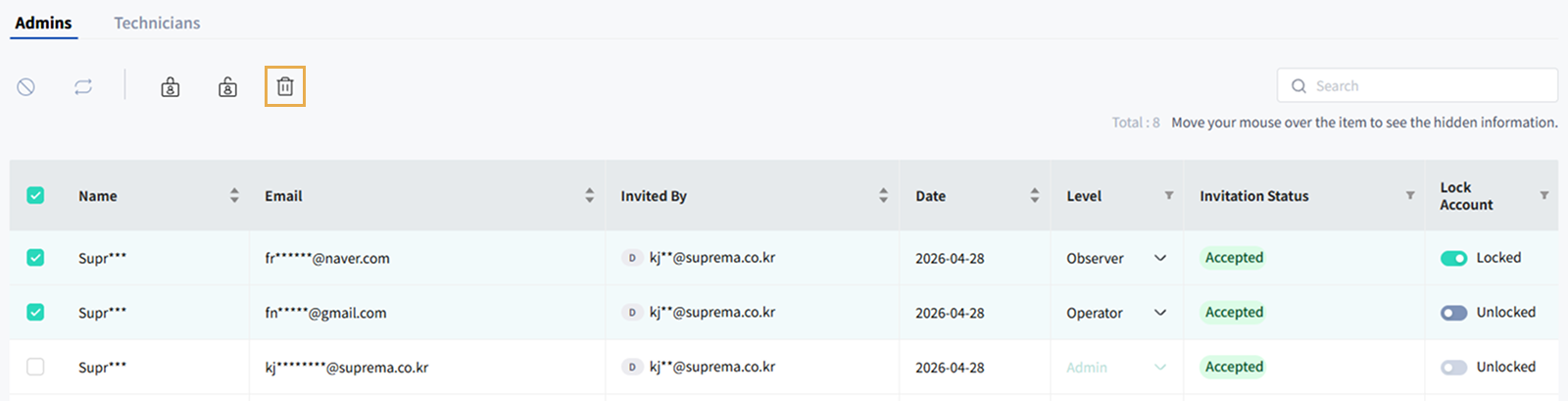
-
If a pop-up message appears, review it and click Confirm.
-
When the account deletion success message appears, click Close.
Deleted administrator accounts no longer appear in the administrator list.