Invite Site Administrator
Partners can invite administrators to customer sites and set permissions. Manage granular access levels for each administrator to ensure the security and operational efficiency of customer sites.
-
For more information on administrator levels and roles, see Manage Administrator Accounts and Roles.
-
For more information on inviting administrators and setting roles in the BioStar Air portal, see Manage Administrator Accounts and Roles.
Invite a site administrator
Learn how to invite administrators to customer sites and set permissions in the Partner Portal.
-
Log in to the Partner Portal with an account assigned the Admin role or higher.
-
Click Site List in the left sidebar.
-
In the site list, click the site where you want to assign an administrator.
-
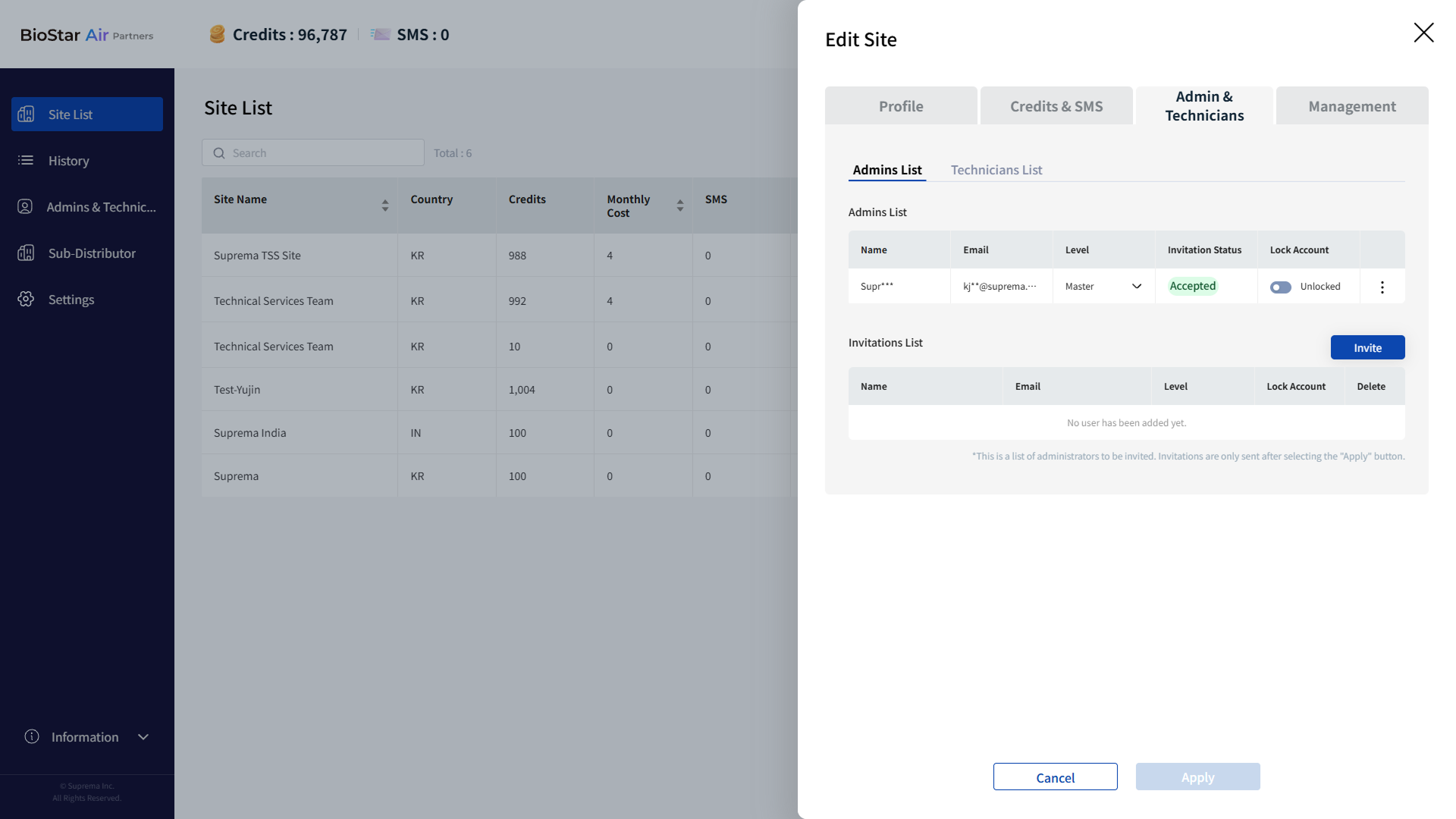
When the Edit Site panel appears, click Admin & Technicians → Admins List in that order.
-
Click Invite.
-
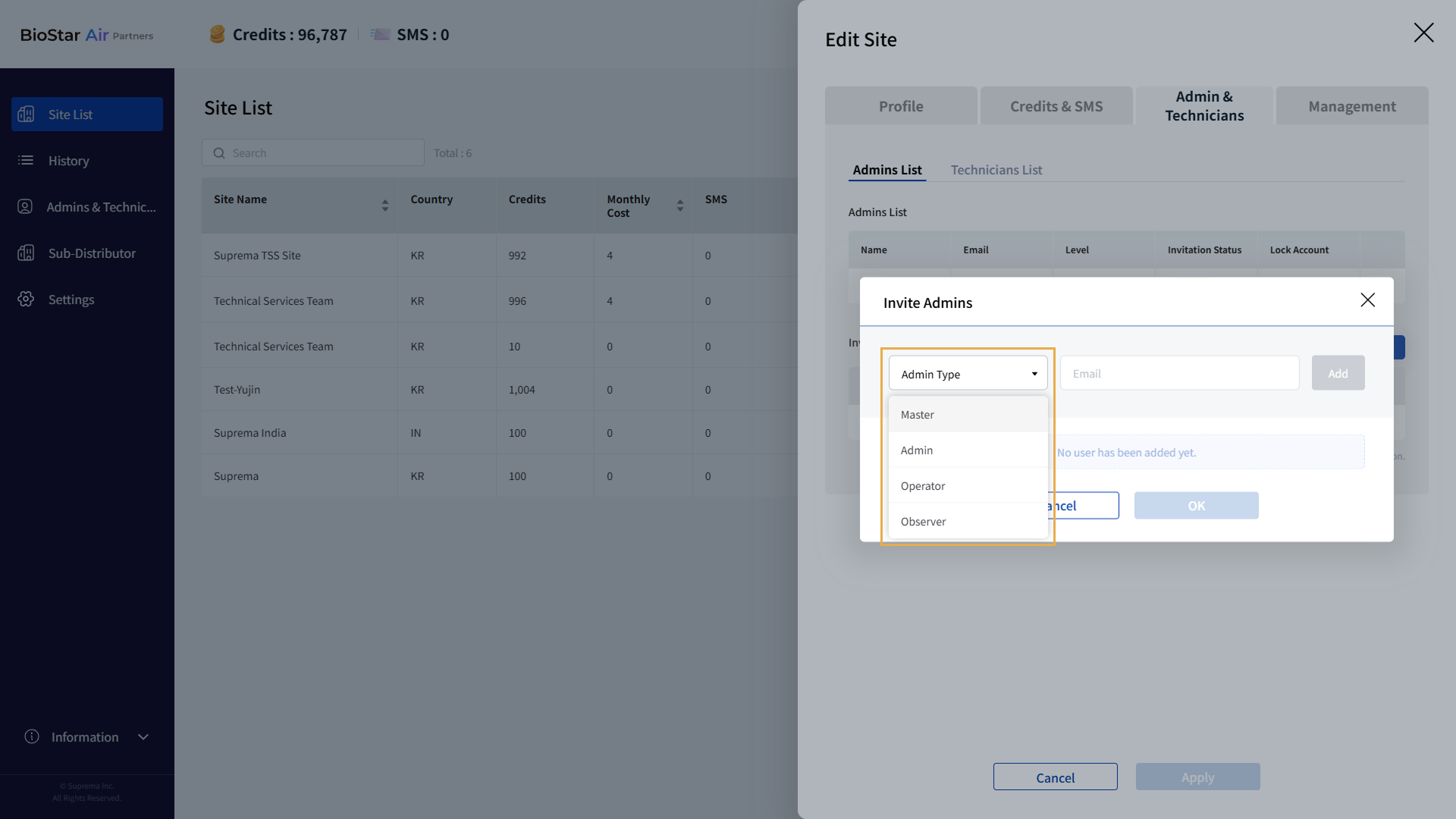
When the Invite Admins window appears, select the administrator role to invite from the Admin Type field.
-
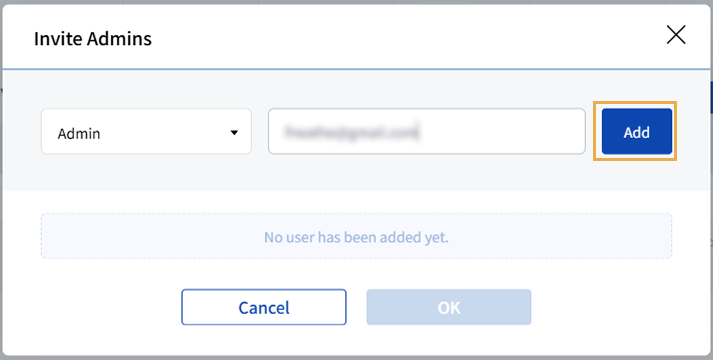
Enter the email address of the administrator to invite.
-
Click Add when it becomes active.
-
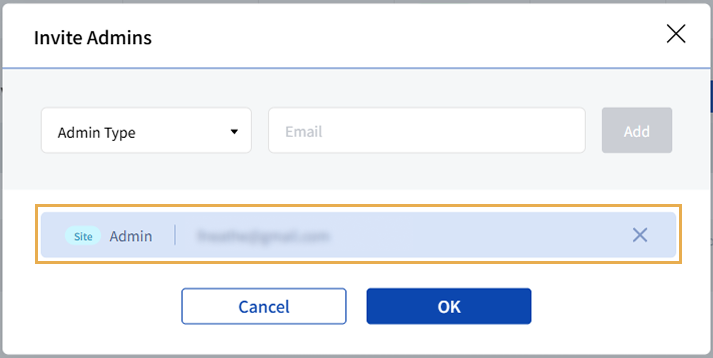
Added administrators appear below the email address field. Repeat steps 6–8 to invite additional administrators.
-
After adding all administrators, click OK.
-
Review the administrators added in Invitations List and then click Apply to send the invitation email.
-
When the success message appears, click Confirm.
Check invitation status
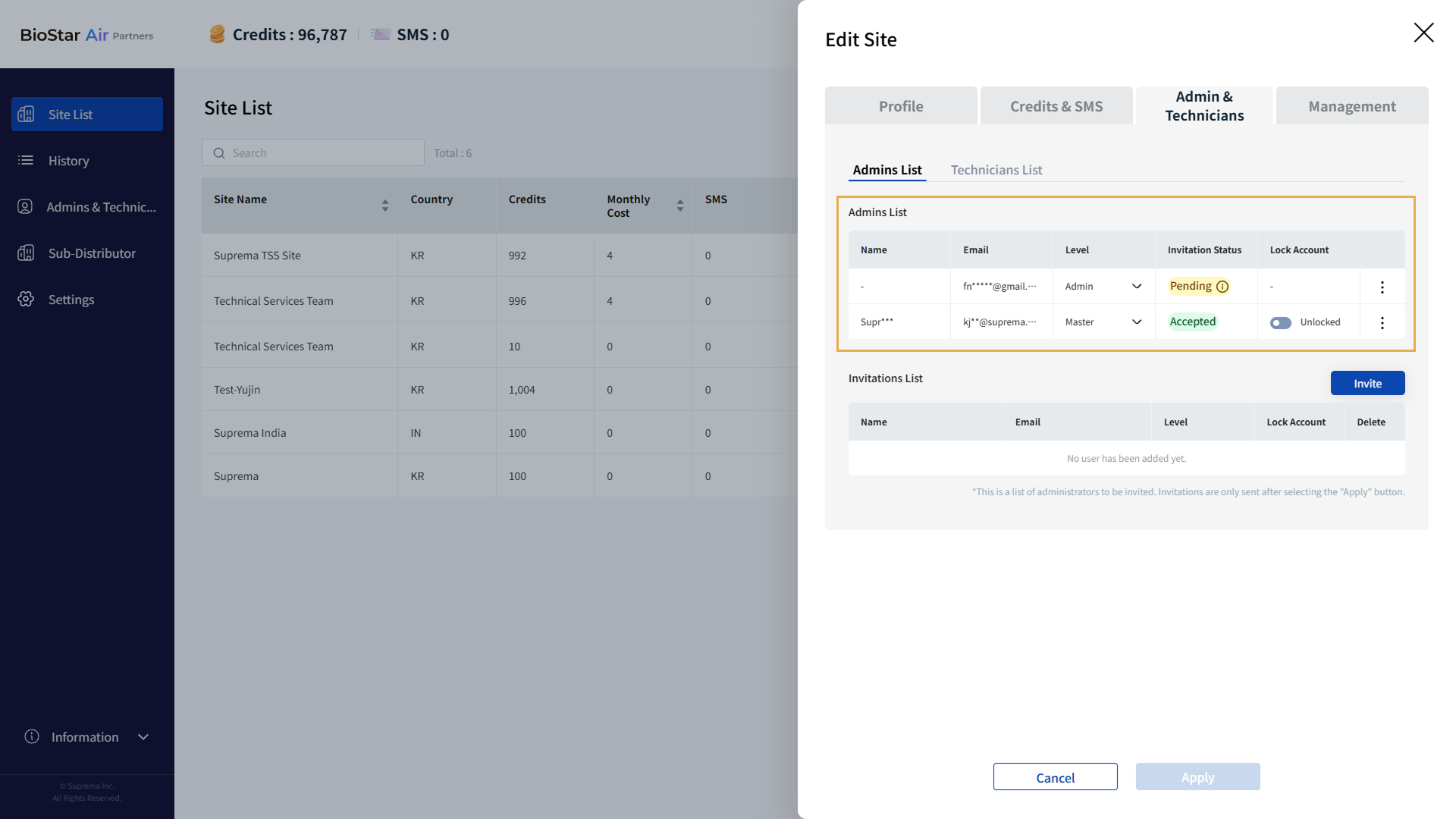
Check the invitation status of administrators invited to the site. The invitation status is Pending until the invited administrator accepts the invitation email. Invited administrators have up to 7 days to accept the invitation; after 7 days the invitation expires and the status changes to Expired.
-
In the site list, click the site where you invited an administrator.
-
When the Edit Site panel appears, click Admin & Technicians → Admins List in that order.
-
Check the invitation status in Admins List.
When an invited administrator completes site enrollment, the status changes from Pending to Accepted.
Invitation revoked
Cancel the invitation if the invited administrator's email address was entered incorrectly or the administrator is no longer needed.
-
In the site list, click the site where you invited an administrator.
-
When the Edit Site panel appears, click Admin & Technicians → Admins List in that order.
-
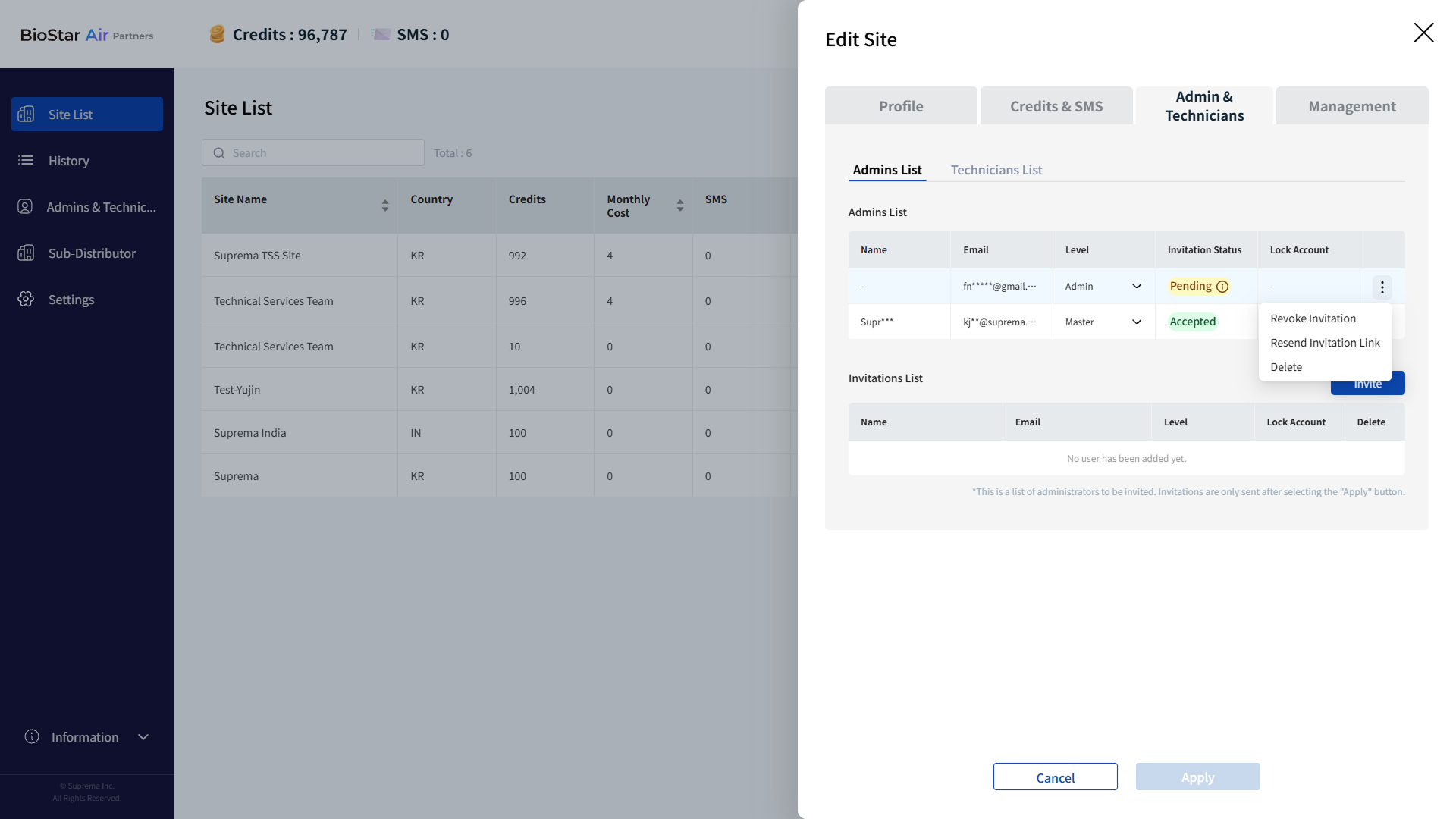
In Admins List, for any administrator with status Pending, click on the far right.
-
Click Revoke Invitation in the popup menu.
-
If a popup message appears, review the message and click Yes.
-
When the success message for the canceled invitation appears, click Close.
When an invitation is canceled, the invitation status changes from Pending to Revoked.
Resend invitation link
Resend the invitation link if the invited administrator did not receive the invitation email or has lost it.
-
In the site list, click the site where you invited an administrator.
-
When the Edit Site panel appears, click Admin & Technicians → Admins List in that order.
-
In Admins List, for administrators with status Pending, Expired, or Revoked, click on the far right.
-
Click Resend Invitation Link in the popup menu.
-
If a popup message appears, review the message and click Yes.
-
When the success message for resending the invitation link appears, click Close.
Lock or unlock an administrator account
Lock or unlock administrator accounts assigned to a site.
-
Click Site List in the left sidebar.
-
In the site list, click the site where you want to manage administrator access.
-
When the Edit Site panel appears, click Admin & Technicians → Admins List in that order.
-
In Admins List, click the toggle button in the Lock Account column to lock or unlock an administrator account.
-
Click Apply at the bottom to apply the changes.
Remove administrator
Delete an invited administrator's account. When an administrator's account is deleted, they will no longer be able to sign in to the site, and their access will be fully revoked. Once an administrator account is deleted, it cannot be recovered.
-
In the site list, click the site where you invited an administrator.
-
When the Edit Site panel appears, click Admin & Technicians → Admins List in that order.
-
In Admins List, click at the far right of the administrator you want to delete.
-
Click Delete in the popup menu.
-
If a pop-up message appears, review it and click Confirm.
-
When the success message confirming the administrator's deletion appears, click Close.