Register and Delete Panels
BioStar Air version 2.12 supports expanding the access control system using the CoreStation 20 (CS-20) panel. Using existing RS-485 wiring to connect additional devices locally reduces infrastructure costs while supporting complex door configurations.
This document provides step-by-step instructions to register the CS-20 panel and configure RS-485, OSDP, and Wiegand devices as secondary devices.
In BioStar Air, devices are classified as primary devices that act as controllers and secondary devices that connect to controllers. Some systems use the terms Master/Slave for this concept, but BioStar Air documentation does not use those terms.
Register panel
The CoreStation 20 (CS-20) enables expansion of the access control system by connecting to devices that use RS-485 communication. Follow these steps to register the CS-20.
Before you start
-
Ensure the CS-20 is powered on and physically accessible to press the INIT button.
-
The CS-20 must be connected to the internet. If the network connection is unstable, issues may occur during registration.
-
A 9-digit serial number is required. The serial number can be found on the label on the back of the unit.
For more information on the CoreStation 20, refer to the CoreStation 20 Installation Guide.
Register CS-20
-
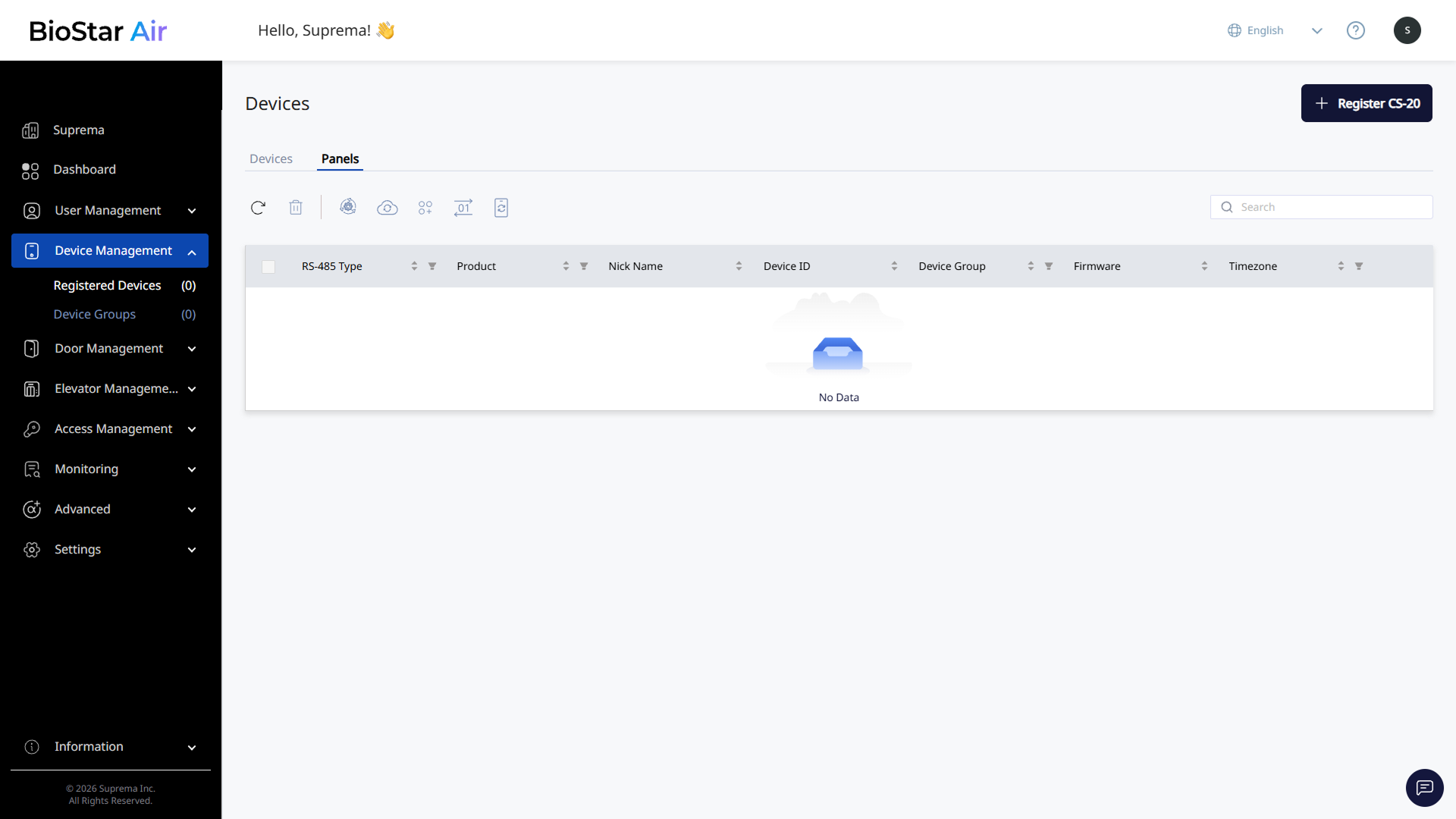
Click Device Management → Registered Devices in the left sidebar.
-
Click the Panels tab.
-
Click Register CS-20 at the top right of the screen.
-
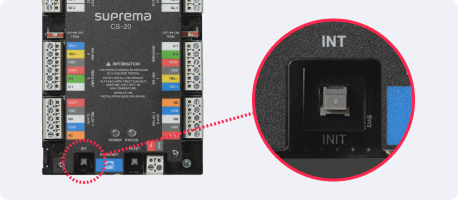
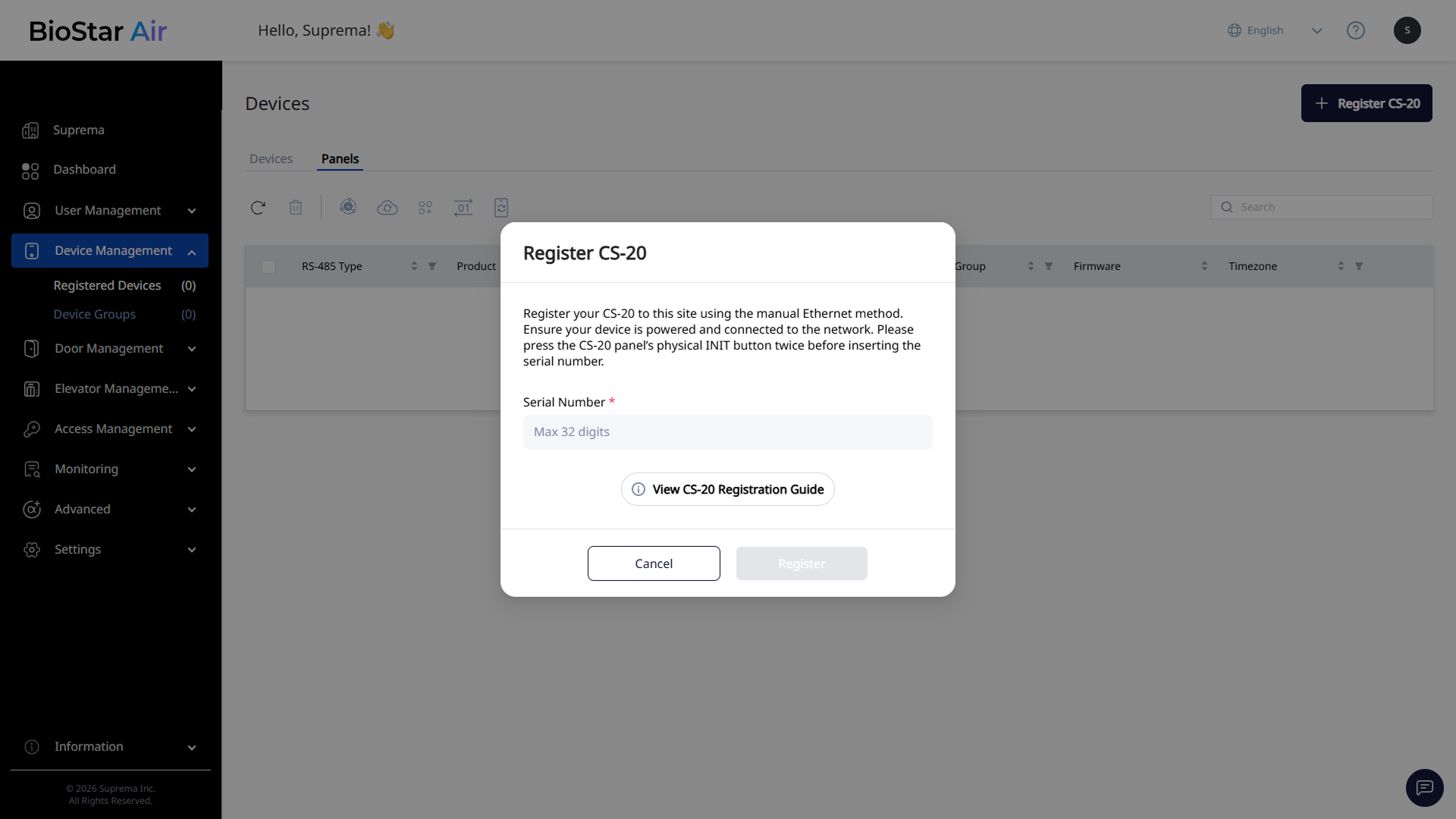
When the Register CS-20 window appears, press the INIT button on the CS-20 panel twice.
 Caution
After pressing the INIT button, there is a 5-minute window to complete CS-20 registration.
-
Enter the serial number.
-
After entering the full serial number, click Register.
After registration is complete, the system automatically sets up a secure connection and displays the new CS-20 in the panel list. If registration is successful, a green dot appears next to the device name.
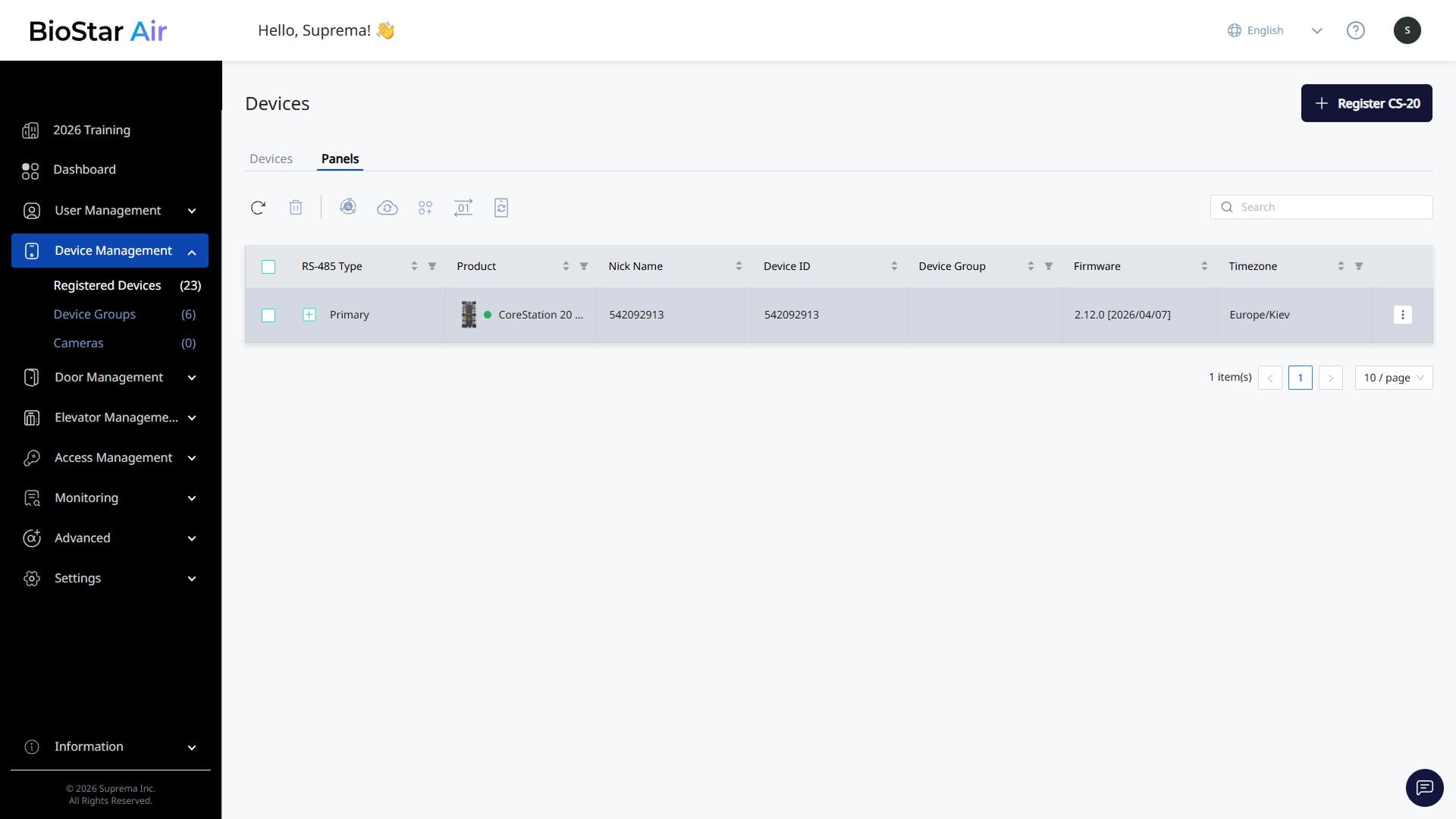
For best performance, reliability and access to the latest features, make sure to check for firmware updates as soon as devices are registered. New firmware may have become available between the time the device was packaged and installed. For more information on firmware upgrades, see Upgrade Firmware.
For more information on the CS-20 registration process, see View CS-20 Registration Guide.
Delete panel
Follow these steps to delete a panel registered in BioStar Air. Deleted panels cannot be recovered. Before deleting a panel, confirm that any peripheral devices connected to it are no longer needed.
-
Click Device Management → Registered Devices in the left sidebar.
-
Click the Panels tab.
-
In the list, click the checkbox for the panel you want to delete.
-
Click in the upper left of the screen.
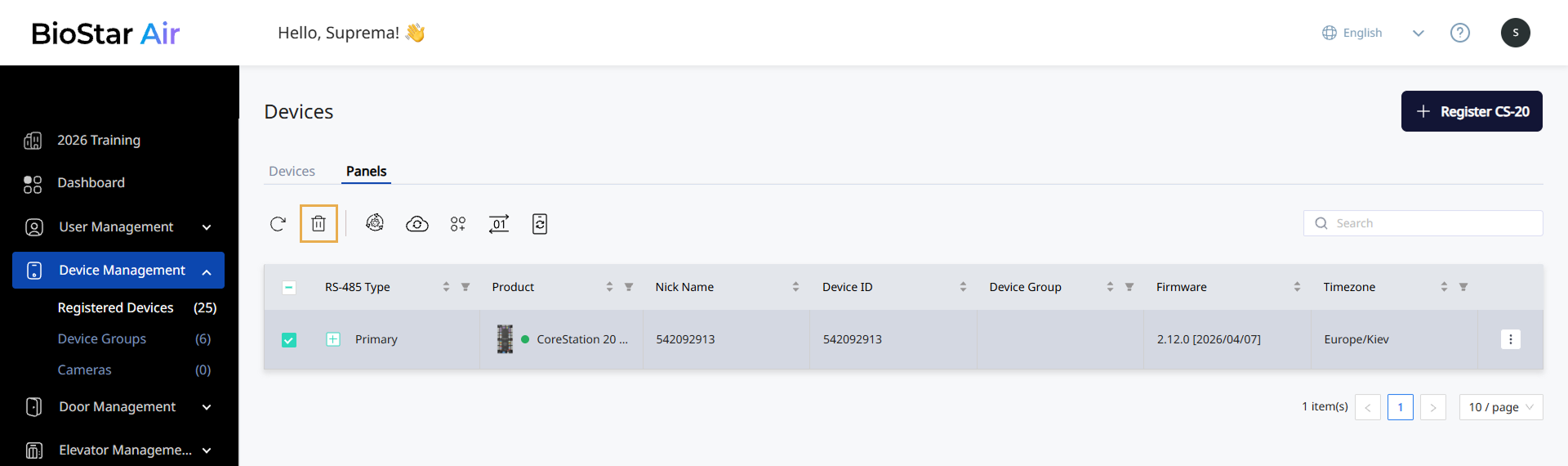
-
When the pop-up appears, click Confirm.
If you need to reuse connected peripheral devices, delete those devices before deleting the panel, since the SCB key may be bound.