Enabling SSO & SCIM
Click Settings → Site in the left sidebar. On the SSO & SCIM tab, select the login policy and ID provider, or clear them.
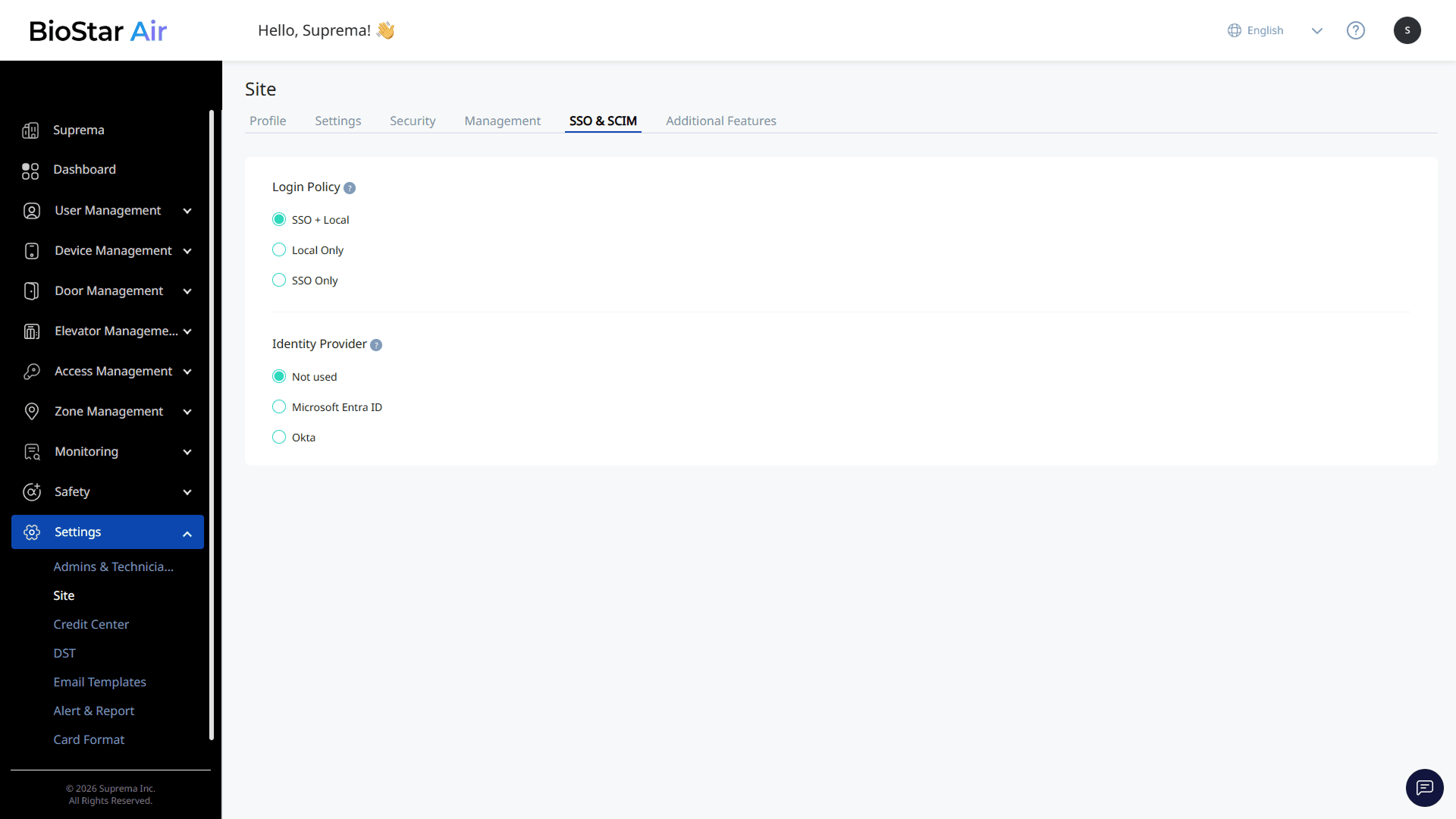
Before changing ID provider settings, keep at least one master administrator account that can log in locally. Otherwise, ID provider integration problems can lock administrators out of the site.
-
Only the site master administrator can manage SSO and SCIM settings.
-
Credential users do not log in to BioStar Air, so SSO and SCIM settings do not affect them.
-
The Partner Portal is not included in the scope of SSO and SCIM settings.
Login policy
In Login Policy, set how BioStar Air administrators log in.
-
SSO: Administrators authenticate through an identity provider.
-
Local: Administrators authenticate with the email address and password set in BioStar Air.
Select one of the following three options.
-
SSO + Local: Both SSO login and local login are available.
-
Local Only: Only local login is available.
-
SSO Only: Only SSO login is available.
ID provider integration settings
In Identity Provider, select an external ID provider for BioStar Air administrator accounts. A site can have only one ID provider active at a time.
- Not used
-
Microsoft Entra ID: Set Up Microsoft Entra ID Integration
-
Okta: Set Up Okta Integration
To change the connected ID provider, select Not used to disconnect, then select a new ID provider. Without disconnecting, the site cannot switch directly to another ID provider.
Disable SSO & SCIM settings
Disable ID provider integration.
-
Select Not used in the Identity Provider section.
-
Review the message in the warning pop-up.
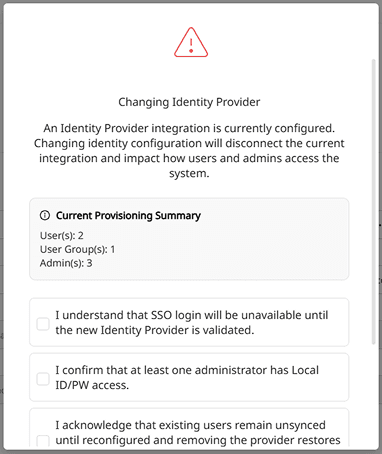
-
Review the impact of the setting change, and click the checkbox.
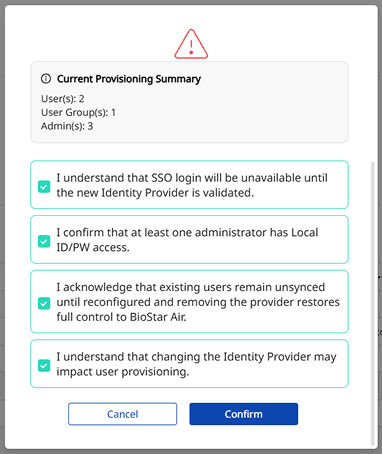
-
Click Confirm.