Set Bluetooth Sensitivity
With the Sensitivity Settings feature, adjust the Bluetooth sensitivity between the mobile device and the reader compatible with BioStar Air. This feature helps ensure smooth authentication and reduces unauthorized access attempts and authentication failures.
Because Bluetooth signal strength varies by mobile device model, users may experience different detection ranges. Environmental factors such as walls, interference, or the placement of readers compatible with BioStar Air can also affect Bluetooth detection.
Adjust the sensitivity setting
Users can fine-tune Bluetooth authentication sensitivity based on the mobile device’s Bluetooth strength and personal preference.
-
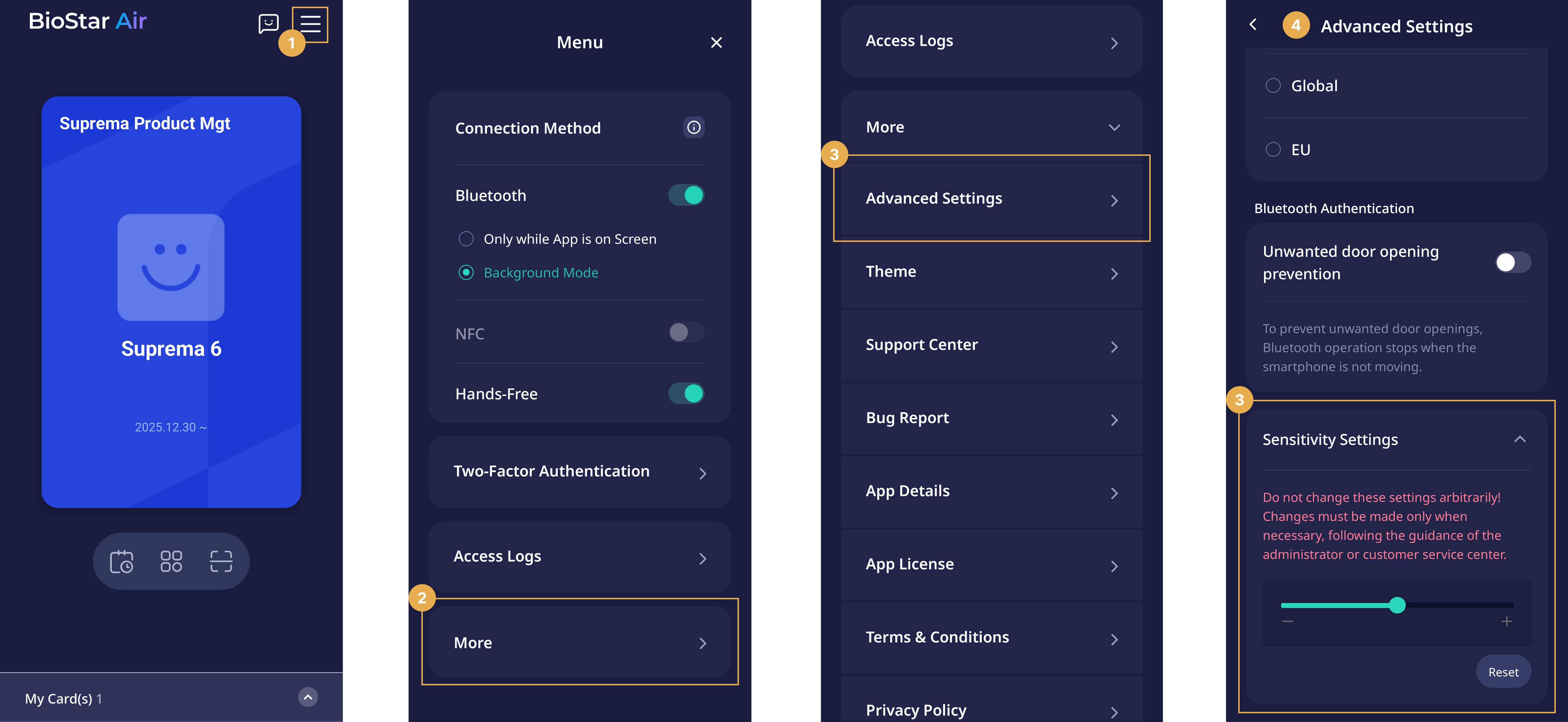
On the Suprema Pass app home screen, tap in the upper right corner.
-
Tap More.
-
Tap Advanced Settings.
-
Tap Sensitivity Settings, then move the slider to adjust sensitivity.
-
Move the slider toward to lower the sensitivity and block unintended authentication.
For example, when the mobile device is on a desk
-
If authentication fails, move the slider toward to increase the sensitivity. However, the mobile device must be very close to a reader that is compatible with BioStar Air.
iOS user tips
If you bring an iPhone with Apple Pay close to a reader compatible with BioStar Air, Apple Pay will launch. This occurs because the mobile device’s NFC area is detected along with mobile card authentication.
Solution: Adjust the sensitivity setting toward so that a reader compatible with BioStar Air detects the mobile device’s Bluetooth signal earlier, eliminating the need for physical contact with the device. This allows smooth access while blocking Apple Pay from being triggered.