Use Edge Readers as Primary Devices
Set XPass 2 as the primary device to connect XPass D2 as a secondary device. Manage all access control logic on XPass 2. Configure a door with entry and exit devices without requiring two network connections.
This document provides step-by-step instructions to set XPass 2 as the primary device and connect XPass D2 as a secondary device. It also explains the features supported and the limitations of the primary-secondary configuration.
Before you start
Update the firmware to version 2.12 or later before setting XPass 2 as the primary device. For more information about firmware upgrades, see Upgrade Firmware.
Set XPass 2 as the primary device
-
Click Device Management → Registered Devices in the left sidebar.
-
In the device list, click XPass 2.
-
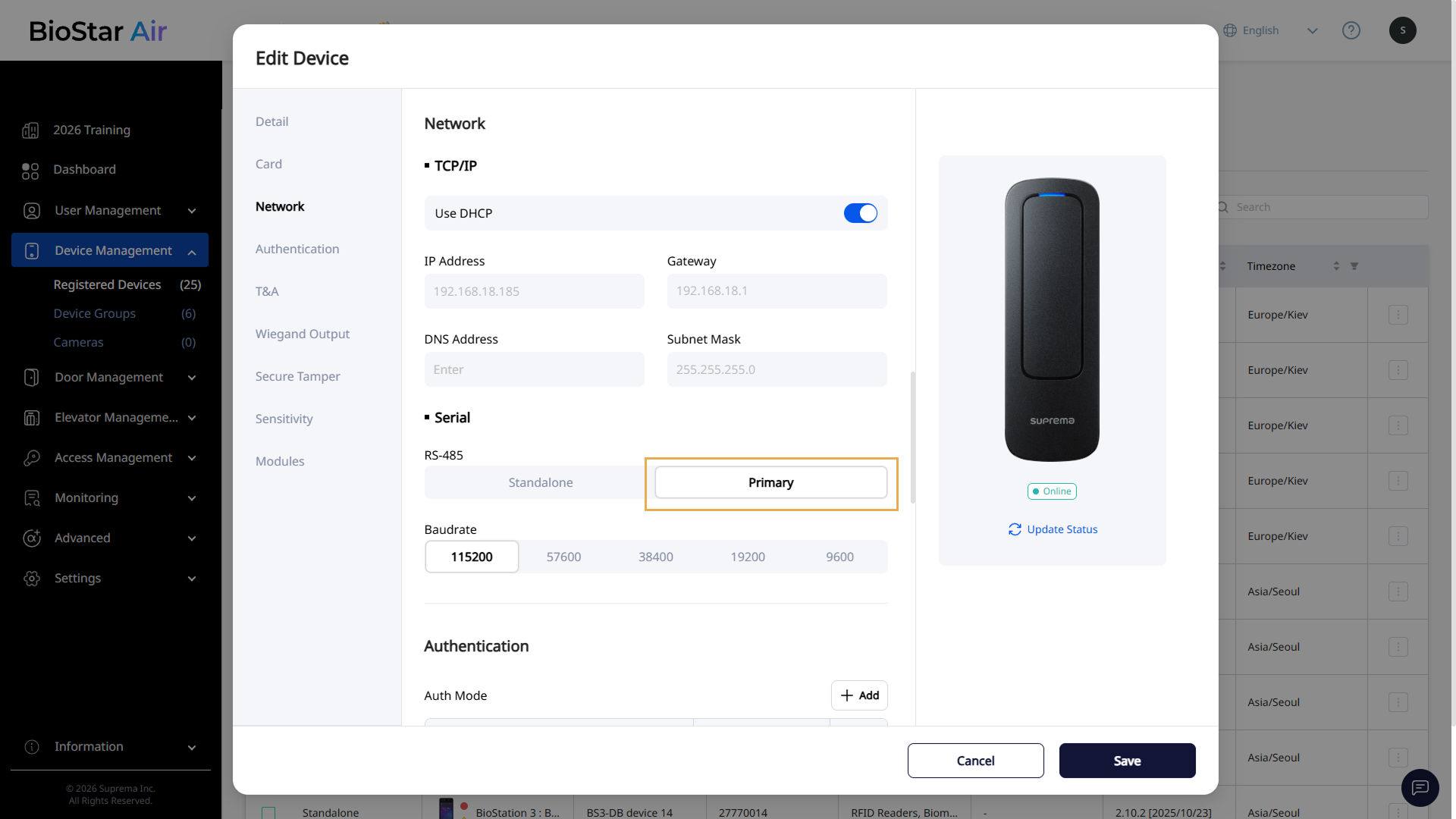
When the Edit Device window appears, go to the Network section.
-
Change the RS-485 setting to Primary.
-
Click Save at the bottom to save the changes.
Add a secondary device
Add a slave device such as XPass D2 or Secure I/O 2 (SIO2).
-
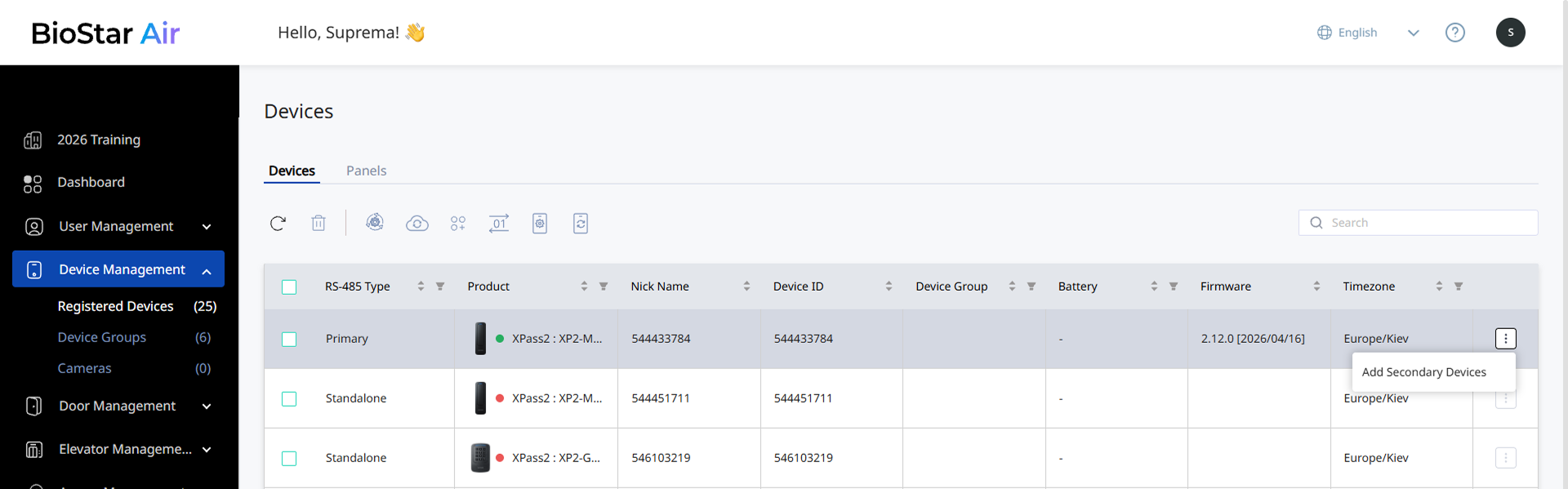
In the device list, click at the far right of the XPass 2 set as the primary device.
-
Click Add Secondary Devices to open the Add Secondary Devices window.
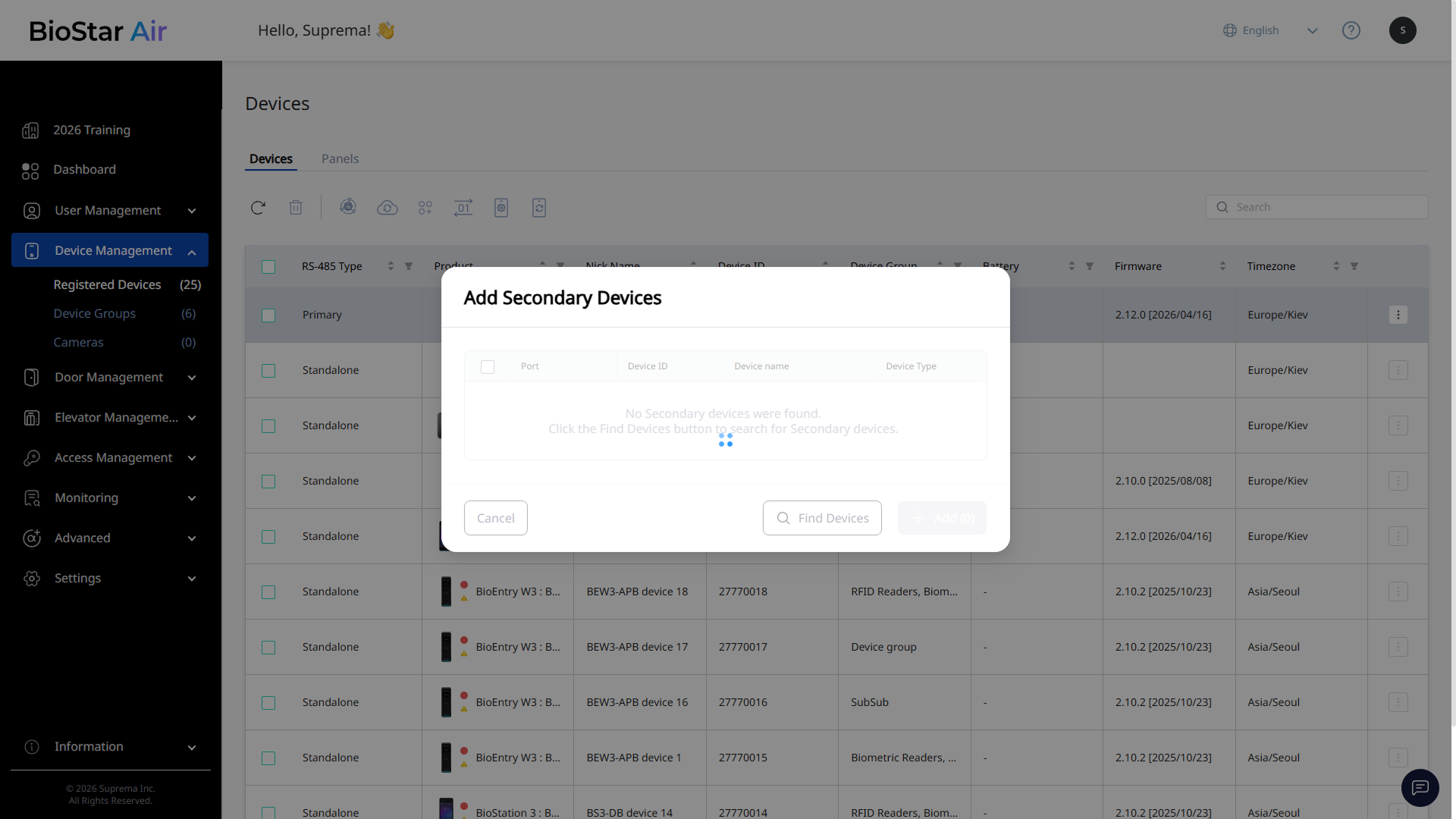
If no secondary devices are found, click Find Devices to search again for devices connected to XPass 2.
-
When connected secondary devices appear in the list, click the checkbox next to each device you want to add.
-
Once your selections are complete, click Add.
Connected secondary devices appear hierarchically under XPass 2. See all devices connected to XPass 2 at a glance in the panel list.
-
For more information on XPass D2, see the XPass D2 installation guide.
-
An XPass 2 set as the primary device can have up to 31 secondary devices assigned.
-
For more information about the Secure I/O 2 (SIO2), see the Secure I/O 2 installation guide.