Control Slave Devices
This document provides guidance on controlling devices by model for easy control of devices connected to the entrance door. Various features are available, such as locking/unlocking via door relay, checking camera video and detailed information, and managing security status.
-
Click Monitoring on the Launcher page or select Monitoring from the shortcut list at the top left of the screen.
-
In the Door tab, select a door.
-
Select the connected device from the sublist and click the right mouse button. You can select the desired feature from the popup menu.
Controlling door relay
You can control the relay connected to the door. Right-click on the relay device. You can select the desired feature from the popup menu.
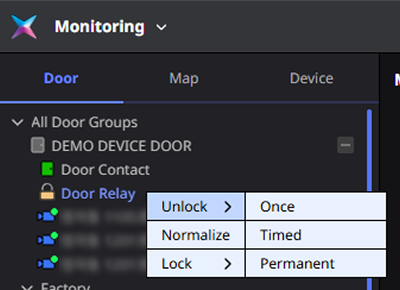
Relay: A control device that auto-executes the opening and closing of the electric circuit according to changes in the current, voltage, frequency, etc. of another electric circuit.
Relay unlock
You can unlock the door through the relay device connected to the door. The opened door can be accessed by anyone. Click Unlock in the popup menu and select the desired option.
-
Once: Unlocks the door once.
-
Timed: Opens the door for a certain time. Enter the desired time in seconds.
-
Permanent: Unlocks the door regardless of time.
Opening the door relay changes the door relay icon from to .
The door can be temporarily opened for the convenience of external guests when they visit. After opening the door, be sure to switch to Normalize mode.
Relay normalize
Change the door to Normalize status using the relay so that only authorized users can access. Click Normalize in the popup menu.
Relay lock
Change the door to Lock status using the relay connected to the door will prevent anyone from access. Click Lock in the popup menu and select the desired option.
-
Timed: Changes the door to a locked state for a certain period of time. Enter the desired time in seconds.
-
Permanent: Changes the door to a locked state regardless of time.
Controlling security device
You can set or unset the door in armed state through the security device connected to the door. Click Arm or Disarm in the popup menu.
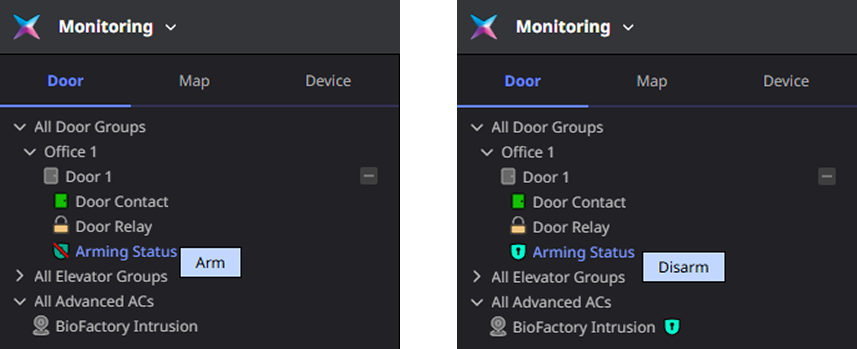
This feature can be used by purchasing additional options with an advanced license or higher, or with an enterprise license or higher. For more information on the licensing policy, see License Policy.
Controlling door camera device
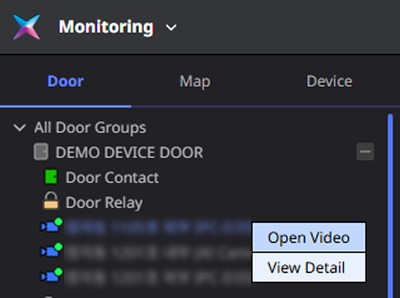
You can control the camera device connected to the door. You can view the camera video in real time or view details.
-
If the camera linked to the access door isn't visible, check the camera group's permissions. If the administrator for a custom permission hasn't configured the camera group permissions, the camera may not be visible. For more information on configuring camera group permissions, see Set Up the Camera.
-
This feature requires the door to be connected to a camera in order to be used. For instructions on linking a door to a camera, see Set Video Rules.
-
This feature is available with additional options on the Advanced license or higher. For more information on licensing policies, see License Policy.
Checking camera video
To view the camera feed in real-time, click Open Video from the pop-up menu. You can add and play footage from the selected camera in the video tile section of Monitoring.

View camera details
To view the camera details, click View Detail in the popup menu. Camera details appear on the right side of the screen.
