Control Elevators
Learn how to control elevators. Use the available features to control elevators or view details.
-
On the Launcher page, click Monitoring, or select Monitoring from the shortcut list in the upper-left corner of the screen.
-
In the Door tab in the left sidebar, go to All Elevator Groups.
-
Select an elevator in the group, and then right-click. Select a feature from the pop-up menu.
-
For more information about setting up elevators and configuring groups, see Manage Elevators.
-
To control multiple elevators and floors at once, see Batch Control.
Control Elevators
Clear alarms triggered by the elevator or view details.
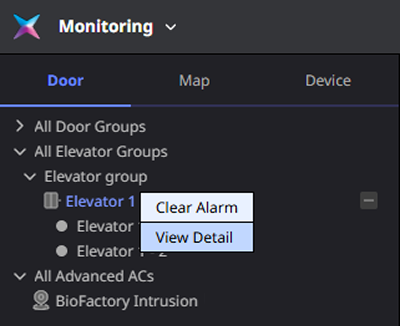
Clear alarm
Clear alarms triggered by the selected elevator. Click Clear Alarm in the pop-up menu. A completion message appears in the upper-right corner of the screen.
View details
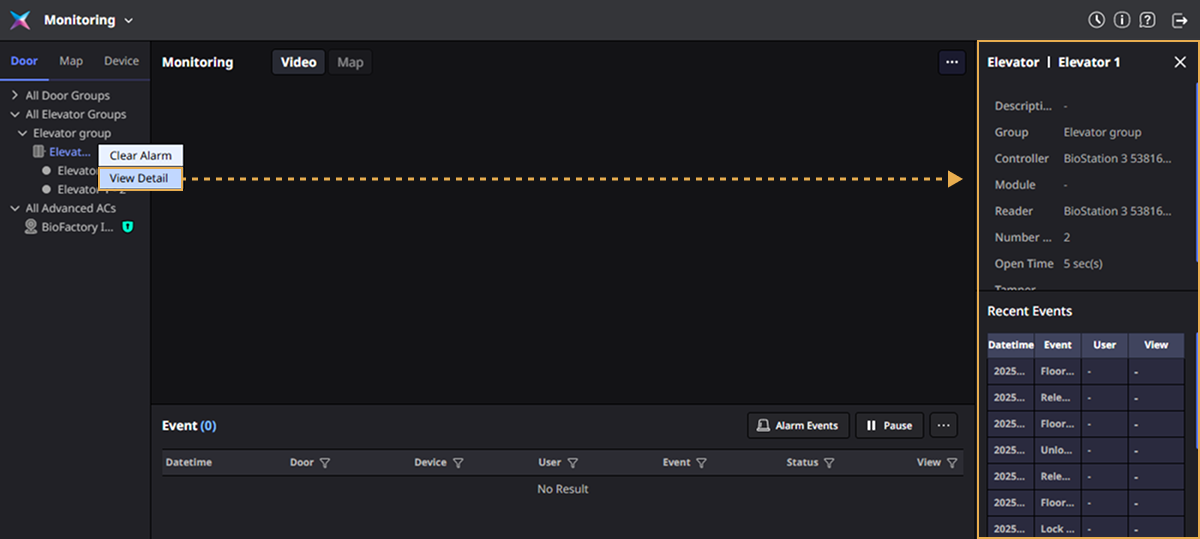
View detailed information about the elevator and the event history. Click View Detail in the pop-up menu. Elevator details and the event history appear in the right pane.
-
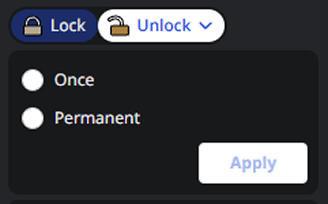
Elevator control: Changes the elevator status to locked or unlocked.
-
Show floor list: Shows the list of floors set for the elevator.

-
Normalize All Floors: Available when an administrator has manually unlocked or locked all floors.
-
Elevator details: Shows the elevator name, location, status, and more.
-
Recent Events: Shows the recent event list for the selected elevator.
For more information about each entry in the Elevator details section, see Register an Elevator.
Floor access control
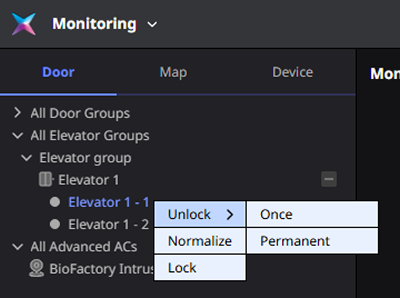
Control the floors that the elevator can access. Click the relay for the floor set on the elevator, and then right-click. Select a feature from the pop-up menu.
Unlock a floor
Anyone can access an unlocked floor. Click Unlock in the pop-up menu, and then select an option.
-
Once: Unlocks the floor once.
-
Permanent: Unlocks the floor regardless of time.
Temporarily unlock the selected floor when external guests visit so they can enter easily. After unlocking a floor, make sure to set it to Normalize.
Normalize a floor
When you set the selected floor to Normalize, only authorized users can access it. Click Normalize in the pop-up menu.
Lock a floor
When you set the selected floor to Lock, no one can access it. Click Lock in the pop-up menu.