Enroll IR Face
You can enroll the user's face as a means of authentication for access control. IR face enrollment is an authentication method that captures the user's face using an infrared camera.
Precautions when enrolling IR face
- Keep the distance between the device and your face at 60-100 cm when enrolling your face.
-
Do not change your face expression.
-
Do not wear masks, hats, or eye patches.
-
Do not enroll a face wearing a mask. It may increase the False Acceptance Rate (FAR) if both faces with and without a mask are enrolled.
-
Do not raise head up or lower head.
-
Do not wear thick makeup.
-
Do not close your eyes.
- Make sure that both of your shoulders correctly appear on the screen.
- Stand still and enroll your face by staring at the screen.
-
Be careful not to display two faces on the screen. Enroll one person at a time.
-
If you do not follow the instructions on the screen, the face enrollment may take longer or may fail.
Enroll by device
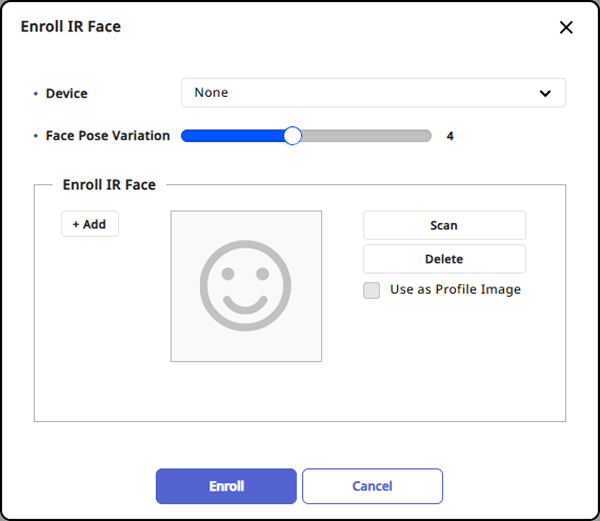
Click + IR Face in the Credential section. When the Enroll IR Face window appears, set each item and click Enroll.
-
Device: Select the device for enrolling the IR face.
-
Face Pose Variation: Set sensitivity to the face's position, angle, and distance when enrolling the IR face. Set it high to obtain a precise IR face template.
-
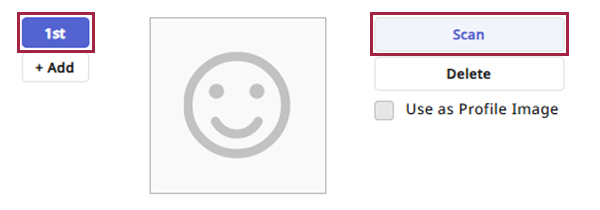
+ Add: Click to enroll the IR face. Add up to five IR faces.
-
Scan: Click the added Nth button to scan the IR face. Follow the on-screen instructions to scan the face.
-
Use as Profile Image: Check this option to use the enrolled IR face image as the profile image.
-
Delete: Delete the IR face credential. Select the number to delete and click the button.
-
Devices that can enroll IR face are as follows:
-
FaceStation 2
-
FaceLite
-
-
If the face authentication rate is low, delete face information and enroll a new face.