Set Up ID Scan
Before registering users by scanning ID, choose the user name and profile image to import. Then choose the face credential enrollment method. This article explains setting up ID scanning.
-
Click Settings on the Launcher page.
-
Click Account → ID Scanning on the left sidebar.
-
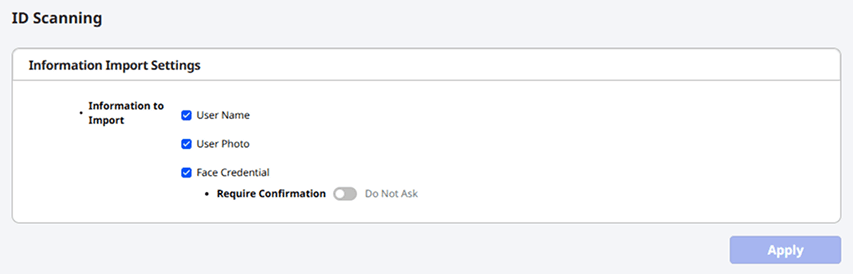
Select the data to import when scanning a ID.
-
User Name: Imports the name printed on the ID.
-
User Photo: Imports the profile image printed on the ID.
-
Face Credential: Enrolls the face image printed on the ID as a face credential.
-
Require Confirmation: Always asks for confirmation when enrolling the face image printed on the ID as a face credential.
-
Do Not Ask: Enrolls the face image printed on the ID as a face credential without asking for confirmation.
-
-
-
Click Apply to save the settings.
-
Select User Photo to enable Face Credential.
-
For more information on registering or updating users by scanning ID, see Register and Edit Users by Scanning an ID.