Integrate Virtual Device Event Log
By using the virtual device feature, you can log events such as clock-in and clock-out directly to BioStar X from mobile apps or third-party services when integrating the attendance management feature. You can systematically manage event logs without a physical device, which is useful for integration with external systems.
When to use this?
Use the virtual device event log integration feature in the following situations.
-
When managing events from the external T&A management system in BioStar X
-
When you need to save access logs (Punch Log) from the mobile app or external system directly to BioStar X (recording check-in/check-out events without database linkage)
-
When you need to send events directly via the BioStar X API from third-party applications or services
Before you start
The Event Log API license must be activated. For more information on licensing policies, see License Policy.
For more information on applying licenses, see BioStar X License.
Register virtual device
-
Click Settings on the Launcher page.
-
Click Device → Device on the left sidebar.
-
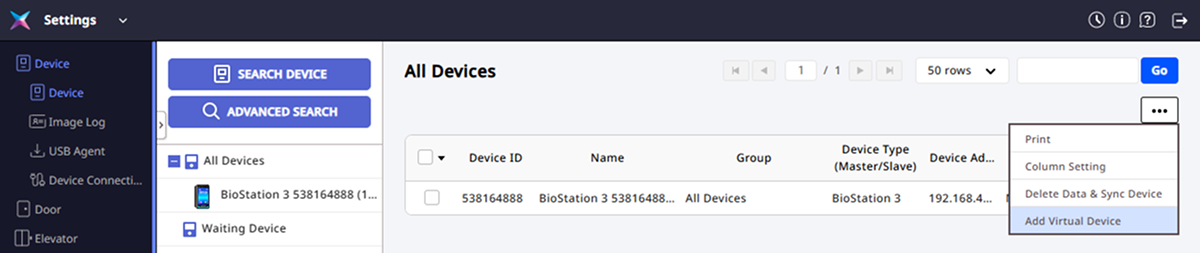
Click at the top right of the device list and select Add Virtual Device.
-
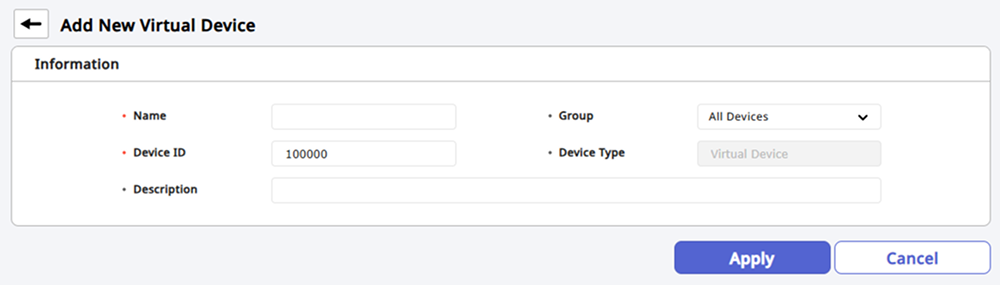
Enter the setting information when the Add Virtual Device screen appears.
-
Name: Enter the virtual device's name.
-
Group: Select the group to assign the virtual device.
-
Device ID: Enter the unique ID of the virtual device. It must be specified within a range that does not duplicate with the existing device ID.
-
Description: Enter the description for virtual device.
-
-
Click Apply at the bottom right of the screen to register the virtual device.
-
Device ID can be specified within the range of 100000 - 999999. It must be specified within a range that does not duplicate with the existing Suprema device ID.
-
The value of Device ID that has already been created cannot be modified.
Manage device groups
Virtual devices can use the device group feature just like regular devices.
-
You can place it in the same group as existing devices.
-
If the user has group permissions, they can grant permissions to virtual devices within that group.
For more information on device groups, see Manage Device Groups.
Virtual device limitations
-
Virtual devices appear only in the following menu.
-
Settings → Device → Device
-
View all event logs and preview event logs in Monitoring
-
Retrieve event log from Data
-
-
The virtual device cannot use access control features at the door and Advanced AC.
-
Cannot be specified as a device for T&A setting.
-
Virtual devices do not appear in the device list in the sidebar of the Monitoring menu.
-
Cannot use device control feature.
-
Not included in the number of devices for the Multi Communication Server license.
Log events via API
Supported event type
Only the following event types can be recorded.
-
Access granted (
4088) -
Access Denied (
6400)
API parameters
You must provide the following parameters when logging events.
| Parameter | Description | Required |
|---|---|---|
dev_id | Only registered virtual device IDs are allowed | Yes |
evt | Access Granted or Access Denied | Yes |
datetime | Event occurrence time | Yes |
user_id | User ID | Yes |
tna_key | Only available for input with the specified value | Option |
{
    "packet_device_id" : 100003, // required
    "is_virtual_device" : "true", // required
    "events":[ //4088 access granted, 6400 access denied
        {
            "dev_id": 100003, // required
            "evt": 6400, // required
            "datetime": "2025-08-21T14:12:00Z", // required
            "user_id": "2", // required
            "tna_key": "1"
        },
        {
            "dev_id": 100003,
            "evt": 6400,
            "datetime": "2025-08-21T14:13:01Z",
            "user_id": "2",
            "tna_key": "1"
        }
    ]
}
{
    "Response": {
        "code": "0",
        "link": "https://support.supremainc.com/en/support/home",
        "message": "Success"
    }
}
-
You can log multiple event logs for a single virtual device at once with a single API call.
-
For more information on using the API, see the BioStar X API.
Retrieve event log
You can retrieve the event logs recorded through the virtual device in the menu.
-
Monitoring: Retrieve and filter all events, event preview
-
Data: Retrieve and filter all events
-
For more information on viewing events in the Monitoring menu, see Monitor Event.
-
For more information on the Data menu, see Generate Report.
Audit trail
Audit trail is recorded as shown in the example below when logs are recorded for events.
Access granted, 2025/08/05 03:37:49, outside access door on 12th floor, Administrator(1)
-
Even if events are logged in batch, an individual audit trail entry is created for each event.
-
For more information on Audit Trail, see Manage Audit Trail.
Troubleshooting
If the Add Virtual Device button is not visible
Check if the Event Log API license is activated.
When the API call fails
-
Check if the Event Log API license is activated.
-
Check the device ID is a registered virtual device.
-
Check if the API parameter format is correct.
When events are not getting retrieved
-
Verify that the recorded device is the correct virtual device ID.
-
Check the virtual device is selected in the event filter.
-
Check audit trails to ensure no errors occurred when logging events.