Set Time & Attendance Audit
Audit logs accumulate over time, so manage the retention period to save storage space and protect privacy. In Audit Settings, set the retention period for T&A Audit Log records and whether to keep view history.
Privilege information
Administrator can always view and change settings in the Audit Settings menu. For a custom privilege administrator, in Admin Menu Settings, set Audit Settings to Read Only for view-only, or to Full Access for view and change.
-
The default Time & Attendance admin account lacks this permission. The system creates this account when you install the Time & Attendance plugin. Grant the permission separately if needed.
-
For more information on adding Time & Attendance audit permissions, see View Time and Attendance Audit Logs.
Open audit settings
-
Click Settings on the Launcher page.
-
On the left sidebar, click Audit Trail → Audit Settings.
-
Scroll down to the Time & Attendance section.
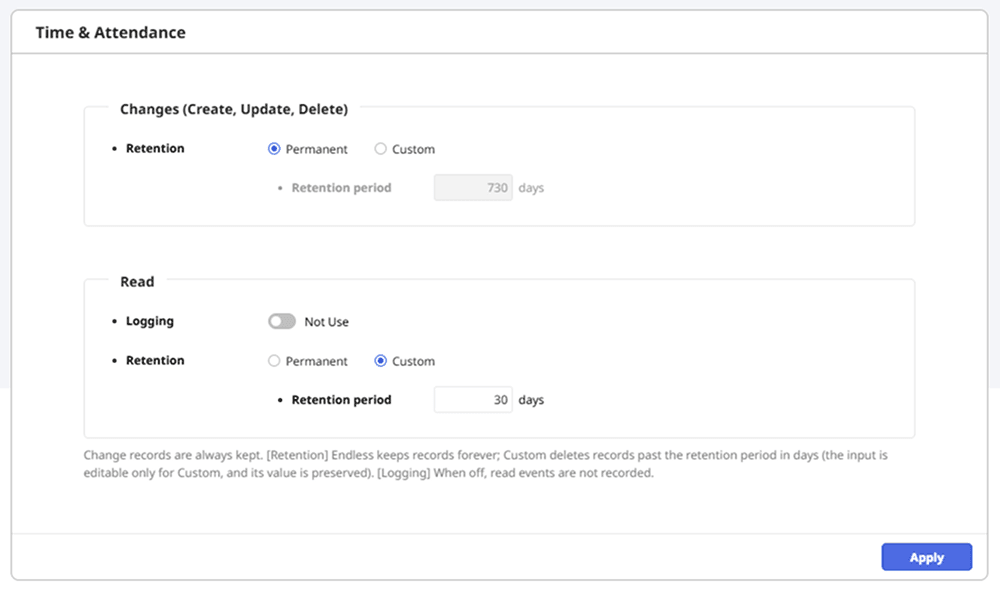
Retention policy settings
The Time & Attendance section consists of the following two groups.
-
Changes (Create, Update, Delete): Creation, update, and deletion logs. Always recorded. Cannot turn logging on or off.
-
Read: View logs. Set whether to record logs.
- Enter Retention period as an integer between 1 and 2,147,483,647 days.
- Check T&A Audit Log for Update logs of setting changes in the Time & Attendance section.
Change logs
Because the Changes (Create, Update, Delete) group is always recorded, select the Retention setting.
-
Permanent: Keep logs permanently without automatic deletion.
-
Custom: Select this option to limit the retention period for compliance or internal policy. When the Retention period field becomes active, enter the retention period in days.
View logs
In the Read group, set whether to keep view logs.
-
Logging: Set to Use to keep view logs. If not needed, set it to Not Use.
-
Retention: Select a retention method.
-
Permanent: Keep view logs permanently without automatic deletion.
-
Custom: Activates the Retention period field. Enter the retention period in days.
-
When Logging is set to Not Use, the system does not record view events. After setting it to Use, the system cannot view earlier records.
Save Settings
After completing the Changes (Create, Update, Delete) and Read settings, click the Apply button at the bottom of the Time & Attendance section. Save both group settings together.
How automatic deletion works
The server runs this job daily at 1 a.m. It deletes records past the retention period set in Custom, regardless of user actions. The job evaluates and deletes records at the same time. It runs only once a day.
For example, set Read records to 30 days in Custom. At 1 a.m., the job deletes records older than 30 days. Records just past the retention period remain until the next 1 AM job runs.
When Retention is set to Permanent, the automatic deletion job does not run, and records are retained permanently.