Set Time Code
This guides the configuration of Time Code settings used for working hour calculations. You can set standard time codes, overtime time codes, and leave time codes. Each Time Code can be used with different hourly weights.
ADD TIME CODE
-
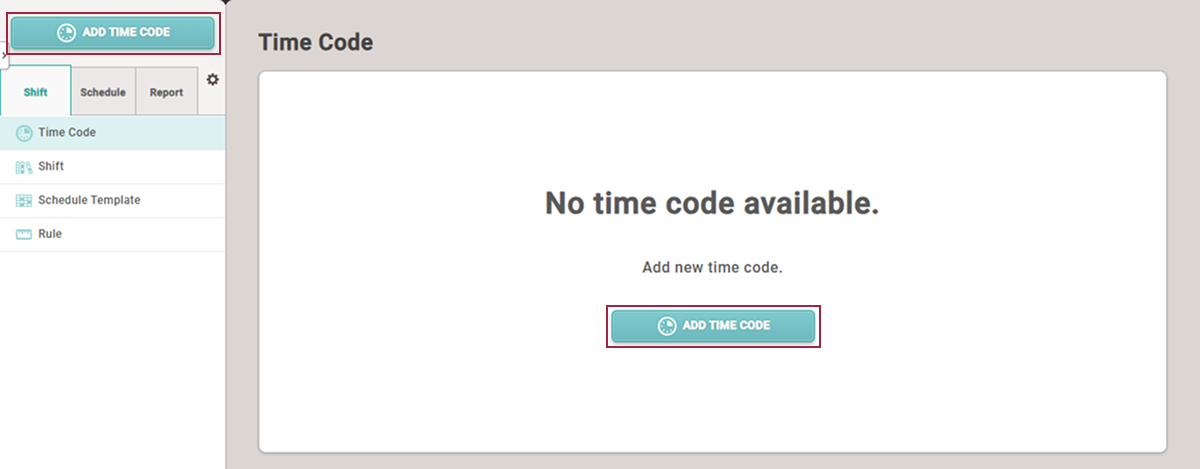
Click T&A on the Launcher page.
-
Click Shift → Time Code on the left sidebar.
-
Click ADD TIME CODE.
-
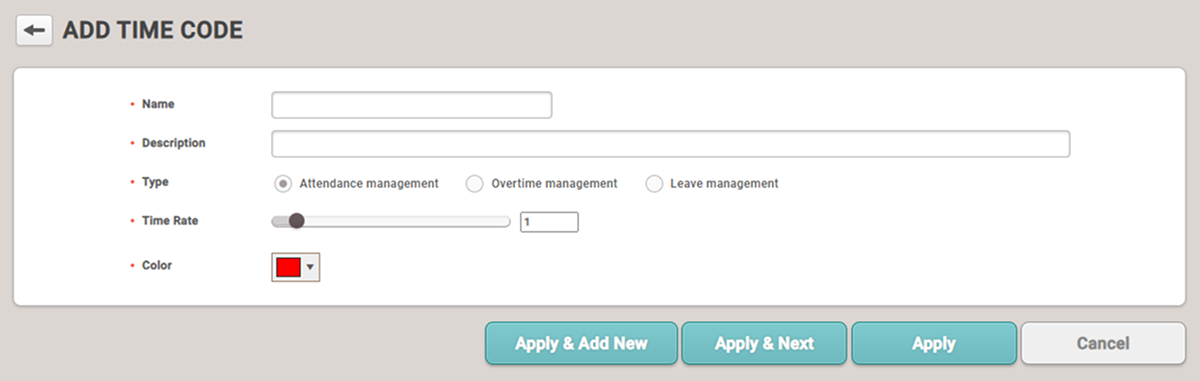
When the ADD TIME CODE screen appears, set each item.
-
Click Apply at the bottom of the screen to save the settings.
-
To add Shift, click Apply & Next.
-
After saving the settings, click Apply & Add New to add another Time Code.
Setting options guide
-
Name: Enter the name of the Time Code.
-
Description: Enter a description for the Time Code.
-
Type: Select the type of Time Code.
-
Attendance management: Set as the Time Code to be used for normal attendance.
-
Overtime management: Set as the Time Code to be used for overtime.
-
Leave management: Set as the Time Code to be used for leaves, business trips, etc.
-
-
Time Rate: Set the hourly weight according to Time Code. 1 is the base weight, and if set to 2, the configured Time Code will calculate working hours as double per hour.
-
Color: Set the color to distinguish the Time Code.